Why Would an App Not Be Compatible? A Troubleshooting Guide
Discover why why would an app not be compatible and how to diagnose and fix common compatibility issues across Android, iPhone, and desktop apps. Practical checks, quick fixes, and safety tips from My Compatibility.


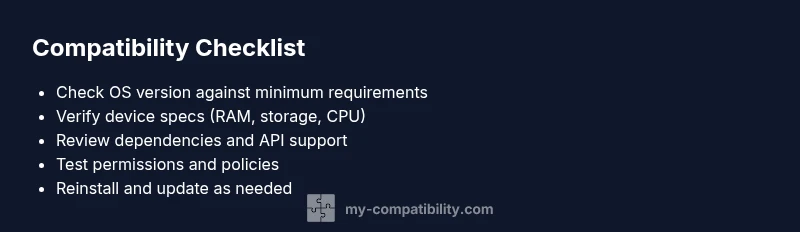
If you’re asking why would an app not be compatible, the most common causes are OS version gaps, architectural differences (ARM vs x86), deprecated APIs, or unmet device requirements. Start by confirming the device meets the app’s minimum specs, then check OS updates and app store notes. If issues persist, consider alternative versions or contact support.
Why compatibility matters for apps and you
App compatibility is not just about whether something opens. It determines performance, security, and user experience. When an app isn’t compatible, you risk crashes, reduced features, and potential data loss. According to My Compatibility, compatibility isn’t a one-size-fits-all metric; it’s a moving target shaped by operating system updates, hardware capabilities, and evolving platform policies. This section outlines the core reasons an app might fail to run as intended and how to approach each scenario with practical, human-centered steps.
Start with the basics: minimum requirements and environment checks
The first line of defense is the system requirements. If the device or OS is below the app’s minimum version, you’ll see install or launch failures. Verify RAM, storage, CPU architecture, and GPU capability. Also check whether the device language, region settings, or accessibility features could be interfering. Clear contradictions between the app’s stated requirements and your device’s specs are a red flag worth flagging with support. If you discover mismatches, the quickest fixes are updating the OS or freeing resources before reinstalling.
Platform-specific pitfalls: Android, iOS, Windows, macOS
Android and iOS manage compatibility through SDK targets, API levels, and app signatures. A mismatch here can prevent installation or cause runtime errors. Desktop ecosystems add layerings like runtime libraries, frameworks, and permissions that differ from mobile. On Windows and macOS, check whether the app requires a particular OS build, a 32-bit vs 64-bit runtime, or a driver support. In practice, many issues boil down to an outdated runtime or unsupported API call that a newer OS has deprecated.
App dependencies, APIs, and deprecations
Modern apps rely on libraries and services (SDKs, APIs) that may be deprecated or updated. If an app uses an API that’s no longer supported on the user’s platform, features may fail or the app may crash. Always review the app’s dependencies for compatibility with your OS version. Developers often release updated versions after API deprecations; if you’re stuck with an older app, you may need to downgrade, switch to an alternative, or wait for an official fix from the provider. Keep an eye on release notes and changelogs.
Resources, permissions, and data policies
Permissions can block app functionality if essential rights aren’t granted. For example, location, storage, or notification permissions may be required for core features. Data policy changes can also restrict what the app can access, affecting compatibility. If you’re seeing permission prompts that won’t resolve, review app-specific settings, reset permissions, and check for any enterprise management profiles that could enforce stricter controls on the device.
How to verify compatibility before you install
Before downloading, check the app store listing for minimum OS version, required hardware, and supported devices. Read user reviews for reports of compatibility on similar devices and look for official compatibility notes in the developer’s site. If you own a niche device, search for community tests or forums where others have shared the same experience. This proactive approach reduces wasted installations and helps you plan a workaround if needed.
Quick fixes you can try now (practical, safe steps)
Try these steps in order: 1) Update the device OS to the latest stable version. 2) Clear cache and reinstall the app. 3) Restart the device to refresh system resources. 4) Check for app updates or beta versions that address compatibility. 5) If the app still won’t run, contact support with device model, OS version, and steps you took. If these steps fail, professional help may be needed to audit the device for deeper incompatibilities.
Prevention tips: staying compatible long-term
Regularly review OS update timelines, keep essential apps updated, and maintain enough free storage. When you buy new hardware, verify it is on the app’s supported list. For developers, adopt broad compatibility testing across major OS versions and devices, and monitor API deprecations with a proactive update schedule. The goal is to minimize surprises when the platform ecosystem evolves.
Steps
Estimated time: 45-60 minutes
- 1
Confirm device meets minimum requirements
Compare your device specs (RAM, storage, CPU architecture) against the app’s stated minimums. If any spec is below requirement, the app may not run properly. Update hardware if possible or seek a lightweight alternative.
Tip: Document the exact device model and OS version for support tickets. - 2
Update OS and app
Install the latest operating system update and the latest app version from the official store. Updates often fix compatibility gaps introduced by deprecated APIs or security restrictions.
Tip: Enable automatic updates to avoid repeating this step. - 3
Clear cache and reinstall
Clear the app cache or data, uninstall, and reinstall the app. This eliminates corrupted files that can masquerade as compatibility failures.
Tip: Back up important data before clearing cache if the app stores local data. - 4
Check permissions and restrictions
Review required permissions (storage, location, contacts, etc.). Ensure there are no enterprise policies or parental controls blocking the app.
Tip: Temporarily grant permissions to test; revert after testing. - 5
Test with an alternate version
If available, install a beta or developer version to see if compatibility improves. Compare behavior with the stable release.
Tip: Only test beta versions from trusted sources to avoid security risks. - 6
Reach out with a diagnostic report
If issues persist, collect crash logs, error messages, device model, OS version, and steps to reproduce. Provide these to the app’s support team.
Tip: Attach screenshots and exact timestamps to speed up troubleshooting.
Diagnosis: App won't install or launch on a range of devices
Possible Causes
- highDevice does not meet minimum system requirements
- highOperating system version is out of date
- mediumDeprecated APIs or incompatible dependencies
- mediumInsufficient storage or memory
- lowPermission or policy restrictions (enterprise or device security)
Fixes
- easyUpdate OS to latest stable version and free up storage
- easyReinstall app after clearing cache, or install a compatible version
- mediumCheck dependencies and API compatibility; upgrade to latest supported libraries
- mediumReview and adjust device permissions and security policies
- easyIf unresolved, contact developer support with device specs and steps to reproduce
Questions & Answers
What does it mean when an app is not compatible with my device?
Not compatible means the app cannot run properly on your device due to minimum requirements, OS version gaps, or unsupported dependencies. It may refuse installation or crash on launch.
Not compatible means your device or OS doesn’t meet the app’s requirements, so it may not install or run properly.
How can I test if an app is compatible before installing?
Check the app store listing for minimum OS version and supported devices. Look for official notes, and read user reviews from devices similar to yours. Use a developer or beta version if available for testing.
Check the listing and notes, and read reviews from devices like yours to gauge compatibility.
Should I update my OS to fix compatibility issues?
Yes, updating the OS can resolve many compatibility problems by providing new APIs and security fixes. If an update isn’t available, look for other safe fixes first.
Updating your OS often fixes compatibility, if an update is available.
What if the app still doesn’t work after updates?
If updates don’t help, collect crash logs and device details, then contact the developer. They can provide a workaround or mention known issues.
If it still fails, contact support with details so they can assist.
Can I run the app on an alternative version or device?
Sometimes a different build or device can work. Only use official channels to obtain alternative versions to avoid security risks.
Sometimes a different official build or device helps; use official sources.
Watch Video
Highlights
- Identify the root cause before applying fixes
- Prioritize OS updates and official app versions
- Review dependencies and permissions for deeper issues
- Test across devices to confirm cross-platform compatibility
- Engage support with clear diagnostic details