How to Get Rid of App Not Compatible with This Device
Discover practical, safe strategies to fix or remove apps that aren’t compatible with your device, including diagnostic checks, OS updates, alternative versions, and safe replacement options.


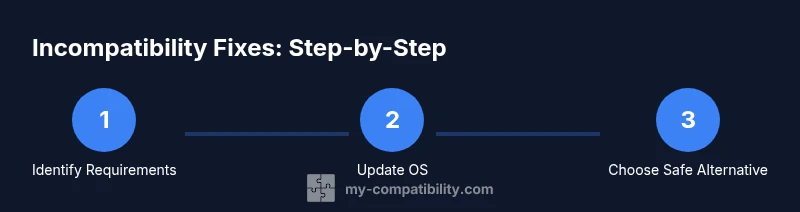
Goal: resolve an app not compatible with this device by identifying requirements and applying safe fixes. First verify the app’s minimum OS version and device model, then check for any region or account restrictions. Next, update your OS, clear app cache, and reinstall, or switch to a supported version if available.
Understanding App Incompatibility
In the digital world, apps can fail to run for a variety of reasons. On one level, the problem is technical: the app requires certain hardware features, a minimum operating system version, or a specific CPU architecture that your device doesn’t meet. On another level, it may be policy- or region-driven: some apps are restricted to particular countries, or they rely on backend services that change their access rules over time. According to My Compatibility, incompatibility often stems from OS version gaps, device architecture, or app dependencies that become outdated after a system update or a developer revamps requirements. When a device passes a certain age or when the OS moves to a new major version, developers may choose to drop support, which makes the app not compatible even if you could technically install it. Understanding these factors helps you choose the right path: update, adjust expectations, or locate safer alternatives.
Recognizing the underlying cause is essential. If the app was working previously and stopped after a recent update, the problem is likely related to a new minimum requirement, a backend change, or a bug introduced by the update. If the device is older, the hardware limitations (such as insufficient RAM, GPU capabilities, or 64-bit vs 32-bit support) can be the bottleneck. In all cases, the goal is to either restore compatibility through legitimate updates and settings, or to switch to a dependable alternative that delivers similar functionality without compromising device stability. This approach aligns with My Compatibility’s emphasis on reliable, long-term compatibility across devices and apps.
Quick Diagnostic Checks
Before making any changes, run through a quick diagnostic checklist to confirm why an app isn’t compatible. Start by validating the minimum requirements listed on the app store page or the developer’s site. Confirm your device model (for example, model name and year) and your current OS version. Check available storage space, since a failing install can be caused by insufficient room. Review the app’s permission needs and whether it requires a 64-bit architecture or region-specific features. If the app previously worked, note when the issue started—after an OS update, a device reset, or a change in your account or region. Finally, test with another app that has similar requirements to see if the issue is system-wide or isolated to one title. These checks help you decide which fixes are safe and likely effective.
Safe Fixes to Improve Compatibility
If diagnostic checks point to preventable or solvable causes, apply these safe fixes in order. First, update the operating system to the latest available version supported by your device. This often closes security gaps and aligns requirements with modern apps. Next, update the offending app to the latest version; developers frequently release compatibility patches. Clear the app’s cache and data to remove stale configurations that can cause crashes. If your device supports it, enable any official compatibility modes or developer options that the app requires, and adjust region or language settings if the app relies on locale data. If a lite or web-based version exists, try it as a safe alternative rather than forcing a full install. Ensure you have reliable internet during updates to avoid partial installations. Finally, consider freeing up storage and closing background processes to give the app a clean environment to run in.
When Compatibility Is Still an Issue
If the problem persists after applying safe fixes, the app may be discontinued for your device, or its core requirements may exceed your hardware capabilities. Sometimes backend changes by the developer require newer APIs or features not present on older devices. In other cases, licensing or regional restrictions prevent access even if the technical requirements are met. When this happens, you should expect that continued support is unlikely. At this point, consider reaching out to the developer for clarification and possible alternatives, or consult reputable reviews and user forums to confirm whether others have successfully navigated similar limitations. This stage also marks a good time to evaluate whether upgrading the device or switching to a similar app that supports your current setup makes more sense.
Alternatives and Safe Workarounds
Even if an app can’t run on your device, you often have secure alternatives. Look for a web or progressive web app (PWA) version that offers the same features without requiring a full native app. Seek lighter versions or “lite” editions designed for lower-end hardware, reduced storage use, and slower network connections. If available, switch to an official desktop or tablet companion app that syncs with your mobile device. Consider cloud-based or streaming options for certain media or games. Finally, evaluate whether the app’s functionality can be achieved through a combination of other trusted apps that are confirmed compatible with your device. Each alternative should come from reputable developers and be downloaded from official stores to maintain security and reliability.
Removing an Incompatible App: When and How
If no safe workaround exists, removing the app may be the best option to protect performance and storage. Begin by backing up any essential data associated with the app, if possible. Then, uninstall the app from your device’s settings or app drawer. Clear any remaining caches related to the app and restart the device to ensure a clean state. If the app is tied to a subscription, cancel it through the official store to avoid further charges. Finally, monitor device performance after removal to confirm that stability has improved. If you ever decide to reattempt installation, do so only through official channels and with a version that explicitly supports your device.
Tools & Materials
- Smartphone or tablet(Model and OS version to verify minimum requirements)
- Stable internet connection(Needed for updates and downloads)
- Official app store account(Required to install/update apps and verify licensing)
- Sufficient storage(Ensure at least 2–3 GB free for updates and installs)
- Backup method(Optional but recommended before major changes)
- A computer or another device (optional)(Useful for cross-checking requirements or legacy transfers)
Steps
Estimated time: 20-45 minutes
- 1
Identify minimum requirements
Check the app store page or developer site for the minimum OS version, architecture, and any device-specific notes. Compare those requirements to your device model and OS version to determine if incompatibility is likely. This step prevents unnecessary changes by confirming the root cause.
Tip: Always document the exact version numbers you’re comparing for future reference. - 2
Check device OS and update if needed
If your OS version is below the minimum, update to the latest supported version for your device. Use official channels to avoid corrupt installs, and back up data before updating.
Tip: Back up data before major OS updates to prevent data loss. - 3
Update the app and clear cache
Install the latest app version from the official store and clear the app’s cache/data to remove stale configurations that could trigger incompatibility errors.
Tip: After clearing cache, reopen the app to reinitialize settings. - 4
Try a safe alternative or lite version
If a compatible version exists (lite, web, or regional variant), test it to verify core functionality without forcing a full install.
Tip: Choose official, trusted variants to minimize security risks. - 5
Test with a different region or account (if applicable)
Some apps restrict access by region or account. If you have a legitimate alternative region or account, test carefully to confirm legal access and feature availability.
Tip: Only switch regions/accounts if you are compliant with terms of service. - 6
Decide on removal or ongoing use
If compatibility cannot be achieved, decide whether to remove the app and rely on alternatives, or continue monitoring for a future update that may restore support.
Tip: Keep an eye on developer announcements for a potential fix.
Questions & Answers
Why is this app not compatible with my device?
Incompatibility usually stems from OS version gaps, hardware limitations, or changes in the app’s required features. Regional restrictions or a discontinued update can also prevent playback or use. Checking the app page and device specs helps confirm the cause.
Incompatibility usually comes from OS or hardware limits or updates the app requires. Checking the app page and your device specs confirms the cause.
Will updating my OS fix the problem?
An OS update can raise the minimum requirements and make the app compatible, but if the app already dropped support for your device, a newer OS might not help. Always back up data before updating.
An OS update can help if the app still supports your device, but sometimes it won’t. Back up first.
Can I install an older or unofficial version of the app to bypass compatibility?
Installing unofficial or older versions can pose security risks and may violate terms of service. Prefer official, supported versions or official alternatives if available.
Avoid unofficial versions; they can be unsafe. Use official versions or safe alternatives.
What should I do if there’s no compatible version available?
If no compatible version exists, use a web or lite version, or switch to a similar app that supports your device. You can also consider upgrading your device for long-term compatibility.
No compatible version? Try a web or lite version, or switch to a similar app. For long-term fixes, upgrading may be needed.
Is there a risk in changing region or account settings to access the app?
Changing region or accounts can affect licensing, terms of service, and content availability. Do this only if allowed by the app’s terms and you understand the implications.
Region changes can affect licensing and access. Do it only if allowed by the app’s terms.
How can I safely remove an incompatible app without affecting data?
Uninstall the app from the device settings, then clear any related caches. If the app stores data, back it up first if possible. Restart the device to ensure a clean state.
Uninstall the app and clear caches, back up data if possible, then restart your device.
Watch Video
Highlights
- Verify app requirements before installing.
- Update OS and app first, then clear cache if needed.
- Consider safe alternatives when compatibility cannot be fixed.
- Back up data before major changes to avoid loss.