What to do if app is not compatible with your phone
Facing an app that won’t run on your phone? This urgent troubleshooting guide offers quick checks, step-by-step fixes, and safe workarounds to restore compatibility and keep you productive.


Quick fix: Most compatibility issues come from OS version, insufficient storage, or a blocked app. Start by checking app requirements and your phone’s OS, then free up space, clear cache, and reinstall. If it still won’t run, try updating your OS or contacting the developer for a compatible version. Keep this handy while you troubleshoot.
Why compatibility issues happen on phones
When an app suddenly won’t work or refuses to install, the root cause is almost always one of a few common culprits: your device’s OS version may be too old, there isn’t enough storage left, or the app requires hardware capabilities your phone doesn’t have. In some cases, regional restrictions or recent OS updates can also create a mismatch between the app and the device. The My Compatibility team has analyzed thousands of cases, and the pattern is consistent across Android and iOS: compatibility starts with software version and available resources, then moves to account settings and app permissions. By understanding these levers, you can quickly triage the issue and choose the right fix path.
Quick takeaway: start with the least invasive checks and progressively test more involved changes. This minimizes risk and downtime for your device.
The most common symptoms and what they mean
Apps fall into compatibility trouble when they show one of several telltale signs: installation failures, persistent crashes, or feature limitations after an update. If you see error codes, note them down—these are breadcrumbs that point toward OS constraints, insufficient storage, or permission issues. If the app opens but behaves oddly (slow response, missing features, or screen freezes), the problem is often tied to software updates or conflicting background processes. By mapping symptoms to probable causes, you can narrow the field quickly and avoid unnecessary resets or full device restores.
- Symptom: App won’t install. Likely cause: OS version or storage.
- Symptom: App launches but crashes. Likely cause: memory pressure or conflicting apps.
- Symptom: Features missing. Likely cause: outdated app version or deprecated APIs.
My Compatibility’s research shows that most fixes revolve around updating software, freeing space, and reinstalling the app from the official store.
Core compatibility concepts you must know
To troubleshoot effectively, you should be comfortable with a few core ideas:
- System requirements: Apps specify minimum OS versions, RAM, GPU features, and storage needs. If your device falls short on any requirement, incompatibility is likely.
- App updates: Developers often rewrite code to support newer OS features. Conversely, older devices may lose support with newer app versions.
- Permissions and regions: Some apps require special permissions or are restricted to certain regions; enabling or changing these can affect compatibility.
- Caching and background processes: A cluttered device or aggressive background tasks can cause apps to misbehave or crash.
Understanding these concepts helps you triage without guessing, saving time and frustration.
Quick checks you can do before diving deeper
- Verify the app’s official requirements on the store page (minimum OS version, RAM, storage).
- Check your phone’s OS version and available storage. If storage is under ~15–20% free, free up space.
- Restart your device to clear temporary resources and refresh system state.
- Clear the app’s cache (Android) or offload/reinstall the app (iOS).
- Ensure the app is updated to the latest version from the official store.
If you still see problems after these steps, you’re ready for targeted fixes or escalation to support.
Step-by-step fixes to regain compatibility
- Compare app requirements to your device specs and OS version to confirm you meet minimums. If not, proceed to OS update where available.
- Free up space by deleting unused apps, media, and large files; aim for at least 15–20% free space.
- Update the OS to the latest stable version that your device supports.
- Clear cache and data for the problematic app; on iOS, offload the app or reinstall it.
- Reinstall the app from the official store to ensure a clean, valid installation.
- If the issue persists, contact the developer with error codes and device details.
Pro tip: After a fix, test app performance with a simple task to confirm stability before resuming heavy use.
Advanced troubleshooting for tricky cases
If updates aren’t available or compatibility remains, consider a few deeper steps:
- Check for beta or alternate versions sanctioned by the developer that support your device.
- Review recent system updates and rollback options where feasible (note: not all devices support downgrades).
- Reset app preferences or perform a network reset if the issue relates to connectivity.
- Inspect for conflicting apps (task killers, cleaners, VPNs) that may interfere with app behavior.
- Backup data and perform a clean device reset only if other fixes fail and you must restore a known-good state.
When to escalate: if you’ve exhausted official channels and still see the issue, you should contact customer support with your device model, OS version, app version, and a brief reproduction path.
Prevention and long-term compatibility strategies
Prevention is easier than cure:
- Keep your OS and apps up to date with automatic updates where possible.
- Regularly clear unused apps and large media to maintain headroom for new apps.
- Review app permissions and security settings after every major OS update.
- Create a simple checklist of your device specs and app versions to compare during upgrades.
- Consider device compatibility lists when purchasing new phones to avoid future surprises.
A proactive approach reduces troubleshooting time and keeps your phone running smoothly.
Real-world scenarios and examples
Case studies from My Compatibility show that most compatibility issues are resolved by one or two of the following: updating OS, clearing storage, and reinstalling the app. In one scenario, a user with an old iPhone model faced app crashes after a recent iOS update. After updating the OS to the last supported version and reinstalling the app, performance stabilized. In another case, a mid-range Android device ran out of storage, so freeing space and moving media to cloud storage restored normal app behavior. While results vary, the pattern is consistent: align device specs with app requirements, then apply the least invasive fixes first.
Wrapping up the middle — ready for deeper help
If you’ve followed the steps above and still encounter issues, you may need professional assistance or a device upgrade. However, most users achieve a stable result by methodically updating software, freeing resources, and reinstalling the problematic app. The My Compatibility team recommends documenting your steps and results so you can share a clear reproduction path with support.
Final quick-reference checklist
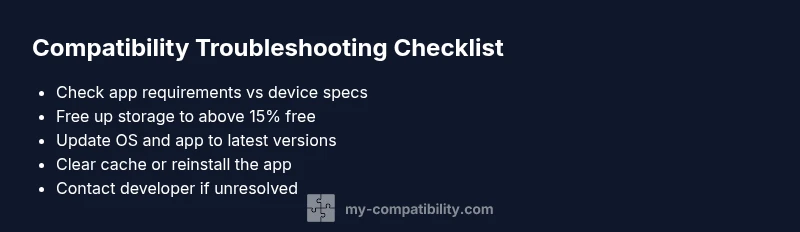
- Confirm app requirements match your device.
- Check OS version and storage availability.
- Update OS and app to latest versions.
- Clear cache/data or reinstall the app.
- If unresolved, contact developer with details.
- Consider device upgrade if compatibility is consistently lacking.
Additional notes on safety and privacy
Always download apps from official stores to minimize security risks. Do not sideload apps from unknown sources, as they can cause malware or data loss. Back up important data before performing resets or downgrades. If you feel uncertain about any step, pause and seek official guidance from the app developer or your device manufacturer.
Steps
Estimated time: 30-45 minutes
- 1
Verify app requirements against your device
Open the app’s store listing and note the minimum OS version, RAM, and storage. Compare these with your device’s actual specs and OS version to confirm a compatibility gap.
Tip: If your OS version is older, plan an update if your device supports it. - 2
Free up device storage
Check storage usage and delete or offload large files, unused apps, and cache data. Ensure at least 15–20% free space remains for optimal app performance.
Tip: Move media to cloud storage or an external SD card if possible. - 3
Update OS and app
Go to the device settings, check for OS updates, and install the latest stable version. Then open the app store and update the problematic app to the newest release.
Tip: If your device can’t update further, skip to reinstalling the existing compatible version if offered. - 4
Clear cache/data or reinstall
For Android, clear cache under App settings; for iOS, offload or delete and reinstall the app. A fresh install often fixes corrupted data or misconfigurations.
Tip: Note any login credentials needed after reinstall to avoid access issues. - 5
Test after fixes
Launch the app and perform a simple task to verify stability. If it still crashes, repeat steps with more focus on permissions and background processes.
Tip: Check for conflicting apps (cleaners, VPNs) that could be causing issues. - 6
Escalate if needed
If problems persist, contact the app developer with device model, OS version, app version, and exact error messages. Ask for a compatible version or workaround.
Tip: Provide a reproducible path to help engineers diagnose quickly.
Diagnosis: App won’t run or install after a recent update
Possible Causes
- highOS version incompatibility
- mediumInsufficient available storage
- lowApp requires hardware not present in device
Fixes
- easyCheck official app requirements vs. device specs and OS version
- easyFree up storage by removing unused apps and media
- easyUpdate device OS to latest supported version
- easyClear app cache/data or reinstall app from official store
- easyReinstall or temporarily switch to a compatible version if available
Questions & Answers
Why isn’t this app compatible with my phone after an update?
App updates can require newer OS features or hardware capabilities not present on older devices. Check the minimum requirements and compare with your current device specifications. If your device is at or near the limit, you may need to update your OS or substitute with a supported version.
App updates may require features your device doesn’t have; check requirements and compare with your phone.
How can I check device compatibility quickly?
Open the app store listing to view minimum OS version, RAM, and storage. Then confirm your device’s OS version and available space. If your specs don’t meet minimums, compatibility is unlikely until you upgrade either OS or device.
Check the app store listing and compare with your device specs.
Will updating the OS fix compatibility?
Often yes, if your device supports the update. If you’re already on the latest supported version, the issue may be due to the app requiring newer features not present on your device.
OS updates can help, but not always; verify both app requirements and device support.
What if none of the fixes work?
Reach out to the app developer with exact error messages, device model, OS version, and app version. They can confirm compatibility or offer a workaround or beta version.
If fixes fail, contact the developer with details for a solution.
Is it safe to use a beta version for compatibility?
Beta versions can provide compatibility for testing, but they may be unstable. Use them only if you can tolerate potential crashes and data loss, and back up first.
Beta versions can help but may be unstable; back up your data.
When should I consider upgrading my device?
If you consistently run into compatibility issues across essential apps, upgrading to a newer model with current OS support keeps you in sync with app requirements.
Consider upgrading if you frequently hit compatibility issues with essential apps.
Watch Video
Highlights
- Verify app requirements against device specs first
- Free up space and update OS before reinstalling
- Use official stores and back up data
- If unresolved, contact developer with details