How to Fix a Compatible App: A Practical Troubleshooting Guide
Learn how to fix a compatible app across devices and software. This step-by-step guide covers compatibility checks, updates, cache clearing, permissions, and reinstall tips to resolve common issues.


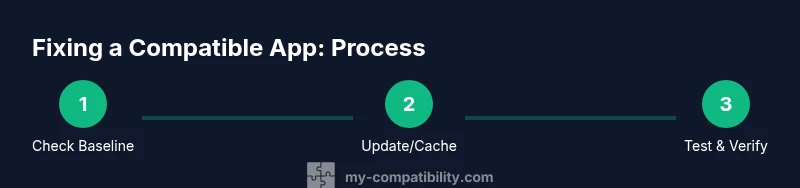
You can fix a compatible app by confirming device compatibility, updating the app and OS, clearing caches, resetting permissions, and reinstalling if needed. Start by verifying the app’s requirements match your environment, then apply fixes in a safe, incremental order. This approach isolates root causes—whether the issue is outdated software, misconfigurations, or blocked permissions—and minimizes risk during troubleshooting.
Is the App Compatible with Your Environment
According to My Compatibility, the most common barrier to app functionality is a mismatch between the app's stated requirements and the actual environment. Start by listing your device model, OS version, RAM, storage, and network conditions. Then compare these with the app's official requirements found in the store listing or developer site. If there is a mismatch, address it first: update hardware, or choose an alternative app with compatible features. If your environment matches the requirements, move to the next fixes. Keep a small checklist so you can track changes over time. The goal is to create a stable baseline where the app can operate with predictable performance. Remember: compatibility is a two-way street—the app must support your device, and your device must support the app. By establishing a baseline, you prevent cascading failures when applying updates.
Update and Reinstall: The First Line of Defense
Software updates fix bugs and improve compatibility, so ensure both the app and your operating system are current. Start by checking the official app store for the latest version and enable automatic updates if possible. Do the same for the OS. If issues persist, uninstall the app completely and reinstall from the official source to avoid corrupted data. After reinstalling, launch the app and test core features to confirm stability. If problems reappear, move to the next troubleshooting steps. This approach minimizes risk by starting with non-invasive fixes.
Clear Cache and Manage Permissions
Cached data and misconfigured permissions are frequent culprits behind compatibility glitches. Clear the app cache (and data if necessary) to reset in-app state. On mobile devices, review app permissions and disable any that aren’t essential to core functions. On desktops, reset per-application permissions in your privacy settings. After clearing caches and adjusting permissions, reopen the app and test the most common tasks. If the problem returns, proceed with deeper checks.
Check System Requirements and Dependencies
Some apps rely on platform services or libraries that may not be present or updated on your device. Verify that required runtimes, frameworks, or drivers are installed and up to date. For Windows, ensure you have the correct .NET/DirectX versions; for macOS, ensure required frameworks are present; for mobile, verify that required system services are enabled. If dependencies are missing, install or update them and re-launch the app. This often resolves subtle failures that appear only after a new update.
Troubleshooting by Scenario: Common Causes
If the app crashes on launch, the cause could be a specific feature, a recent update, or a conflict with another app. If it opens but freezes, it may be a memory or resource issue. For apps with network features, verify connectivity and server status. In cases where the app runs in limited mode or compatibility mode, adjust the settings to the recommended compatibility profile for your OS. By mapping symptoms to a likely cause, you can apply targeted fixes quickly.
When to Contact Support and How to Gather Evidence
If you cannot resolve the issue with self-help steps, collect evidence before contacting support. Note device model, OS version, app version, recent changes, and a concise description of the issue. Capture logs, screenshots, and videos showing the problem. Provide steps to reproduce and the exact time the issue occurred. This information helps the support team replicate and diagnose the issue faster.
Best Practices for Avoiding Future Issues
Proactively monitor updates and enable automatic backups. Before applying major updates, review release notes for potential compatibility impacts. Maintain a small testing environment or device where you can preview changes before deploying them broadly. Regularly clear caches and audit permissions to prevent drift. By keeping a proactive stance, you reduce the chance of major compatibility problems recurring.
Tools & Materials
- Smartphone or computer(Needed to test app behavior on real hardware or a reliable emulator)
- Stable internet connection(Wi-Fi or mobile data with sufficient speed for updates and tests)
- Official app store account(Used to install, update, and verify authenticity)
- OS version details(Model, OS version, and build number for baseline checks)
- Backup method(Create a backup before major updates or reinstallations)
- Screenshots or screen recording tool(Helpful for reporting issues to support)
Steps
Estimated time: 40-60 minutes
- 1
Confirm compatibility baseline
Document your device specs and compare them against the app's stated requirements. This creates a baseline and reduces guesswork. If the baseline fails, plan hardware or OS adjustments before proceeding.
Tip: Use a one-page summary of device specs for quick reference. - 2
Update app and OS
Check for the latest app version in the official store and enable automatic updates. Do the same for your operating system. After updating, restart the device to ensure changes take effect.
Tip: Always back up data before major updates. - 3
Clear cache and adjust permissions
Clear app caches to reset in-app state. Review and limit permissions to only what is essential for normal operation.
Tip: Test core features immediately after clearing caches. - 4
Verify dependencies and runtimes
Ensure required runtimes or libraries are installed and up to date. On desktops, check for missing drivers or frameworks; on mobile, ensure system services are enabled.
Tip: Revisit dependencies after any major OS update. - 5
Reinstall cleanly if needed
If issues persist, uninstall the app completely and reinstall from the official source to avoid corrupted files. Test again to confirm behavior.
Tip: Clear any lingering data only after a fresh install if issues recur. - 6
Validate results and monitor
Run through a representative set of tasks for several sessions to ensure stability. Record any anomalies and compare with previous runs.
Tip: Keep a brief log of outcomes to identify intermittent problems.
Questions & Answers
What does it mean for an app to be compatible?
An app is compatible when it runs smoothly on your device and OS version, meeting official requirements and not conflicting with other software. Compatibility can be affected by hardware, software versions, and permissions.
An app is compatible if it runs smoothly on your device and OS version without conflicts.
Why do updates sometimes introduce new problems?
Updates can bring new bugs or alter how dependencies interact with your environment. Always review release notes and back up data before applying updates.
Updates can bring new bugs; check notes and back up first.
How do I know which step to try first?
Start with the least invasive fix: update apps and OS, then clear caches and adjust permissions. If issues persist, proceed to dependency checks and reinstallation.
Start with updates, then caches and permissions.
When should I contact support?
If issues persist after all standard fixes, collect logs, screenshots, and a concise description of the steps tried, then contact the support team with the evidence.
If it still fails after fixes, contact support with evidence.
Can I fix dependency issues without reinstalling?
Yes. Installing or updating missing runtimes or libraries can resolve compatibility problems without a full reinstall.
Update missing runtimes or libraries to fix dependencies.
Watch Video
Highlights
- Verify your environment aligns with app requirements.
- Update both app and OS before deeper fixes.
- Clear caches and adjust permissions to reset state.
- Check dependencies and runtimes if issues persist.
- Document results and gather evidence when seeking support.