Why App Is Not Compatible With My Phone: Troubleshooting Guide
Urgent, step-by-step guide to diagnose why an app won’t install or run on your phone and how to fix it fast for Android and iPhone.


Most apps fail to install or run on a phone primarily due to an outdated OS, insufficient storage, or incompatibility between the app’s minimum requirements and the device hardware. First, verify OS version and available storage, then check regional restrictions and account eligibility. If mismatched, update or switch to a supported device or version. Use the troubleshooting steps below to confirm and fix issues quickly.
Why apps might not be compatible on your phone
App developers set minimum OS versions, hardware requirements, and regional restrictions. If your device doesn't meet them, the store will show 'not compatible' and you won’t be able to install. According to My Compatibility, many incompatibilities arise from OS Version gaps, outdated security policies, or regional lockouts, especially on mid-range or older devices. The My Compatibility team found that when phones ship with older CPUs or limited RAM, even popular apps may fail to install or run smoothly. In practice, you’ll see messages like 'This device is not supported' or the app won't appear in the store at all. Understanding these baseline rules helps you triage quickly and decide whether a fix is possible or if a replacement is necessary.
This section frames the core culprits—OS age, hardware ceilings, and policy-driven restrictions—and sets the stage for concrete checks you can perform today.
Check minimum OS version and app requirements
Before you dive into settings, review the app listing in the Google Play Store or Apple App Store for minimum OS version, required hardware features, and any region restrictions. If your device’s OS version is older than the minimum, you’ll need to update if possible or choose a different version of the app (when offered). On Android, go to Settings > About phone to see the OS version and security patch level; on iOS, Settings > General > About. Compare these numbers to the app's stated requirements. If you can't upgrade, consider whether the app has a lighter variant or a web version. Based on My Compatibility research (2026), a common bottleneck is devices stuck on pre-2019 OS builds lacking newer security features the app requires.
Storage and RAM considerations
Insufficient storage and limited RAM are quiet performance killers for modern apps. Even if an app installs, it may crash or run poorly if the device cannot spare memory for background processes. Start by freeing up space: delete unused apps, empty caches, and move media to cloud storage. Close background tasks and reboot to clear temporary RAM. Then re-check the app store listing to confirm the minimum resource requirements. Our analysis shows that devices with persistent low storage and heavy background activity are disproportionately affected by compatibility warnings, especially after software updates.
Regional restrictions and account settings
Some apps are blocked in certain regions due to licensing, regulatory constraints, or developer decisions. If your account region doesn’t match the app’s supported markets, you’ll see not-available errors or automatic regional redirection. Check your Google/Apple ID region, currency, and language settings, and consider temporarily switching regions if you truly need the app (only if the platform supports it). This is a frequent hurdle for travelers and expatriates. Based on My Compatibility research, regional gating affects a surprising share of otherwise capable devices, so region-aware troubleshooting can unlock access without hardware changes.
Hardware limitations and device age
Even when OS and storage are adequate, some apps demand modern hardware features—like newer GPUs, specific sensor sets, or higher RAM—that older devices simply lack. If your phone is a several-generation-old model, it may never meet the app’s minimum hardware criteria. In these cases, the fix isn’t a software tweak but a hardware upgrade or using an alternative app designed for lower-end devices. The My Compatibility team notes that device aging and architecture constraints remain the top reason apps declare incompatibility, not just a temporary bug.
App store compatibility notes and region changes
Sometimes the issue isn’t with the device at all but with how the app is published. Developers may update requirements after a store listing goes live, or roll out phased support for specific regions or OS versions. Ensure you’re using the latest store version and that your device has the latest security updates. Clear the app store cache if you notice stale listings, and sign out/in to refresh entitlement checks. The My Compatibility Analysis, 2026, emphasizes that stale cache and misaligned entitlement data can masquerade as device incompatibility.
Practical checks you can perform right now
Start with uplifted, non-destructive checks: check OS and storage, verify app requirements in the store, and attempt a clean install from a fresh start (disable background apps, reboot, then retry). If you still see the incompatibility message, try a lighter variant of the app or a web version if offered. Ensure you’re signed into the correct region and account. If all else fails, document the error message and timestamp when the attempt occurred. These steps prevent unnecessary upgrades and help support teams diagnose efficiently. The My Compatibility team recommends keeping a simple log of tried steps to expedite resolution.
When to seek professional help
If the app is essential for work or school and none of the above fixes work, contact the app developer or device manufacturer support. Provide your device model, OS version, region, app version, and the exact error message. For enterprise apps, corporate IT may have device compatibility baselines or managed configurations that override user settings. Don’t overlook warranty or trade-in options if the device itself is failing across multiple apps. The My Compatibility team suggests professional help when troubleshooting reaches the hardware or policy boundary, as individual user tweaks no longer apply.
Prevention tips to avoid future incompatibilities
- Keep your OS and apps updated to the latest version supported by your device. - Regularly free up storage and monitor RAM usage. - Review app store listings for minimum requirements before purchase or installation. - Maintain accurate region/account settings to prevent unintended gating. - Consider using lighter app variants or web apps on older devices. The My Compatibility team recommends proactive maintenance and testing across a few popular apps to spot trouble early.
Steps
Estimated time: 45-60 minutes
- 1
Identify the symptom and gather device info
Note the exact error message, when it occurs, and collect device model, OS version, and available storage. This helps narrow down whether the issue is environmental or device-specific.
Tip: Take screenshots of the error for reference. - 2
Check OS version and storage
Open Settings to verify the OS version and available storage. If the OS is outdated, check for updates; if storage is low, delete unnecessary data and clear cache.
Tip: Aim for several hundred MB of free space. - 3
Review app requirements in the store
Open the app page in Google Play or App Store and compare the listed minimum OS version and hardware requirements with your device.
Tip: Look for lightweight or web version options. - 4
Attempt a clean install or update
Uninstall the existing app if needed, reboot the device, and install the latest version from the store. If updating, ensure the update comes from the official store.
Tip: Avoid sideloading apps from untrusted sources. - 5
Test region/account settings
Check the region in your store account and switch region if necessary to access the app, or verify if the app is region-locked.
Tip: Only switch regions if you’re legally located and compliant. - 6
Evaluate hardware compatibility
If the device is several years old, some apps may simply not be supported. Consider alternatives or a newer device if essential.
Tip: Compare device specs with current app requirements.
Diagnosis: App won't install or run due to device incompatibility
Possible Causes
- highOutdated operating system version
- highInsufficient storage or RAM
- mediumRegional or account restrictions
- lowHardware limitations on older devices
Fixes
- easyUpdate the device OS to the latest supported version and retry the install
- easyFree up storage and close background apps to free RAM, then reboot and try again
- easyCheck the app store listing for minimum requirements and regional restrictions; adjust region or look for a lighter version
- hardIf none apply, consider using a supported device or alternative app
Questions & Answers
What does 'not compatible with your device' mean?
It usually means the app requires features your phone lacks or a newer OS version. Regional or policy restrictions can also cause this message.
It means your device may not meet the app’s minimum requirements or is restricted by regions or policies.
How do I find my OS version and storage?
On Android, go to Settings > About phone for OS version and Storage. On iPhone, Settings > General > About. Compare with the app’s minimum requirements.
Check setting pages to see your OS version and storage; compare with the app’s requirements.
Should I install an older version of the app?
Installing an older version can expose you to security risks and may violate store policies. Prefer official versions and web alternatives when available.
Better to use the official version or a secure web version rather than an old APK or non-official build.
Can region restrictions be bypassed?
Bypassing region restrictions is not recommended and can breach terms of service. If you must access, contact the developer or wait for official regional support.
Region restrictions exist for policy reasons; avoid bypassing them and seek official options.
When should I seek professional help?
If essential apps fail across multiple devices or regions, contact support or a device technician; you may have a hardware or account issue beyond user-level fixes.
If you’re stuck after all steps, it’s time to contact support or a technician.
Watch Video
Highlights
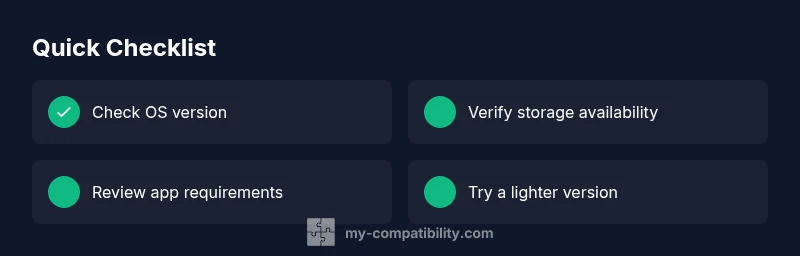
- Check OS version first
- Verify app requirements in store listings
- Free up storage and refresh the device
- Consider region restrictions and alternate versions
- Seek professional help when hardware limits block essential apps