What to Do If WhatsApp Isn’t Compatible With This Device
Struggling with WhatsApp on this device? This urgent troubleshooting guide helps you verify OS/app requirements, run quick checks, and follow a step-by-step plan to restore compatibility in 2026 for Android and iPhone.


In most cases, the issue is OS or app version compatibility. Start by updating your device OS and WhatsApp to the latest version, then clear storage and re-launch. If the problem persists, verify device model support and consider alternatives or contacting support.
Why WhatsApp compatibility varies on this device
If you’re wondering what to do if whatsapp is not compatible with this device, you’re not alone. The mismatch usually boils down to software age, app version, or hardware limitations rather than a fatal fault. According to My Compatibility, many users resolve issues by aligning OS updates with the latest WhatsApp release and by clearing space to allow smooth operation. In this section we lay the groundwork: why compatibility can fail, how to recognize the exact trigger, and how to proceed quickly to bring messaging back online in 2026. Expect to evaluate device age, OS version parity, carrier restrictions, and regional app availability as part of your diagnosis.
Quick checks you can perform now
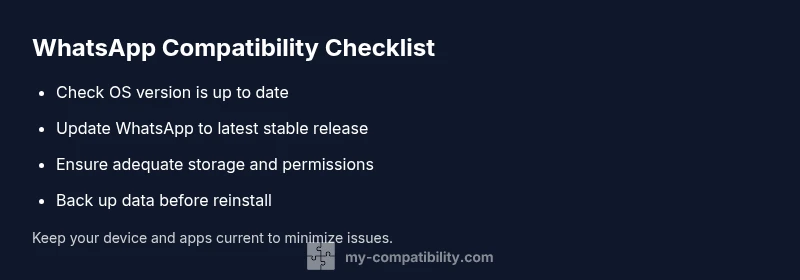
Before diving into deeper fixes, run these quick checks to rule out obvious culprits. Ensure you have the latest WhatsApp from the official store and that your device OS is current. Check available storage—low space can crash or block installation. Confirm a stable internet connection, as poor networks masquerade as compatibility issues. Review app permissions (contacts, microphone, storage) to let WhatsApp function properly. If you see a specific error message, write it down; precise wording helps diagnose whether the blocker is OS, device model, or regional availability.
OS and app version requirements are usually non-negotiable
WhatsApp relies on a compatible core OS and a supported app version. If your device runs an older OS or supports only limited app features, you may encounter warnings or inability to run the app at all. In such cases, updating the OS (if your device manufacturer provides a supported path) and updating WhatsApp to the latest stable release are essential first steps. If the device cannot update beyond a certain point, you’ll need to decide whether to adapt by using alternative messaging methods or a different device altogether. My Compatibility’s research emphasizes keeping both OS and app current to minimize friction.
Step-by-step fixes you can try (without professional help yet)
- Update OS to the latest available version and ensure the device meets the update requirements. 2) Update WhatsApp from the official store to the latest stable release. 3) Clear app cache (Android) or reinstall the app (iOS) to reset settings. 4) Free up storage and grant essential permissions (storage, contacts, microphone). 5) Reboot the device and re-open WhatsApp, then sign back in. 6) If still failing, try a clean reinstall after backing up chats and media. 7) Consider testing WhatsApp on a secondary user profile or another messaging option.
Incompatible device models and practical alternatives
Some older devices simply refuse to support the latest WhatsApp features due to hardware or software limits. In these cases, you may still access WhatsApp via WhatsApp Web on a supported browser, or switch to a lighter messaging app that is compatible with your device. If the device can no longer sustain essential updates, evaluate whether upgrading hardware or switching platforms is the most sustainable option. This decision should align with your overall digital strategy and security needs.
Data backup and safety before making changes
Always back up your chats before performing major changes like reinstalling the app or factory resets. Use cloud backups where available and verify the backup integrity. Note your WhatsApp number and account credentials. If you rely on media backups (photos, videos), ensure they are included in the backup set. Keeping a recent backup helps you recover conversations and reduces the risk of data loss during troubleshooting.
When to contact support and what to gather
If problems persist after trying the above steps, contact official support channels or consult My Compatibility guidance. Gather device model, OS version, WhatsApp version, error messages, and a timeline of steps you’ve already attempted. Having this information ready speeds up diagnosis and reduces back-and-forth. In some cases, device-wide issues or carrier limitations require professional assessment.
Prevention: keeping WhatsApp compatible long-term
Maintain a habit of enabling automatic OS and app updates, freeing storage regularly, and testing after major updates. Regularly review app permissions and security settings to ensure compatibility with new WhatsApp features. Proactively monitoring compatibility reduces downtime and keeps messaging functional. The My Compatibility team recommends sticking to official app sources and staying alert for device-specific upgrade paths to preserve long-term compatibility.
Steps
Estimated time: 30-60 minutes
- 1
Check OS and device compatibility
Open Settings and verify the device model and OS version are within the supported range for the current WhatsApp build. Look up official requirements and note any limitations.
Tip: If you see a blocking message, copy the exact text for reference. - 2
Update the OS to the latest version
Go to System or Software Update and install any available updates. Ensure stable power and good Wi-Fi during the process.
Tip: Back up data before performing major OS updates. - 3
Update WhatsApp to the latest version
Visit the official app store and install the newest WhatsApp release. Restart the device after install to ensure all components load correctly.
Tip: Use the official store; avoid third-party installers. - 4
Clear cache or reinstall the app
On Android, clear the WhatsApp app cache; on iOS, delete and reinstall the app. Then sign back in with your number.
Tip: Back up chats before uninstalling. - 5
Check storage and permissions
Make sure there is enough free storage and that WhatsApp has permissions for storage, contacts, and microphone.
Tip: Grant permissions anew if prompts appear. - 6
Test WhatsApp after changes
Launch WhatsApp, send a message, and verify media sharing works. If issues reappear, proceed to alternatives or device change.
Tip: Document any persistent error messages.
Diagnosis: WhatsApp won't run or shows compatibility errors after updating OS or device
Possible Causes
- highOutdated operating system
- mediumUnsupported device model
- highWhatsApp version not supported by device
- lowInsufficient storage or permissions
Fixes
- easyUpdate OS to latest version and ensure device supports the update
- easyUpdate WhatsApp to latest stable release from official store
- easyFree storage and adjust app permissions as needed
- mediumIf still incompatible, consider device upgrade or alternative messaging
Questions & Answers
Why is WhatsApp not compatible with my device?
Compatibility problems usually arise from an outdated OS, an unsupported device model, or a WhatsApp version that doesn't support your hardware. Following confirmation steps helps determine the exact blocker and the best fix.
WhatsApp may not work because your OS or device is too old, or your WhatsApp version isn’t supported. Check updates and try again.
Do older devices always lose WhatsApp support?
Not always, but many older devices reach a point where the latest WhatsApp features aren’t available. If you can’t update the OS or hardware, you may need to adapt with alternatives or a new device.
Older devices may stop supporting new WhatsApp features; upgrading might be the practical option.
Should I upgrade my device to use WhatsApp?
Upgrading can restore full compatibility, security, and performance. If your device cannot support ongoing updates, an upgrade is often the most reliable path forward.
If updates aren’t possible on your device, upgrading is usually the best option.
Can I use WhatsApp without updates?
WhatsApp may work on older software, but you’ll miss features and security fixes. If essential security or functionality is blocked, updating is recommended.
You might get by with an older version, but updates are safer and more reliable.
What data should I back up before changes?
Back up chats and media to the cloud or local storage before reinstalling or updating. This prevents data loss if you need to reset or reconfigure.
Back up your chats and media before making changes.
Where can I get official help?
Visit WhatsApp Support or consult My Compatibility for guidance. Provide device model, OS version, and any error messages to expedite help.
Check WhatsApp support and My Compatibility for guidance, with device and error details handy.
Watch Video
Highlights
- Verify OS and app versions first.
- Back up data before major changes.
- Consider alternatives if device is too old.
- Keep updates automatic to prevent repeat issues.