Where Is Compatibility Tab in Windows 11: A Step-by-Step Guide
Learn where to find the Compatibility tab in Windows 11 and how to use it to run older software. Step-by-step instructions, safety cautions, and troubleshooting tips from My Compatibility.


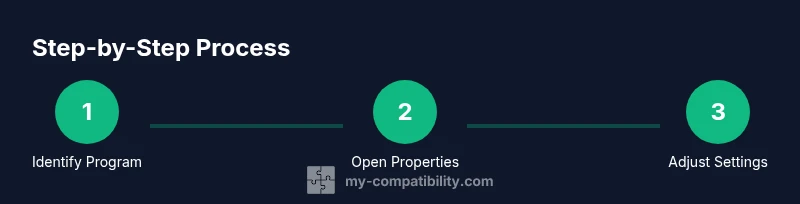
To find the Compatibility tab in Windows 11, locate the program you want to adjust (EXE or shortcut), right-click it, and choose Properties. In the Properties window, switch to the Compatibility tab to access compatibility settings, run compatibility troubleshooter, or set administrator privileges if available. If you don’t see the tab, click 'Change settings for all users' or use the Troubleshoot compatibility option.
What the Compatibility Tab Does in Windows 11
The Compatibility tab is a long-standing feature that helps you run older software on newer Windows versions by adjusting how the program launches. In Windows 11, this tab remains your first stop when you suspect compatibility issues with legacy apps, installers, or games. According to My Compatibility, many readers commonly ask where is compatibility tab in Windows 11 and how to use it, because the feature is tucked inside a standard Properties dialog rather than a separate app. By toggling the options here, you can emulate older Windows environments, disable display scaling on high DPI, or force runs with administrator privileges when required. Remember that these settings apply to a specific program, not the entire system, so you can tailor the experience without altering your whole PC configuration.
If you’re unsure whether you need compatibility adjustments, start with the simplest option: run the program in its default mode, then apply one setting at a time to see what changes the result. This measured approach helps reduce risk and keeps your system stable while testing legacy software. My Compatibility’s guidance emphasizes small, reversible changes so you can undo if the program behaves unexpectedly.
In practice, the Compatibility tab is most useful for desktop applications rather than universal store apps, which have their own compatibility considerations. When used wisely, these settings can keep older games and utilities usable on Windows 11 without needing to upgrade every component of your software stack.
Where to Look for the Compatibility Tab: File Properties
Locating the Compatibility tab begins with identifying the exact file you want to modify. It’s commonly found on the properties panel of desktop executable files (.exe) or shortcuts. Navigate to the file in File Explorer, then right-click and select Properties. The Properties dialog appears with several tabs across the top; the one labeled Compatibility is what you want to click. If the tab doesn’t appear, you may be dealing with a modern store app or a restricted system component.
In some cases you’ll find a quick link to troubleshoot compatibility under a separate button named Troubleshoot compatibility, which can guide you to make basic adjustments without opening every option manually. Understanding this path is essential so you don’t waste time hunting through settings you don’t need. The My Compatibility team recommends starting at the standard path (Properties → Compatibility) before exploring alternative methods.
For organizational efficiency, you can bookmark this process for future use. If you routinely run legacy software, consider placing a shortcut to the app’s Properties panel on your taskbar for faster access next time. This small workflow improvement can save minutes per session and reduce repetitive clicks.
Opening the Properties Dialog: Right-Click and Navigate
Once you’ve located the file, bring up the Properties dialog by right-clicking the item and selecting Properties from the context menu. In Windows 11, this approach remains consistent across desktop apps and many portable executables. After opening Properties, you’ll see the tab bar at the top with options like General, Shortcut, Details, and Compatibility. Click Compatibility to reveal the settings that tailor how Windows launches the program. If you do not see a tab here, try choosing the Change settings for all users button to reveal the full suite of options.
Notes to keep in mind:
- The dialog may show as a slim window on small displays; maximize it to ensure you can read each option clearly.
- Some installers may require you to first install under a different user profile to access the Compatibility tab.
- For shared machines, consider applying settings for all users to avoid inconsistent experiences across accounts.
Having opened the tab, you’re ready to explore the options that adapt the software to Windows 11’s environment. The exact wording may vary slightly depending on the app, but the general structure remains stable across updates.
If you’re consulting with colleagues or support resources, share this path (Properties → Compatibility) to keep everyone aligned on where to find the settings quickly.
The Compatibility Tab Layout: Options You’ll See
In the Compatibility tab, you’ll typically encounter a set of checkboxes and dropdowns designed to mimic older Windows behavior. The most common controls include:
- Run this program in compatibility mode for: with a dropdown list of Windows versions (e.g., Windows XP, Windows 7).
- Reduced color mode and 640x480 screen resolution options for legacy graphics troubleshooting.
- Disable display scaling on high DPI settings to fix blurry text or UI elements.
- Run this program as an administrator to bypass certain permission restrictions for older software.
- Compatibility Troubleshooter button to let Windows diagnose common issues automatically.
Understanding these options helps you tailor the program’s startup. If your goal is to solve a specific failure (crashing, freezing, or misrendering), start with the compatibility mode dropdown, then adjust display scaling if needed. Remember that enabling administrative privileges should be treated with caution, as it can affect system security and the application's access scope.
As you review each setting, test the program after applying changes. Some combinations work better than others, so approach step-by-step and keep track of what works. A good rule of thumb is to enable only one option at a time and only add more if the initial adjustment does not resolve the issue.
When the Tab Isn’t Visible: Reasons and Fixes
If the Compatibility tab is missing, there are several plausible explanations. Desktop apps you installed directly from a developer’s site typically expose the tab, but modern store apps may not. In Windows 11, some system-provided components or UWP apps may hide advanced properties by design. When this happens, you can:
- Use Troubleshoot compatibility to get guided fixes, which may offer a temporary workaround.
- Look for an app-specific setting within its own installer or within Windows settings (Apps & Features) if the tab is not accessible in the Properties panel.
- Check that you’re not clicking on a shortcut that targets a protocol rather than a file; right-click the actual .exe to confirm.
If you’re managing multiple devices, consider enabling the Differences in accessibility and ensuring permissions allow account-level changes. The absence of the tab does not mean the software cannot run; it simply means you’ll need to use alternative pathways to adjust its behavior or contact the vendor for updated compatibility options.
In all cases, document your steps so you can revert if something breaks. The My Compatibility guidance emphasizes reversible changes for safety and confidence when working with legacy software.
Using Compatibility Settings Ethically and Safely
Changing compatibility settings can help older software function on Windows 11, but it can also expose subtle security or stability risks. Only adjust settings for programs you own or administer, and avoid applying broad changes system-wide unless you have a clear justification. Always consider creating a system restore point or a full backup before applying new options, especially on work machines.
Best practices include:
- Apply changes to a single program first and test thoroughly.
- Avoid enabling multiple risky options at once; add one change at a time.
- Reassess the need for each option after software updates or OS upgrades.
If you’re unsure about a change, consult vendor guidance or My Compatibility resources for safe configurations. Maintaining a cautious, reversible approach ensures you preserve system integrity while restoring compatibility for critical applications.
Running the Troubleshooter: Quick Access Method
The Troubleshooter for compatibility offers a quick, guided way to identify common issues without manually tweaking each setting. Access it by right-clicking the program and selecting Troubleshoot compatibility, or by running the Windows Troubleshooter from Settings > System > Troubleshoot. The tool will ask a few questions about the problem (crash, display issue, or performance) and suggest recommended steps you can apply directly from the dialog.
If the troubleshooter completes with recommendations you don’t fully understand, review each suggested option in the Compatibility tab before applying. You can always revert later by unchecking the related boxes and re-running the process. This approach minimizes guesswork and helps you verify whether a quick, automatic fix addresses the root cause.
For frequent troubleshooting, keep a small checklist handy: confirm the exact program, choose the quickest fix first, test after each change, and document results for future reference.
Practical Scenarios: Legacy Apps, Games, and DPI Settings
Different scenarios require different tweaks within the Compatibility tab. Classic Windows games might benefit from running in a compatibility mode for Windows XP or Windows 7, together with a disabled DPI scaling option to improve visuals. Productivity software designed for older screen resolutions may respond well to reduced resolution settings as well. If you encounter blurry fonts or UI misalignment, enabling Disable display scaling on high DPI settings can stabilize rendering.
Always tailor the adjustments to the program’s behavior. If a game uses ancient graphics libraries, you may need to combine compatibility mode with a lower color depth. For enterprise software that uses special authentication, running as administrator can sometimes resolve permission-related launch failures. The key is to document what works and avoid superfluous changes that could impact security or performance elsewhere on the system.
These practical scenarios illustrate how the Compatibility tab helps preserve software continuity while you plan upgrades or migrations. Always test in a controlled manner to avoid unintended consequences.
Store Apps vs Desktop Apps: What Changes?
Windows 11 differentiates between desktop (traditional executable) apps and Store (UWP/modern) apps when it comes to advanced settings. Desktop apps usually expose the Compatibility tab in their Properties panel, while Store apps may require alternative methods such as Troubleshoot compatibility or vendor-specific installers. If you are trying to adjust a Store app, check the app’s own settings or use the built-in compatibility troubleshooting tools.
When a desktop app includes a Store-like experience, you may still find relevant options by right-clicking the app’s executable in its installation directory or by using the Troubleshoot compatibility tool. Understanding these distinctions helps you apply the right approach for each type of software without wasting time.
Ultimately, the compatibility landscape in Windows 11 favors modular, app-specific settings rather than broad, system-wide changes. Prioritize desktop apps for direct Compatibility tab tweaks and reserve troubleshooting tools for Store apps where appropriate.
Performance, Security, and Best Practices
Modifying compatibility settings can affect performance and security. Some options, such as running as administrator or changing display scaling settings, improve compatibility but can increase risk exposure if misused. Always use the least invasive option first and disable it if you notice instability or security concerns. Consider enabling a system restore point before applying changes so you can revert quickly if needed.
Best practices include keeping Windows 11 up to date, reviewing vendor recommendations, and validating software after every OS update. If a program remains unstable, reach out to the publisher for an updated version or explore alternatives that offer modern support. The My Compatibility framework emphasizes a cautious, reversible approach that prioritizes user safety and system stability.
In short, compatibility adjustments are powerful tools when used responsibly. Use them judiciously, document results, and revert any change that doesn’t deliver a measurable improvement.
Admin vs Personal Use: Applying to All Users
If a program is used across multiple accounts on the same device, you can apply changes for all users to maintain a consistent experience. In the Compatibility tab, click Change settings for all users to extend the chosen options beyond your current user profile. This approach helps teams avoid duplicated configurations and ensures everyone benefits from the same compatibility settings.
Before applying across all users, test the chosen settings on a single account to confirm there are no unintended effects for security, accessibility, or performance. If issues arise, revert changes for that user first, then adjust to ensure compatibility without broad, unintended consequences. When you do find a solution that works well, document it so IT teams can implement it consistently across devices.
For personal machines, you can still use per-user settings to tailor each app’s behavior. The key is to distinguish between needed, tested configurations and risky, speculative tweaks. The goal is reliability, not just “working now.”
Testing, Verifying, and Rolling Back Changes
After applying settings in the Compatibility tab, testing is essential. Launch the program under typical usage and observe performance, stability, and UI behavior. If the issue recurs or worsens, revert to previous settings or try a new combination one at a time. Keeping a simple change log makes it easier to identify which option produced the desired effect.
If you implement a rollback, open the same Compatibility tab and clear the selected options or run the Troubleshooter again to revert to a baseline. For more robust safety, pair changes with a point-in-time backup or a system restore point. Although the process is straightforward, a disciplined testing and rollback approach minimizes risk and preserves the integrity of your Windows 11 environment.
Tools & Materials
- Windows 11 PC with admin rights(Ensure you can install or modify programs as needed.)
- Target program executable or shortcut(The app you want to adjust for compatibility.)
- Mouse with right-click capability(To access the Properties dialog easily.)
- Optional: Administrative privileges(Needed for system-wide changes.)
- Backup/restore option(Create a restore point before major changes.)
Steps
Estimated time: 10-15 minutes
- 1
Identify the target program
Locate the executable (.exe) or desktop shortcut for the program you want to adjust. This ensures you modify the correct item rather than a shortcut or unrelated file.
Tip: Use File Explorer search if you’re unsure where the app resides on your machine. - 2
Open the Properties dialog
Right-click the program and select Properties from the context menu to bring up the main settings panel.
Tip: If the item is a shortcut, open Properties from the shortcut itself, not the destination file. - 3
Navigate to the Compatibility tab
In the Properties window, click the Compatibility tab to reveal the compatibility options.
Tip: If you don’t see the tab, choose Change settings for all users to reveal additional controls. - 4
Choose a compatibility option
Select Run this program in compatibility mode for: and pick a Windows version that matches the app’s original environment.
Tip: Start with Windows XP or Windows 7 if you’re uncertain, then test the app’s behavior. - 5
Adjust display and admin options
If needed, enable Disable display scaling on high DPI settings and Run this program as administrator.
Tip: Use these options sparingly; only enable what the app actually requires. - 6
Apply changes and test
Click Apply, then OK, and launch the program to verify behavior under the new settings.
Tip: Document the observed effects to inform future tweaks or rollbacks.
Questions & Answers
Where is the Compatibility tab in Windows 11?
The Compatibility tab appears in the Properties dialog of a desktop executable or shortcut. Right-click the app, select Properties, then click Compatibility to adjust settings. If the tab isn’t visible, try Change settings for all users or run Troubleshoot compatibility.
Open the app’s Properties from its right-click menu, then select the Compatibility tab to adjust settings. If you don’t see it, use the Troubleshooter or change settings for all users.
Why can I not see the Compatibility tab for Store apps?
Store apps often don’t expose the Compatibility tab in the same way desktop apps do. Use Troubleshoot compatibility or vendor-provided options within the app’s own settings to address issues.
Store apps may skip the Compatibility tab; try the Troubleshooter or app-specific settings instead.
What does running a program in compatibility mode do?
Compatibility mode makes Windows mimic older environments, which helps legacy software behave correctly. It can reduce compatibility-related crashes but may affect security and performance.
It mimics older Windows versions so old software runs smoother, but be careful with security implications.
Can I apply compatibility settings to all users?
Yes. Use Change settings for all users in the Compatibility tab to apply settings system-wide for that program. This ensures consistent behavior across user accounts.
Yes, you can apply the changes for everyone by choosing the all users option.
Is it safe to enable Run this program as administrator?
Only enable Admin privileges if the program requires it to function. This can pose security risks, so use it sparingly and revert if you notice issues.
Only use admin privileges if necessary and monitor for security issues.
How do I revert compatibility changes?
Open the same Compatibility tab and clear the options you changed, or use Troubleshooter to reset to defaults. Testing after each revert helps confirm stability.
Open the tab again and remove the changes you made—test after each step.
Watch Video
Highlights
- Identify the target program quickly.
- Open Properties and the Compatibility tab.
- Apply the least invasive setting first.
- Test thoroughly and rollback if needed.