Where to Change Compatibility Mode in Windows 10: A Practical Guide
Learn how to change compatibility mode in Windows 10 for legacy apps with step-by-step instructions, tips, and troubleshooting from My Compatibility.


By design, changing compatibility mode in Windows 10 is straightforward. You’ll locate the executable, open its Properties, and use the Compatibility tab to select a Windows version (for example Windows 8 or Windows XP) and optional settings. Make sure you have admin rights and test the app afterward. If the program still misbehaves, try additional options like Run as administrator or reduced color mode.
What Compatibility Mode Is and Why It Helps
Compatibility mode is a Windows feature that lets legacy programs run on newer systems by emulating older Windows environments. This can solve issues like missing libraries, broken graphics, or crashes when launching older executables. If you're trying to run an old app on Windows 10, you might wonder where to change compatibility mode in windows 10 to re-create a familiar environment. According to My Compatibility, this feature remains a safe, isolated setting at the program level, reducing the risk to the rest of the system. Before you start, understand that compatibility mode is not a universal fix; some modern software relies on newer APIs and cannot be fully retrofitted. Still, for many classic tools and utilities, a properly configured compatibility mode can restore functionality without reinstalling or migrating to new software. In this section, we'll cover what compatibility mode does, the most common compatibility options, and how to decide when to apply them.
How Windows 10 Determines Compatibility
Windows 10 uses a combination of built-in shims and compatibility layers to help programs behave as they did on older systems. The Program Compatibility Assistant can suggest settings based on observed failures, and individual executables can override those defaults with a manual selection. This middle-ground approach lets you preserve security updates and system integrity while giving legacy software a run at your chosen environment. My Compatibility analysis shows that many users rely on compatibility mode to stabilize older applications without resorting to full virtualization. Understanding the limits of compatibility helps you avoid assuming it’s a cure-all and encourages targeted testing instead.
Step-by-Step: Change Compatibility Mode for a Single Program
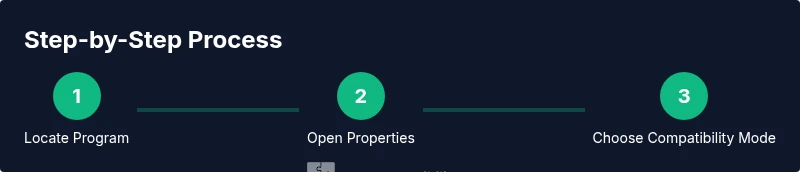
- Locate the program’s executable or shortcut on your PC. This is the file you want to configure, not the installer. This step reduces the risk of broad changes that might affect other software. Tip: Keep a note of the exact path for quick access later.
- Right-click the file and choose Properties. This opens a compact settings panel where you can control how Windows launches the program. Tip: If you don’t see Properties, you may need to enable file extensions in your folder options or right-click and select Open file location first.
- Switch to the Compatibility tab. Here you’ll find the “Run this program in compatibility mode for” checkbox and a dropdown to select a Windows version. Tip: If the checkbox is missing, you may be dealing with a packaged app or a Microsoft Store app that requires different steps.
- Enable compatibility mode and select a Windows version (e.g., Windows 8, Windows 7, or Windows XP). You can combine additional settings such as reduced color mode or a run as administrator toggle. Tip: Start with the smallest change that might fix the issue and add settings only if necessary.
- Apply the changes and test the program. Close the Properties dialog, launch the app, and check whether it opens and functions as expected. Tip: If it still fails, revert to the original settings and try an alternate compatibility option.
- If issues persist, try additional options like Run this program as an administrator or disable display scaling on high DPI settings. Tip: Some apps benefit from testing only one extra setting at a time to isolate the cause.
tip1_notes1
Tools & Materials
- Windows 10 PC(Ensure the system is updated to the latest build if possible.)
- Admin user account(Required to apply per-program compatibility changes.)
- Target executable (.exe) or shortcut(Use the actual program file you want to run.)
- Backup copy of the program/data(Optional but recommended before changing settings.)
- Internet access for guidance/docs(Helpful for accessing official Microsoft support pages.)
Steps
Estimated time: 15-25 minutes
- 1
Locate the program
Find the exact executable (.exe) or shortcut you want to configure. This ensures you apply settings only to the intended software and avoids unintended changes to other apps.
Tip: Use a clean, clearly named shortcut to reduce confusion during configuration. - 2
Open Properties
Right-click the file and select Properties to access launch options. This pane controls how Windows starts the process.
Tip: If you don’t see Properties, try selecting Open file location first, then right-click the actual executable. - 3
Open the Compatibility tab
Navigate to the Compatibility tab to access compatibility mode settings and related options like Run this program in compatibility mode.
Tip: If the tab is missing, the program may require a different installation approach or a Store app path. - 4
Choose a compatibility mode
Check Run this program in compatibility mode for and pick a Windows version that matches the intended environment (Windows 8, 7, or XP). Consider delivery of older DLLs and runtime expectations.
Tip: Start with one version and test before adding more settings. - 5
Apply and test
Click Apply, then OK and run the program to verify behavior. If issues appear, adjust additional options or revert changes.
Tip: Document which settings you used for future reference. - 6
Tweak admin and display settings
If needed, try Run this program as administrator or disable display scaling on high DPI. These adjustments address permission and rendering issues.
Tip: Make small iterative changes to isolate the root cause.
Questions & Answers
Can I apply compatibility mode to all programs at once?
No. Compatibility mode should be set per program to avoid unintended effects on other software. Global changes can impact system behavior and security. Use per-app settings first to minimize risk.
No, you should set compatibility mode per program to avoid broad changes that could affect other software.
Does compatibility mode affect security features?
Yes, enabling compatibility mode can bypass certain modern security prompts or features. Always balance compatibility with security by restricting changes to trusted apps and keeping the system updated.
Yes, it can affect security prompts. Use it cautiously and restrict changes to trusted programs.
My program still won’t run after adjusting compatibility mode. What next?
If changes don’t help, try alternative approaches like running in a compatibility mode for a different Windows version, testing administrator rights, or considering virtualization for legacy software. Consult vendor recommendations if available.
If it still won’t run, try another Windows version setting or look into virtualization.
Do I need admin rights to change compatibility mode?
Admin rights are typically required to apply compatibility settings to executable files, especially in protected directories. If you’re not an admin, request access or have an administrator apply the change.
Usually yes, admin rights are needed to apply these settings.
How do I revert changes if it breaks something?
Close the Properties dialog, uncheck the compatibility option, apply, and test. If issues persist, restore from a backup or reset the program to its default settings.
Open the file's properties again and reset the compatibility options to default.
Watch Video
Highlights
- Identify the exact program to configure
- Apply per-app settings rather than global changes
- Test thoroughly after each change
- Document settings for future support