How to Use Windows Compatibility Mode: A Step-by-Step Guide
Learn how to use Windows Compatibility Mode to run older programs on Windows 10/11. This comprehensive guide explains when to use it, how to enable it, and practical troubleshooting tips.


You can run older Windows applications by using Compatibility Mode. This feature adjusts how Windows launches the program, emulating behavior from prior Windows versions to improve compatibility, display, and permissions. To use it, locate the executable or shortcut, right-click, choose Properties > Compatibility, select the appropriate mode, apply, and test the program.
What is Windows Compatibility Mode and when to use it
According to My Compatibility, Windows Compatibility Mode is a built-in feature that helps legacy software run on newer Windows versions by simulating older Windows environments and API behavior. This can address issues like splash screens, display scaling, or unexpected crashes that occur when software was designed for earlier systems. Use it when you encounter crashes, graphical glitches, input lag, or features that simply refuse to start on Windows 10 or Windows 11. The My Compatibility team notes that compatibility mode is not a universal fix; some programs may still require vendor updates or virtualization for full functionality. Before diving in, assess your needs and be prepared to test multiple settings to find what works best.
How to enable compatibility mode for a program
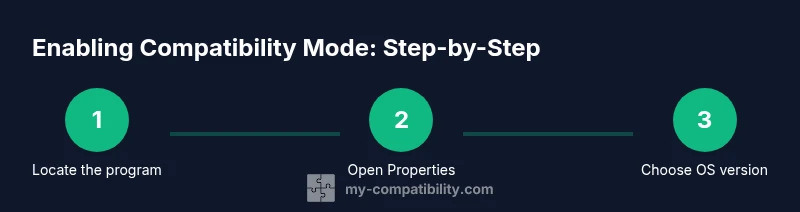
Enabling compatibility mode is a targeted action focused on a single executable or shortcut. Start by locating the program you want to run, then open its Properties panel. From there, navigate to the Compatibility tab, activate compatibility mode, and choose the OS version most closely matching the software’s original environment. Finally, click Apply and OK, then launch the program to verify behavior. If nothing changes, revisit the settings and try a different OS version or additional options such as “Run as administrator.”
Common compatibility settings and their effects
Windows offers several toggles within the Compatibility tab that influence how the OS loads an application. Options like “Run this program in compatibility mode for” let you simulate Windows XP, Windows 7, or Windows 8 environments. Other checkboxes—such as “Disable display scaling on high DPI settings,” “Run in 640x480 screen resolution,” or “Run this program as an administrator”—adjust graphics, scaling, and permissions. These settings can reduce crashes, improve text rendering, and restore input responsiveness, but they can also cause unexpected side effects. Start with one setting at a time and re-test the software after each change.
Troubleshooting common issues with compatibility mode
If an app still doesn’t run smoothly, try using the built-in Troubleshooter for compatibility by right-clicking the executable and selecting “Troubleshoot compatibility.” Windows will suggest recommended settings based on observed problems. Ensure your system is up to date, check for vendor patches, and consider virtualization or a dedicated test environment for persistent issues. If a particular feature (like printing or network access) fails, investigate specific compatibility options related to that feature or consult the vendor’s support resources. Keep a note of which settings worked for future use.
Real-world use cases and examples
Many classic games, legacy productivity tools, and enterprise utilities still rely on older Windows APIs. Users report success running games designed for Windows XP or 7 under Compatibility Mode with modest tweaks to DPI scaling and administrator privileges. Business apps that rely on legacy fonts or printers may also benefit from compatibility adjustments. When evaluating a real-world scenario, start with the OS version most similar to the software’s original release and document results. This helps build a reliable playbook for future troubleshooting.
Tools & Materials
- PC with Windows 10 or Windows 11(Ensure you have admin rights to modify program properties)
- Target application executable or shortcut(Locate the .exe file or create a desktop shortcut for easy access)
- Internet connection (optional)(For updates or patches if the software later requires them)
- Administrative credentials(Needed if prompts request elevation during testing)
Steps
Estimated time: 10-15 minutes
- 1
Locate the program
Find the executable or shortcut of the program you want to run in compatibility mode. If you’re unsure, start from the Start menu, then right-click the program and choose Open file location to reach the .exe.
Tip: Use the desktop shortcut for quick access once configured. - 2
Open Properties
Right-click the program’s executable or shortcut and select Properties. This opens the location where you can adjust compatibility settings.
Tip: Avoid editing a copied shortcut; edit the main executable when possible. - 3
Enable compatibility mode
In the Properties window, switch to the Compatibility tab and check “Run this program in compatibility mode for.”
Tip: If the option is grayed out, you may need admin rights or the correct program file selected. - 4
Choose the OS version
From the dropdown, select the Windows version that best matches the software’s original environment (e.g., Windows 7 or Windows XP SP3).
Tip: Start with the closest era; more recent options might still resolve issues. - 5
Configure additional settings
Optionally enable “Run as administrator,” “Disable display scaling on high DPI settings,” or “Override high DPI scaling behavior” based on observed issues.
Tip: Test one setting at a time to identify which change fixes the problem. - 6
Apply and test
Click Apply and OK, then launch the program to test its functionality. If issues persist, revisit steps 4–5 and experiment with alternate options.
Tip: Document which settings worked to reuse the solution in the future.
Questions & Answers
What is Windows Compatibility Mode?
Windows Compatibility Mode is a built-in feature that lets you run older programs by emulating former Windows environments and API behavior. It helps address issues that occur when software is not designed for modern Windows builds.
Windows Compatibility Mode helps you run older programs by simulating older Windows environments. It’s useful when a program won’t start or behaves oddly on newer Windows versions.
Which OS versions can I emulate with Compatibility Mode?
Typical options include Windows XP, Windows 7, and Windows 8 compatibility modes. The exact choices depend on the software and the Windows version you’re running.
Common options are Windows XP, Windows 7, and Windows 8 compatibility modes. Pick the one closest to what the software originally required.
Will compatibility mode affect performance or security?
Compatibility mode can impact performance slightly and may introduce compatibility risks if misconfigured. It’s important to test thoroughly and avoid unnecessary elevation unless needed.
It can affect performance and security if misused. Test settings carefully and use least privilege.
What if Compatibility Mode doesn’t work?
If issues persist, run the built-in Compatibility Troubleshooter, check for vendor patches, or consider virtualization or a newer alternative for critical software.
If it doesn’t work, try the Troubleshooter, update the software, or use virtualization as a last resort.
Is Compatibility Mode available on Windows 11?
Yes. Windows 11 supports Compatibility Mode, with similar options and steps as earlier Windows versions.
Yes, you can use Compatibility Mode in Windows 11 by adjusting the program’s properties.
Should I always enable 'Run as administrator' when using Compatibility Mode?
Only enable this setting if the program requires admin privileges to function. Enabling it unnecessarily can expose security risks.
Only enable admin rights if the software needs it; otherwise, avoid it to stay secure.
Watch Video
Highlights
- Identify when compatibility mode is needed and select the closest OS version
- Test changes incrementally and document outcomes
- Use admin rights only when necessary to minimize security risk
- Keep Windows updates current to reduce compatibility issues