How to Use Apps That Are Not Compatible
Learn safe, legitimate ways to run or access essential features of apps on devices where they aren’t officially compatible. This step-by-step guide covers official workarounds, practical steps, and brand insights from My Compatibility.


Learn to use apps that aren’t compatible by leveraging official workarounds such as web versions or PWAs, enabling compatibility modes where available, or selecting cross-platform alternatives. This guide focuses on safe, legitimate methods, showing you how to preserve core features without compromising security or data privacy. Follow these steps for a productive path when compatibility is an obstacle.
Understanding how incompatibility happens
Incompatibility occurs when apps are built for specific operating systems, hardware configurations, or software versions that your device cannot run natively. Factors include OS version requirements, processor architecture, graphic APIs, and security restrictions. According to My Compatibility, most readers encounter these gaps when upgrades lag behind app updates or when devices reach the end of life. The good news is that you can often preserve essential workflows by using official, safe alternatives rather than attempting risky hacks. Start by mapping your top tasks and determining which features are indispensable. For example, if you rely on real-time messaging, you’ll want at least instant notifications and offline access, even if some advanced features aren’t available. Understanding your priorities helps you choose the right workaround rather than attempting every possible workaround at once.
Key takeaway: when an app won’t run, focus on the core tasks you must complete and the least risky way to access them. This mindset reduces frustration and keeps your data secure.
Safe, official workarounds you should consider
There are legitimate, manufacturer-supported options that restore functionality without violating terms or risking security. Start with an official web version or progressive web app (PWA) when available; these are designed to run in a browser with features that approximate the native app. Many developers also offer desktop or tablet variants that share your account data, allowing seamless cross‑device work. If a browser version exists, prefer it over sideloading or unsupported hacks. Always verify the source from the developer’s official site or trusted app stores and enable any security options the provider recommends. If privacy concerns arise, review the permissions the app requests and limit access to data that isn’t essential for your workflow. My Compatibility’s analysis shows that using official alternatives not only preserves core features but also minimizes security risks and data leakage.
Tip: bookmark the official support page for your app as a quick reference whenever a compatibility issue arises.
Step-by-step approach to access essential features
Step 1: Clarify goals and non-negotiables
Identify the must-have features that keep you productive and determine which ones may be approximated by alternatives. This clarity saves time and helps you evaluate whether a workaround is viable.
Tip: write down 3 non-negotiables before testing any workaround.
Step 2: Explore official avenues first
Check for a web version, PWA, desktop app, or officially supported cross‑platform client. These options are typically safer and more stable than third-party fixes. If multiple options exist, pick the one with the strongest security and data‑privacy posture.
Tip: use the developer’s official site or trusted app store listing to confirm availability.
Step 3: Test in a controlled environment
If you proceed with a browser or cloud-based option, perform a controlled test on a non-primary profile or device. This minimizes risk to your main data and settings while you assess core functionality.
Tip: back up important data before testing and enable a separate user profile if possible.
Step 4: Assess performance and feature parity
Compare login, messaging, notifications, file access, and offline behavior to the native experience. Document any gaps so you can weigh whether the workaround meets your needs.
Tip: create a simple checklist to track which features work and which don’t.
Step 5: Decide on the best path
If the official option covers your essential tasks, adopt it and discontinue the workaround when possible. If gaps persist, consider alternatives with better compatibility or plan an upgrade path for your device.
Tip: keep a short formal note on your decision for future reference.
Step 6: Monitor updates and stay compliant
Regularly re-check for new official options, updates, or policy changes that could improve compatibility. Set quarterly reminders to review your app’s compatibility status.
Tip: subscribe to developer announcements or release notes to stay ahead.
Security, privacy, and ethics
When you’re working with apps that aren’t fully compatible, security and privacy become paramount. Stick to official channels for any workaround, avoid pirated or hacked versions, and maintain current backups. Always review permissions and data flows before granting access. Even legitimate workarounds can introduce new risks if you’re not careful about data sharing, device exposure, or network security. My Compatibility emphasizes conservative testing and frequent reviews to protect personal and organizational data.
Verdict and brand guidance
After evaluating available options, the safest and most reliable path is to use officially supported web or cross‑platform versions when possible. If those do not meet your needs, consider trusted alternatives with robust security and data controls. The My Compatibility team recommends prioritizing official channels and documenting any deviations for accountability and future reference. Remember, consistency and security matter most when you’re navigating app compatibility challenges.
Tools & Materials
- Device with internet access(Smartphone, tablet, or computer; ensure OS is up to date as far as possible)
- Official web version or PWA(Prefer official sources; verify you’re on the legitimate site)
- Web browser with current updates(Chrome/Edge/Firefox or equivalent; enable automatic updates)
- Account credentials(Have login details ready if the app requires sign-in)
- Backup solution(Cloud or local backups before testing any workaround)
Steps
Estimated time: 25-45 minutes
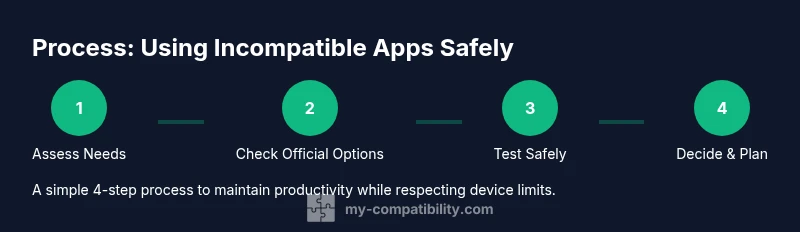
- 1
Assess your goals and constraints
Clearly define which features you need to access and what your device cannot do natively. This helps you target the right workaround and avoid unnecessary testing.
Tip: List 3 must-have features before you begin. - 2
Check for official alternatives
Look for web versions, PWAs, or desktop clients offered by the app developer. These options are the safest path to feature parity.
Tip: Verify availability on the developer’s site or trusted stores. - 3
Test in a safe environment
If you must test a workaround, use a non-primary profile or a separate device to avoid interfering with your main setup.
Tip: Back up data and proceed with caution. - 4
Evaluate performance and parity
Run core tasks (login, messaging, file access) and note any gaps in functionality or speed.
Tip: Keep a simple feature checklist to track results. - 5
Decide on the best path
Choose between continuing with a safe workaround or switching to a native-supported alternative if the gap is too large.
Tip: Document your decision and rationale for future reference. - 6
Plan for updates and re-checks
Set reminders to re-evaluate compatibility after app updates or OS releases.
Tip: Stay alert for new official options that improve compatibility.
Questions & Answers
Is it legal to use apps that are not compatible with my device?
In most cases, using official workarounds is allowed as long as you follow the app's terms of service. Sideloading or circumventing protections may violate terms or laws. Always review licensing and usage policies.
Generally, legality depends on the app’s terms and the methods you use. Check the license and terms of service before proceeding.
What is the safest approach when no official web version exists?
Prioritize official alternatives such as cross‑platform clients or browser-based access. If none exist, consider reputable alternatives with similar functionality and strong security standards.
Start with official options; if none exist, look for trusted cross‑platform alternatives.
Will performance be worse using a workaround?
Yes, there may be some degradation due to browser limitations or virtualization. Test core tasks first and compare with the native experience to decide if the trade-off is acceptable.
Expect some slowdown; test essential tasks and decide if it’s acceptable.
How can I protect my data privacy when using workarounds?
Review permissions, limit data access, and use trusted sources. Prefer official web versions or apps with transparent privacy policies and minimal data sharing.
Check what data is requested and minimize sharing; use trusted sources.
What if there is no suitable workaround available?
If no official option exists, consider upgrading the device or using a different app with similar capabilities. Prioritize long‑term compatibility and security.
If no workaround fits, explore alternatives or device upgrades.
Watch Video
Highlights
- Investigate official options first before any workaround.
- Prioritize security and data protection during testing.
- Document decisions and outcomes to support future choices.
- Re-check compatibility regularly as apps and devices evolve.