How to Make Incompatible Apps Compatible on Android
Learn practical, safety-focused steps to run apps that don’t fit your Android device. This guide covers diagnosis, compatibility strategies, testing, and rollout—based on My Compatibility’s expert analysis.


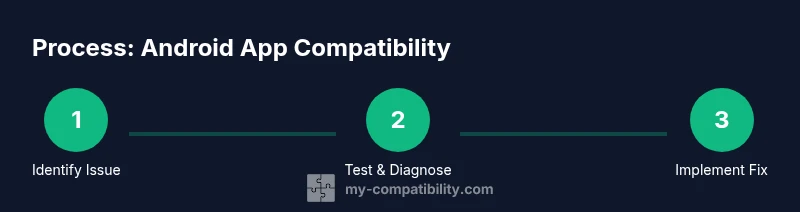
This guide shows how to make incompatible apps compatible on Android by using safe compatibility strategies, debugging techniques, and tested workarounds. You’ll learn how to identify failure modes, apply reversible fixes, and validate behavior across devices. Following these practical steps reduces risk while expanding app usability.
Understanding Android App Compatibility
In Android, compatibility refers to an app’s ability to run across devices, Android versions, and varying hardware. Being able to adapt an app to different screen sizes, CPU architectures, and permission models is essential for broad user coverage. For readers curious about how to make incompatible apps compatible on android, start by defining what 'incompatible' means in your context: a crash, a UI misalignment, or missing features. According to My Compatibility, success begins with a clear test matrix that maps failures to underlying causes, then prioritizes fixes that deliver the most device coverage while minimizing risk. This approach helps you decide whether you should invest in a quick workaround or a deeper refactor. The goal is to create a stable experience without compromising security or performance. Throughout this process, the My Compatibility team emphasizes documenting decisions so teams can reuse fixes across future projects.
Diagnosing Incompatibility: Logs, Permissions, and Runtime Behavior
The first step to making incompatible apps compatible on android is rigorous diagnosis. Start by reproducing the issue on a test device or emulator and capture logs with a tool like logcat to identify crash traces or warning messages. Check API usage for deprecated calls, permissions that may be denied at runtime, and changes in behavior across Android versions. My Compatibility analysis shows that the majority of incompatibilities stem from API-level changes or missing runtime permissions, which often have straightforward, reversible fixes. Create a simple repro case, then isolate the failing module (UI, data layer, or integration) to focus your debugging efforts. Keep a changelog of anything you adjust and the observed outcomes to inform future iterations.
Practical Strategies for Cross-Device Compatibility
Cross-device compatibility hinges on responsive UI, flexible data handling, and feature fallbacks. Key strategies include:
Use Responsive UI and Resource Qualifiers
Android supports multiple screen sizes and densities. Design layouts that adapt with ConstraintLayout, use alternative resources for layouts and strings, and test on a representative set of devices. This minimizes UI glitches on smaller screens or unusual aspect ratios.
Rely on Stable Libraries and Architecture
Whenever possible, use maintained libraries and AndroidX components that continue to receive updates. This reduces the risk of breaking changes when the OS evolves. Maintain a clear separation between UI, business logic, and data access to simplify maintenance and testing across versions.
Implement Safe Fallbacks
Offer non-critical features as optional, with graceful degradation if a device lacks a capability. Feature flags and runtime checks help you enable or disable functionality without releasing new builds. This approach preserves usability while keeping security and performance intact.
Using Feature Flags, Workarounds, and Safe Testing
Feature flags let you turn on or off experimental behavior without publishing new code. Use them to test compatibility on select devices before a broad rollout. If a third-party service or API proves unreliable on certain devices, implement a fallback path or local mock to preserve core functionality. Always validate fixes with targeted tests across OS versions and hardware profiles; avoid assuming a fix works for all devices. Remember to document any workarounds so future teams don’t re-create the same issues.
Tools and Resources for Testing Compatibility
A robust testing setup accelerates compatibility improvements. Recommended tools and practices include:
- ADB and Android Studio for debugging and device management
- A mix of physical devices and emulators to cover OS versions and hardware configurations
- Automated UI tests and unit tests that exercise critical paths
- Logging and crash reporting to capture post-release issues in the wild
These resources support a repeatable process for diagnosing, implementing, and validating compatibility fixes. My Compatibility’s approach stresses repeatable tests and clear change logs to sustain improvements over time.
Safety, Risks, and Best Practices
Compatibility work should never compromise user data or security. Always back up data before applying fixes, and inform users about permissions changes that may affect privacy. Avoid questionable fixes such as using unofficial wrappers or cracking licensing checks, which can violate terms and expose the user to risks. Use reversible changes first and validate with a broad test matrix before rolling out. As a guiding principle, prioritize user safety and policy compliance over short-term compatibility wins.
Case Study: Hypothetical Incompatibility Resolution
Consider a hypothetical app that crashes on devices with a specific GPU vendor. The diagnosis reveals a deprecated OpenGL call; a safe fix involves a feature flag that enables an alternative rendering path for those devices. After implementing the fallback, test across devices to confirm stability and verify that other devices are unaffected. This scenario illustrates how a targeted, reversible approach can restore compatibility without introducing new risks. The My Compatibility team would highlight this as a textbook example of cautious, measurable progress.
Tools & Materials
- Android Studio (latest stable release)(Use built-in emulators and profiling tools)
- ADB (Android Debug Bridge)(For device communication and log collection)
- Physical Android devices and/or cloud-based emulators(Test across a representative OS range and hardware profiles)
- Logcat viewer or IDE-integrated log tools(Capture crashes, warnings, and performance messages)
- Backup and rollback plan(Restore to a known-good state if a fix backfires)
- Test automation scripts(Optional but recommended for repeatable tests)
Steps
Estimated time: 1-2 hours
- 1
Reproduce the issue on a test device
Open the app on a representative device and reproduce the failure exactly as a user would. Document the exact steps and collect initial logs to establish a baseline. Confirm the issue is reproducible before proceeding to diagnose root causes.
Tip: Capture screenshots and short screen recordings to accompany log data. - 2
Capture logs and identify failure mode
Use logcat to collect crash dumps, stack traces, and warnings during reproduction. Note whether the failure is due to UI, permissions, or backend dependencies. Isolate the code path implicated by the logs.
Tip: Filter logs to relevant tags and reproduce with the same settings. - 3
Evaluate dependencies and API usage
Review API calls, deprecated methods, and permission requirements used by the app. Check for platform-specific behavior that could differ across Android versions or devices. Map each risky call to a potential fix or fallback.
Tip: Create a small test module to isolate risky API usage. - 4
Apply a safe compatibility fix or fallback
Implement a reversible fix, such as a feature flag, a conditional path, or a non-breaking fallback. Ensure the change is isolated, documented, and does not alter other functionality.
Tip: Prefer reversible changes and avoid invasive refactors unless necessary. - 5
Test across devices and OS versions
Run the app on multiple devices and OS versions to verify the fix resolves the issue without introducing new problems. Use automated tests where possible and record results clearly.
Tip: Aim for a representative mix of devices to approximate real-world usage. - 6
Document results and update guidance
Update your internal documentation with the bug, fix, test matrix, and outcomes. Share lessons learned so future projects can reuse the approach and avoid similar pitfalls.
Tip: Create a reusable checklist for future compatibility issues. - 7
Prepare staged rollout and monitor
If the fix passes tests, deploy to a staged audience before full release. Monitor crash reports and user feedback to catch edge cases.
Tip: Set up alerts for new occurrences and be ready to revert if needed.
Questions & Answers
What causes Android app incompatibility?
Incompatibility usually arises from API changes, deprecated methods, or permission shifts between Android versions. Device-specific hardware behavior can also play a role. By diagnosing with logs and reproductions, you can pinpoint the exact cause and apply a reversible fix.
Incompatibility typically comes from API changes or permission differences between Android versions. Use logs and reproduction steps to pinpoint and fix it safely.
Can I force an incompatible app to run on my Android device?
Forcing an app to run is generally discouraged due to security and stability risks. Instead, implement supported fallbacks or updates that align with Android guidelines and verify with thorough testing.
Forcing an app to run can be risky. Prefer safe fallbacks and proper updates with solid testing.
Is it safe to sideload apps to fix compatibility?
Sideloading can expose devices to malware and policy violations. Only use trusted sources, and prefer official updates or author-approved workarounds over bypassing app stores.
Sideloading can be risky; use trusted sources and official updates whenever possible.
Do compatibility fixes affect performance or security?
Some fixes may introduce minor performance trade-offs or ID permission prompts. Always balance usability with security by testing for any performance regressions and ensuring permissions are strictly necessary.
Fixes can affect performance or security; test for regressions and keep permissions tight.
What tools are best for testing Android compatibility?
Utilize Android Studio, ADB, real devices, and automated tests to validate fixes. A mix of emulators and physical devices provides the most reliable coverage.
Use Android Studio, ADB, and a mix of real devices and emulators for thorough testing.
When should developers seek OEM or policy guidance?
If incompatibilities involve OEM-specific features or policy constraints, coordinate with the device maker or platform owner to ensure compliance and broader future compatibility.
If OEM policies or device-specific features are involved, consult the OEM or platform owner.
Watch Video
Highlights
- Reproduce first, then diagnose with logs
- Prefer reversible, well-documented fixes
- Test across a device matrix for real-world coverage
- Use feature flags and safe fallbacks to minimize risk
- Document results to create a reusable compatibility framework