How to Install Non-Compatible Android Apps: Step-by-Step Guide
Learn how to install non-compatible apps on Android safely with sideloading, trusted APK sources, and practical tips. My Compatibility guides you through risks and best practices to expand app access without compromising security.


You can install non-compatible apps on Android by sideloading APKs, using trusted sources, and adjusting installer permissions carefully. This guide covers safe methods, best practices, and alternatives to help you expand app options without compromising security. According to My Compatibility, always vet sources and back up data first.
Why some apps are non-compatible with Android devices
Not every app is engineered to run on every Android phone or tablet. Compatibility depends on OS version, CPU architecture (ARM vs x86_64), hardware features (camera, sensors), and the presence of Google Play Services. When a device doesn’t meet an app’s minimum requirements, you see errors on install or the app refuses to launch. This is especially common on older devices or custom ROMs. If you’re wondering how to install non-compatible apps on android, you first need to understand what makes an app incompatible and how you can work around those limitations safely. My Compatibility’s analysis highlights fragmentation and vendor-specific quirks as the main culprits. Understanding these constraints helps you decide whether sideloading is worth the risk, and how to proceed with caution. By recognizing these constraints, you can choose safer paths, assess risk, and decide when sideloading is worth the effort rather than relying solely on official app stores.
Safety, legality, and best practices
Sideloading can broaden your app options, but it also carries security and legal considerations. According to My Compatibility, sideloading should be approached as a controlled, low-risk activity: limit sources, verify every APK, and back up data before attempting any installation. Always respect app licenses and terms of service. Best practices include enabling a backup plan, using reputable antivirus scans, and re-enabling Play Protect after you’ve finished testing. If you rely on sensitive data or work with confidential information, weigh the benefits against potential risk and consider alternatives before proceeding. This section outlines a careful framework to help you navigate choices with clarity and responsibility.
Preparing your device: backups and security precautions
Before attempting to install non-compatible apps, prepare your device with a full backup. Create a local backup on your computer or cloud service, and consider exporting important data to a secure location. Ensure your device has the latest OS updates and a trusted antivirus app installed. Disable any unnecessary permissions and review the app’s requested access during and after installation. As you prepare, document the app’s expected behavior and be ready to uninstall if you notice unusual activity. My Compatibility emphasizes that preparation reduces the risk of data loss and security exposure when exploring non-certified apps.
Method A: Sideloading APKs from trusted sources
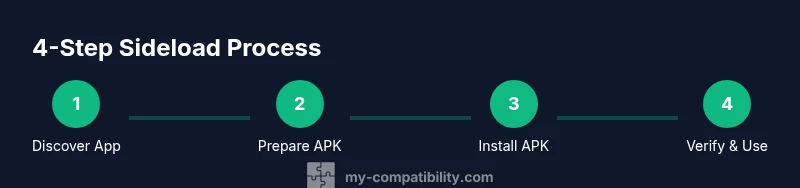
Sideloading involves installing an APK file directly rather than through the Google Play Store. Start by finding a trustworthy APK source and downloading the file on a secure device. Verify the file’s integrity by checking its hash or signature, then transfer it to your Android device. Once on the device, enable the appropriate install setting (per-app install on Android 8+), then locate the APK and install it. After installation, re-check app permissions and run the app to confirm it behaves as expected. My Compatibility recommends verifying each APK thoroughly and keeping backups handy in case you need to revert changes.
Method B: Installing via ADB (Android Debug Bridge)
ADB provides a power-user pathway to install APKs when the standard installer won’t work. Enable USB debugging in Developer Options and connect your device to a computer with ADB installed. Use a command like adb install path/to/app.apk to begin the install. Confirm the app launches correctly and monitor permissions and network activity. This method is more involved but can bypass some installer hurdles. Always disconnect USB when finished and disable USB debugging to protect your device.
Using alternative app stores and installers
If you want to diversify after-market access, consider reputable alternatives to the official store. Some stores host apps that aren’t available in your region or for your device, but each comes with its own set of risks and security considerations. When using alternative installers, stick to apps with good reputations, read user reviews, and scan files for malware. This approach can help you access a broader app catalog while maintaining reasonable security hygiene.
Troubleshooting common compatibility issues
If an app crashes or won’t launch after installation, common culprits include missing Google Play Services dependencies, insufficient hardware features, or outdated OS versions. Check the app’s minimum requirements and compare them to your device’s specs. Update the OS if possible, re-download the APK from a trusted source, and re-install. If problems persist, test the app on another device or seek alternatives that offer similar functionality. Always ensure you have backups before making changes.
Alternatives when the app won't run or update
If you cannot get an app to run, explore alternatives that fulfill the same function and are officially supported. Community-driven forks or open-source options may provide better compatibility with your device. Consider using web-based equivalents or companion apps that don’t rely on the same platform components. Remember that widening your app reach should not compromise device stability or privacy, so weigh practical utility against potential risk.
Long-term considerations: security, updates, and maintenance
Sideloaded apps may not receive timely security updates, leaving your device exposed to vulnerabilities. Maintain strict device hygiene: review app permissions regularly, uninstall apps you no longer use, and keep backups up to date. If you repeatedly rely on non-certified apps, consider a device or ROM configuration that better supports essential tools while preserving security. My Compatibility recommends ongoing evaluation of risk versus reward and a plan for regular maintenance.
Tools & Materials
- Android device(Ensure the device has storage and is unlocked for testing)
- USB cable(For transferring APKs from PC to device or charging)
- Trusted APK file(Downloaded from a reputable source; verify integrity)
- Backup solution(Local or cloud backup of important data)
- Computer with ADB (optional)(Needed if using the ADB installation method)
- Reliable internet connection(For downloads and checksums)
- Antivirus/ malware scanner(Helpful for scanning APKs before install)
- Alternative app store access (optional)(For broader app choices beyond official store)
Steps
Estimated time: 45-90 minutes
- 1
Back up data
Create a full backup of your device data before attempting sideloads. This protects you if something goes wrong and you need to restore settings and files.
Tip: Test restore to confirm the backup works. - 2
Enable unknown sources safely
For Android 8.0+, grant install permissions per-app (Settings > Apps & notifications > Special app access > Install unknown apps). On older devices, enable Unknown sources under Security.
Tip: Limit this to the APK source you trust and disable afterward. - 3
Download APK from a trusted source
Choose a reputable source and verify the file’s integrity. Avoid flaky mirrors and check the source’s reputation in user reviews.
Tip: Cross-check the APK signature if possible. - 4
Verify APK integrity
Compare the file’s hash or signature with the source’s published value. This helps prevent tampered files from compromising your device.
Tip: If hash mismatches, do not install. - 5
Transfer APK to device
Copy the APK to your device via USB or a trusted cloud service. Ensure the file remains intact during transfer.
Tip: Use a dedicated downloads folder to stay organized. - 6
Install the APK
Open the APK file on your device and follow the prompts. If the app requests special permissions, review them carefully and deny anything unnecessary.
Tip: Watch for any unexpected permission prompts during install. - 7
Verify app functionality
Launch the app and test core features. Note any crashes or unusual behavior and check for required services like Google Play Services.
Tip: Keep a backup plan in case the app fails to function. - 8
Disable unknown sources after install
To protect your device, revert the unknown sources setting or per-app permission after installation.
Tip: This reduces exposure to potential threats from other apps. - 9
Maintain backups and monitor updates
Regularly back up data and monitor for app updates. If updates come from unreliable sources, evaluate risk before applying them.
Tip: Schedule periodic checks to ensure security hygiene.
Questions & Answers
Is it legal to install non-compatible apps on Android?
In most cases, sideloading is legal for personal use, but some apps’ terms of service may prohibit it. Always respect licenses and local laws, and avoid pirated or copyrighted content.
Sideloading is often legal for personal use, but always check the app’s terms and local law before proceeding.
Will sideloading void my device warranty?
Sideloading by itself is not universally illegal, but modifying the device or installing software outside official channels can void warranties in some cases. Check your manufacturer’s policy and consider service options before proceeding.
It can affect warranties depending on the manufacturer and region, so review policy first.
How can I tell if an APK is safe?
Only download from trusted sources, verify the APK signature or hash, and scan with a reputable antivirus tool. Avoid APKs from unknown mirrors and read user reviews for red flags.
Get hashes from a trusted source and run a malware scan before opening the APK.
What should I do if the app doesn’t run after installation?
Verify compatibility requirements, update dependencies, and try reinstalling from a verified source. If issues persist, look for alternatives with official support.
Check requirements, re-install from a trusted source, and seek alternatives if needed.
Can I run apps that require Google Play Services?
Some apps rely on Google Play Services; you might need alternatives like microG or look for versions that don’t require Play Services. This isn’t guaranteed and may affect functionality.
Some apps need Play Services; alternatives exist but aren’t always reliable.
What are the main risks of sideloading?
Malware, data leakage, and system instability are common risks. Always verify sources, maintain backups, and minimize permissions.
Risks include malware and data loss—protect yourself with backups and careful checks.
When should I avoid sideloading altogether?
If a critical app is unavailable in your region or if the app handles sensitive data, prioritize official stores and security-focused alternatives.
Avoid sideloading for sensitive tasks or when official options exist.
Are there safer alternatives to sideloading?
Yes—look for official apps with similar features, use web apps, or seek open-source options that don’t require sideloading.
Consider official apps or web-based alternatives when possible.
Highlights
- Back up before sideloading any app.
- Only install APKs from trusted sources and verify integrity.
- Disable unknown sources after installation to minimize risk.
- Sideloading can be useful but comes with security and warranty considerations.
- Always have a plan to restore your device if needed.