How to Install an App That Is Not Compatible
Learn safe, legal methods to run apps on unsupported systems using virtualization, compatibility layers, or alternatives. A practical step-by-step guide for tackling compatibility gaps.


Discover practical ways to install an app that is not compatible with your device or operating system. This guide outlines safe methods—like virtualization, compatibility layers, or alternative software—and highlights when each approach is appropriate. By following these steps, you can run the target app without compromising data or security.
Why compatibility gaps happen
Compatibility gaps occur when software relies on features, libraries, or hardware that your device no longer provides or supports. An app might expect a newer OS API, a different CPU architecture, or specific graphics drivers. Without these, installation fails or the app runs poorly. Understanding these constraints helps you pick a safe, effective path for how to install an app that is not compatible. According to My Compatibility, many users underestimate how cross-platform constraints shape install options and end up chasing risky shortcuts. The goal is to preserve data integrity and security while enabling access to essential tools. In practice, the decision hinges on whether you need the app temporarily for a project or long-term use, and on whether the vendor supports any sanctioned methods. By mapping the failure mode, you can choose the least disruptive route while staying within license terms.
Common scenarios and examples
Not compatible software shows up in many shapes. A Windows 7-era desktop app on Windows 10/11 may fail due to deprecated APIs or missing components. A mobile app with an iOS 12 requirement on a newer device can be blocked by newer OS rules. An enterprise app with strict DRM or vendor lock-in might require official channels. In each case, the same logic applies: identify the exact incompatibility, then pursue a safe remediation. The My Compatibility team has seen many cases where users bypass checks or seek unsupported hacks, which can violate terms or create security holes. Focus on legitimate paths like supported virtualization or vendor-approved updates.
Method 1: Virtualization and sandboxing
Virtualization creates a controlled environment (a virtual machine) that imitates a different OS or hardware configuration. This lets you install the app inside the VM without altering your host system. It’s a reliable option when the app requires a different OS version or architecture and you can allocate enough resources. Steps include selecting a VM platform, provisioning a guest OS, and installing the app inside the VM, then moving data via secure transfer if needed. Benefits include isolation and easy rollback; limitations are resource overhead, potential performance hits, and licensing considerations if the app’s terms forbid virtualization. The My Compatibility analysis finds virtualization is often the most robust path for not-compatible apps when used responsibly.
Method 2: Compatibility layers and emulation
Compatibility layers translate system calls from the not-compatible app to the host OS, while emulation reproduces required hardware features. This approach can work for simpler software, but complex programs may require fine-tuning. You might run a Windows app on macOS via a translation layer, or a Linux app on Windows via an emulation tool. Expectations should be cautious: performance may vary, some features may not work, and apps may fail to install at all. If you pursue this method, install the layer, adjust graphics/input settings, and then install the app within the layer. The payoff is avoiding a full VM; the risk is incomplete compatibility. The My Compatibility team emphasizes thorough testing before counting on this method for daily tasks.
Method 3: Official updates, beta programs, or alternatives
Often, the simplest path is an official update, a vendor-supplied compatibility patch, or a beta program that lifts restrictions. Check vendor support sites for release notes and compatibility bullets. If no official path exists, seek legitimate alternatives that provide similar functionality or cloud-based options. Always review license terms before using beta software or third-party workarounds. My Compatibility analysis shows that many cases are resolved by vendor updates rather than user workarounds, underscoring the value of official channels.
Step-by-step scenario: applying a chosen method
Imagine you decide virtualization is the best path. Identify the app’s exact OS requirements, back up your data, and install a virtual machine with a supported guest OS. Install the app inside the VM, configure network and shared folders if needed, and run a series of tests to confirm functionality. If the app behaves strangely, adjust resources or try a different VM configuration. Document all changes and keep a rollback plan ready. With patience and careful setup, you can reliably run the app in an isolated environment while keeping your host system safe.
Safety, risks, and data protection
Running not-compatible apps carries risks like data loss, security vulnerabilities, or policy violations. Always back up critical data before testing new configurations, and consider creating a system restore point. Verify licensing terms to ensure you’re not breaching agreements, especially with enterprise software. Prefer sandboxed or virtualized environments over aggressive hacks. Finally, monitor performance and security alerts after the install to catch issues early.
Tools & Materials
- Primary device with original OS(Keep a current backup in case you need to revert)
- Reliable internet connection(Needed for downloads and updates)
- Backup storage (external drive or cloud)(Create a full snapshot before experimentation)
- Virtualization software (generic)(Choose a reputable option with good support)
- Compatibility layer or emulation tool (optional)(Use only if it clearly supports your app)
- Alternative app options(Have backups ready in case the primary app cannot run)
Steps
Estimated time: 2-6 hours
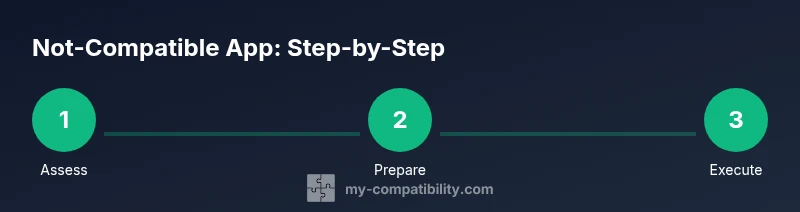
- 1
Assess the app and environment
Evaluate why the app is not compatible on your device and what constraints matter (OS version, architecture, dependencies). This helps you pick the most reliable method and avoid wasted effort.
Tip: Document exact error messages and versions for reference - 2
Back up data and set restore points
Create a full backup of important files and, if possible, a system restore point before testing any compatibility changes.
Tip: Store backups offline if possible to prevent accidental loss - 3
Choose a safe remediation approach
Select the method that aligns with vendor terms and your risk tolerance (virtualization, compatibility layer, or alternative).
Tip: Check licensing terms and official support options first - 4
Prepare the environment
Install and configure the chosen environment (VM with guest OS or compatibility tool). Allocate sufficient CPU, memory, and storage to avoid performance bottlenecks.
Tip: Start with modest resource allocations and scale up if needed - 5
Install the app inside the environment
Follow the app’s installer steps within the isolated environment. Avoid changing host OS settings beyond what’s necessary for the environment.
Tip: Use official installers and verify checksums if available - 6
Test thoroughly and adjust
Run key features, test data flows, and perform basic operations. If issues occur, tweak configurations or try a different method.
Tip: Keep a log of test results and performance metrics - 7
Decide on long-term viability
If the app remains unstable or license terms are breached, discontinue the workaround and seek official alternatives or vendor support.
Tip: Document your decision and preserve a rollback plan
Questions & Answers
Why would an app be not compatible with my device?
Not compatibility can arise from OS version gaps, missing libraries, or architectural differences. Verifying the exact mismatch helps choose the right remediation and avoid risky hacks.
Not compatible often comes from missing features or version gaps. Check the exact mismatch to pick a safe fix.
Can I force-install or bypass compatibility checks?
Force-installing can violate licenses and expose you to security risks. It also often results in unstable behavior or data loss. Stick to supported methods whenever possible.
Forcing installs is risky and may violate terms. Use official paths or safe workarounds instead.
What are legitimate methods to run incompatible apps?
Legitimate methods include virtualization, using a compatibility layer, or selecting vendor-approved alternatives or cloud-based options. Always review licensing and terms.
Safe options include virtualization or official alternatives. Check licenses before proceeding.
What data risks should I watch for?
Data loss, corruption, and security vulnerabilities can arise during testing. Back up first, test in isolation, and avoid connecting sensitive data to untrusted environments.
Expect some risk—back up first and test in a safe environment.
Are there safe alternatives if the app can't run?
Yes. Look for official updates, vendor-approved alternatives, or cloud-based versions that provide similar functionality without bypassing restrictions.
There are often official or cloud-based substitutes that work safely.
How can I test compatibility before installing?
Use a controlled test environment (VM or sandbox), perform a dry run, and verify all critical features with non-production data first.
Test in a sandboxed environment with non-production data.
Watch Video
Highlights
- Plan before acting and back up data
- Choose risk-aware methods within license terms
- Virtualization is often the most robust path
- Test in a controlled environment before daily use
- Consider official alternatives if available