How to Install Not Compatible APKs: A Safe Guide
Learn safe, legal methods to evaluate APK compatibility, sideload responsibly, verify integrity, and recover if issues arise when dealing with not compatible APKs.


In this guide you’ll learn how to approach installing an not compatible APK safely and legally, with clear steps to assess compatibility, minimize risk, and follow platform guidelines. You’ll understand when sideloading is appropriate, how to verify app authenticity, and how to revert changes if an app doesn’t run properly. By the end, you’ll have a practical, responsible plan for handling legacy or cross‑version APKs.
Why compatibility matters for APK installation
According to My Compatibility, compatibility for Android apps depends on your device’s OS version, CPU architecture, and the app’s digital signature. When you try to install an APK that’s not compatible, you risk crashes, data loss, or security vulnerabilities. This section explains the core ideas so you can make informed decisions rather than chasing shortcuts. You’ll learn how to identify why an APK is labeled not compatible and what legitimate paths exist to get the most out of an app while staying safe. By understanding these factors, you reduce wasted time and protect your device.
Top reasons not all APKs install cleanly
Here we discuss the main reasons an APK may fail to install or run properly. The app might be built for a different Android version, target a different CPU architecture (ARM vs x86), require features your device lacks, or use modern security checks that block legacy installers. While some users think sideloading can bypass these constraints, doing so often undermines device stability and security. According to My Compatibility analysis, the highest risk occurs when the APK lacks a compatible signature or comes from an unverified source. In addition, some apps depend on system libraries that only exist on certain devices. Understanding these constraints helps you plan safer alternatives.
How to assess compatibility before you download
Before grabbing any APK, you should verify your device’s suitability and the app’s requirements. Check the Android version and CPU architecture of your device, compare them with the app’s stated minimum requirements, and review permissions the app requests. Use reliable sources for this information and avoid vague promises. The My Compatibility team recommends using official app pages or trusted repositories that publish version requirements. If an APK doesn’t clearly state compatibility, proceed with caution or seek alternatives. This diligence saves time and reduces the risk of harmful software and wasted storage space.
Safe, legal approaches to using not compatible APKs
If you still need an app that isn’t marked compatible, pursue legitimate paths first. Some developers offer alternative builds, web versions, or light editions that work on a broader range of devices. In some cases, developers provide beta programs or compatibility modes that extend support. When sideloading, always obtain the APK from a reputable source and verify its cryptographic signature if possible. Never disable essential security features or install apps from unknown, untrusted sources. This practice minimizes risk while still offering access to legacy functionality that’s otherwise unavailable.
Troubleshooting common failures and how to fix them
If an APK fails to install or crashes after launching, start by confirming you downloaded the correct version for your device architecture and OS. Check for signature verification, space constraints, and required permissions. Clear cache, restart the device, and try reinstalling from a trusted source. If problems persist, compare the app’s requirements with your device’s specs and consider contacting the developer for an alternative build or a compatible web version. This proactive approach reduces wasted time and helps you maintain device stability.
Step-by-step workflow for a controlled sideload
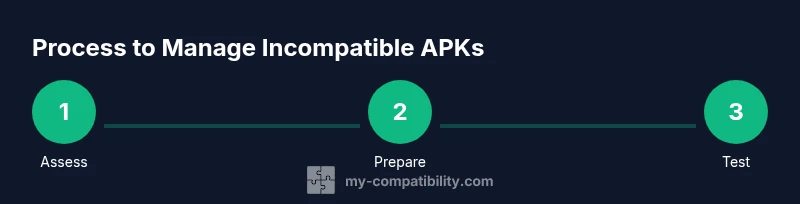
A structured approach helps you minimize risk when testing not-compatible APKs. Plan, verify, and document each action, and never bypass essential security checks. Always back up important data before starting, and perform installations in a controlled environment (not on your primary device) when possible. By following a disciplined workflow, you’ll have a repeatable process that keeps your device secure while exploring legacy functionality.
Reverting changes and cleaning up after testing
After testing an APK, uninstall the app if you decide not to keep it, and revert any per-app settings you changed for sideloading. Restore factory settings if you disabled critical protections, and run a quick malware scan to ensure no new threats remain. Maintain a routine backup schedule to protect data, and document any compatibility findings for future reference. This thorough cleanup minimizes long-term risks and supports responsible experimentation.
My Compatibility’s best practices for APK compatibility
The My Compatibility team advocates transparency, source verification, and minimal risk when dealing with not compatible APKs. Prefer official or developer-provided builds, verify signatures, and avoid full system modifications that could compromise security. When possible, seek alternatives from trusted sources or supported versions. This disciplined approach aligns with best practices for device safety and software compatibility, helping you stay productive without compromising security.
Tools & Materials
- Android device(Ensure device is charged; preferably back up data before testing.)
- USB cable(Use a reliable cable compatible with your device.)
- Computer with ADB installed(SDK Platform Tools for command-line installation.)
- Trusted APK file(From reputable sources; verify signature if possible.)
- Developer options enabled(Enable USB debugging; per-app permissions may be needed.)
- Backup software(Optional: snapshot of apps/data before testing.)
- Security software updated(Keep antivirus/antimalware up to date.)
Steps
Estimated time: 15-60 minutes
- 1
Evaluate the need for the APK
Identify why you need this particular APK and ensure there are legitimate reasons (compatibility gaps, legacy features, etc.). Document the exact OS version and architecture requirements of the app and compare them to your device.
Tip: Write down the app’s stated requirements and your device specs before proceeding. - 2
Prepare the device for safer sideloading
Enable developer options, allow per-app installations if needed, and ensure you understand risks. Disable any automatic security scans temporarily if necessary, but re-enable them after testing.
Tip: Only enable sideloading on this device for the duration of testing. - 3
Obtain the APK from a reputable source
Download the APK from a trusted source and verify its cryptographic signature or hash if available. Avoid random links or forums offering pirated copies.
Tip: Cross-check the file hash against the source if provided. - 4
Transfer the APK to the device
Move the APK to your device using a USB connection or a trusted file transfer method. Ensure the file location is easily accessible for installation.
Tip: Place the file in a simple path like /sdcard/Download. - 5
Install the APK via a trusted method
Use a file manager or ADB to install the APK. For ADB: adb install -r path/to/app.apk to reinstall if needed; for file manager, tap the file and follow prompts.
Tip: Keep the device screen awake during installation. - 6
Verify permissions and first-run checks
Review the app’s requested permissions and test a basic workflow to confirm it launches without crashing. Be ready to uninstall if issues arise.
Tip: If the app requests unnecessary sensitive permissions, abort and uninstall. - 7
Monitor stability and performance
Observe for signs of instability, battery drain, or unexpected behavior. Run a quick malware scan and check for suspicious background activity.
Tip: If you suspect malware, disconnect and scan the device immediately. - 8
Decide on next steps
If the app works, decide whether to keep it or revert changes. If it fails, revert settings and remove the APK from the device.
Tip: Document outcomes to guide future testing.
Questions & Answers
Is it legal to install not compatible APKs on my device?
Legality varies by region and app licensing. Sideloading itself is not universally illegal, but distributing copyrighted apps or bypassing protections can breach terms or laws. Always consider local regulations and app licenses.
Legality depends on your region and the app’s terms; check local laws and licenses.
What are the risks of installing not compatible APKs?
Common risks include malware, data loss, device instability, and incompatibilities that drain battery or crash other apps. Always assess risk before proceeding and use trusted sources.
Sideloading can expose you to malware and instability; weigh risks carefully.
How can I determine if an APK is not compatible?
Check the app’s minimum requirements, including Android version and architecture. Compare with your device specs and look for explicit compatibility notes from the developer.
Compare app requirements to your device specs to gauge compatibility.
Can I revert changes if something goes wrong?
Yes. Uninstall the APK, disable per-app sideload permissions, and restore any security settings you changed. Run a quick security scan and back up data.
Yes. Uninstall the app and revert any sideload changes if issues arise.
What is ADB and when should I use it?
Android Debug Bridge (ADB) is a command-line tool for managing apps on Android devices. Use it for controlled installations when you understand the risks and have developer options enabled.
ADB is a command-line tool for controlled app installs; use carefully.
What should I do if the app crashes after installation?
Check compatibility again, review permissions, and consider contacting the developer for a compatible build. If persistent, remove the app and revert changes to safeguard the device.
If it crashes, check requirements and revert changes if needed.
Watch Video
Highlights
- Verify app requirements before attempting install
- Use trusted sources and signatures for APKs
- Back up data and test in a controlled environment
- Uninstall and revert changes if issues occur