Fix APK Not Compatible With Phone: Step-by-Step Troubleshooting
Urgent guide to resolve apk not compatible with phone issues on Android. Learn checks, safety tips, and step-by-step fixes for OS, architecture, and source problems.


Most likely, the APK isn't compatible because your device's Android version or CPU architecture doesn't meet the app's minimum requirements. Start by updating Android, confirm the APK matches your device's architecture, and only sideload from trusted sources if needed. If the issue persists, search for an official Play Store version or a compatible alternative.
Understanding APK Compatibility for Your Android Phone
apk not compatible with phone is a frequent frustration for Android users. An APK (Android application package) is built to run on specific Android versions, processor architectures, and security contexts. When your device falls outside these parameters, Android may block installation or fail to launch the app. The My Compatibility team emphasizes treating compatibility as a spectrum: OS version, CPU shape, and distribution region all matter. To diagnose, check the APK’s declared minimum Android version, supported architectures (arm64-v8a, armeabi-v7a, x86, x86_64), and any regional restrictions. If you see this error across multiple apps, it points to a broader compatibility issue rather than a single file.
Common reasons an APK Won't Install
- Outdated Android version that doesn't meet minimum requirements
- Architecture mismatch (APK built for arm64-v8a but device uses armeabi-v7a or x86)
- Region or device model restrictions that block distribution
- The APK is not signed for your device or lacks Google Play Services on your device
- Corrupted or incomplete download
- Insufficient storage or permissions blocking installation
- Security policies preventing sideloading or external sources
Understanding these causes helps you apply the right fix without unnecessary steps.
Check Your Device Specs and Android Version
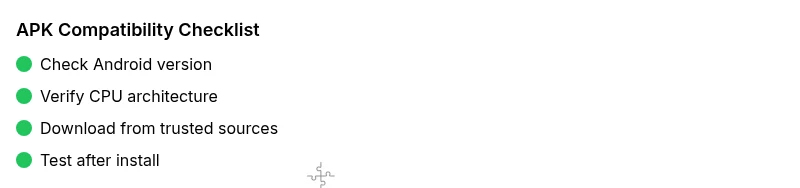
Start with the basics: confirm your Android version is up to date by going to Settings > System > About phone > Android version. Then verify your device architecture by checking the CPU/ABI in the same area or using a reputable system info app. If your OS is old or the architecture differs from the APK’s requirements, you’re facing a compatibility gap. You can also check device model and region to rule out manufacturer or geo-restrictions. When you compare these facts with the APK's stated requirements, you’ll see where the mismatch lies.
Verify APK Source and Integrity
Always obtain APKs from trusted sources. Check the file size and, if possible, compare SHA-256 hashes against the publisher's published value. A corrupted download can trigger “not compatible” errors in some cases. Ensure the app is intended for your device’s architecture (arm64-v8a, armeabi-v7a, etc.). Avoid unofficial mirrors that may bundle malicious code or modified APKs. Safety and compatibility go hand in hand—never sideload from dubious sites.
Use Safe Alternatives: Play Store vs Sideloading
If a legitimate Play Store version exists, prefer it over sideloading. Play Store builds are signed and tested for your device, reducing compatibility headaches. If you must sideload, know that you’re bypassing some protections and increasing risk. Only use sources you trust and back up your data beforehand. If the app isn’t available in your region, search for regional alternatives or official channels that offer compatible versions.
Update or Change Device Settings for Compatibility
On Android, you may need to adjust settings to allow installation from unknown sources, but this depends on OS version. For newer Android versions, you must grant per-app permission to install unknown apps. Enable this option only for the installer app, then disable it after installation. Always run a security check after sideloading and revert permissions to maintain device protection. This is a temporary, careful workaround rather than a permanent change.
Compatibility Tips for Older Devices
Older devices often struggle with modern APKs due to processor architecture and new security features. Look for APK variants designed for ARMv7 or generic 32-bit builds if your device is older. If you own a low-end device, consider apps with lighter versions or official Progressive Web Apps (PWA) alternatives. In some cases, the best long-term option is a device upgrade to ensure app support and stability.
Step-by-Step: Reinstalling or Re-downloading the APK
- Delete the previous APK and clear cache for the installer. 2) Re-download from a trusted source or confirm the Play Store version is available. 3) Verify the file is the correct architecture and version. 4) Enable the required unknown sources permission temporarily, then install. 5) After installation, reopen the app and check for updates. 6) If installation fails again, try a different reputable source or revert to a Play Store alternative. 7) Restore any backup data if needed. 8) Uninstall if the app proves consistently incompatible with your device.
When to Seek Professional Help or Abandon the App
If you’ve tried multiple trusted APKs and the app still won’t run, compatibility may be truly broken on your device. In that case, contact the developer for guidance or look for official alternatives. If the app is mission-critical, a device upgrade or OS-specific workaround may be necessary. Professional help from a technician or service provider can also help diagnose hardware-compatibility causes that aren’t obvious from software settings.
Steps
Estimated time: 45-60 minutes
- 1
Identify symptom and gather details
Note the exact error message, the app name, and your device model. This helps pinpoint whether the issue is OS, architecture, or region related.
Tip: Write down the APK's stated minimum Android version and CPU support. - 2
Check OS version and architecture
Open Settings and confirm Android version and device architecture. If the OS is outdated or architecture mismatches the APK requirements, you will likely need an alternative.
Tip: If you’re unsure which APK variant to pick, consult the developer’s official site. - 3
Compare with APK requirements
Review the APK's minimum OS version and supported CPU. Compare against your device specs to determine the mismatch.
Tip: Ignore claims from unverified sources about compatibility. - 4
Try official Play Store version first
If available, download the official app from Play Store to ensure compatibility. This reduces risk of malware and instability.
Tip: If the app isn’t available in your region, look for regional alternatives. - 5
Consider safe sideloading
If you must sideload, download from a trusted source and verify the file hash. Enable per-app unknown sources only for installation, then disable again.
Tip: Back up data before sideloading. - 6
Install the APK and test
Run the app and monitor for crashes or missing features. If issues persist, try a different APK variant or revert to a Play Store alternative.
Tip: Check for app updates after installation. - 7
Restore security settings
Revoke any temporary permissions granted for sideloading after installation to keep your device protected.
Tip: Run a malware scan if you sideloaded. - 8
Document and back up
Keep notes on which APK version and architecture worked, or note that none work. Always back up important data before experimentation.
Tip: Create a restore point if your device offers one.
Diagnosis: User sees install blocked with message 'apk not compatible with phone' on multiple apps
Possible Causes
- highOutdated Android version (minimum requirements not met)
- mediumMismatched CPU architecture (APK built for arm64-v8a but device uses armeabi-v7a)
- lowRegion or device not supported by the APK (geo-restrictions or device model restrictions)
Fixes
- easyUpdate Android to the latest version available for your device
- easyDownload the correct APK variant for your CPU architecture or use the official Play Store version
- easyCheck region availability or seek alternative apps that are supported in your country and device
Questions & Answers
What does 'APK not compatible with phone' mean exactly?
It means the app's minimum requirements don’t align with your device’s OS version or hardware. Compatibility gaps often block installation or running the app.
It means your device doesn't meet the app's basic requirements, usually OS version or hardware.
Can I install APKs from third-party sites safely?
Only if you trust the source and verify the file. Untrusted APKs can be malware or tampered versions that break compatibility.
Only use trusted sources and verify the file; untrusted APKs can harm your device.
Why does my device show a minimum requirement error?
The app may require a newer Android version or a different CPU architecture than your device provides. Region restrictions can also play a role.
Usually OS version, CPU architecture, or regional restrictions.
Is there a way to force-install an APK?
Forcing installation can bypass checks but risks instability and malware. It’s not recommended as a long-term solution.
Forcing install is risky and not recommended; prefer supported versions.
Will updating Android always fix compatibility?
An update can close gaps if the APK needs a newer OS, but it won’t help if your hardware isn’t supported or the app is region-locked.
An update helps if OS is the issue, but not if hardware or region blocks you.
What should I do if the app is region-locked?
Check for official regional alternatives or contact the developer for options. Using a VPN beyond app availability is not a reliable fix.
Region-locked apps may need official alternatives or developer options.
Watch Video
Highlights
- Check OS version and architecture first
- Prefer official Play Store versions when possible
- Verify APK integrity before installation
- Enable unknown sources only temporarily and securely