Apps Not Compatible: Quick Troubleshooting Guide
Struggling with apps not compatible? This step-by-step guide helps diagnose causes, run checks, and fix common incompatibilities across devices and platforms. Learn practical fixes and prevention tips from My Compatibility.


If you’re seeing apps not compatible, start with the basics: verify system requirements, update the app and OS, and clear space/cache. Then reinstall the app to refresh dependencies. If problems persist, try a compatible alternative or a device-wide setting change. These steps cover the most common incompatibilities quickly.
Understanding Apps Not Compatible in a Changing Tech Landscape
When an app won’t run or behaves erratically on a device, you’re facing apps not compatible issues. In practice, incompatibility arises when software requirements outpace the device’s operating system version, hardware capabilities, or security policies. The My Compatibility team has analyzed countless cases and consistently finds that the root cause is a mismatch between what the app expects and what the device can deliver. Common sources include deprecated APIs, updates to permission models, and changes in app store policies. Before you discard the device or the app, take a moment to map the failure to one of the core compatibility axes: operating system version, hardware resources, app dependencies, and region or account restrictions. This approach helps you prioritize fixes and avoid unnecessary changes.
Why Compatibility Breaks Happen Across Platforms
Across Android, iOS, Windows, and Mac environments, apps not compatible typically surface after a major OS update, a shift in API availability, or when an app still expects older libraries. Platform fragmentation means even popular apps can stumble on specific devices or builds. If an app was designed for a 64‑bit architecture but you’re on a 32‑bit device, or if a device lacks required sensors, you’ll see incompatibility errors. Recognize that these events aren’t about personal fault—they’re about architectural differences and policy changes. Keeping a record of the exact device model, OS version, and app version makes troubleshooting far faster.
Quick Fixes You Can Try Right Now
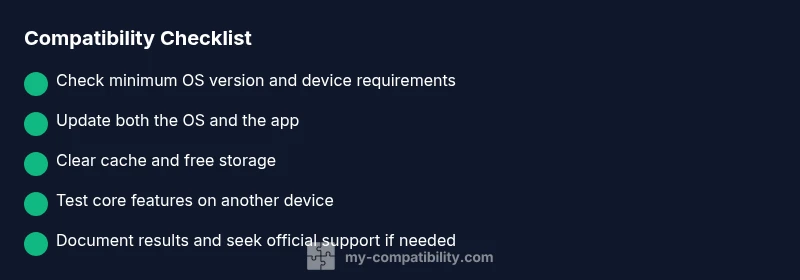
Start with the simplest remedies first. Ensure your OS version meets the app’s minimum requirements and that you’re running the latest app version. Clear cache and data if the app stores settings locally, and free up storage to prevent performance bottlenecks. Reinstalling the app can refresh dependencies and permissions that may have become corrupted. If you’re testing across devices, uninstall the app on one device and reinstall on another to see if the issue is device-specific. These quick fixes resolve many apps not compatible problems without professional help.
How to Run a Thorough Compatibility Check
A robust check goes beyond “does it open?” to verify that essential features function as expected. Start by confirming the app’s stated minimum requirements (OS version, CPU type, RAM, storage). Compare these against your device’s specifications and the current OS build. Look for API deprecations or changes in permissions that could block features like location, Bluetooth, or background tasks. Use official documentation or the app store listing as a baseline, then run a focused test matrix across at least two devices with different settings (e.g., language, permissions, network conditions). This approach helps isolate the root cause and guides the fix strategy.
Practical Testing: Build a Cross-Device Matrix
Document a simple cross-device matrix that tracks how the app behaves on each device. Include columns for device model, OS version, app version, observed behavior, and reproduction steps. For each row, note whether the core features (login, payments, data sync) work as intended. If a problem occurs on one device but not another, the issue is likely tied to hardware capability, OS policy, or a device-specific dependency. Regularly update the matrix as you test new OS versions or app updates to keep a living reference for future troubleshooting.
Developer vs User Perspectives: Create a Durable Plan
While developers manage app-level compatibility, users can adopt practical routines to minimize disruption. Create a habit of checking compatibility notes before OS upgrades, maintain a small set of supported devices, and enable automatic updates so you don’t miss critical fixes. For enterprises and power users, build a short, repeatable protocol for testing before rolling out new devices or software. The plan should include a rollback option, data backups, and a fallback process to a compatible app whenever a critical feature fails. This mindset keeps devices usable rather than stranded by incompatibility events.
Final Steps to Preserve Compatibility and Avoid Breakage
Prevention is cheaper than cure. Establish a routine: periodically review app-store requirements, keep devices updated, and monitor app release notes for breaking changes. Maintain backups and test key workflows after every update. Where possible, prefer apps that provide backward compatibility or offer alternative modes (e.g., lite versions or web-based options). By treating compatibility as an ongoing process rather than a one-off fix, you reduce downtime and preserve user trust across your ecosystem. The My Compatibility framework emphasizes planning, testing, and proactive communication to keep apps working as intended.
Steps
Estimated time: 60-90 minutes
- 1
Check minimum requirements
Open the app listing and confirm OS version, RAM, and storage requirements. Compare with your device to identify obvious gaps.
Tip: If your device is borderline on requirements, consider a lighter version of the app. - 2
Update OS and app
Install the latest OS update available for your device. Then update the app to its newest version from the official store.
Tip: Enable automatic updates to stay current. - 3
Clear cache and storage
Clear the app's cache and, if needed, reset its data. Ensure there is sufficient free storage for smooth operation.
Tip: Back up important data before clearing app data. - 4
Reinstall and re-login
Uninstall the app, restart the device, reinstall from the official store, and sign back in to refresh permissions.
Tip: Use a stable network when logging back in. - 5
Test core features
Verify essential functions such as login, data sync, and in-app purchases (if applicable) to gauge real-world compatibility.
Tip: Document any feature that still fails. - 6
Try on another device or mode
Test on a different device or enable a compatibility or lite mode if offered by the app.
Tip: A successful test on another device narrows down device-specific causes. - 7
Escalate if unresolved
If issues persist, contact the developer or platform support with your test results and device details.
Tip: Provide logs or screen recordings to speed up diagnostics.
Diagnosis: App shows not compatible or fails to launch after system or app updates
Possible Causes
- highOS version or API level mismatch
- highOutdated app version or missing dependencies
- mediumRegion/account restrictions or device model not supported
- lowInsufficient storage or RAM causing timeouts
Fixes
- easyUpdate the OS to the minimum version required by the app, then reboot and retry
- easyUpdate the app to the latest version from the official store, then re-test features
- easyReinstall the app to refresh dependencies and permissions, clearing old cache
- mediumFree up storage, clear cache, and test on a different device or use a compatibility mode
Questions & Answers
Why not compatible after an OS update?
OS updates can deprecate APIs or raise minimum requirements. Check release notes, update the app, and verify device compatibility before proceeding.
OS updates can deprecate features. Check notes, then update the app and verify device compatibility.
Can I force an app to run if it’s not compatible?
Forcing compatibility is generally not recommended due to security and stability risks. Use official compatibility modes or alternatives when available.
Forcing compatibility is risky; prefer official modes or alternatives.
How do I verify an app’s requirements?
Open the app’s store page or official docs to see minimum OS, RAM, and storage requirements. Compare these with your device specs before trying fixes.
Check the app’s requirements on the store page and compare with your device.
What if the app is essential but not supported?
Consider a compatible alternative, web version, or a lite edition. Contact the developer for a roadmap or beta options if available.
If essential, ask for alternatives or official roadmap options.
Is downgrading OS ever safe to fix compatibility?
Downgrading can expose security risks and is not always possible. Backup data, follow official guidance, and consider alternatives before downgrading.
Downgrading has risks; back up first and seek official guidance before you proceed.
How long does it typically take to resolve compatibility issues?
Resolution time varies by complexity. Start with quick fixes and progress to official support if needed; document results to speed future fixes.
It varies; begin with quick fixes and escalate if it persists.
Watch Video
Highlights
- Identify the root cause before changing devices
- Start with updates and reinstallations
- Test across devices to isolate the problem
- Document results for faster support
- Plan for long-term compatibility rather than one-off fixes