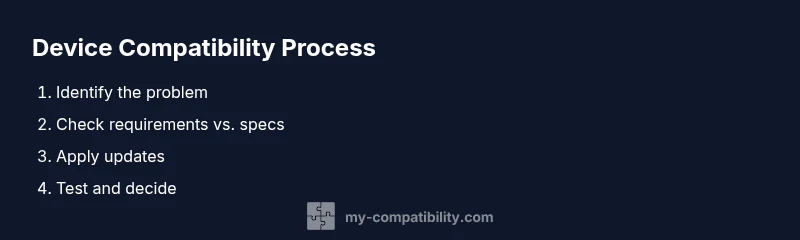
How to fix not compatible with your device: a practical guide
Learn step-by-step strategies to resolve compatibility issues between apps, devices, and software. This My Compatibility guide helps you diagnose, update, and choose compatible options to fix not compatible with your device.


If you’re facing a not compatible with your device message, you can resolve it by checking system requirements, updating software, and using supported alternatives. This quick guide outlines practical steps you can take today to restore compatibility across apps, devices, and services. We’ll cover common causes, safety checks, and how to decide when to replace hardware or switch to compatible options.
Why compatibility fails and what not compatible with your device signals
Compatibility failures can be confusing: you see a not compatible with your device error and you’re unsure what to do next. If you’re curious how to fix not compatible with your device, the answer begins with a clear understanding of the underlying mismatch. According to My Compatibility, compatibility failures often arise from outdated software, mismatched hardware capabilities, or incompatible app versions. When software demands more resources than your device can provide, or when an app targets a newer API than your OS supports, you’ll see this message. But the cause can also be subtle: regional restrictions, subscription tier, or differences between device families (Android vs. iOS, or Windows vs. macOS). The most reliable approach is diagnostic rather than guesswork. Start by collecting details: device model, OS version, app or driver version, and the exact error wording. Next, check official requirements and release notes. This initial audit saves time and reduces the risk of applying an incorrect workaround.
In the end, understanding what not compatible means helps you choose the most effective path—update, replace, or adjust settings. My Compatibility’s framework emphasizes methodical checks, documented decisions, and testing after each change to confirm real improvement.
Step 1 — Define the problem scope
The first step in any not-compatible scenario is to define precisely what isn’t working. Are you unable to install an app, run a game, or connect a peripheral? Are there error codes, timeout messages, or performance issues? Write down the exact failure point, the time it occurs, and any recent changes (new updates, new hardware, or a policy change). This helps you avoid chasing unrelated symptoms. A clear scope also determines whether the issue is device-wide or isolated to a single app or peripheral. Document the device’s physical state (battery level, storage space, temperatures) because performance problems can masquerade as compatibility issues. With a well-scoped problem statement, you’ll tailor the subsequent checks to the right components—your device, your software, and your network environment.
Pro tip: take a screenshot of the error and save it in a dedicated folder for reference; include the error code if present. This will speed up troubleshooting when you consult support or search for known fixes.
Step 2 — Gather requirements and current specs
Next, assemble a complete snapshot of your current environment. Record device model, operating system version, firmware level, app or driver version, available storage, and current network conditions. Compare these details against the official requirements and any recent release notes from the vendor. Note any discrepancies, such as unsupported OS versions, insufficient storage, or deprecated features. If you’re testing a peripheral, confirm compatibility matrices and firmware revision histories. This step creates a concrete map of gaps, making it far easier to identify which fix to apply first and which to deprioritize. Use a single document to track all findings so you can share it with support teams if needed.
Tip: use vendor checklists and your own measurements to create a gap-analysis table that you can reference in later steps.
Step 3 — Check official requirements and release notes
Visit the official product page, developer portal, or support center to verify supported versions, hardware requirements, and any known compatibility caveats. Release notes often list breaking changes, API deprecations, or required minimal configurations. Pay attention to regional limitations, account tier restrictions, and operating system advisories. If an issue persists after verifying requirements, look for recent posts or advisories about a similar symptom. This is where many issues are resolved without implementing risky workarounds. Document any official recommendations and their rationale so you can re-check them quickly during future troubleshooting.
Pro tip: search for your exact error code and filter results by your device model and OS version to avoid generic guidance.
Step 4 — Update software, firmware, and drivers
Apply the latest updates across the system stack: OS, firmware, drivers, and the affected application. Updates often fix compatibility gaps by aligning features and fixing known bugs. If an update is unavailable for a legacy device, consider alternative paths such as a lighter version of the app or a browser-based option. Before updating, back up important data to protect against potential rollback issues. After updating, re-run the same scenario to compare performance and confirm whether the problem is resolved.
Note: only install official updates from trusted sources to minimize risk.
Step 5 — Try compatibility modes and alternatives
If updates don’t fix the issue, try built-in compatibility modes or alternative editions of the software. On desktop systems, this could mean running a program in compatibility mode, adjusting compatibility settings, or choosing an older API level. For mobile devices, consider using a web-based version or a lighter app that preserves core functionality. These strategies can preserve functionality without the need for a full hardware upgrade. Test one alternative at a time to clearly identify what works and what doesn’t.
Pro tip: document the exact variant you tested and the resulting behavior so you can map which approach yielded the best result.
Step 6 — Adjust settings and clear caches
Mismatched configurations can mimic compatibility problems. Reset relevant settings to their defaults, disable any experimental features you may have turned on, and clear caches or temporary files that might cause stale data. If a privacy or data-saver mode exists, temporarily disable it while testing. After changes, restart the device and the app to ensure the new settings take effect. This step helps rule out misconfigurations and transient data as root causes.
Caution: note any changes you make so you can undo them if necessary.
Step 7 — Test with controlled scenarios
Create a controlled test scenario to isolate the impact of each change. Use a known-good dataset, a standard test file, or a simple workflow with predictable outcomes. Run the test multiple times and compare results to the baseline data collected earlier. If results improve but are not fully resolved, identify the remaining bottleneck and flag it for targeted action. Automated testing scripts or built-in diagnostics can help maintain consistency across trials.
Pro tip: keep a test log with timestamps, results, and any anomalies observed for future reference.
Step 8 — Assess hardware/OS upgrade needs
Sometimes it isn’t feasible to fix compatibility with the current hardware or operating system. If the device is several years old or the OS lacks required capabilities, an upgrade may be the most reliable long-term solution. Do a cost-benefit analysis: compare the price of upgrades against the expected value and remaining device lifespan. If upgrading isn’t practical, you can sometimes migrate to a supported platform or cloud-based alternative that preserves essential features while remaining within supported configurations.
Recommendation: document all upgrade paths and their expected impact to inform a final decision.
Step 9 — Plan for future-proofing
Create a proactive plan to prevent recurring issues. Schedule regular checks for updates, set alert thresholds for compatibility changes, and maintain a small playbook that outlines steps to take when new requirements appear. Consider subscribing to vendor advisories or setting up a compatibility dashboard that surfaces changes before they affect users. The goal is to reduce surprise failures and shorten recovery time when changes occur.
Tip: assign ownership for ongoing maintenance and review it quarterly.
Step 10 — Decide on next steps and create a runbook
Consolidate your decisions into a concise runbook or decision tree. Include the problem statement, required steps, test results, and the final resolution. Store the runbook where team members can access it during future troubleshooting. This document becomes a reference point for similar issues, enabling faster resolution and consistent practices across devices and software.
Final reminder: true resilience comes from consistent monitoring and repeatable processes.
Tools & Materials
- Device with intended compatibility(Keep it powered and within supported hardware specs)
- Stable internet connection(For firmware/app updates and online checks)
- Latest OS/firmware update(Install all recommended patches before troubleshooting)
- Official system requirements documentation(From the device/app vendor site)
- Error log collection tool(Capture error codes and timestamps)
- Backup media or cloud backup(To protect data before major changes)
- Optional alternate device for testing(Helpful for cross-checking compatibility)
- Diagnostic USB cable or adapters(If hardware tests are needed)
Steps
Estimated time: 60-120 minutes
- 1
Define the problem scope
The first step in any not-compatible scenario is to define precisely what isn’t working. Are you unable to install an app, run a game, or connect a peripheral? Write down the exact failure point, the time it occurs, and any recent changes (new updates, new hardware, or a policy change). This helps you avoid chasing unrelated symptoms. A clear scope also determines whether the issue is device-wide or isolated to a single app or peripheral. Document the device’s physical state (battery level, storage space, temperatures) because performance problems can masquerade as compatibility issues. With a well-scoped problem statement, you’ll tailor the subsequent checks to the right components—your device, your software, and your network environment.
Tip: Be specific about symptoms and timing. - 2
Gather requirements and current specs
List device model, OS version, app or driver version, storage space, and network conditions. Compare these details against official requirements and recent release notes from the vendor. Note any discrepancies, such as unsupported OS versions, insufficient storage, or deprecated features. If you’re testing a peripheral, confirm compatibility matrices and firmware revision histories. This step creates a concrete map of gaps, making it far easier to identify which fix to apply first and which to deprioritize. Use a single document to track all findings so you can share it with support teams if needed.
Tip: Document every detail you can collect. - 3
Check official requirements and release notes
Visit the official product page, developer portal, or support center to verify supported versions, hardware requirements, and any known compatibility caveats. Release notes often list breaking changes, API deprecations, or required minimal configurations. Pay attention to regional limitations, account tier restrictions, and operating system advisories. If an issue persists after verifying requirements, look for recent posts or advisories about a similar symptom. This is where many issues are resolved without implementing risky workarounds. Document any official recommendations and their rationale so you can re-check them quickly during future troubleshooting.
Tip: Look for version compatibility matrices. - 4
Update software, firmware, and drivers
Apply the latest updates across the system stack: OS, firmware, drivers, and the affected application. Updates often fix compatibility gaps by aligning features and fixing known bugs. If an update is unavailable for a legacy device, consider alternative paths such as a lighter version of the app or a browser-based option. Before updating, back up important data to protect against potential rollback issues. After updating, re-run the same scenario to compare performance and confirm whether the problem is resolved.
Tip: Back up data before major updates. - 5
Try compatibility modes and alternatives
If updates don’t fix the issue, try built-in compatibility modes or alternative editions of the software. On desktop systems, this could mean running a program in compatibility mode, adjusting compatibility settings, or choosing an older API level. For mobile devices, consider using a web-based version or a lighter app that preserves core functionality. These strategies can preserve functionality without the need for a full hardware upgrade. Test one alternative at a time to clearly identify what works and what doesn’t.
Tip: Test one alternative at a time to isolate effects. - 6
Adjust settings and clear caches
Reset relevant settings to their defaults, disable any experimental features you may have turned on, and clear caches or temporary files that might cause stale data. If a privacy or data-saver mode exists, temporarily disable it while testing. After changes, restart the device and the app to ensure the new settings take effect. This step helps rule out misconfigurations and transient data as root causes.
Tip: Note settings you change for easy rollback. - 7
Test with controlled scenarios
Create a controlled test scenario to isolate the impact of each change. Use a known-good dataset, a standard test file, or a simple workflow with predictable outcomes. Run the test multiple times and compare results to the baseline data collected earlier. If results improve but are not fully resolved, identify the remaining bottleneck and flag it for targeted action. Automated testing scripts or built-in diagnostics can help maintain consistency across trials.
Tip: Use logs to compare before/after results. - 8
Assess hardware/OS upgrade needs
If the device is too old or OS too constrained, evaluate upgrading hardware or OS to regain compatibility. Do a cost-benefit analysis: compare the price of upgrades against the expected value and remaining device lifespan. If upgrading isn’t practical, you can sometimes migrate to a supported platform or cloud-based alternative that preserves essential features while remaining within supported configurations.
Tip: Cost and benefits analysis helps decide. - 9
Plan for future-proofing
Create a proactive plan to prevent recurring issues. Schedule regular checks for updates, set alert thresholds for compatibility changes, and maintain a small playbook that outlines steps to take when new requirements appear. Consider subscribing to vendor advisories or setting up a compatibility dashboard that surfaces changes before they affect users. The goal is to reduce surprise failures and shorten recovery time when changes occur.
Tip: Set reminder cadence for checks. - 10
Decide on next steps and create a runbook
Consolidate your decisions into a concise runbook or decision tree. Include the problem statement, required steps, test results, and the final resolution. Store the runbook where team members can access it during future troubleshooting. This document becomes a reference point for similar issues, enabling faster resolution and consistent practices across devices and software.
Tip: Keep the runbook accessible to all users.
Questions & Answers
What does not compatible with your device mean?
It means the current software or hardware configuration does not meet the required specifications to run a program or connect a device. Causes include outdated components, version mismatches, or policy restrictions. Start by confirming the exact requirements and failure point.
It means your setup doesn't meet the requirements; verify the exact version and capabilities.
How can I check compatibility before installation?
Review the official requirements, check version numbers, and compare them with your device’s details. Use vendor tools or compatibility matrices to verify, and look for known issues in release notes.
Check official requirements and your device specs first.
Will updating always fix the issue?
Updates often close gaps, but not always. If the device is too old or the requirement is newer than the hardware supports, you may need alternatives or hardware upgrades.
Updates help, but they don't guarantee a fix in every case.
Can I continue using the device if the app is not compatible?
Yes, you may still use the device for other tasks, but the incompatible app or feature might be blocked. Evaluate risk and consider alternatives or a controlled workaround.
It might still work for other tasks, but the incompatible app should be avoided.
When should I upgrade hardware or OS?
If repeated attempts fail and requirements exceed what your current device can safely support, upgrading hardware or OS is typically the best long-term solution. Do a cost-benefit analysis before purchasing.
Upgrade when requirements exceed your device’s capability and updates aren’t feasible.
Watch Video
Highlights
- Identify exact failure points before applying fixes.
- Update software and firmware first; avoid risky patches.
- Use compatibility modes or alternatives if updates aren’t available.
- Document changes and test thoroughly to confirm results.