How to Fix Device Not Supported: A Practical Guide
Encountering 'device not supported' errors? This My Compatibility guide explains common causes, diagnostic steps, and practical fixes for apps, browsers, and devices to restore access quickly.


By the end of this guide you will know how to fix a 'device not supported' error across apps, browsers, and hardware. You’ll identify the root cause, verify compatibility, update software, and perform safe workarounds. Gather your device, a network connection, and admin access. My Compatibility’s practical approach helps you resolve most issues without unnecessary upgrades.
Understanding the Not Supported Message
Every time you encounter a 'device not supported' message, it's telling you the software package cannot run on your hardware or software environment. The reasons may be straightforward (the app requires iOS 14+ and your device runs iOS 12) or subtle (a streaming service has region-limiting rights). The My Compatibility framework helps you distinguish root causes from symptoms. Start by confirming your device model, OS version, and regional settings. Then check official compatibility lists for the app or service in question. Understanding the exact trigger will guide your next steps. Common scenarios include operating system age, insufficient hardware features (graphics, memory, or sensors), unsupported network configurations, and account or subscription limitations. In many cases, updating the OS or firmware, reinstalling the app, or using a supported alternative resolves the problem. However, some devices simply cannot meet the minimum requirements due to hardware limitations; in those cases, you have to consider upgrade or alternative solutions. As you proceed, document each change (version numbers, settings adjusted) so you can reproduce results or revert if a fix creates new issues. If you want to verify claims quickly, use a second, similar device to cross-check whether the problem follows the software or the hardware.
- Actionable approach: break the problem into root causes (software vs. hardware vs. regional constraints).
- My Compatibility note: problems often trace to OS minimums and hardware capabilities rather than a single misconfiguration.
Common Causes by Category
Not all 'device not supported' messages are created equal. Categorizing causes helps you pick the right fix first. Common categories include operating system version and device model, hardware capability gaps (GPU, RAM, sensors), regional or account restrictions, and version requirements for apps or services. For example, streaming apps may enforce DRM or resolution caps that your device can't meet. Browsers might block functionality if you run an outdated engine. If you find the cause is a regional restriction, a workaround may be limited to using supported regions or devices. Always verify the exact minimum requirements from the official release notes or the provider’s support page. My Compatibility analysis shows that OS and hardware age are the dominant factors, followed by region and account-level constraints. Keeping a simple log of device model, OS version, and app version will speed up diagnosis and future troubleshooting.
- OS and device age often drive incompatibility.
- DRM, hardware acceleration, and feature flags can block execution.
- Regional licensing can cause apparent not-supported errors.
- Always confirm with official compatibility lists and release notes.
Non-destructive fixes you can try first
Before you consider upgrades, start with non-destructive fixes that preserve data and settings. First, verify the exact error text and identify the affected app or service. Then update the OS/firmware and the app to the latest version. Clear app cache or browser data if applicable, and try a fresh install to rule out corrupted files. Check your network: some services fail over mobile data when proxies or VPNs alter traffic, so disable VPNs temporarily. If the service has a compatibility mode, toggle it on. Finally, test on another device or account to determine if the issue is device-specific or service-wide. These steps address the most common causes without risking data loss or unnecessary hardware changes.
- Update both OS and app to the latest supported versions.
- Clear cache and reinstall the app to rule out corrupted data.
- Test on a different network and disable VPNs if needed.
- Use a second device or account to isolate the issue.
Platform-specific fixes: Mobile devices
Mobile platforms (iOS and Android) often trigger not-supported errors due to OS version gates or device feature requirements. On iOS, ensure your device runs iOS version that supports the app, and enable required permissions (storage, microphone, etc.). On Android, check that your device is on a supported Android version and that Play Services are up to date. If the app requires hardware features (like AR or advanced graphics), verify the device supports those features and that the app is installed from the official store. If the problem persists, consider using the web version if offered, or contact the app’s support for an approved workaround. My Compatibility notes that many users resolve mobile-not-supported cases by updating to the minimum supported OS and clearing app data before re-install.
- Keep OS to minimum supported version.
- Ensure required permissions are granted.
- If hardware features are missing, use alternatives or web versions.
Platform-specific fixes: Web browsers and streaming devices
Web apps can fail with a not-supported message due to outdated browser engines, insufficient plugins, or blocked DRM. Update your browser to the latest stable version and clear cookies for the site. Disable experimental features that may conflict with the site’s scripts. If a streaming device (smart TV, set-top box) shows not supported, check whether the device’s streaming app is up to date, and verify that the service is offered in your region. Some services block high-resolution playback on older devices; lowering the resolution often restores access. For desktops, ensure your user agent isn’t spoofing or restricted by extension conflicts. In many cases, these fixes unlock compatibility without changing hardware.
- Update browsers and streaming apps.
- Disable conflicting extensions and clear site data.
- Adjust streaming quality to match device capabilities.
- Use an alternate browser or device if available.
When hardware upgrades or replacement is the right move
If your device consistently fails minimum requirements across multiple apps or services, upgrading hardware may be the most practical path. This could mean a newer smartphone, tablet, PC, or a streaming device with modern codecs, DRM, and processing power. Compare the minimum and recommended specs published by the app provider and factor in resale value and energy use. If upgrading is not feasible, consider collecting alternative solutions like cloud gaming or lightweight versions of software that are designed for older hardware. My Compatibility suggests planning upgrades by calculating support timelines and total cost of ownership, rather than chasing quick but temporary fixes.
Testing and verification checklist
After applying fixes, verify by re-launching the affected app or service, and repeat the same actions that previously produced the error. Record the OS/app version, network type, and device model used in the testing, and confirm whether the issue reappears. If the problem persists, test with a different account or a different device to identify whether the root cause is account-based, device-based, or service-wide. Finally, document the results and what worked, so future incidents can be resolved faster. A structured test approach minimizes guesswork and helps avoid repeating steps that did not help.
Authority sources and further steps
For authoritative guidance on device compatibility and security, consult official sources and major publications. For example, you can review NIST's mobile device security resources, FTC consumer guidance on apps and data security, and practical how-to articles from major publications. These sources help validate your approach and ensure you comply with best practices while diagnosing and fixing not-supported errors.
- NIST Mobile Device Security: https://www.nist.gov/topics/mobile-device-security
- FTC Consumer Information: https://www.ftc.gov
- Major tech coverage: https://www.theverge.com
FAQ
- What does 'device not supported' usually mean?
- It usually means the device, OS, or region does not meet the app or service's minimum requirements.
- Can I bypass compatibility checks?
- Bypassing is not recommended; it can violate terms of service and pose security risks. Use supported configurations instead.
- My device is old. Should I upgrade?
- If multiple services require newer hardware or OS versions, upgrading often provides the quickest, most reliable fix.
- Will this fix work on all apps?
- Most fixes target common causes like OS versions, app updates, and region restrictions, but some apps may have unique requirements.
- How do I verify the fix after applying changes?
- Reopen the app, perform the same tasks that triggered the error, and confirm the issue no longer occurs across at least two sessions.
Tools & Materials
- Device with internet access(Stable connection to download updates and verify fixes)
- Updated OS/firmware(Ensure device is on at least the minimum supported version)
- Updated apps/software(Latest versions from official stores)
- Backup method(Back up important data before major changes)
- Account credentials(Needed to re-authenticate or switch regions)
- Alternative device or browser(Useful for cross-checking whether the issue is device-specific)
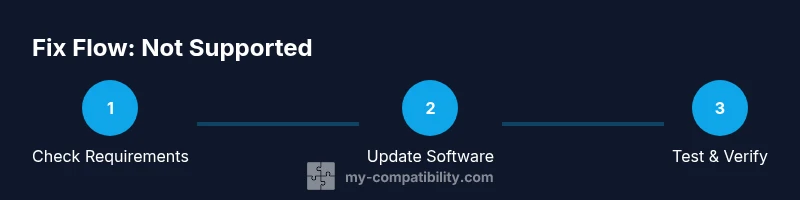
Steps
Estimated time: 45-75 minutes
- 1
Identify the exact error
Capture the exact wording of the error, note the app or service involved, and record device model, OS version, and region. This helps determine whether the fault lies with software, hardware, or licensing.
Tip: Take screenshots and write down version numbers for quick reference. - 2
Check official compatibility
Consult the app’s official release notes and the provider’s support pages to confirm minimum requirements and regional availability. Cross-check with your device’s specs to identify gaps.
Tip: If your device is close to the minimum, a small software update may push you over the threshold. - 3
Update OS and apps
Install the latest OS/firmware update and upgrade the affected apps to the newest compatible versions. Reboot after updates to ensure changes take effect.
Tip: Back up data before major updates to avoid loss if something goes wrong. - 4
Clear cache and reinstall
Clear the app’s cache, clear browser data if web-based, and perform a clean reinstall to eliminate corrupted files that block execution.
Tip: Uninstall first, then reinstall from the official store to avoid leftover data. - 5
Test network and settings
Test on a stable network (preferably Wi‑Fi) and disable VPNs or proxies that might interfere with service authentication or DRM checks. Ensure regional settings align with the service’s availability.
Tip: If you must use a VPN, switch to a region where the service is supported temporarily for testing. - 6
Try a backup device or browser
If possible, test the same service on a different device or browser to determine if the issue is device-specific or service-wide.
Tip: A quick test with a second device often reveals the root cause fast. - 7
Decide on upgrade or alternative
If none of the above steps fix the issue on multiple devices, evaluate hardware upgrades or alternative solutions provided by the service (web version, lighter app, or cloud-based options).
Tip: Compare upgrade costs with staying on current hardware and future-proofing plans.
Questions & Answers
What does 'device not supported' really mean?
It usually means the device, OS version, or region does not meet the minimum requirements of the app or service. Check the official compatibility list to confirm exact causes.
A not supported message typically means your device or region can't meet the service's requirements. Check official lists to confirm.
Can I bypass compatibility checks?
Bypassing is generally not recommended and can violate terms of service and security guidelines. Use officially supported configurations or alternatives instead.
No, bypassing is not advised. Use supported settings or alternatives instead.
Should I always upgrade hardware if fixes fail?
If multiple services require newer hardware or OS versions, upgrading often provides the most reliable long-term solution. Consider cost and future-proofing.
Upgrading hardware can be wise if ongoing compatibility issues persist across multiple services.
Is web or cloud access a good workaround?
Yes, many services offer web or cloud-based options that bypass device-specific limitations, at least temporarily while you upgrade.
Web or cloud options can be a practical workaround while upgrading or waiting for compatibility.
What is the fastest way to verify a fix?
Reproduce the exact steps that caused the error on the same device after applying fixes and confirm the issue no longer occurs across at least two sessions.
Reproduce the action after fixes and test in two sessions to confirm the fix.
Watch Video
Highlights
- Identify root cause before acting
- Keep OS and apps updated to match minimum requirements
- Test across devices to isolate the issue
- Evaluate upgrade vs. alternative solutions when necessary