How to fix compatibility issues: A practical guide
A practical, step-by-step guide to diagnosing and fixing compatibility issues across devices and software. Learn checks, fixes, and preventive strategies to keep systems running smoothly.


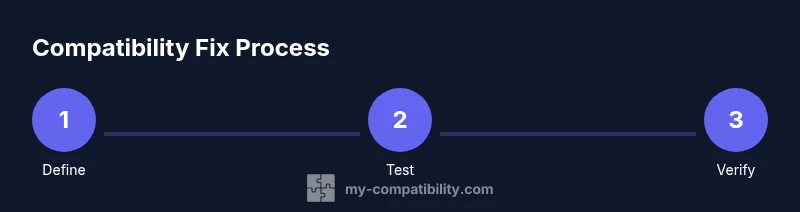
By following a structured troubleshooting workflow, you can diagnose and fix compatibility issues across devices, software, and configurations. This guide outlines a clear plan: define the problem, gather system details, test fixes in a safe order, validate results, and tune settings for stability. You’ll learn checks, fixes, and prevention strategies to minimize recurring conflicts.
Understanding the scope of compatibility issues
Compatibility issues occur when two or more components fail to work together as intended. This can involve hardware and software, operating systems, apps, or even everyday workflow assumptions. Across domains, it helps to view compatibility through a systems lens: one change in a single part can ripple through others. In My Compatibility's approach, the first step is to define the scope: which system elements are involved, what behavior is wrong, and under what conditions the problem appears. Start by listing the devices, software versions, network settings, and any recent updates or changes (new apps installed, drivers updated, or configuration changes). This baseline helps you measure whether a fix works and makes it easier to reproduce the issue later. When the problem crosses domains (for example, software behavior on a specific device while a setting is altered), treat it as a multi-faceted problem: gather data, confirm symptoms across environments, and be prepared to test multiple hypotheses. Clarity at this stage reduces wasted effort and guides subsequent fixes.
Common categories of compatibility problems
- Hardware compatibility: mismatched drivers, firmware, peripherals, or power/port limitations. Symptoms include device non-recognition, instability after driver updates, or unexpected reboots.
- Software compatibility: library or API version mismatches, missing dependencies, or incompatible runtimes. Symptoms include crashes, feature failures, or errors during startup.
- Data compatibility: unsupported file formats, encoding mismatches, or incomplete migrations. Symptoms include unreadable files, corrupted imports, or failed exports.
- Network compatibility: blocked ports, proxies, VPNs, or firewall rules that prevent services from communicating. Symptoms include timeouts, failed syncing, or slow responses.
- Settings compatibility: regional formats, language packs, or accessibility options that alter behavior. Symptoms include UI glitches or incorrect data interpretation.
- Edge-case compatibility: beta features or experimental options that introduce instability. Symptoms include intermittent issues or sudden changes after enabling features.
For each category, note concrete symptoms, affected components, and the exact steps that reproduce the issue. This structured mapping is essential for focused fixes and future prevention.
A reliable triage workflow
A disciplined triage workflow helps you move from vague symptoms to concrete fixes. Start by defining success criteria, then collect environment details (versions, hardware, network, and recent changes). Reproduce the issue in a safe test environment, ideally with a rollback plan. Use controlled experiments: change one variable at a time, observe results, and record findings. As you confirm potential causes, apply targeted fixes in a logical order—from low-risk, reversible adjustments to more substantial changes if needed. After each fix, re-test under multiple conditions to verify you’ve eliminated the root cause. Finally, document the outcome and update your runbooks so future issues can be resolved faster. A well-documented process reduces guesswork and increases long-term resilience.
Practical fixes by category
Fixing compatibility issues requires a pragmatic, low-risk approach. Begin with non-destructive steps like updating drivers, libraries, or firmware to recommended versions, and verify that you have a clean rollback plan. If a single update causes the problem, consider reverting or applying a compatible patch instead of a full reinstall. For software compatibility, ensure dependencies are aligned (correct runtime versions, library patches, and environment variables). For data compatibility, standardize formats and include migration scripts that can be rolled back if needed. In network problems, adjust firewall rules, proxies, or DNS settings to restore required communication paths. Always document each change and test across different user profiles or environments to ensure results are consistent.
In all cases, avoid sweeping changes without backups. A staged, documented approach minimizes downtime and helps you pinpoint the exact cause more efficiently.
Verification and validation
After applying fixes, validate results with a structured set of checks. Reproduce the issue from multiple starting points and across different devices or environments when possible. Confirm that the original symptoms are resolved and no new problems appeared. Use objective metrics where possible, such as successful startups, completed transactions, or error-free operation over a defined period. Maintain a rollback plan in case a fix proves unstable under real-world usage. If the issue persists, revisit the earlier steps to re-evaluate assumptions or escalate to a more comprehensive assessment.
Validation is not a one-off step; it should be part of a continuous improvement cycle. Record what worked, what didn’t, and update your go-to playbooks with the latest findings.
Prevention and maintenance
Prevention focuses on reducing the variability that leads to compatibility issues. Establish a vetted baseline of software versions, drivers, and configuration settings, and enforce controlled updates with testing windows. Create compatibility matrices that map supported configurations and document any known limitations. Implement monitoring to catch drift in environments, such as automatic version audits or periodic configuration backups. Regularly review third-party integrations for deprecations or API changes. Train staff or users to follow standardized procedures for updates and migrations. By building resilience into your environment, you’ll reduce the likelihood of sudden conflicts and shorten recovery time when issues do occur.
When to escalate to professionals
Some compatibility challenges exceed in-house capabilities, such as complex interdependencies, hardware failures, or multi-domain integration problems. If you encounter persistent symptoms after two or more iterative fixes, or if the issue threatens production systems, escalate to a consultant or vendor support. Prepare a concise issue brief that includes reproduction steps, environment details, logs, and the changes you have already attempted. Clear communication speeds up resolution and helps avoid duplicated effort. In critical scenarios, establish a temporary workaround to keep operations running while awaiting expert guidance.
Tools & Materials
- Computer or device with internet access(Full admin rights preferred for changes and installations)
- Platform/version logs and system information(Collect OS version, build numbers, and driver/library versions)
- Backup/restore tools or system image(Have rollback capability before major changes)
- Test data or sample files(Use representative data to verify fixes)
- Change log or issue tracker(Record changes and rationale for each step)
- Spare device or virtual environment(Useful for cross-checking behavior across platforms)
- Network configuration details(Capture proxies, firewall rules, and DNS settings if relevant)
Steps
Estimated time: 60-120 minutes
- 1
Define the problem and scope
State the exact issue, expected behavior, and the observed symptom. Identify the success criteria and set a baseline for measurement. This creates a focused target and prevents scope creep.
Tip: Document objective criteria and expected behavior. - 2
Collect environment details
Record operating system version, hardware specs, installed applications, and recent changes. This context helps you reproduce the issue and compare environments after fixes.
Tip: Capture version numbers and configuration snapshots. - 3
Reproduce the issue safely
Create a controlled test environment or use a snapshot. Ensure you can reliably trigger the problem without risking production systems.
Tip: Use backups or virtualization to isolate the test. - 4
Isolate potential causes by category
Triage the issue by category (hardware, software, data, network). Disable or revert one change at a time to see if the symptom resolves.
Tip: Eliminate single-variable changes first. - 5
Apply targeted fixes in order of risk
Start with low-risk, reversible fixes (updates, reconfigurations) before moving to more invasive changes. Verify after each adjustment.
Tip: Begin with non-destructive steps and maintain a rollback plan. - 6
Verify results with multiple scenarios
Test across different devices, user profiles, and settings to ensure the fix is robust and not limited to a single case.
Tip: Test one variable at a time and document outcomes. - 7
Document outcomes and preventive steps
Record what changed, why, and how it was verified. Update runbooks and user guides to prevent recurrence.
Tip: Update the knowledge base with the latest findings.
Questions & Answers
What counts as a compatibility issue and when should I treat it as one?
A compatibility issue is when two components fail to work together as intended due to mismatched versions, configurations, or unsupported combinations. Look for symptoms across hardware, software, and data, and verify whether changing one variable improves behavior without creating new problems.
A compatibility issue happens when parts don’t fit together, often because of version or config mismatches. Look for cross-component symptoms and verify with changes.
How do I determine whether the root cause is hardware or software?
Compare behavior across different devices or environments, check driver and firmware versions, and inspect logs for error codes pointing to drivers or APIs. If issues disappear on another device, the root cause likely lies with hardware or its configuration.
Compare behavior on multiple devices and check drivers and logs to spot hardware vs software clues.
Should I reinstall software to fix compatibility?
Reinstalling can solve corrupted installations or broken dependencies, but only after backing up and only if the versioning supports it. Prefer updating or patching before a full reinstall when possible.
Reinstall only after back-ups and when updates or patches don’t help.
What should I back up before making changes?
Back up important data, system states, and configuration files. Create a restore point or a full image, so you can revert if a fix introduces new issues.
Back up data and create a restore point before changes.
How can I prevent future compatibility problems?
Establish a vetted baseline of versions, apply structured updates, and maintain compatibility matrices. Regular audits and documentation reduce drift and surprises.
Maintain a baseline and document changes to prevent drift.
When should I escalate to professionals?
If the issue persists after multiple fixes, or threatens production systems, escalate to a consultant or vendor support. Prepare a concise brief with steps tried, environment details, and logs.
If unresolved or critical, seek professional help with a prepared brief.
Watch Video
Highlights
- Define the problem clearly.
- Collect precise environment details.
- Test fixes methodically.
- Validate across multiple scenarios.
- Document outcomes for future issues.