WiFi Router Xfinity Compatible: How to Choose, Verify, and Use It
Learn how to choose, verify, and set up a wifi router that is xfinity compatible. Practical tips, feature checks, and step-by-step setup to optimize performance with your Xfinity plan.


WiFi router xfinity compatible options let you take control of your home network while keeping Xfinity service. The key is ensuring the router supports your modem's standard, bridge mode, and compatible security settings. This guide shows how to verify compatibility, what features to prioritize, and how to set up a third‑party router with your Xfinity plan for reliable performance.
Why Compatibility Matters for Home Wi‑Fi
According to My Compatibility, choosing a wifi router xfinity compatible device can unlock better throughput, more control, and future‑proofing for your home network. When you swap an ISP‑provided gateway for a trusted third‑party router, you gain advanced features, finer bandwidth management, and stronger security. But you also face tradeoffs: some Xfinity services and features rely on the gateway, and not all plans or modems are equal. The My Compatibility team has seen that most households achieve noticeable gains by selecting a model that supports bridge mode, modern security (WPA3), and the latest wireless standards. Start with a clear picture of your usage — streaming in HD, gaming, videoconferencing, or smart‑home devices — and map those needs to the router’s capabilities. Finally, confirm with your ISP that a non‑Xfinity gateway will maintain service quality for your plan. This upfront check helps avoid surprises after you install and configure the new device.
Understanding Xfinity's Gateway and Third‑Party Routers
Xfinity typically supplies a gateway that combines modem and router functions. Some homes benefit from using a separate, third‑party router, but doing so requires switching the gateway into bridge mode or IP passthrough. In bridge mode, the Xfinity gateway becomes a pure modem, while the new router handles all routing and Wi‑Fi. This setup can improve performance and give you better control, but it may disable certain features like Xfinity’s Voice Services or the built‑in firewall rules for some services. Compatibility depends on your plan, the gateway model, and whether you can reliably enable bridging. If bridge mode isn’t fully supported by your model, consult customer support or review online specifications to confirm the exact steps for your hardware before buying.
Key Features That Affect Compatibility
When evaluating a potential router, focus on features that directly influence compatibility with Xfinity services. Look for:
- Bridge mode or IP passthrough support to allow the third‑party router to handle routing.
- Modern wireless standards (802.11ac/802.11ax) and strong MU‑MIMO performance for multiple devices.
- Adequate security options (WPA3, guest networks, VPN passthrough).
- Stable DHCP server and reliable NAT handling to avoid double NAT issues.
- Firmware update cadence and active support communities for your exact model.
- Compatibility with your modem if you use a separate cable modem with the Xfinity service.
- Easy configuration for port forwarding and QoS rules if you need specific applications (gaming, video conferencing). These features collectively determine how well a router will integrate with Xfinity and whether you’ll see the expected improvements in range, speed, and reliability.
How to Verify Compatibility Before You Buy
Before committing to a new router, perform a quick compatibility check:
- Identify your Xfinity plan and current gateway or modem model.
- Confirm whether your chosen router explicitly lists bridge mode or IP passthrough as supported features.
- Review the modem compatibility list for your region and plan. If you’re using a separate modem, ensure it supports DOCSIS standards compatible with your service tier.
- Check for firmware updates and community feedback about bridging success with your specific hardware.
- If possible, contact your provider’s support to confirm that a non‑Xfinity gateway can operate without service interruptions.
- Verify the return policy and warranty in case the setup doesn’t meet your expectations. Following these steps helps ensure a smooth transition to a compatible router with your Xfinity service.
Setup and Troubleshooting for a Non‑Xfinity Router
If you decide to proceed, start with a clean slate. Turn off the Xfinity gateway’s wireless radios (to reduce interference) and connect the new router to the gateway’s LAN port. Enable bridge mode or IP passthrough on the gateway, then configure your new router’s WAN settings to obtain an IP via DHCP from the gateway. In your router, set up your Wi‑Fi network, assign a unique SSID, and enable WPA3 security. Disable any conflicting features such as UPnP on both devices if necessary and test wired and wireless clients. If devices don’t see the internet, verify the bridge mode status, reboot both devices, and confirm there are no double NAT issues. If problems persist, re‑check firmware versions and consult the manufacturer’s support resources.
Real‑World Scenarios and Examples
Many households find that a mid‑range router with good coverage and flexible settings meets their needs after replacing the Xfinity gateway. For a small apartment with dense device usage, a dual‑band router with MU‑MIMO and a solid beamforming profile can reduce dead zones. In a home with multiple floors, a 3–4‑node mesh system from a reputable vendor can improve coverage and maintain stable connections for streaming, gaming, and work from home. In some cases, households report that bridging provides a more stable device network, while in others, users prefer to keep the gateway enabled for Xfinity Voice features and use the new router strictly for data networks. My Compatibility’s experience is that the best outcome depends on balancing performance gains with the service requirements of the plan.
What to Expect After Switching
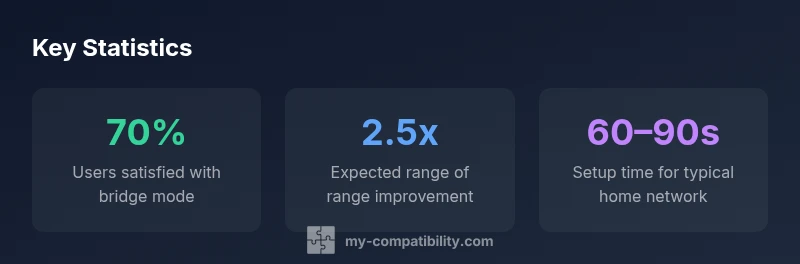
Expect noticeable boosts in network range, device capacity, and consistent speeds across rooms when you deploy a capable third‑party router. You’ll typically see more predictable performance under load, better control over QoS for gaming or video calls, and enhanced security features like WPA3. Some Xfinity services reliant on the gateway, such as certain voice features or integrated parental controls, may require adjustments or temporary workarounds. If you need to access Xfinity apps or services that require the gateway, you may choose to reintroduce the gateway and use the third‑party router in IP passthrough for specific devices. The My Compatibility team emphasizes testing with a representative mix of devices to confirm that the arrangement meets your needs.
Verdict and Quick Checklist
The My Compatibility Team recommends a careful, phased approach: (1) verify bridge mode support for your gateway and chosen router, (2) ensure the router offers current standards and security features, (3) test essential services (video streaming, gaming, work apps) under load, and (4) maintain a contingency plan if any Xfinity features require the gateway. A well‑chosen, compatible router can deliver strong performance and control, but success depends on accurate setup and staying within your plan’s terms. This final checklist helps minimize surprises and maximize home network reliability.
Comparison of router types and Xfinity service compatibility
| Router Type | Compatibility Notes | Bridge Mode Support |
|---|---|---|
| Generic third‑party router | Usually compatible with bridge mode; verify firmware and security support | Yes |
| Xfinity Gateway (built‑in modem) | Designed for Comcast; features may be limited when bridging | Partial |
| Dedicated router + modem combo | Best for performance; ensure plan supports bridge configurations | Yes |
Questions & Answers
Can I use my own router with Xfinity service?
Yes, in most cases you can use your own router by configuring the gateway to bridge mode or using IP passthrough. This unlocks greater control and potential performance gains, but verify feature compatibility with your plan and the gateway model before proceeding.
Yes. You can use your own router by enabling bridge mode on the gateway and setting up your router to handle routing, which gives you more control and potential speed improvements.
Do third‑party routers support all features of the Xfinity Gateway?
Third‑party routers typically support most common features, but some ISP‑specific services may rely on the gateway. Review bridge mode, NAT behavior, and any service limitations before committing to a replacement.
Most features are supported, but some ISP services may rely on the gateway, so check bridge mode and NAT settings first.
What features should I look for when choosing a compatible router?
Look for bridge mode or IP passthrough,802.11ac/ax support, MU‑MIMO, WPA3 security, robust QoS, and easy firmware updates. Also confirm modem compatibility if you use a separate cable modem.
Prioritize bridge mode, modern Wi‑Fi standards, and strong security with reliable firmware support.
How do I set up a third‑party router with Xfinity?
Connect the new router to the Xfinity gateway, enable bridge mode or IP passthrough on the gateway, configure the router to obtain a public IP, set up Wi‑Fi, and test all devices. Reboot after changes and verify connectivity.
Connect the router, enable bridge mode on the gateway, configure Wi‑Fi, and test.
Will using my own router affect my Xfinity internet speed?
In many cases, a quality router can improve throughput and reduce contention, especially in busy networks. However, speed is ultimately limited by your plan, modem, and service quality, so monitor performance after switching.
It can improve speed in busy homes, but overall speed depends on your plan and modem.
“A well‑chosen third‑party router can match or exceed gateway performance when configured correctly, giving you more control without sacrificing reliability.”
Highlights
- Verify bridge mode before buying a third‑party router
- Prioritize modern standards (802.11ac/ax) and WPA3 security
- Check your plan terms to avoid service limitations
- Use a wired backhaul when possible for best performance
- Test your setup with real devices to confirm reliability