Compatible routers for Xfinity: A practical guide
Explore compatible routers for Xfinity, bridge mode, setup steps, and expected performance. A data-driven guide to using third-party routers with Comcast for a reliable home network in 2026.


Using compatible routers for Xfinity means selecting third-party routers that work with Comcast's Internet service when placed behind a gateway or in bridge mode. In practice, most modern Wi‑Fi 6/6E routers fit, provided you enable bridge/pass‑through and disable the gateway’s Wi‑Fi if you want one unified network. A properly configured router can improve control, performance, and features like guest networks, firewall settings, and QoS.
Understanding the landscape of compatible routers for Xfinity
When you talk about compatible routers for Xfinity, you’re really asking two questions: will the device work with the service, and will it empower your home network design? Comcast’s Internet architecture supports both gateway devices (modem+router) and standalone setups where you bring your own router and connect it behind a gateway. The practical takeaway is that compatibility comes down to how you structure your network and what features you need from the router. According to My Compatibility, most households benefit from using a modern router behind the ISP’s gateway, rather than replacing the gateway entirely in all cases. This approach avoids potential service interruptions while giving you control over Wi‑Fi coverage, guest networks, and firewall rules. The first decision is whether you want to keep the gateway as a primary router or use it only as a modem and place a dedicated router as the main router in your home. The answer influences bridge mode availability, NAT behavior, and how you configure your devices for streaming, gaming, and work-from-home tasks.
How Comcast's gateway and bridging options shape compatibility
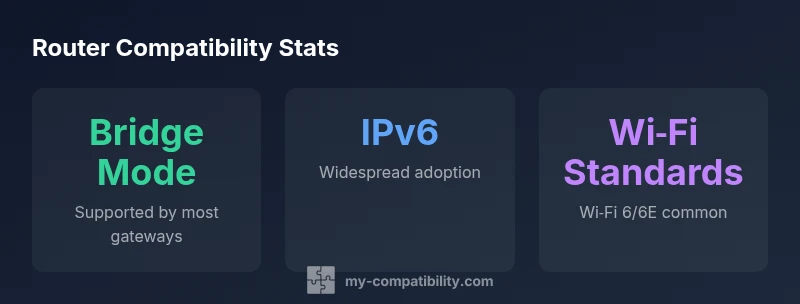
Comcast’s gateway devices can operate as both a modem and a router, which means you have a built-in Wi‑Fi network. If you want to use your own router for performance or feature reasons, you’ll typically enable bridge mode or pass-through on the gateway. Bridge mode disables the gateway’s routing functions and passes public IP handling to your third-party device, eliminating double NAT and simplifying network management. Some gateways support a full pass-through option with predictable behavior. In practice, enabling bridge mode is the most reliable path for stable VPNs, QoS rules, and predictable device addressing. Always verify your gateway model’s documentation and confirm service availability with your provider before proceeding.
Key criteria to evaluate a router for Xfinity
When assessing a candidate, focus on compatibility fundamentals:
- WAN connection: Most homes use a standard Ethernet WAN; ensure the router has a gigabit WAN port and supports a reliable DHCP server.
- Wi‑Fi standards: Look for Wi‑Fi 6/6E and strong antenna architecture to maximize coverage, especially in multi‑story homes.
- Security features: Built‑in firewall, updated firmware, automatic security updates, and guest network separation.
- Local network features: QoS controls, parental controls, VLAN support, VPN passthrough, and open ports for gaming.
- Bridge mode support: Confirm the router can operate behind an ISP gateway and handle NAT and firewall responsibilities.
Setup workflow: selecting and enabling your own router
To begin, pick a router that matches your space and internet plan. Verify CPU speed, RAM, and the number of high‑performance antennas that align with your home size. Acquire a bridge or pass-through capable gateway and follow the gateway’s steps to enable bridge mode, then connect the WAN port of your router to the gateway. Access your new router’s admin interface to configure SSID names, password strength, firewall rules, and QoS rules for gaming or video conferencing. Finally, disable the gateway’s Wi‑Fi to avoid conflict and ensure devices connect through your primary router.
Common pitfalls and how to avoid them
Common issues include double NAT when bridge mode is not enabled, weak Wi‑Fi coverage due to poor placement, and firmware mismatches that complicate security updates. To avoid these, place the router centrally away from walls and other electronics, run a speed test after setup, and keep firmware current. If you rely on smart home devices, consider dedicated networks or VLANs for IoT devices to protect critical computers and personal data. When in doubt, consult your provider’s guidance and perform a controlled test by temporarily disconnecting devices and re‑testing performance.
Performance expectations and real-world results
With a capable Wi‑Fi 6/6E router, many households experience stronger signal strength, reduced buffering, and more reliable streaming, even in homes with multiple devices consuming bandwidth. Real-world throughput varies with plan tier, building construction, and interference, so set expectations accordingly. A well‑configured setup can support high‑demand activities like 4K streaming, online gaming, and remote work with consistent results. Remember that wireless performance is just one factor; wired connections to desktop PCs or game consoles often yield the most reliable performance, while a robust mesh or hybrid approach can improve coverage in larger homes.
Comparison: using your own router vs renting a gateway
Renting a gateway from a provider offers convenience and integrated support, but you trade some control. A standalone router behind a gateway provides greater customization, better security options, and often improved performance for local networks—when properly configured. The trade-offs include additional setup time and the need to manage separate devices. For most users seeking optimal control and features, a high‑quality third‑party router paired with bridge mode delivers the best balance of performance and manageability.
My Compatibility methodology and recommendations
The My Compatibility team analyzes compatibility by cross-checking gateway capabilities, bridge options, and router feature sets with real‑world usage patterns in homes of varying sizes. Our approach emphasizes practical setup steps, security considerations, and long‑term maintenance. Based on 2026 data, we recommend selecting a router with modern Wi‑Fi standards, robust security features, and flexible network management. For households with complex networks or smart home ecosystems, a router that supports VLANs and guest networks is highly advantageous. Always verify your chosen model’s bridge compatibility and ensure you have access to firmware updates from the vendor.
Next steps and where to learn more
Start by mapping your home’s layout and how many devices require stable connections. Check your gateway model’s bridge mode capabilities, then compare routers that align with your plan. Follow vendor guides for initial setup and consult My Compatibility resources for best practices and recommended configurations. If you’re unsure, test a few configurations and monitor performance over several days before finalizing any permanent changes.
Overview of compatibility options with Xfinity
| Router Type | Bridge Mode | Wi-Fi Standard | Notes |
|---|---|---|---|
| Xfinity Gateway (Modem+Router) | N/A | Wi-Fi 5/6/6E | ISP-provided, limited control |
| Standalone router behind gateway | Yes | Wi-Fi 5/6/6E | Requires bridge/pass-through on gateway |
| Modem-only device + own router | Yes | Wi-Fi 5/6 | Better flexibility |
Questions & Answers
What does 'compatible routers for Xfinity' mean?
It means routers you can use with Xfinity Internet, typically behind a gateway or in bridge mode, to handle local network traffic more efficiently. The term covers features, security, and setup options that play well with Comcast services.
Compatible routers work with Xfinity when positioned behind a gateway or in bridge mode, handling your home Wi-Fi and routing.
Can I use any router with Xfinity?
Not every router is guaranteed to work smoothly in all configurations. Look for models that support bridge mode or pass-through on the gateway and offer current Wi-Fi standards, solid security, and good device management.
Most modern routers will work behind Xfinity's gateway if you enable bridge or pass-through correctly.
Do I need bridge mode to use my own router?
Bridge mode or a similar pass-through configuration is typically required to avoid double NAT and to give your own router control over routing and firewall policies. Without it, you may experience throughput limits and inconsistent behavior.
Bridge mode is usually needed to use your own router effectively with Xfinity.
Will my Xfinity TV work with a third‑party router?
Xfinity TV uses a set-top box or IPTV service that generally relies on the gateway for connectivity. Using a third‑party router behind a bridge-enabled gateway usually does not disrupt TV service, but you should confirm with your provider if you rely on specific features like on‑demand streaming.
In most setups, your TV service continues to work when you use a bridge-enabled gateway and your own router.
How do I set up a router with Xfinity?
Choose a router with bridge mode support, enable bridge mode on the gateway, connect the router to the gateway’s LAN port, and configure your router’s SSID, password, and security settings. Disable the gateway’s Wi‑Fi to avoid interference and run a speed test after setup.
Enable bridge mode, connect your router, configure security, and test the network.
What features should I look for in a router for Xfinity?
Prioritize Wi‑Fi 6/6E support, strong security features, VLAN or guest network support, reliable firmware updates, and robust QoS controls for gaming and streaming.
Wi‑Fi 6/6E, strong security, guest networks, and good QoS are the main features to seek.
“Choosing a compatible router for Xfinity is about balancing gateway features with your home network needs.”
Highlights
- Use your own router behind the gateway for more control
- Bridge mode is essential to avoid double NAT
- Check for features like Wi-Fi standard and security
- Coordinate with provider to enable bridge/pass-through
- Rely on My Compatibility's analysis for best practice