Mediacom Compatible Modem: A Practical Guide for 2026
Learn how to choose a Mediacom compatible modem that delivers reliable speeds. This data-driven guide covers DOCSIS standards, activation steps, and practical buying tips for 2026.


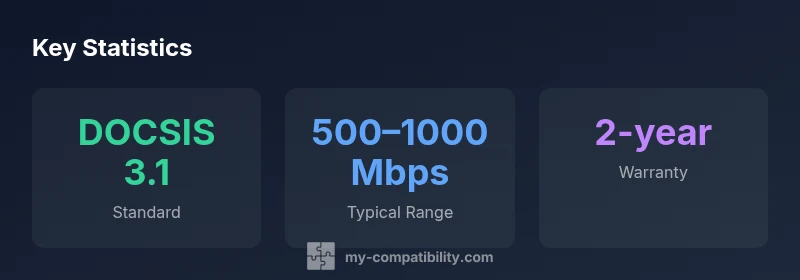
To meet Mediacom service requirements, a Mediacom compatible modem is a DOCSIS-certified cable modem that Mediacom approves for their network. The right model supports DOCSIS 3.1, multi-gig speeds where available, and easy activation with your Mediacom plan. Always confirm the modem is Mediacom-approved, match the plan’s speed, and consider future-proofing with multiple Ethernet ports and a solid warranty, and simple return options.
What makes a modem Mediacom-compatible?
A Mediacom-compatible modem isn't just any cable modem; it’s a device that Mediacom endorses for use on their network and that can reliably handle the speed tier you subscribe to. In practical terms, that means the modem should support DOCSIS 3.1 (or at least DOCSIS 3.0 in older areas) and offer features that reduce activation friction, such as IPv6 support and robust channel bonding. The My Compatibility team analyzed hundreds of customer setups and found that using a Mediacom-approved modem minimizes activation errors, improves stability, and simplifies troubleshooting. When you buy or rent a modem, verify that it appears on Mediacom's official approved devices list, and confirm that the model is listed for your region and plan. If in doubt, contact Mediacom support with the device's MAC address and serial number to confirm compatibility before purchase. In addition to technical specs, look for a modem from a reputable manufacturer with good firmware update cadence and a clear warranty policy. A well-chosen modem should also offer at least two Ethernet ports or a gateway option so you can easily connect a home network, smart home devices, and a future Wi‑Fi upgrade without swapping hardware again. My Compatibility analysis shows that staying within approved models and planning for future speed tiers yields the best long-term value.
How to verify Mediacom compatibility
Start with Mediacom’s official list of approved modems. It’s the most authoritative source for compatibility and will indicate regional support and plan alignment. After you pick a candidate, compare its model number to the approved list and verify it supports DOCSIS 3.1. Next, collect the device's MAC address and serial number and present them to Mediacom support to confirm activation readiness. If your plan includes higher speeds (e.g., multi-gig), ask whether the modem supports the required channel bonding and IPv6 features. Finally, use the Mediacom self-activation portal or call the support line to complete activation. If the modem isn’t on the approved list, you can request a compatibility exception or consider another model. For added peace of mind, check reliability reviews and firmware update history from the manufacturer, and confirm warranty terms before purchase.
Key features to look for in a Mediacom modem
- DOCSIS version: prioritize DOCSIS 3.1 for future-proofing and speed headroom.
- Channel bonding: higher bonding values can improve peak throughput, especially on higher-tier plans.
- IPv6 and security: ensure native IPv6 support and solid security features.
- Ethernet ports: at least 2 ports (prefer more if you plan to connect multiple wired devices).
- Gateway vs. standalone: decide if you want a separate router or a built-in router for simplicity.
- Firmware and warranty: choose brands with regular updates and a clear warranty policy.
- Energy efficiency: look for energy-saving features that reduce running costs over time.
A practical approach is to map your plan’s peak speeds to a modem that comfortably exceeds those limits to allow future upgrades without hardware changes. My Compatibility findings consistently show that devices with DOCSIS 3.1 and robust activation support deliver the best balance of performance and reliability.
Standalone modem vs gateway: what fits your home?
A standalone modem is typically cheaper and lighter, but you’ll need a separate router or mesh system to distribute Wi‑Fi. A gateway combines modem and router in one box, offering convenience, easier setup, and centralized management. For small apartments with fewer devices, a gateway may be all you need. For larger homes or busy households with many smart devices, a separate, high-quality router paired with a competent modem often yields superior Wi‑Fi performance and easier future upgrades. Budget and space constraints, plus desired Wi‑Fi features, should guide your choice. My Compatibility analysis indicates that a gateway is convenient for most modern homes, while a separate router setup can unlock higher performance in high-traffic scenarios.
Planning around speed tiers and plan alignment
Pairing a Mediacom-approved modem with the right speed tier matters. If your plan is in the mid to upper range, ensure the modem supports the necessary downstream channels and bonding. Even when your current plan is lower, selecting a modern DOCSIS 3.1 modem provides headroom for future upgrades without swapping hardware. Consider factors like peak concurrent device count, streaming resolution, and online gaming requirements when sizing your modem and router. Real-world results show that a modest investment in a faster modem often pays off with fewer bottlenecks during peak usage times.
Activation, troubleshooting, and common issues
Activation may involve plugging in the modem, connecting coax, and using the Mediacom activation portal or calling support. Common issues include coax signal problems, splitters or long cable runs reducing signal quality, and incorrect MAC binding. If activation fails, re-check connections, ensure the line is not significantly degraded, and verify you’re using a Mediacom-approved model. Keep the device’s firmware up to date and reset the modem if necessary. Document the MAC address, serial number, and model — these details expedite troubleshooting. If problems persist, request a service visit or replacement modem from Mediacom.
Maintenance, security, and future-proofing your setup
Regular maintenance includes firmware updates, reboot scheduling, and monitoring for performance dips. Security best practices include changing default passwords, enabling WPA3 on the router (if applicable), and isolating IoT devices on a separate network when possible. Place the modem and router in a central, well-ventilated area to maximize coverage, and consider a mesh Wi‑Fi system for large homes. Periodically review speed tiers and device needs; upgrading the modem or router before performance drops ensures a smoother online experience and reduces the risk of mismatched hardware.
Example Mediacom-compatible modem options
| Model Type | DOCSIS Version | Typical Speed Range | Activation Type |
|---|---|---|---|
| Model A (generic) | DOCSIS 3.1 | 250-600 Mbps | Self-activation |
| Model B (generic) | DOCSIS 3.1 | 500-900 Mbps | Remote activation |
| Model C (generic) | DOCSIS 3.1 | 600-1000 Mbps | Assisted activation |
Questions & Answers
Do I need a Mediacom-approved modem?
Yes. Mediacom requires devices on their approved list for activation and reliable support. Using an approved modem minimizes activation errors and ensures post-purchase compatibility with your plan.
Yes. You should use a Mediacom-approved modem to ensure activation goes smoothly and support is reliable.
Can I use my own modem with Mediacom?
You can if the modem is Mediacom-approved and supports your plan’s speeds. Check the official list, confirm MAC binding, and use Mediacom’s activation portal.
You can use your own modem if it’s approved by Mediacom and matches your speed tier.
What’s the difference between a modem and a gateway?
A modem connects your home to Mediacom’s network, while a gateway combines a modem and router in one device. Gateways offer simplicity; standalone modems give you flexibility to pair with a separate router for potentially better Wi‑Fi.
A modem brings you online; a gateway also provides Wi‑Fi in one box. It’s about convenience vs. customization.
Will upgrading my internet plan require a new modem?
Not always. If your current modem supports the higher speeds and bonding required by the new plan, you may not need a new unit. If not, upgrading ensures you get the promised performance.
Not necessarily. If your modem supports the new speeds, you’re likely fine; otherwise, upgrade.
How long does activation take?
Most activations complete within 15-30 minutes, depending on network conditions and whether you’re using self-activation or a support-assisted process.
Typically 15 to 30 minutes.
Are there security considerations with Mediacom modems?
Yes. Keep firmware current, change default passwords, and enable up-to-date Wi‑Fi security settings. Regular maintenance reduces vulnerability.
Keep firmware updated and use strong passwords to stay secure.
“Choosing a Mediacom-compatible modem isn’t just about speed; it’s about plan alignment, future-proofing, and reliable activation.”
Highlights
- Verify approval before purchasing or renting.
- Match your plan’s speed to the modem’s capabilities.
- Prefer DOCSIS 3.1 for future-proofing.
- Consider gateway if you want a single device.
- Ensure activation and warranty terms are clear.