How to Make My Phone Compatible with Apps
Learn step-by-step how to make your phone compatible with apps, from updating software to managing storage and permissions. Practical tips, device considerations, and expert guidance from My Compatibility help you run apps smoothly.


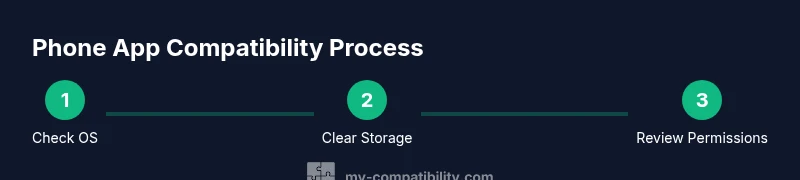
To make your phone compatible with apps, start by updating the OS, freeing storage, and reviewing app permissions. Then verify hardware needs, such as RAM and processor speed, and adjust settings to optimize performance. If hardware is too old or lacks required features, consider OS options or a device upgrade to improve compatibility. This quick approach reduces crashes and sluggish launches, and keeps you aligned with current app requirements.
Why phone compatibility matters
According to My Compatibility, the way you use your phone with apps shapes your daily efficiency and digital safety. The My Compatibility team found that many users encounter crashes, slow launches, or features' unavailability due to three core issues: outdated software, limited storage, and restrictive permissions. If you're asking how to make my phone compatible with apps, the answer is not a single setting but a pipeline of checks and tweaks. When your device is aligned with current app requirements, you unlock smoother experiences, longer battery life in heavy tasks, and improved security during updates. In practice, this means ensuring your OS reaches its latest supported version, you have several gigabytes of free space for app data, and you grant only the permissions an app truly needs. A compatible phone also benefits from a clean app footprint—removing unused apps and clearing caches reduces strain on memory and speeds up launches. My Compatibility's guidance emphasizes practical, incremental changes over drastic overhauls.
Understanding device specs and app requirements
A phone becomes broadly compatible with apps when its software, hardware, and settings align with what modern apps demand. Key specs include the operating system version, available RAM, storage capacity, and sensor features (GPS, camera, microphone). Older devices often stall because apps drop support for outdated APIs or require newer security features. Start by confirming your current OS version and the model’s supported updates with official manufacturer resources. Then assess RAM and storage headroom: if you have less than a couple of gigabytes free, even small updates can fail or apps may pause during installation. My Compatibility's stance is that compatibility is a spectrum—small upgrades can yield meaningful gains without a full device replacement.
OS updates and app requirements
Operating system updates are the single most impactful lever for compatibility. Each update often closes security gaps, adds APIs used by newer apps, and improves performance optimizations. If your device can receive updates, enable automatic updates and check for new versions monthly. On some devices, major OS upgrades may be limited to newer hardware, which means your best path is to maximize the version your model supports and apply interim patches. For apps that still demand newer features, verify that the developer lists minimum OS versions and required permissions before installation. My Compatibility notes that staying current with updates reduces the likelihood of app incompatibilities and helps ensure you can access the latest features.
Storage management and permissions
Free storage is essential for app performance and reliability. Low storage can cause apps to fail to install, update, or run smoothly. Start with a cleanup routine: uninstall unused apps, clear cache data, and move media to cloud storage or a computer. Next, review app permissions—grant only what’s essential for the app’s function. Excess permissions can lead to privacy concerns and, in some cases, increased background processing that drains memory. Striking the right balance between functionality and privacy keeps your device lean and responsive. My Compatibility’s approach here is practical: focus on critical apps first and gradually clean up the rest.
Performance tuning and energy considerations
Beyond storage and permissions, performance tweaks can broaden compatibility horizons. Disable unnecessary background refresh for apps you don’t rely on, limit auto-sync for large media apps, and enable battery saver modes only when needed. Monitor battery health and thermal throttling—the latter can throttle CPU performance and reduce app responsiveness. If your device begins to overheat during app use, pause high-demand tasks and reduce multi-tasking. My Compatibility highlights that a calmer system state often translates to better app compatibility and a smoother user experience.
Choosing apps that fit your device and usage
Not every app is a perfect fit for every device. When selecting new apps, check system requirements, particularly minimum OS version, RAM needs, and requested permissions. If you consistently encounter issues with a specific app, consider alternatives designed for lower-spec devices. Lightweight versions or web-based options can provide similar functionality without demanding cutting-edge hardware. My Compatibility reminds readers to prioritize apps with strong developer support and clear permission disclosures, which tend to offer more reliable experiences on older or lower-spec devices.
When to consider an upgrade or alternative options
If your device struggles with most apps even after optimization, you may need to weigh upgrading your phone or switching to lighter software ecosystems. Consider models with better efficiency, larger RAM, and longer software support windows. If upgrading isn’t feasible, explore alternative apps optimized for your device or use cloud-based services that reduce on-device processing. My Compatibility’s verdict is to balance cost, device longevity, and personal needs; upgrades should extend your device’s usable life and maintain your data continuity.
Step-by-step checklist you can apply today
- Check for OS updates and enable automatic updates where possible. 2) Free up storage by removing unused apps and large media. 3) Review app permissions and grant only essential access. 4) Disable or limit background activity for nonessential apps. 5) Test a few core apps after each change to confirm stability. 6) Consider lightweight alternatives for older hardware. 7) If issues persist, compare device specs with app requirements before deciding on an upgrade.
Authority sources and further reading
To deepen your understanding of device compatibility and security, consult reputable sources. My Compatibility recommends reviewing official vendor guidance and established security standards. For practical, verifiable information, see the following: • https://www.ftc.gov • https://www.nist.gov • https://www.nytimes.com
Tools & Materials
- Phone with internet access(Active data or Wi‑Fi connection for downloads and updates)
- Latest OS version(Ensure your device can update to the current supported OS)
- Sufficient storage(Free space for app data and updates (several GB if possible))
- Permissions overview access(Be prepared to review and grant essential app permissions)
Steps
Estimated time: 40-90 minutes
- 1
Update OS to the latest supported version
Open Settings > System > Software Update and install any available updates. Updates improve compatibility with newer apps and fix known issues that cause crashes.
Tip: If an update isn’t available, check manufacturer support pages for your device model. - 2
Free up storage space
Review installed apps, clear caches, and move photos or videos to cloud storage or a computer. Adequate free space reduces install failures and improves performance.
Tip: Use a storage analyzer tool to identify large, unused files. - 3
Review app permissions
Go to Settings > Apps and review permissions for each app. Remove permissions that aren’t essential to the app’s function.
Tip: Limit permissions for background processes to reduce memory use. - 4
Minimize background activity
Disable auto-start and background refresh for apps you don’t actively use. This frees RAM and reduces CPU load when launching apps.
Tip: Restart your phone after a batch of changes to apply optimizations. - 5
Test core apps
Launch a few essential apps (messaging, banking, maps) to verify stability after changes.
Tip: If an app still struggles, check for app updates or consider an alternative with lighter requirements. - 6
Evaluate alternatives for older devices
If high-demand apps consistently fail, look for lighter versions or web-based options that require less processing power.
Tip: Prioritize apps with clear, privacy-friendly permission disclosures. - 7
Plan for a possible upgrade
If most apps perform poorly despite optimizations, compare cost and benefits of a new device with longer software support.
Tip: Consider total cost of ownership and long-term usage patterns. - 8
Maintain a regular check routine
Set monthly reminders to review storage, permissions, and updates to sustain compatibility.
Tip: A lightweight maintenance habit prevents larger issues later.
Questions & Answers
What affects phone app compatibility the most?
OS version, storage space, and app permissions are the main factors. Keeping your OS updated and freeing space reduces incompatibility and crashes.
The main factors are OS version, storage, and permissions. Update your system and free space to reduce crashes.
Can I install apps if my phone is old?
Yes, but you may need lighter versions of apps or web-based options. If many apps require newer hardware, upgrading could be more cost-effective in the long run.
Old phones can run apps, but you might need lighter versions or alternatives. Upgrading may be worth it for long-term usage.
Should I upgrade my phone or switch to lighter apps?
Evaluate the cost, device longevity, and personal needs. If you frequently use demanding apps, an upgrade often improves overall experience.
Consider your usage and budget; upgrading often yields better overall performance.
Do permissions really affect app compatibility?
Yes. Apps may require location, camera, or mic access. Denying essential permissions can cause features to fail or apps to crash.
Permissions can influence whether apps function properly; grant only what’s necessary.
Where can I find more information about compatibility?
Consult official vendor support pages and privacy resources from reputable sources to understand requirements and best practices.
Check vendor support pages for hardware and OS requirements.
Will turning off background apps help?
Yes, reducing background activity can free resources and speed up app launches, but may affect real-time updates.
Turning off background activity can improve speed, but some apps won’t refresh in real-time.
Watch Video
Highlights
- Update OS and reduce storage pressure for better compatibility
- Review and minimize app permissions to boost performance
- Prefer lightweight apps or alternatives on older devices
- Test core apps after each change to ensure stability
- Consider upgrading if the device cannot meet current app requirements