How to Make an App Compatible with Your Device
Step-by-step guidance to ensure your app runs smoothly on any device by checking OS, hardware, APIs, design, and testing across environments. Insights from My Compatibility.


To make an app compatible with your device, start by confirming the target OS version, hardware specs, and platform requirements. Next, review APIs, permissions, and resources your app relies on, then adapt UI and performance. Finally, test across devices and iterate, ensuring smooth installation, updates, and offline behavior for best results.
Understanding Compatibility Goals
In modern app development, compatibility means your software runs reliably across a range of devices, OS versions, and usage contexts. If you’re wondering how to make an app compatible with your device, start by defining the essential goals: stability, performance, accessibility, and future-proofing. This clarity guides design decisions, testing priorities, and release planning. With the My Compatibility framework, you evaluate constraints early and map success criteria to real-world user scenarios. This section lays out the core principles that shape every compatibility effort, from APIs to storage and network conditions.
Define Your Device Profile
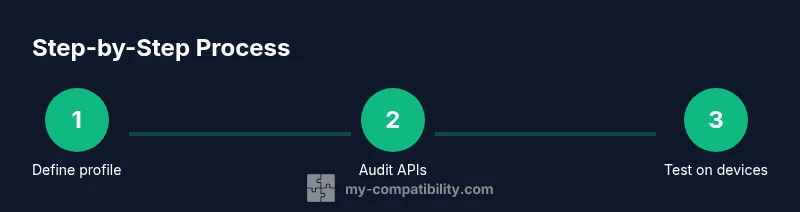
Create a precise device profile that covers operating systems, screen sizes, input methods, memory budgets, and connectivity conditions. Document minimum and target specs for each category, and note any features you rely on, such as hardware acceleration or biometric authentication. This profile acts as a contract between design, development, and QA, helping you evaluate feature feasibility before coding. When you define your device profile, you’ll quickly see which devices or configurations require adaptation and which can share a common implementation. A solid profile reduces last-minute surprises during testing and release planning.
Evaluate OS and Platform Constraints
Android and
Design for Performance and Memory
Performance is often the deciding factor in compatibility. Evaluate memory usage, CPU load, and network bandwidth under realistic conditions. Use lazy loading, efficient image handling, and offload heavy tasks to background threads. Consider device variability: low-end devices may struggle with heavy animations or large assets. By measuring metrics on representative devices, you can adjust resource consumption and keep startup times fast, which directly affects user satisfaction and retention. Remember: a responsive app feels compatible, even on modest hardware.
Manage Dependencies and API Coverage
Rely on well-supported libraries and keep them up to date with their security patches. Audit third-party plugins for compatibility with your target OS versions and hardware constraints. Maintain a compatibility matrix that links each dependency to minimum OS versions and feature flags. When a library breaks on a specified device, you’ll know whether to replace it, lazy-load it, or implement a fallback. This proactive approach reduces crash rates and improves stability across devices.
Implement Responsive UI and Accessibility
Adaptive layouts and scalable UI components help your app feel native on any screen. Use flexible grids, vector graphics, and dynamic type to accommodate different display sizes. Accessibility is a cornerstone of compatibility: ensure color contrast, keyboard navigation, and assistive tech support are baked in. Designing with inclusivity in mind expands your audience and prevents future rework when new devices roll out. A responsive, accessible UI is a strong indicator of true compatibility.
Testing Strategy: Real Devices and Emulators
A robust testing strategy combines emulators and real devices to cover diversity in OS versions, hardware, and user contexts. Create device labs or borrow devices; test across network conditions (Wi-Fi, 4G/5G, offline). Automate regression tests for core flows and verify performance benchmarks. Use feature flags to toggle experimental capabilities during testing. Document test results and track issues by device, OS version, and feature to guide fixes and improvements.
Deployment, Versioning, and Updates
Plan compatibility into your release cycle. Use semantic versioning to signal breaking changes and provide clear upgrade instructions. When distributing updates, communicate platform-specific considerations (e.g., minimum OS requirements) and offer downgrade paths if needed. Maintain rapid rollback capabilities for critical compatibility regressions. Ongoing monitoring post-launch helps you catch edge cases that escaped pre-release testing and informs future refinements.
Common Pitfalls and Troubleshooting
Avoid assuming universal compatibility based on a single device or OS. Common pitfalls include deprecated APIs, vendor-specific quirks, and performance regressions after library updates. Establish a clear triage workflow and collect crash reports with device metadata. Regularly review analytics for drops in session length or feature usage by device category. Proactively addressing these issues prevents lasting compatibility gaps.
Tools & Materials
- Development environment (Android Studio and Xcode)(Use latest stable releases; configure SDKs for min/target versions.)
- Physical devices (Android and iPhone)(Include at least one low-end and one high-end model per platform.)
- Emulators and simulators(Cover a range of OS versions and screen sizes.)
- API documentation and vendor guidelines(Keep reference access for permissions, capabilities, and deprecations.)
- Performance profiling tools(Identify memory leaks and CPU spikes across devices.)
Steps
Estimated time: 2-4 hours
- 1
Define target device profile
Compile a clear device profile with minimum and target OS versions, screen sizes, and storage availability. This sets the baseline for all compatibility decisions and helps prioritize testing devices.
Tip: Document decisions and link them to specific features. - 2
Audit APIs and dependencies
Create a compatibility matrix that maps every API and library to minimum OS versions. Identify deprecated calls and plan safe fallbacks.
Tip: Prefer feature detection over version checks when possible. - 3
Design responsive UI
Implement fluid layouts and scalable assets to support different screen densities. Ensure vector assets where possible for crisp rendering.
Tip: Test font sizes across devices to maintain readability. - 4
Implement performance safeguards
Apply lazy loading, cache strategies, and background processing to maintain smooth performance on all devices.
Tip: Profile memory usage on low-end devices early in development. - 5
Set up testing on real devices
Establish a device lab or partner network to test on actual hardware, in addition to emulators.
Tip: Automate critical flows to speed up regression testing. - 6
Prepare deployment strategy
Define minimum OS requirements clearly in release notes and provide upgrade guidance for users.
Tip: Keep a rollback plan for compatibility regressions.
Questions & Answers
What does device compatibility mean for an app?
Device compatibility means an app runs reliably across different devices, OS versions, and hardware configurations, providing a stable experience. It covers performance, UI, and feature support.
Device compatibility means the app works reliably on different devices and OS versions with a stable experience.
How should I start testing compatibility?
Begin with a device profile, then test on emulators and real devices that reflect the profile. Automate critical paths and track failures by device and OS version.
Start with a device profile, test on emulators and real devices, and automate key paths.
Is backward compatibility important?
Yes, especially for apps with a broad user base. Define minimum supported versions and provide graceful fallbacks for older devices.
Backward compatibility is important; set minimum versions and implement fallbacks.
What tools help with compatibility testing?
Use platform debuggers, emulators, performance profilers, and crash analytics. Maintain a device matrix to guide test coverage.
Platform debuggers, emulators, profilers, and analytics help test compatibility.
How long does it typically take to ensure compatibility?
Time varies by app complexity and device diversity. Plan for ongoing testing across releases rather than a single milestone.
Time depends on complexity; expect ongoing testing across releases.
Should I support all OS versions indefinitely?
Not always. Define a lifecycle strategy, supporting a reasonable window of OS versions while encouraging upgrades.
Support a reasonable window of OS versions and encourage upgrades.
Watch Video
Highlights
- Define device profiles before coding.
- Audit APIs and dependencies for compatibility.
- Test on real devices and emulators.
- Communicate OS requirements clearly in releases.