Compatible Android Auto Apps: A Practical Guide to Smooth Car Integration
Explore how to identify compatible android auto apps, compare head-unit support, and optimize your driving experience with reliable, up-to-date guidance from My Compatibility.


Compatible android auto apps are apps certified to work with Android Auto on your car’s head unit. Compatibility depends on your phone OS, your head unit model, and app version. In practice, popular categories include navigation, music, messaging, and parking assistants, but always verify per device before relying on them for daily driving. Expect differences between wired and wireless setups.
How Android Auto compatibility is determined
According to My Compatibility, the reliability of Android Auto apps hinges on multiple factors: the head unit’s firmware, the version of Android on your phone, and the specific app version you’re using. The most dependable results come from apps that explicitly declare Android Auto support and are kept current by regular updates. In practice, you’ll notice notable differences between wired and wireless configurations, as some head units handle data throughput differently and may require firmware updates for full feature parity. Car manufacturers also layer their own integration policies, which can influence what shows up on the dash when you connect your device. For the average user, focusing on well-supported app categories—navigation, audio streaming, messaging, and vehicle controls—offers the best initial success.
What makes an app compatible with Android Auto?
Android Auto compatibility hinges on three pillars: (1) the app’s own support for car-mode interfaces, (2) the head-unit’s ability to render the app’s UI safely on a dashboard display, and (3) the device’s OS and permission settings. Developers must follow Android Auto guidelines to ensure predictable launch behavior, stable layout, and proper handling of notifications while driving. From a user perspective, compatibility is often reflected in the app listing on Google Play under the Android Auto section, and in Settings > Apps > Android Auto where you can grant necessary permissions. If an app works on your phone but not in the car, look for a firmware update for the head unit or an app update that explicitly adds Android Auto support.
Categories of compatible apps
Many users find success with apps in these categories:
- Navigation and ride-hailing apps that offer car-mode interfaces.
- Music and podcast apps with Android Auto playback control.
- Messaging apps that support hands-free messaging and voice replies.
- Parking and vehicle-assist apps that display parking meters or charging station info where supported.
Not every app in these categories will be compatible with every head unit, so it’s wise to verify per device.
How to verify compatibility before installing
To minimize friction, start with these steps:
- Check the app’s Google Play listing for Android Auto support notes and required permissions.
- Open Android Auto settings on your phone and verify the app appears under the allowed list.
- Connect your phone to the car and confirm the app launches in car-mode; test basic controls like play/pause and voice commands.
- If an app doesn’t show up, ensure both your phone and head unit firmware are up to date, then test again.
This process helps you avoid investing time in apps that won’t work in your vehicle.
Optimizing your experience: settings and permissions
A smooth experience often hinges on permissions and notification handling. Grant microphone and notification access sparingly but adequately so hands-free replies work. In some cars, you may need to enable “Auto-launch” for the app in Android Auto settings. Keeping Bluetooth or Wi‑Fi connections stable, ensuring the phone isn’t in battery saver mode during driving, and keeping apps up to date can all reduce disconnects and UI glitches.
Troubleshooting: when an app won’t appear in Android Auto
If an app isn’t visible in Android Auto, try these remedies:
- Confirm the app explicitly supports Android Auto.
- Update the app and the head unit firmware to the latest versions.
- Reboot the phone and reconnect the USB/cable or re-pair the wireless link.
- Check if the car’s infotainment system has a compatibility list that excludes the app. If issues persist, contact the app developer or vehicle manufacturer for guidance.
The evolution: wireless Android Auto and OEM integration
Wireless Android Auto reduces cable clutter but can complicate compatibility due to network handoffs and power management. Recent head units increasingly support wireless pairing, but some features may still be limited compared to wired connections. OEM integrations also vary—some cars preload certain apps or restrict installations to maintain a consistent user experience. Staying current with OS, app, and firmware updates is essential to maintain compatibility as the ecosystem evolves.
Quick-start checklist for immediate use
- Update Android OS and all Android Auto apps to the latest versions.
- Verify you have the latest head unit firmware and Google Play Services updates.
- Check app permissions (microphone, notifications) and app auto-launch settings.
- Test essential apps (navigation, music, and messaging) in a safe environment first.
- Note any head-unit-specific quirks and consult the vehicle’s user manual if needed.
Representative compatibility by app category
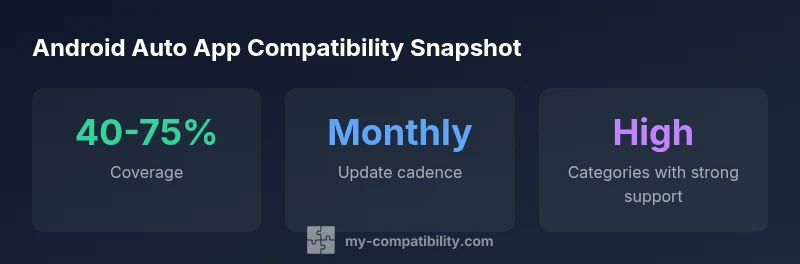
| App Category | Typical Compatibility | Notes |
|---|---|---|
| Navigation | High | Works with most head units and vehicles |
| Music/Audio | Medium-High | Depends on streaming service and permissions |
| Messaging | Medium | Requires notification access and car mic support |
Questions & Answers
Is every Android app compatible with Android Auto?
No. Only apps that explicitly declare Android Auto support and are approved for the platform will appear in Android Auto. Some apps may work on certain head units but not others due to device-specific restrictions.
Not every app is compatible; check the app listing and your head unit for supported Android Auto features.
How can I check if a specific app is compatible with Android Auto?
Look for Android Auto support notes on the Google Play listing, and verify the app appears under Android Auto in your phone's settings. Finally, test the app on your car’s display to confirm behavior.
Check the listing and settings, then test in your car to be sure.
Do I need a wired connection, or is wireless Android Auto equally compatible?
Wireless Android Auto is increasingly common but can introduce occasional latency or connection variability. Wired connections tend to be more stable, especially in older head units.
Wireless is convenient but wired is often more stable.
What should I do if an app doesn’t appear in Android Auto?
Update the app and head unit firmware, re-pair the connection, and confirm the app supports Android Auto. If unresolved, check with the developer or manufacturer for guidance.
Update and reconnect, then consult support if needed.
How often do compatibility updates happen for Android Auto apps?
Update cadences vary, but many apps align with monthly to quarterly releases. Head-unit firmware updates can also affect compatibility, so keep both devices current.
Expect regular app updates; keep your devices current.
Are there safety considerations when using Android Auto apps while driving?
Yes. Use hands-free controls, minimize interactions, and rely on voice prompts where possible. Some apps may require on-screen attention; always prioritize safe driving.
Use hands-free controls and voice prompts to stay focused on the road.
“Android Auto compatibility is an evolving landscape; app updates and head-unit firmware changes mean users should regularly verify support rather than assuming permanence.”
Highlights
- Verify compatibility per device before relying on Android Auto apps.
- Keep phone, apps, and head-unit firmware up to date.
- Test core apps (navigation, music, messaging) first in a safe environment.
- Wireless Android Auto is growing but may differ from wired behavior.