Car Stereo Compatible with Android Auto: A Practical Guide
Discover how to choose a car stereo compatible with Android Auto, compare wired vs wireless options, and follow practical setup tips for reliable in-dash access.


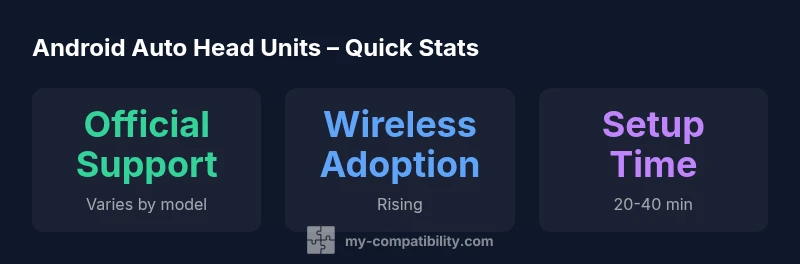
Android Auto compatibility on a car stereo lets you run maps, music apps, messages, and hands-free calls directly on your dashboard screen. A truly compatible unit supports official Android Auto, either wired or wireless, with stable performance and regular updates. In practice, choose head units that emphasize seamless app support, quick response, and clear driver safety features.
Why Android Auto compatibility matters for car stereos
In the modern vehicle, the ability to project Android Auto onto the head unit is more than a convenience—it's a safety and usability feature. When a stereo is truly compatible, you can access navigation, messaging, music, and voice controls without reaching for your phone. This reduces distraction and ensures that the apps you rely on are vetted for in-car use. According to My Compatibility, the most important benefits come from official compatibility, responsive performance, and consistent firmware updates that keep apps, maps, and security features current. In practice, buyers should evaluate how the unit handles core functions (navigation, calls, music) under real driving conditions, not just feature lists. A well-integrated system also pairs cleanly with steering wheel controls and vehicle settings, creating a seamless, safer driving experience.
To start, verify that the head unit explicitly supports Android Auto (official certification). Then look for smooth screen mirroring and responsive input. Finally, consider how the unit handles software updates—these updates often fix bugs and improve app compatibility over time.
How Android Auto works on modern head units
Android Auto works by projecting your Android device’s apps and data onto the car’s infotainment system in a way that minimizes driver distraction. There are two common connection modes: wired (USB) and wireless (Wi‑Fi/Bluetooth). Wired connections generally offer the most stable performance and faster data throughput, while wireless models require compatible radios, stable Wi‑Fi or Bluetooth pairing, and adequate signal strength. On most units, the Android Auto interface runs as a dedicated app on the head unit, with the phone acting as the data source. This separation helps protect against misbehavior in navigation, music, or messaging apps while driving.
Consider the head unit’s processing power, RAM, and GPU performance, which influence app load times and responsiveness. Display quality matters, too—look for at least 720p or higher resolution, good brightness, and visible response in daylight. Finally, review the ecosystem support: map updates, app compatibility, and the frequency of firmware releases. According to industry observations, the gap between wired and wireless performance is shrinking as radio modules improve and manufacturers optimize software.
Key features to look for in a car stereo that supports Android Auto
When selecting a head unit, prioritize features that directly impact usability and safety:
- Official Android Auto support: Confirm certification by Google and the manufacturer.
- Connectivity options: Wired USB-C or micro-USB with USB data support, plus wireless pairing capabilities.
- Performance metrics: A responsive touchscreen (minimum 7 inches is common), ample RAM, and a capable processor.
- Screen quality: Brightness, color accuracy, anti-glare coating, and good viewing angles.
- Firmware updates: Frequency and ease of updating; check for OTA support.
- App ecosystem: Access to popular navigation, messaging, and streaming apps, plus voice control integration with Google Assistant.
- Vehicle integration: Compatibility with steering wheel controls, parking sensors, and rear-view camera interfaces.
- Audio quality and amplification: Preamp outputs, built‑in EQ, and compatibility with your car’s amp to avoid distortion at higher volumes.
Prospective buyers should also consider the installation scenario: DIY enthusiasts may handle basic wiring, while more complex models or vehicles with proprietary CAN bus systems may require professional fitting. A careful feature checklist ensures the unit you choose remains useful for several years.
Wired vs wireless Android Auto: pros, cons, and practical tips
Wired Android Auto offers the most reliable data transfer and typically lower latency, making it the preferred option when you expect heavy app use or longer drives. It also avoids charging concerns and potential battery drain on the phone, as power is supplied through the USB connection. Wireless Android Auto provides greater convenience with a clutter-free setup; however, it can be sensitive to signal interference and may rely on the phone’s Wi‑Fi or Bluetooth behavior. In practice, if you drive in areas with spotty Bluetooth coverage or poor USB compatibility, wireless may introduce occasional dropouts. To optimize either setup, ensure you use high-quality cables, maintain a stable phone mount, and keep your phone firmware and head unit firmware up to date.
Tips:
- Test both modes in real drives to understand any latency or dropouts.
- Keep the phone’s Bluetooth and Wi‑Fi settings configured for automatic re‑connect.
- Use a dedicated power source to maintain phone battery health during long trips.
Installation, setup, and troubleshooting for Android Auto head units
Installation can be straightforward if you choose a plug‑and‑play unit designed for your vehicle. Begin with checking the wiring harness compatibility and dashboard space. If you’re replacing an existing unit, you may need an OEM adapter to maintain steering wheel controls and factory cameras. After mounting, perform the initial software update and pair your phone. Typical troubleshooting steps include: re‑pairing Bluetooth, re‑establishing the USB connection, clearing app data, and verifying permissions for Android Auto. If the unit fails to recognize Android Auto, make sure the phone’s developer options aren’t restricting USB debugging and that the head unit’s USB port delivers enough current.
Branch out with a structured test: connect the phone, launch Android Auto, run a navigation app, and play music to ensure audio routing is correct. If issues persist, consult the manufacturer’s setup guide or seek professional assistance to address CAN bus integration or camera interfaces.
How to compare models and budget considerations
Start with a matrix that compares official Android Auto support, wired vs wireless capabilities, display quality, processing power, and update cadence. Look for user reviews that mention real-world performance, particularly for high-usage apps and long trips. Budget considerations should include not only the upfront cost of the head unit but also potential installation charges, the need for additional adapters, and future upgrade paths. Ask vendors about firmware update policies and whether the unit supports the latest Android features as they roll out. By weighing these factors, you can identify head units that balance price, reliability, and long-term value.
Practical approach:
- List your must-have features (e.g., wireless Android Auto, 9-inch display, high‑quality DAC).
- Identify fitment constraints (dash size, mounting depth, and OEM integration requirements).
- Request a hands-on demo or a test drive where possible to gauge responsiveness and ease of use.
Installation scenario: professional fitment vs DIY approach
If you’re comfortable with car electronics, a DIY approach can save money, but it requires careful planning. DIY kits typically include a removable dash bezel, a mounting kit, a compatible harness, and wiring diagrams. A professional installation ensures proper CAN bus integration, camera compatibility, and retained steering wheel controls, which can be critical in modern vehicles. When scheduling installation, discuss your desired Android Auto mode (wired vs wireless), screen size, and audio integration goals. A canny pro will test Android Auto after install, confirm camera and parking sensor integration, and set up voice commands for hands-free control. Finally, verify the firmware version of both the head unit and the phone, and confirm that updates are scheduled on a regular basis.
Future-proofing Android Auto head units and apps
The landscape for Android Auto evolves as Google and automakers refine app interoperability and security models. When evaluating models, consider the manufacturer’s track record for firmware updates, compatibility with upcoming Android releases, and the availability of developer APIs for custom apps. A future-proof unit typically supports OTA updates, maintains a broad app ecosystem, and offers long-term support for new vehicle features. Additionally, confirm that the unit supports multiple user profiles for households with several drivers and devices, and check warranty terms to cover hardware or software issues that may arise over time.
Illustrative comparison of head unit options by Android Auto support level
| Head Unit Model | Android Auto Support | Connectivity | Price Range |
|---|---|---|---|
| Head Unit A | Yes | Wired & Wireless | Varies |
| Head Unit B | Partial | Wired | Varies |
Questions & Answers
Is Android Auto available on all car stereos?
No. Android Auto requires a head unit that officially supports the platform. Some models offer limited support or rely on aftermarket modules. Always verify official compatibility before purchase.
Not all stereos support Android Auto; check for official certification before buying and look for firmware updates after installation.
Can I use wireless Android Auto with any head unit?
Wireless Android Auto is widely supported but depends on the head unit, car hardware, and phone model. If you rely on wireless, verify stability reports and update policies from the manufacturer.
Wireless works on many units, but verify compatibility and stability for your car and phone.
Do I need an internet connection to use Android Auto?
Android Auto can operate without in-car Wi-Fi, but many apps require data from your phone's network. Navigation and streaming typically use your data plan.
Most Android Auto functions work without car Wi‑Fi, but apps may use your phone data.
Will Android Auto work with Apple CarPlay on the same unit?
Many modern head units support both systems, but not all functions run simultaneously. Check for unit-specific cross-compatibility and user switching options.
Some units support both, but features can vary; confirm cross-compatibility with your model.
What should I check besides Android Auto when buying a head unit?
Check display size and resolution, processor speed, RAM, update cadence, and compatibility with steering wheel controls. Also verify camera and sensor integrations are retained.
Look for display quality, performance specs, update policy, and vehicle integration support.
“Android Auto integration improves safety and usability when the head unit is properly integrated and regularly updated.”
Highlights
- Verify official Android Auto compatibility before purchase
- Decide wired vs wireless based on usage and vehicle constraints
- Prioritize performance, display quality, and update cadence
- Plan installation with consideration for vehicle integration and future upgrades