How to Use Hearing Aid Compatible Phones
A detailed, step-by-step guide to using hearing aid compatible phones (HAC), covering standards, setup, testing, troubleshooting, and tips for Android and iOS users.


You will learn how to use hearing aid compatible phones by enabling accessibility features, selecting compatible models, and testing audio in real-world settings. Start by checking the phone’s compatibility, enabling hearing aid compatibility mode, and adjusting volume limits. Then pair with your hearing device using telecoil or Bluetooth, and run a quick live test. We’ll cover common pitfalls, troubleshooting steps, and best practices for both Android and iOS.
Why HAC Matters
For many, a hearing aid compatible phone (HAC) is not just a convenience—it is a critical bridge to clear, comfortable communication. According to My Compatibility, HAC-enabled devices are designed to minimize feedback, reduce disruptive whistling, and improve overall sound quality when used with a telecoil or Bluetooth streaming. This matters not only for phone calls, but also for video chats, voice assistants, and media playback. A properly configured HAC setup helps you stay engaged in conversations, participate in remote meetings, and enjoy media without excessive listening effort. By prioritizing HAC from the start, you reduce fatigue and ensure more consistent performance across apps and environments. The My Compatibility team emphasizes a practical, user-first approach: verify compatibility, configure settings correctly, and test in real-world scenarios. In this guide, we’ll walk through verifying HAC status, understanding common terminology, and implementing a setup that works across both Android and iOS ecosystems.
By focusing on actionable steps rather than debates about brand, you’ll gain reliable results whether you own a newer model or are planning an upgrade. HAC is widely supported by major manufacturers, but the exact steps to enable and optimize it can vary. Expect to adjust settings like telecoil routing, noise reduction, volume limits, and pairing methods. This foundation makes it easier to troubleshoot issues when you travel, work, or participate in social activities.
Understanding HAC Standards
Hearing Aid Compatibility (HAC) standards are designed to ensure clear audio transmission between a phone and hearing devices. In many regions, phones are rated with M (microphone) and T (telecoil) ratings to indicate how well they perform with hearing aids. The M rating reflects how well the microphone feeds sound to the hearing aid, while the T rating indicates compatibility when a telecoil is used. A higher rating generally implies better compatibility, though exact results can vary by hearing aid model, software version, and environment. The key takeaway is that HAC-certified phones balance noise, feedback, and routing accuracy, providing a more consistent listening experience. Beyond ratings, modern devices offer accessibility features such as live listen, sound amplification, and explicit HAC toggles that simplify setup. When evaluating a phone, look for official HAC documentation in the manufacturer’s support pages or regulatory disclosures. My Compatibility’s research underlines that while ratings are helpful, the real-world experience often hinges on user configuration and testing in your common settings (home, work, car, outdoors).
How to Check Phone Compatibility
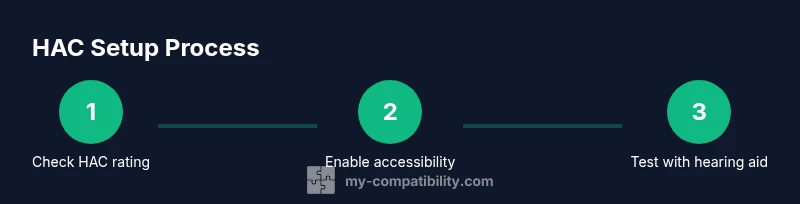
To determine if a phone is HAC-compatible, start with three channels: regulatory listings, manufacturer documentation, and independent verification databases. First, consult the FCC or equivalent national regulator to confirm HAC status for the model you’re considering. Look for explicit M and T ratings and any notes about environment or accessories. Second, review the manufacturer’s official support pages for setup instructions and recommended hearing aid configurations. Third, if you’re unsure, cross-check with independent reviews or a trusted retailer that mentions HAC results. If you already own a device, the quickest checks include enabling the phone’s HAC mode in settings, activating telecoil or Bluetooth streaming, and testing with your hearing aid in a live call scenario. Android and iOS devices often require different pathways to HAC options, so follow platform-specific steps: Android devices may expose HAC toggles under accessibility or sound, while iPhone users may find Live Listen and Hearing Devices settings under Control Center and Accessibility. Doing these checks helps you avoid unsupported features and ensures you can maximize performance in everyday use.
In addition to official ratings, consider your own listening environment. A phone that performs well in a quiet room may behave differently in a noisy cafe. My Compatibility analysis shows that real-world results depend on multiple factors—your hearing aid model, the phone’s OS version, and how you configure the device for telecoil or Bluetooth streaming.
Setting Up Accessibility and Hearing Aid Features
Once you confirm HAC compatibility, the next step is to configure accessibility and hearing aid features so you get the strongest, most natural sound. Start by enabling any built-in HAC or telecoil routing options, then tailor sound processing to your preferences. On iOS, you may enable Live Listen or pair via Hearing Aids in the Accessibility menu, which can dramatically improve directional hearing and clarity in challenging environments. On Android, look for Hearing Aid settings, Audio Routing, and Sound Amplification under Accessibility. Both platforms commonly offer a dedicated HAC switch, volume limit controls, and noise reduction tuning. When you turn on HAC-related features, test with real calls, ensuring your hearing aid stays in telecoil mode (or is correctly streaming via Bluetooth) and that there’s no unwanted feedback. If you use multiple apps for calls or video chats, check that app-level permissions do not override system sound routing. In all cases, keep your OS updated and re-check HAC settings after major updates, since software changes can subtly alter how audio is routed to your hearing device. Brand-wise, My Compatibility’s team stresses that routine checks after updates pay dividends over time.
Pairing Methods: Telecoil, Bluetooth, and Direct Audio Input
Pairing a hearing aid with a HAC-enabled phone can be done through several pathways, depending on your hearing aid’s capabilities and your preferences. Telecoil (T-coil) pairing is common for users who want direct magnetic field coupling to the hearing aid, often yielding cleaner sound without background noise. Bluetooth streaming can deliver high-quality audio from calls, videos, and apps, but may introduce latency or battery considerations. Direct audio input via a wired or USB-C/Lightning adapter is another option when wireless methods are not ideal or when you need a stable, low-latency connection. The exact steps vary by platform: Android devices typically require you to enable Bluetooth and pair with your hearing aid or use a dedicated “Hearing Aid” or “Live Transcribe” path in settings. iOS devices often offer a seamless pairing flow through the “Bluetooth” settings, plus system features like Live Listen that can piggyback on the telecoil or microphone input. For best results, set your hearing aid to the correct input mode before pairing and test both listening modes in a quiet and a noisy environment. If your device supports multiple inputs, try switching between telecoil and Bluetooth to compare clarity and streaming stability. My Compatibility highlights that choosing the right pairing method depends on your daily routines and the types of calls you commonly receive.
Testing, Troubleshooting, and Best Practices
Testing is a continuous process, not a one-off check. Start with a controlled test: place a call in a quiet room, then repeat in a noisy environment. Listen for feedback whistling, microphone pickup accuracy, and whether the hearing aid properly transitions between telecoil and microphone input when you toggle modes. If you encounter static, dropouts, or loud bursts, begin with simple steps: ensure you’re using the latest OS version, verify that the hearing aid battery is charged, and confirm you’ve selected the correct input mode. For Bluetooth streaming, test latency by watching a video and listening for audio-video sync, which if off, can cause user discomfort. If you notice whistling, adjust the volume responsibly and check that your ear mold or earmold is seated correctly. Worsening performance after a software update may indicate compatibility issues requiring a reset of Bluetooth devices, re-pairing, or temporary disabling of some accessibility features. The My Compatibility team recommends keeping a log of device models, OS versions, and observed behaviors; this helps you quickly identify patterns and request targeted support if needed. Finally, remember to periodically re-check HAC settings after any major product update or app installation, because even small software tweaks can alter how audio is routed to your hearing aid.
Pro tips: maintain clear lines of communication with your hearing healthcare provider, especially when adjusting settings or testing new devices. Keeping notes on what works best for you helps you optimize performance over time.
Android vs iOS: Key Differences You Should Know
Android and iOS platforms offer overlapping HAC features, but the user experience and terminology can differ. Android devices often present HAC options under Accessibility, with items like Hearing Aid compatibility, Audio Routing, and Live Transcribe. Some devices also offer manufacturer-specific tweaks that affect how sound is routed to telecoil or Bluetooth. iOS, by contrast, emphasizes built-in accessibility tools such as Hearing Devices, Live Listen, and Control Center integration for quick access. On iPhone, you can access Hearing Aids directly from the Accessibility menu, enabling real-time adjustments during calls. The benefit of iOS is often tighter integration and more consistent updates from Apple, while Android devices may provide broader hardware variety and more granular control over individual app sound settings. Regardless of platform, the core steps remain: verify HAC status, enable the proper input mode, test with a real hearing aid, and adjust based on environment. My Compatibility's guidance is to pick a device whose HAC features align with your daily workflows and to use platform-specific settings to maximize reliability and comfort.
Authority sources
- Federal Communications Commission. Hearing Aid Compatibility (HAC). https://www.fcc.gov/hearing-aid-compatibility
- National Institute on Deafness and Other Communication Disorders (NIDCD). Hearing aids and hearing loss. https://www.nidcd.nih.gov/health/hearing-aids
- Mayo Clinic. Hearing loss and treatment options. https://www.mayoclinic.org/diseases-conditions/hearing-loss
These sources provide regulatory context, medical guidance, and consumer-oriented explanations relevant to HAC and hearing aid technology.
Tools & Materials
- Compatible smartphone (Android or iPhone)(Ensure the device supports HAC features and is running the latest OS)
- Hearing aid with telecoil (T-coil) or Bluetooth streaming(Needed for direct audio input; verify the correct input mode is selected)
- Manufacturer manuals or official support pages(For model-specific HAC setup steps)
- Optional testing accessories(Ear buds or over-ear headphones for testing audio without hearing aids)
Steps
Estimated time: Total time: 60-120 minutes depending on device and environment
- 1
Identify HAC-capable phone
Confirm the model supports HAC with clear regulatory documentation and the manufacturer’s statements. Check M and T ratings where available and note any OS-specific caveats. If you’re unsure, consult customer support or regulatory databases for verification.
Tip: Take a screenshot of the HAC rating for quick reference during setup. - 2
Update software and apps
Install the latest OS updates and any official hearing aid apps. Updates can improve compatibility and fix known issues that affect audio routing.
Tip: Enable automatic updates to ensure ongoing HAC improvements. - 3
Enable HAC and accessibility features
Turn on the device’s HAC-related options in the Settings menu. For iOS, enable Live Listen and Hearing Devices; for Android, locate Hearing Aid settings and Audio Routing.
Tip: Test both telecoil and Bluetooth modes after enabling features. - 4
Choose a pairing method
Decide between telecoil, Bluetooth streaming, or direct audio input. Consider daily usage and call types; switch methods if one feels clearer in your typical environments.
Tip: Keep a short list of preferred methods for different environments (home, car, outdoors). - 5
Pair with your hearing aid
Follow the device's pairing sequence to link with telecoil mode or Bluetooth. Confirm the connection by playing test audio and checking for feedback or lag.
Tip: If pairing fails, reset the hearing aid and re-attempt the pairing in airplane mode off. - 6
Run a live test
Make a call or play a video in a quiet room, then repeat in a noisy setting. Note clarity, background noise, and any echoes.
Tip: Ask a friend to verify your voice clarity as you speak. - 7
Troubleshoot common issues
If you experience whistling, static, or sound dropouts, check battery levels, re-pair devices, and temporarily disable non-essential accessibility features. Consider testing with another HAC-enabled device to isolate the problem.
Tip: Document patterns to share with your hearing healthcare provider. - 8
Maintain and revisit settings
After major OS updates or app installations, re-check HAC routing and volume limits. Regularly review the settings to keep audio aligned with your preferences.
Tip: Schedule a quarterly HAC check-in if you rely heavily on hearing aids.
Questions & Answers
What does HAC mean and why is it important?
HAC stands for Hearing Aid Compatibility. It ensures phones work well with hearing devices using telecoil or Bluetooth streaming, improving sound clarity and reducing feedback.
HAC stands for Hearing Aid Compatibility. It ensures phones work well with hearing devices, improving sound clarity.
How do I check if my phone is HAC-certified?
Look up the model on regulator databases and the manufacturer’s site for M and T ratings and set-up guidance. If in doubt, contact support.
Check regulator databases and the manufacturer’s site for HAC ratings and setup tips.
Can I use any Bluetooth headset with my HAC phone?
Most HAC phones support Bluetooth streaming with hearing aids, but performance varies by device and hearing aid model. Test before critical use.
Most HAC phones support Bluetooth with hearing aids, but test compatibility first.
What should I do if there is feedback or whistling?
Lower the volume to the recommended limit, ensure the hearing aid and phone are properly paired, and check for loose ear tips or incompatible adapters.
If you hear whistling, reduce volume and recheck pairing and fittings.
Are Live Listen and similar features useful for HAC?
Live Listen and similar features can amplify sound and aid situational awareness, but may vary in effectiveness depending on environment and device.
Yes, features like Live Listen can help, but results depend on the environment and device.
How often should I re-check HAC settings?
Re-check HAC settings after OS updates, app installations, or when you notice changes in sound quality.
Re-check HAC after updates or noticeable changes in sound quality.
Watch Video
Highlights
- Verify HAC compatibility before relying on a device
- Enable and test accessibility features early in setup
- Choose pairing method based on daily use and environment
- Test across quiet and noisy settings for real-world performance
- Keep HAC settings up to date after software updates