How to Fix 'compatible tpm cannot be found windows 11' on Windows 11
Fix the 'compatible tpm cannot be found windows 11' error with a practical, step-by-step guide: enable TPM 2.0, initialize TPM, and update BIOS/drivers for Windows 11.


Most likely, TPM 2.0 is either disabled in BIOS/UEFI or not initialized in Windows. Quick fix: enable TPM 2.0 (including fTPM/PTT), then initialize TPM in Windows (tpm.msc) and confirm it’s ready for Windows 11. If TPM still isn’t detected, update BIOS/UEFI firmware and chipset drivers before retrying.
Why TPM Compatibility Matters on Windows 11\n\nFor many Windows 11 installations, Trusted Platform Module (TPM) 2.0 is a baseline requirement. Without a detected TPM, features like Secure Boot, Windows Hello, and several security-enabled apps may be blocked. The error compatible tpm cannot be found windows 11 commonly appears on older devices or systems with TPM disabled in BIOS. The My Compatibility team stresses that TPM health affects not only upgrade eligibility but ongoing system safety. If you're seeing this message, act quickly to verify hardware support, firmware state, and OS settings to restore a secure, compliant environment.
Common Causes Behind 'compatible tpm cannot be found windows 11'\n\nHere are the prime suspects: TPM is disabled in BIOS/UEFI, TPM is not initialized in Windows, firmware/BIOS mismatches prevent detection, or a virtualization-based TPM (vTPM) is misconfigured. The exact message compatible tpm cannot be found windows 11 often signals a detection problem rather than a faulty chip. My Compatibility analysis shows many devices fail TPM checks due to BIOS settings or driver gaps rather than hardware failure. We’ll walk through each cause, explain how to verify it, and show practical fixes that restore TPM visibility without risking your device.
Quick Validation: Confirm TPM Status in Windows\n\nStart with a quick check in Windows: open the Run dialog (Win + R), type tpm.msc, and press Enter. You should see a TPM Management console with a Status that reads either “The TPM is ready for use” or a message about initialization. If the TPM shows as not ready, you may need to initialize it in this console after enabling it in BIOS. You can also open Device Manager to confirm there are no “unknown device” or firmware errors related to the TPM. If you still see the error, it’s time to verify BIOS settings and drivers.
Step-by-Step: Enable and Initialize TPM 2.0\n\n1) Restart the PC and enter BIOS/UEFI setup. 2) Locate the TPM/Security section. Look for options like TPM 2.0, fTPM (AMD), or PTT (Intel). 3) Enable TPM 2.0 or switch to the appropriate setting (fTPM/PTT). 4) Save changes and exit BIOS. 5) Boot into Windows and open tpm.msc to initialize if prompted. 6) If Windows still reports TPM not ready, run Windows Update and install chipset drivers. 7) If required, re-flash BIOS/UEFI with the latest official firmware from the manufacturer.
Update Drivers and BIOS/UEFI\n\nEven after enabling TPM, Windows components may fail to detect it due to outdated firmware or drivers. Update the motherboard/chipset drivers from the OEM site and install the latest BIOS/UEFI firmware. Ensure Secure Boot is enabled if your system requires it for Windows 11 compliance. After updating, reboot and verify TPM status again with tpm.msc. Continuous mismatches usually indicate a hardware limitation rather than a driver issue.
When Your System Still Fails: Professional Help and Alternatives\n\nIf TPM remains undetected after BIOS, firmware, and driver updates, consider contacting the device manufacturer’s support line or a qualified technician. In some cases, older hardware simply isn’t TPM 2.0 compatible, or firmware support ends. As an alternative, you may choose Windows 10 until hardware upgrades are feasible or explore virtualization options that can provide TPM passthrough in a managed environment.
Prevention and Best Practices\n\nMaintain TPM readiness by keeping BIOS/UEFI firmware current and verifying TPM status after major system changes. Create a restore point before BIOS updates and avoid altering settings you don’t understand. Regularly run a TPM health check with tpm.msc and keep your security features (Secure Boot, Windows Hello) enabled and updated. A proactive approach minimizes future disruptions and preserves Windows 11 compatibility.
Steps
Estimated time: 45-75 minutes
- 1
Open BIOS/UEFI Settings
Restart your computer and press the key that opens BIOS/UEFI setup (often F2, Del, or Esc). Use the on-screen prompts to navigate to the Security or Advanced tab where TPM options reside.
Tip: Check the motherboard manual or vendor site for the exact key sequence for your model. - 2
Locate and Enable TPM 2.0 or fTPM/PTT
Find the TPM, SE, or Security Device setting and switch it to Enabled. If you see options for TPM 1.2 or 2.0, choose 2.0. For AMD systems, enable fTPM; for Intel, enable PTT if present.
Tip: If you’re unsure which option to pick, refer to the CPU/chipset guide on the OEM site. - 3
Save Changes and Exit BIOS
Save your changes and exit BIOS/UEFI. The system will reboot automatically.
Tip: Don’t exit without saving; unsaved changes won’t apply to Windows detection. - 4
Boot into Windows and Open TPM Console
After Windows starts, press Win+R, type tpm.msc, and press Enter. Look for Status: The TPM is ready for use.
Tip: If you get a message asking to initialize, proceed with the on-screen instructions. - 5
Initialize TPM (If Prompted)**
If Windows prompts to initialize TPM, follow the wizard to prepare it for use. This clears previous data, so back up any TPM-dependent keys if needed.
Tip: Only initialize if you’re certain you don’t need salvaged keys from a previous TPM. - 6
Update BIOS/Chipset Drivers
Visit the manufacturer’s site to download the latest BIOS/UEFI firmware and chipset drivers. Install, then reboot.
Tip: Keep a backup of current BIOS before flashing in case you need to roll back. - 7
Verify TPM Status Again
Reopen tpm.msc to confirm Status shows ready. If not, consider contacting support or exploring hardware compatibility.
Tip: Document serial numbers and firmware versions in case you need service.
Diagnosis: System reports TPM not found or TPM 2.0 not detected during Windows 11 setup or after upgrade.
Possible Causes
- highTPM is disabled in BIOS/UEFI
- mediumTPM not initialized in Windows
- lowUsing virtualization-based TPM (VM) without proper passthrough
- lowOutdated BIOS/UEFI firmware not exposing TPM properly
Fixes
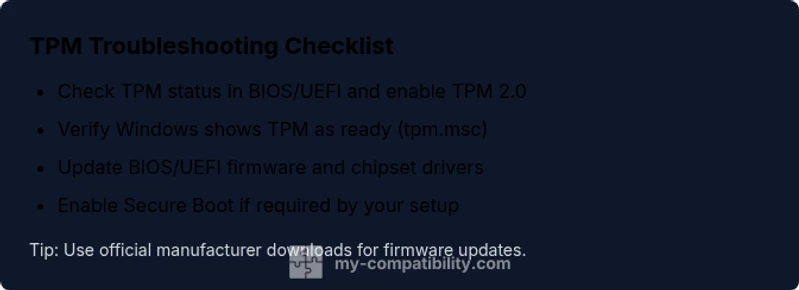
- easyEnter BIOS/UEFI and enable TPM 2.0 or fTPM/PTT
- easyInitialize TPM in Windows (tpm.msc) after enabling in BIOS
- mediumUpdate BIOS/UEFI firmware and chipset drivers
- easyEnable Secure Boot if required and verify Windows security services
Questions & Answers
What does the error 'compatible tpm cannot be found windows 11' mean?
It typically means Windows cannot detect a TPM module or it isn’t enabled for use. This blocks features like Secure Boot and Windows Hello until TPM visibility is restored.
That error means Windows can’t detect your TPM; you’ll need to enable and initialize TPM in BIOS and Windows.
How do I enable TPM in BIOS/UEFI?
Enter BIOS/UEFI at startup, locate the Security or Advanced tab, and enable TPM 2.0, fTPM, or PTT. Save changes and reboot, then verify TPM status in Windows with tpm.msc.
Go to BIOS, turn on TPM 2.0 or fTPM, save, then check TPM in Windows.
Is TPM required for Windows 11 on all devices?
Windows 11 requires TPM 2.0 for official upgrades on supported devices. Some devices may still run Windows 11 without it, but security features and support may be limited.
Windows 11 needs TPM 2.0 for upgrades on compatible devices; without it, some features may be disabled.
Can TPM be used in virtual machines?
Yes, but you must enable and configure a virtual TPM passthrough or use a host that provides TPM to the VM. This is common in enterprise environments.
You can use TPM in a VM, but you need proper passthrough from the host.
What should I do if TPM shows as not ready after enabling?
Run tpm.msc and follow the prompts to initialize. Ensure Secure Boot and BIOS settings align with Windows 11 requirements, then reboot and recheck TPM status.
If TPM isn’t ready, initialize it in Windows and verify BIOS/BIOS settings again.
Are there safety risks when changing BIOS settings?
Incorrect BIOS changes can affect stability or prevent booting. Only adjust settings you understand and keep backups. If unsure, seek professional help.
BIOS changes can be risky; make sure you know what you’re changing or ask for help.
Watch Video
Highlights
- Enable TPM 2.0 or fTPM/PTT in BIOS
- Initialize TPM in Windows after enabling
- Update BIOS and chipset drivers regularly
- If hardware lacks TPM 2.0, consider alternatives or professional help