Windows 11 Not Compatible: Urgent Troubleshooting Guide
Dealing with 'windows 11 not compatible' errors? This urgent, step-by-step guide helps you verify hardware, enable TPM and Secure Boot, update drivers, and choose the right upgrade path so you can move forward safely.


Windows 11 not compatible usually means your hardware or BIOS settings fail minimum requirements (TPM 2.0, Secure Boot, supported CPU). First, verify requirements and enable TPM/Secure Boot in BIOS, then update BIOS and drivers. Run the compatibility checker, and decide whether to upgrade with compatible hardware or stay on Windows 10 until you can upgrade safely.
Why Windows 11 Not Compatible Happens
When you see a 'not compatible' message, it typically means your gear doesn’t meet Windows 11’s minimums. The My Compatibility team found that the most common blockers are TPM 2.0 missing or disabled, Secure Boot turned off, an unsupported CPU family, insufficient RAM or storage, or outdated firmware. If even one blocker exists, the installer may block the upgrade or restrict features. This block helps you identify exactly what is missing and why, so you can chart a path forward with confidence.
Quick Checks You Can Do Right Away
Start with the simplest checks to avoid chasing ghosts. Open Settings > System > About to confirm your CPU, RAM, and storage meet guidelines. Run a current compatibility checker or PC Health Check app to surface blockers. Check TPM status by typing tpm.msc in Run, and verify Secure Boot is enabled in the BIOS/UEFI. Ensure enough free disk space and that your anti-malware software isn’t interfering with the installer. Remember to back up your data before making changes. According to My Compatibility, these initial checks often reveal the roadblock clearly, and they prevent wasted effort on complex fixes.
Check Hardware and System Requirements
Windows 11 has explicit hardware expectations. A compatible processor (generation and family), at least 4 GB of RAM (8 GB recommended for smoother performance), and sufficient storage (32 GB minimum) are the baseline. TPM 2.0 and Secure Boot are not optional; they are prerequisites for most Windows 11 installations. Use the PC Health Check tool or the device manager to verify TPM status and BIOS/UEFI settings. If your hardware isn’t on the supported list, upgrading components or choosing a prior Windows version may be necessary. My Compatibility emphasizes that confirming these basics early saves time and confusion.
Software and Driver Compatibility
Even if your PC passes the hardware check, software and driver compatibility can block a smooth upgrade. Ensure all critical drivers (especially chipset, storage, and graphics) have Windows 11-ready updates from the manufacturer. Some older peripherals may need alternative drivers or firmware updates. Consider temporarily uninstalling or disabling nonessential software that could conflict with the installer. My Compatibility notes that keeping a clean software baseline reduces upgrade errors and improves success rates.
How to Run Compatibility Troubleshooter
Windows provides built-in tools to diagnose upgrade readiness. Run Windows Update, then use the Windows Safety and Security features to confirm TPM and Secure Boot are operational. If the trouble persists, run the official Windows 11 compatibility checker again after applying driver updates and BIOS changes. This step-by-step tooling helps you confirm progress and prevents the cycle of false negatives. For complex cases, a clean boot session can isolate software conflicts.
Upgrading vs. Rolling Back: Which Path Is Right
If your hardware cannot meet Windows 11 requirements, remaining on Windows 10 with security updates is a valid option until hardware can be upgraded. If you do meet the basics but still encounter issues, a fresh install or clean upgrade may fix corrupted system files. Weigh the cost of new hardware against the benefits of newer features; in some cases, a targeted upgrade of a single component (like RAM or storage) can unlock compatibility without a full rebuild.
Troubleshooting Scenarios: Common Symptoms and Fixes
Scenario: Installer stops with a TPM/Secure Boot error. Fix: re-enable TPM 2.0 and Secure Boot in BIOS, then clear TPM if supported. Scenario: Not enough disk space. Fix: free up space or move data to external storage. Scenario: Incompatible CPU warning. Fix: verify processor family and consider upgrading to a supported device. In all cases, back up data and test after each change.
Prevention: Keeping Your System Ready for Windows 11
Plan ahead by enabling TPM 2.0 and Secure Boot as a baseline, keeping firmware and drivers current, and maintaining adequate RAM and storage headroom. Schedule periodic checks with the official compatibility tool and BIOS updates. Regular backups, disk cleanup, and driver rollups reduce friction during upgrade windows. The My Compatibility approach is to stay proactive rather than reactive, so you’re ready when the upgrade window opens.
Consolidated Action Plan (What to do next)
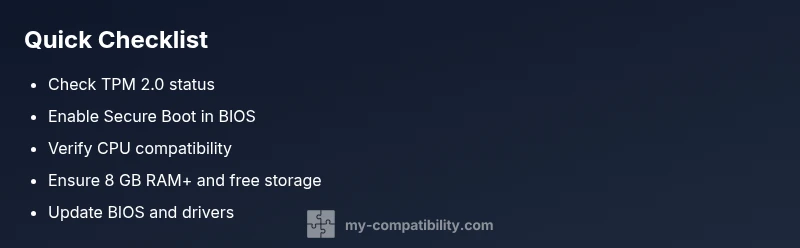
- Confirm hardware meets requirements and TPM/Secure Boot are enabled. 2) Update BIOS/firmware and all drivers. 3) Run the Windows compatibility checker and address any flagged issues. 4) If compatible, attempt upgrade; if not, plan hardware changes or continue with Windows 10 with ongoing security updates. 5) Keep backups and a rollback plan in place.
Steps
Estimated time: 1-2 hours
- 1
Check minimum hardware requirements
Review the official Windows 11 requirements and confirm CPU, RAM, storage, and graphics meet the baseline. Use the built-in checks or the manufacturer’s spec sheet to validate each item.
Tip: Document the current specs before making changes so you can track improvements. - 2
Enable TPM 2.0 and Secure Boot
Enter BIOS/UEFI setup, locate TPM/Security Device and Secure Boot options, enable them, and save changes. If TPM is unavailable, check the platform support and vendor notes.
Tip: If you’re unsure where TPM is, consult the motherboard or system manual for exact steps. - 3
Update firmware and drivers
Install the latest BIOS/firmware, chipset, storage, and GPU drivers from the official site. Reboot and re-check TPM/Secure Boot states.
Tip: Avoid third-party driver sources; use the device maker’s official downloads. - 4
Run compatibility checks
Run the Windows compatibility checker and Windows Update. Address any reported blockers, and re-run until clean.
Tip: If the tool flags a specific component, focus updates there first. - 5
Decide upgrade path
If still not compatible, decide between upgrading hardware, moving to Windows 10 with ongoing updates, or postponing the upgrade until requirements are met.
Tip: Plan a backup-first strategy to protect data during any upgrade path. - 6
Validate and finalize
After changes, verify hardware status again, confirm TPM/Secure Boot, and attempt the upgrade or clean install once readiness is confirmed.
Tip: Keep recovery media ready in case you need to restore a previous state.
Diagnosis: System reports Windows 11 not compatible during upgrade or installation
Possible Causes
- highYour PC hardware does not meet Windows 11 minimum requirements (TPM 2.0, Secure Boot, supported CPU)
- highTPM/BIOS settings are disabled or misconfigured
- mediumOutdated or missing drivers/firmware not compatible with Windows 11
- lowIncompatible virtualization features or BIOS options
Fixes
- easyVerify official minimum requirements and confirm TPM 2.0 and Secure Boot are enabled
- mediumEnter BIOS/UEFI, enable TPM 2.0 and Secure Boot if supported, saving changes and rebooting
- easyUpdate BIOS/firmware and drivers from the device maker; rerun the compatibility check
- easyRun the Microsoft compatibility tool and Windows Update until all blockers are resolved
- mediumIf hardware isn’t compatible, consider hardware upgrade or staying on Windows 10 with supported security updates
Questions & Answers
What does it mean when Windows says my PC is not compatible with Windows 11?
It usually means your hardware or BIOS settings don’t meet the official requirements. Common blockers are TPM 2.0, Secure Boot, CPU compatibility, insufficient RAM, or limited storage. Use the compatibility tool and review each blocker to decide your next steps.
It means your PC likely doesn’t meet the official requirements. Check TPM, Secure Boot, and CPU support, then run the compatibility tool for specifics.
Can TPM 2.0 be enabled on older devices?
Some older devices may support TPM 2.0, but not all. If TPM is present, you can enable it in BIOS/UEFI. If not supported, hardware upgrade or sticking with Windows 10 is the practical path.
Some older machines may; check BIOS settings. If TPM 2.0 isn’t available, upgrade or stay on Windows 10.
What should I do if I can't enable TPM or Secure Boot?
If you cannot enable these features, consult your device maker or a professional to assess hardware limitations. Do not force settings that aren’t supported, as it can affect stability and security.
If enabling TPM or Secure Boot isn’t possible, seek professional help to avoid instability.
Will Windows 11 still receive updates on hardware that isn’t officially compatible?
Microsoft provides security updates for supported configurations. If your device isn’t compatible, it may not receive full feature updates, and security patching could be limited. Check official guidance for your device.
Security updates depend on official support. If not compatible, features may be limited.
Should I upgrade to Windows 11 if my hardware is borderline?
If your hardware barely meets requirements, test with a backup and a clean install on a non-critical drive or partition. If issues persist, consider sticking with Windows 10 until a proper hardware upgrade is feasible.
Borderline hardware requires careful testing with backups; consider Windows 10 for now.
How can I test compatibility before buying new hardware?
Use official Microsoft tools and the device manufacturer’s compatibility data. Run checks on TPM, Secure Boot, CPU support, RAM, and storage. Plan a phased upgrade if needed.
Run official checks now to determine what to upgrade and what to bypass.
Watch Video
Highlights
- Verify hardware meets Windows 11 requirements
- Enable TPM 2.0 and Secure Boot if supported
- Update BIOS/firmware and drivers before upgrading
- Use the official compatibility tools to guide your path
- Back up data and plan a rollback if needed