Windows 11 Compatibility Requirements: What You Need
A comprehensive guide to Windows 11 compatibility requirements, covering hardware, firmware, and driver considerations, plus practical steps to verify your device and plan upgrades.


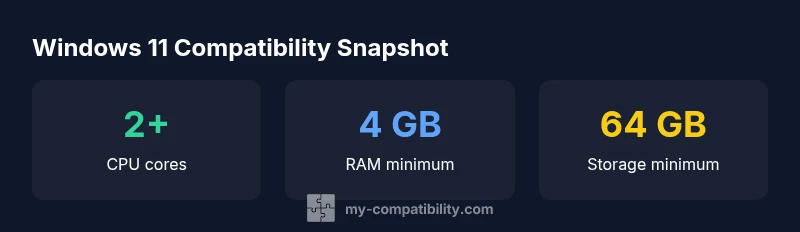
Windows 11 compatibility hinges on concrete hardware and security requirements. In short, you need a 64‑bit processor with at least 2 cores, 4 GB of RAM, 64 GB of storage, a TPM version 2.0, Secure Boot capability, and a DirectX 12‑capable graphics device with a WDDM 2.0 driver. Additionally, the PC must support UEFI firmware and meet minimum display and internet connectivity standards.
What are the compatibility requirements for windows 11: an overview
In this section we address the core question, what are the compatibility requirements for windows 11? The upgrade hinges on both hardware and firmware capabilities, not just software. You should evaluate CPU architecture, memory headroom, storage space, security features, driver support, and firmware readiness. Understanding these elements helps you decide whether to upgrade an existing PC or purchase a new device. This overview synthesizes the baseline rules and sets expectations for real-world devices, laptops, or desktops, while outlining practical steps to verify compatibility before buying or upgrading. According to My Compatibility, aligning hardware and firmware with these benchmarks reduces upgrade risk and post-install issues.
Hardware requirements in detail
Windows 11 sets clear minimums, but the practical impact comes from how your components fit together. A 64‑bit processor with 2 or more cores is the foundation. You should have at least 4 GB of RAM and 64 GB of storage, though more headroom improves performance. TPM 2.0 is mandatory for security features, and Secure Boot must be enabled in UEFI firmware. A DirectX 12 compatible GPU with a WDDM 2.0 driver is required for modern graphics, along with a compatible display (720p minimum, larger for a better experience) and reliable internet connectivity for updates. These requirements are designed to balance security, stability, and usability across a wide range of devices, including recent laptops and desktops. Always check that your storage and RAM meet the recommended levels to avoid bottlenecks during system tasks and updates.
TPM, Secure Boot, and firmware considerations
Beyond the basic numbers, the firmware and security stack matter. TPM 2.0 and Secure Boot are not optional for Windows 11; they are central to the trusted boot and runtime security model. Ensure your motherboard firmware supports UEFI with Secure Boot enabled. If you’ve built a custom PC, verify TPM presence and activation in the BIOS/UEFI settings, and update firmware to the latest stable version. Some newer PCs ship with TPM 2.0 preenabled, but older boards may require a firmware update or TPM module installation. These steps reduce upgrade friction and ensure Windows 11 can leverage essential security features from the moment you boot.
GPU compatibility and driver support
A DirectX 12 compatible GPU with a current WDDM 2.0 driver is essential for graphical performance and feature support. If you’re upgrading, confirm that your video card driver is up to date and that chipset drivers are current. Some integrated GPUs on older CPUs may need driver updates or a system refresh to meet performance expectations. While Windows 11 supports a broad range of GPUs, legacy cards often lack the latest driver features needed for optimal security and stability. Regular driver updates via Windows Update or your GPU vendor’s site help maintain compatibility over time.
Processors and virtualization considerations
Windows 11 is designed for modern 64‑bit CPUs; compatibility hinges on more than core counts. In practice, most recent Intel and AMD processors meet the baseline, but very old CPUs may be excluded. If you rely on virtualization, ensure your processor supports hardware-assisted virtualization and Memory Integrity features, and enable them in BIOS/UEFI settings. For corporate environments, plan for compatible virtualization platforms and consider whether legacy software requires compatibility modes. The key takeaway is that processor support is not just about speed—it’s about architectural features that enable a secure and updatable system.
How to check compatibility on your PC today
To verify quickly, start with Windows Update and Security settings to see if your device shows Windows 11 readiness. Use the PC Health Check app or a reputable third‑party tool to scan for TPM availability, Secure Boot status, and CPU/GPU compatibility. If a device falls short on TPM 2.0 or Secure Boot, you may need a firmware update, TPM module, or hardware upgrade. For new builds, confirm the exact Windows 11 requirements with the seller and compare with your planned configuration. Document any gaps and create a phased upgrade plan that minimizes downtime and ensures data safety.
Windows 11 baseline hardware requirements
| Aspect | Requirement | Notes |
|---|---|---|
| CPU | 64‑bit, 2+ cores | Baseline processing power for OS and apps |
| RAM | 4 GB minimum | Better with 8 GB or more for multitasking |
| Storage | 64 GB minimum | Consider additional space for updates and apps |
Questions & Answers
Is TPM 2.0 required for Windows 11?
Yes. TPM 2.0 and Secure Boot are required as part of the baseline security features for Windows 11.
Yes, TPM 2.0 and Secure Boot are required.
Can Windows 11 run on older CPUs?
Only CPUs that meet the 64‑bit architecture and feature requirements are supported; very old models may be excluded. Check the official list for specifics.
Some older CPUs aren’t supported; verify with the official list.
What if my device doesn’t meet TPM 2.0 or Secure Boot?
If TPM 2.0 or Secure Boot can’t be enabled, Windows 11 will likely not install. Options include firmware updates, hardware upgrade, or staying on Windows 10 until alternatives exist.
If you can’t enable TPM 2.0 or Secure Boot, upgrading may not be possible.
Do I need a new PC to upgrade to Windows 11?
Not always. Some existing devices meet the requirements with firmware updates or minor hardware upgrades. Others may require a new PC.
Maybe; some devices qualify with updates, others may need a new PC.
How can I verify compatibility before buying?
Use the PC Health Check tool or trusted third-party apps to audit TPM, Secure Boot, CPU, RAM, and storage before purchase.
Check TPM, Secure Boot, and hardware specs before you buy.
“Hardware and firmware compatibility is the make-or-break factor for Windows 11 upgrades; without TPM 2.0 and Secure Boot, devices won't meet the baseline.”
Highlights
- Check TPM 2.0 and Secure Boot first
- Aim for 8 GB RAM or more for better multitasking
- Ensure 64 GB storage minimum, plus extra room for updates
- Verify CPU architecture and driver support before upgrading
- Use PC Health Check or reputable tools to assess readiness