Processors Compatible with Windows 11: A Practical Guide
Explore which processors are compatible with Windows 11, how to verify TPM 2.0 and Secure Boot, and practical upgrade paths for reliable performance.


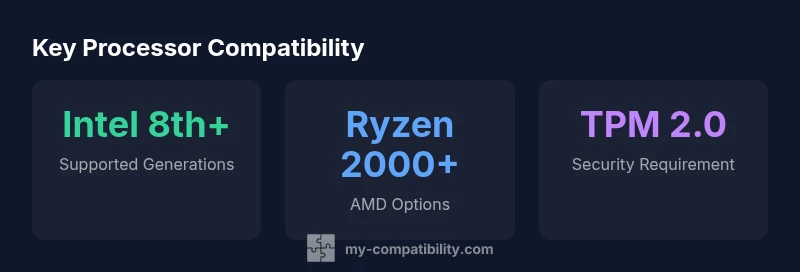
Windows 11 will run on a broad range of processors that meet TPM 2.0 and Secure Boot. In practice, this includes Intel Core processors from the 8th generation onward and AMD Ryzen processors from the Ryzen 2000 series onward, plus newer generations as they release. Older CPUs released before these lines may not be supported, even with compatible hardware.
Why CPU compatibility matters for Windows 11
Choosing a PC or planning an upgrade hinges on understanding which processors compatible with windows 11 are supported by the OS. TPM 2.0 and Secure Boot are baseline requirements, but real-world compatibility hinges on CPU generations, driver support, and firmware features. This article uses a data-driven approach to map which CPUs are broadly compatible, how to verify readiness on your device, and practical paths for upgrade or new hardware. In practice, a well-chosen processor sets the pace for everyday apps, productivity workloads, and light gaming without forcing a painful refresh cycle.
Broad compatibility: Intel and AMD families
For most users, the rule of thumb is straightforward: newer Intel Core processors (from the 8th generation onward) and AMD Ryzen processors (from the Ryzen 2000 series onward) are the baseline. This makes the phrase “processors compatible with windows 11” a practical reality for countless PCs produced in the last decade. But comfort with Windows 11 also depends on firmware features—most notably TPM 2.0 and Secure Boot—along with driver availability from OEMs. Some enterprise devices and premium gaming rigs may ship with TPM 2.0 enabled by default, while others require a quick BIOS adjustment. The data suggests broad compatibility across mainstream laptops and desktops, with edge cases for very old hardware.
How to verify compatibility on your device
Verifying compatibility is a three-step process: first, confirm your CPU model lineage; second, check TPM 2.0 presence and Secure Boot status; third, verify that your OEM provides drivers for Windows 11 on your exact model. Start by opening System Information to locate the processor name, then enter BIOS/UEFI to confirm TPM 2.0 and Secure Boot. If you’re unsure, use the manufacturer’s support pages or run a built-in compatibility check provided by your PC maker. Always ensure you’re on the latest BIOS version before upgrading.
Common myths and caveats you should know
A frequent misconception is that Windows 11 requires top-end CPUs exclusively. In reality, while Microsoft tightened requirements (TPM 2.0, Secure Boot, 64-bit architecture), many mid-range CPUs released since 2017 are compatible. Some configurations may appear to meet CPU criteria but lack driver or firmware support for critical components—graphics, Wi‑Fi, or audio drivers can block a clean upgrade. If you plan to run demanding workloads, verify that your GPU, storage, and memory meet the OS’s recommended specifications alongside the CPU.
Practical upgrade paths and buying guidance
If your current system isn’t compatible, you have two practical paths: upgrade the CPU in a desktop or buy a compatible new device. Desktop upgrades are typically cost-effective, allowing you to pair a modern motherboard, faster storage, and more memory with a compatible CPU. For laptops, consider model families that explicitly list Windows 11 support and TPM 2.0. When budgeting, factor in the total system upgrade—the CPU is important, but you’ll gain more value by pairing it with sufficient RAM, NVMe storage, and a capable GPU for multitasking and multimedia tasks.
Software, drivers, and lifecycle considerations
Hardware compatibility is only part of the story. The software ecosystem—graphics drivers, chipset drivers, and security updates—drives long-term reliability. Before upgrading, ensure your preferred software stack is supported, and check whether OEMs offer a clear lifecycle plan for your device. If you rely on specialized software, verify vendor compatibility notes for Windows 11. In short, a future-proof setup combines a solid CPU with dependable drivers and a strategic storage plan to keep your machine responsive for years.
caption”:null},
Processor compatibility snapshot
| Aspect | Windows 11 compatibility | Notes |
|---|---|---|
| CPU generations | Intel 8th gen+; AMD Ryzen 2000+ | Broad rule of thumb; check specific model and BIOS |
| TPM 2.0 status | Required by default | Enable in BIOS/UEFI if available |
| Secure Boot | Required or strongly recommended | Ensure enabled in BIOS |
| 32-bit support | Not supported for Windows 11 | Only 64-bit CPUs listed as compatible |
Questions & Answers
Is Windows 11 compatible with CPUs older than 8th generation?
Officially, Windows 11 favors CPUs from at least the 8th generation Intel line and Ryzen 2000 and newer. Some very modern Windows 11 builds may work on older CPUs with hacks or unsupported configurations, but these are not recommended and lack official support. For dependable results, plan around 8th-gen Intel or newer and Ryzen 2000 or newer.
Windows 11 officially supports CPUs from the 8th generation Intel line and Ryzen 2000 and newer; older CPUs aren’t supported for standard installations.
Do I need TPM 2.0 to install Windows 11?
Yes. TPM 2.0 is a core requirement for Windows 11. In most devices, TPM can be enabled or upgraded via BIOS/UEFI settings, and Secure Boot is typically paired with TPM for a compliant setup. If TPM 2.0 is unavailable, Windows 11 installation is not supported by Microsoft.
Yes, TPM 2.0 is required and is usually enabled in the BIOS.
Can Windows 11 run on Ryzen 1000-series CPUs?
Ryzen 1000-series (Zen 1) is not supported for Windows 11. To use Windows 11, you’ll need at least Ryzen 2000-series or newer. For older CPUs, Windows 10 remains the recommended OS until hardware refresh is feasible.
Ryzen 1000-series isn’t supported for Windows 11; you’ll need Ryzen 2000 or newer.
What if my PC lacks TPM 2.0?
Without TPM 2.0, Windows 11 standard installation isn’t supported. You can check for BIOS updates, TPM module options, or consider hardware upgrades. In some cases, OEM configurations may offer workarounds, but these are not guaranteed and may violate licensing terms.
If TPM 2.0 isn’t available, Windows 11 isn’t officially supported on that device.
How can I determine if a specific CPU model is compatible?
Identify your CPU model in System Information, then consult Microsoft’s Windows 11 hardware requirements and your OEM’s compatibility list. A quick check of driver availability for chipset, graphics, and network adapters is also essential before upgrading.
Look up your CPU model, check TPM/Boot settings, and verify drivers for Windows 11 on the OEM site.
“In our analyses, CPUs released in the last decade form a solid baseline for Windows 11 compatibility when TPM 2.0 and Secure Boot are present. Always validate driver availability for your motherboard and peripherals before upgrading.”
Highlights
- Verify TPM 2.0 and Secure Boot are enabled before upgrading
- Target Intel 8th gen+ or AMD Ryzen 2000+ for broad compatibility
- Check OEM driver support for your exact model before upgrading
- Consider a balanced upgrade with RAM and storage to maximize performance