How to Fix Compatible TPM Cannot Be Found
A comprehensive, step-by-step guide to resolve the 'compatible TPM cannot be found' error. Learn how to verify TPM presence, enable it in BIOS/UEFI, update firmware and drivers, and verify TPM in Windows with practical tips from My Compatibility.


This guide shows how to fix the 'compatible TPM cannot be found' error by verifying TPM availability, enabling it in BIOS, updating firmware and drivers, and reconfiguring Windows settings. You’ll learn how to confirm TPM presence, clear and initialize the module safely, and test BitLocker or other security features after steps. You’ll need admin access, a compatible PC, and a recent Windows build.
What the error means and why it happens
The message 'TPM cannot be found' appears when Windows or the firmware cannot detect a Trusted Platform Module. TPM is a hardware root of trust used for security features like BitLocker and credential storage. If it isn’t visible, causes can include: the TPM being disabled in BIOS/UEFI, the module lacking a compatible version, outdated motherboard firmware, incorrect BIOS settings (CSM/Legacy vs UEFI mode), or driver issues that prevent Windows from enumerating the device. Understanding the root cause helps you choose the right fixes rather than guessing. In many systems, TPM detection failures are caused by misconfigured BIOS options, recent firmware updates that reset settings, or antivirus tools interfering with security services. A methodical approach reduces risk and increases the chance of a clean fix.
Verify TPM presence and hardware compatibility
Start by confirming whether your hardware actually includes a TPM module. You can check the BIOS/UEFI screen for a listed TPM or PTT or fTPM option, depending on your vendor. In Windows, open the TPM management console (tpm.msc) to see the status: if it reports 'The TPM is ready for use', you’re halfway there; if it’s 'not found' or 'not ready', continue with the steps. Also verify your motherboard and CPU support TPM 2.0, since Windows security features assume a modern specification. If you’re using older hardware, TPM availability may be limited, and a hardware upgrade could be the only path forward. Finally, ensure Windows is up to date, as some TPM-related fixes are delivered through system updates.
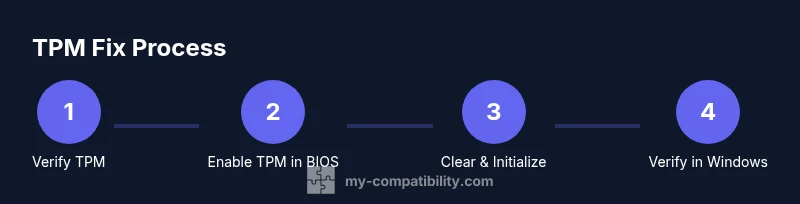
Step 1: Enable TPM in BIOS/UEFI
Enter your BIOS/UEFI settings during boot (commonly by pressing F2, Del, or F10). Locate the security or advanced tab and enable the TPM option, sometimes labeled as TPM 2.0, PTT, fTPM, or Security Chip. Save changes and reboot, then re-enter Windows and check tpm.msc again. Why this matters: the TPM chip can be present but disabled by default, which makes Windows unable to detect it. If you don’t see any TPM options, your platform may not include a TPM or requires a firmware update from the manufacturer.
Step 2: Clear and initialize TPM safely
If the TPM appears with status issues or cryptographic keys appear missing, you may need to clear the TPM. Before proceeding, back up any keys or credentials tied to BitLocker or other secure containers; clearing will reset them. In Windows, open tpm.msc and choose 'Clear TPM', then confirm and reboot. After reboot, follow the prompts to initialize the TPM and assign ownership if asked by the system. This step is irreversible for the keys stored in the TPM, so you must restore from backups afterward.
Step 3: Update firmware and drivers
A TPM not found can be caused by outdated firmware or driver support. Check the motherboard or system vendor’s support page for the latest BIOS/UEFI firmware and TPM-related drivers. Install the updates in a stable environment, reboot, and recheck tpm.msc. Sometimes the firmware update enables TPM visibility at the hardware level and fixes incompatibilities with Windows security features. Ensure you’re on a supported Windows build during updates.
Step 4: Windows configuration and verification
With the hardware enabled, verify TPM visibility from Windows. Open the Security processor status in Windows Security or use tpm.msc to confirm 'The TPM is ready for use.' Re-run any security features you use, such as BitLocker, to verify the module is functioning. If BitLocker was suspended, resume encryption and back up the recovery key. If you encounter errors, run the Windows Update troubleshooter and verify there are no pending drivers that block the security processor.
Additional scenarios and common pitfalls
Some systems use virtualization-based security (VBS) or secure boot with TPM; ensure these features are configured consistently. If TPM is still not found after enabling, consider hardware limitations: some lower-cost boards lack a TPM or require a motherboard-specific module. In corporate environments, group policy or device enrollment can hide TPM from Windows; check policy settings or contact your IT administrator. Finally, if the TPM hardware is suspected to be dead, testing with another system or a vendor diagnostic can confirm hardware failure.
Final checks after the fix and recovery options
After TPM is detected and ready, re-run your security workflows and verify that data protection features are active. Save and securely store recovery keys for BitLocker, Windows Hello keys, and Credential Guard tokens. If you rely on enterprise security policies, reapply the policy configurations and verify that TPM-related requirements are satisfied. If problems persist, consult the vendor’s support resources or My Compatibility for guidance on compatibility and best practices.
Tools & Materials
- Admin access to Windows PC(You need administrator privileges to modify BIOS/UEFI and TPM settings.)
- PC or laptop with TPM 2.0 capable hardware(Check vendor specs or TPM.msc to confirm version.)
- BIOS/UEFI access(Know how to enter BIOS (e.g., F2/Del) and locate TPM settings.)
- Stable internet connection(For downloading firmware or driver updates.)
- Power supply or charger(Prevent power loss during firmware updates.)
- Backup recovery keys (BitLocker/credential store)(Back up any encryption keys before TPM changes.)
- TPM management tool (tpm.msc) and Windows Update(For TPM state checks and driver updates.)
- Motherboard manual(Helpful to locate exact TPM options and labels.)
Steps
Estimated time: 60-90 minutes
- 1
Verify TPM presence
Check BIOS/UEFI for a TPM option and run tpm.msc to confirm the TPM status in Windows.
Tip: If the TPM is not listed, proceed to BIOS checks and vendor guidance. - 2
Enable TPM in BIOS/UEFI
Enter BIOS, locate the TPM/Security Chip option, enable it, save, and reboot.
Tip: Take a photo of your BIOS settings before changes in case you need to revert. - 3
Clear and initialize TPM
If needed, clear TPM in tpm.msc after backing up keys, then reboot and initialize ownership.
Tip: Clearing TPM will erase stored keys; have backups ready. - 4
Update firmware and drivers
Install the latest BIOS/UEFI firmware and TPM drivers from the vendor site, then reboot.
Tip: Ensure you’re on a supported Windows version before updating. - 5
Verify TPM in Windows
Open tpm.msc and Windows Security to ensure the TPM shows as ready for use.
Tip: Test BitLocker or a secure app to confirm functionality. - 6
Fallback and validation
If issues persist, re-evaluate hardware compatibility or seek vendor support.
Tip: In corporate environments, check with IT for policy-related blocks.
Questions & Answers
What does 'TPM cannot be found' mean?
The error means Windows cannot detect the TPM hardware or it is not exposed by the firmware. Causes include an disabled TPM in BIOS, outdated firmware, or driver issues. A structured troubleshooting sequence helps identify the exact cause and resolve it without unnecessary risk.
The error means Windows can't detect the TPM hardware or its firmware exposure; follow a structured troubleshooting sequence to identify the cause.
How do I know if my system has a TPM 2.0?
Check the TPM management console in Windows (tpm.msc) and review system specifications from the vendor. If the TPM shows as ready and lists 2.0, your system supports modern security features. If not, you may need hardware or firmware upgrades.
Use tpm.msc to view the TPM version and readiness; if it shows 2.0, you’re on a compatible path.
Is clearing the TPM safe?
Clearing the TPM erases all keys stored in the module. Back up recovery keys and credentials first. Only clear TPM if you understand the consequences and you have a plan to restore encrypted data afterward.
Clearing the TPM deletes keys, so back up data and keys before proceeding.
Will Windows BitLocker work after TPM is fixed?
BitLocker relies on a healthy TPM. After the TPM is detected and ready, you can re-enable or resume BitLocker encryption and ensure recovery keys are securely stored. If issues persist, check policy settings and Windows security updates.
Once the TPM is fixed, BitLocker can be resumed and keys should be stored securely.
What if my motherboard has no TPM?
Some boards do not include a TPM. In such cases, TPM-based security features won’t be available unless you add a compatible discrete TPM module or upgrade hardware. Always verify hardware capabilities before attempting fixes.
If there’s no TPM, you may need a hardware upgrade or a discrete TPM module.
Can a BIOS update fix TPM detection without data loss?
BIOS/firmware updates can resolve TPM detection issues and improve compatibility. They typically do not erase user data, but follow vendor instructions and back up important data as a precaution.
Firmware updates can help detect TPM without erasing data, but back up first.
Watch Video
Highlights
- Verify TPM presence in BIOS and Windows.
- Enable TPM properly in BIOS/UEFI.
- Back up keys before risky actions.
- Update firmware and drivers before testing again.
- Validate TPM status by testing security features after fixes.