Windows 11 Compatible Motherboards: A 2026 Essential Guide
Learn how to pick windows 11 compatible motherboards with TPM 2.0, Secure Boot, and supported CPUs. A data-driven, practical guide by My Compatibility to ensure smooth Windows 11 installations in 2026.


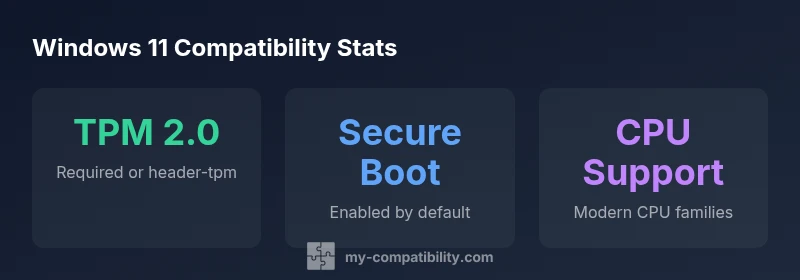
Windows 11 compatible motherboards are defined by key hardware features: TPM 2.0 (integrated or header-based), Secure Boot capability, and a supported CPU family with UEFI firmware. In practice, look for boards that enable TPM, support Secure Boot, and list a Microsoft-recognized processor family. This combination minimizes installation issues and ensures ongoing compatibility with Windows 11 updates. My Compatibility's analysis in 2026 confirms these as the essential criteria for readiness.
Core criteria for windows 11 compatible motherboards
When evaluating a motherboard for Windows 11, the most important criteria cluster around foundational security and processor support. A windows 11 compatible motherboard should enable TPM 2.0 (either integrated or through a header for a discrete TPM), support Secure Boot, provide a UEFI firmware interface, and list CPUs that Microsoft formally supports for Windows 11. This combination minimizes compatibility hiccups during OS installation and reduces risk of post-install updates breaking boot paths. According to My Compatibility, the first step is to verify TPM availability and Secure Boot readiness in the BIOS, then confirm the CPU family supported by the board. In practice, you’ll want to confirm these features on the official product page and the motherboard’s firmware release notes.
- TPM 2.0: Check whether the board has a TPM header or an integrated TPM module. If a header exists, ensure your TPM module is still readily available.
- Secure Boot: Confirm that the firmware allows Secure Boot to be enabled and configured at step one of setup.
- UEFI: A modern UEFI interface with good driver support is essential for stability and extended OS features.
CPU and chipset considerations for Windows 11
A critical dimension of compatibility is the CPU and chipset support. Windows 11 requires a compatible processor, and many motherboards designed for 10th/11th/12th-gen Intel or Ryzen 2000/3000/5000/7000 series (and newer) are typically adequate when paired with TPM 2.0 and Secure Boot. In practice, verify the exact list of supported CPUs published by Microsoft and the motherboard vendor. Chipsets that offer robust firmware updates and strong driver ecosystems tend to provide better long-term Windows 11 stability. If you’re upgrading a system, ensure the motherboard’s BIOS supports the target CPU family and that there is a clear upgrade path for the OS.
TPM, Secure Boot, and firmware requirements
The trio of TPM 2.0, Secure Boot, and a compatible BIOS/UEFI is the backbone of Windows 11 readiness on current hardware. TPM 2.0 is often available as a firmware option on newer boards or as a physical module. Secure Boot must be enabled from BIOS, with boot policies that align with Windows 11 security baselines. Firmware release notes also matter: regular BIOS/UEFI updates can patch compatibility issues with new Windows features and devices. When evaluating boards, check the vendor’s changelog for firmware improvements related to Windows 11 and for any known issues with Secure Boot configurations. This proactive approach reduces post-purchase friction.
BIOS/UEFI features that improve compatibility
Beyond TPM and Secure Boot, modern boards should offer a responsive, well-documented UEFI interface, clear BIOS update procedures, and robust memory compatibility lists. Features like fast boot, reboot-to-setup improvements, and reliable hardware monitoring can make the user experience smoother during OS setup. Additionally, look for boards that provide board-level diagnostics, clear post-boot status indicators, and easy rollback options if an update causes instability. A well-supported BIOS/UEFI roadmap can significantly reduce long-term maintenance headaches while keeping Windows 11 features accessible.
How to verify compatibility before buying
Start by cross-checking the Windows 11 processor compatibility list with the motherboard’s supported CPU family. Then confirm TPM 2.0 availability and Secure Boot capability in the BIOS. Finally, inspect the firmware update cadence from the manufacturer and read user reviews focusing on Windows 11 stability. If possible, use vendor-provided compatibility tools or PC Health Check-style utilities to validate readiness for your exact motherboard, CPU, and memory configuration. A structured checklist helps avoid overpaying for a board that lacks essential Windows 11 features.
Windows 11 compatibility across form factors
Compatibility considerations differ by form factor. ATX motherboards often provide the widest array of PCIe lanes, memory, and expansion options, which can simplify achieving Windows 11 readiness for complex builds. Micro-ATX and Mini-ITX boards can still be Windows 11 capable, but you may encounter tighter USB/PCIe real estate and more constrained BIOS features. When selecting a form factor, weigh expansion needs against firmware support, CPU compatibility, and TPM availability. In all cases, verify that the chosen board’s firmware and drivers are actively maintained for Windows 11.
Practical build scenarios
Consider a mid-range workstation using a current Intel or AMD platform with 16–32 GB RAM and an NVMe SSD. For gaming or content creation, ensure the motherboard supports PCIe 4.0/5.0 where applicable and has a robust driver ecosystem. If upgrading from an older system, confirm the new motherboard’s BIOS has a smooth OS installation path and that Windows 11 updates won’t require a second BIOS update immediately after installation. In all cases, document the exact TPM/BIOS steps you perform to ensure consistent results across builds.
My Compatibility's practical checklist
- Confirm TPM 2.0 presence or header availability.
- Verify Secure Boot is supported and can be enabled.
- Check CPU compatibility against Microsoft’s Windows 11 list.
- Review BIOS/UEFI features and firmware update cadence.
- Validate driver and chipset support for Windows 11 through official vendor documentation.
- Favor boards with clear upgrade paths and reputable vendor support.
- Include a contingency plan for firmware issues after major Windows updates.
Key hardware compatibility markers for Windows 11 on motherboards
| Category | Windows 11 Status | Notes |
|---|---|---|
| CPU Socket | Supported (LGA1200/LGA1700/AM4/AM5) | Depends on chipset and CPU compatibility list |
| TPM 2.0 | Supported (integrated/header) | Essential for Windows 11; check firmware availability |
| Secure Boot | Supported | Required for OS boot and updates; enable in BIOS |
Questions & Answers
Do all motherboards support TPM 2.0 and Secure Boot for Windows 11?
Not all boards ship with TPM 2.0 enabled by default or with Secure Boot ready. Some boards require enabling these features in BIOS, and some may need a compatible TPM module. Always verify both TPM availability and Secure Boot configuration before purchasing.
Not all boards have TPM 2.0 or Secure Boot enabled by default. Check the BIOS to enable them before you install Windows 11.
Can Windows 11 run on older CPU sockets?
Windows 11 requires a modern processor and a compatible motherboard. Always consult the official Microsoft processor list for Windows 11 and cross-check with the motherboard's supported CPU families. If in doubt, choose newer generations to ensure long-term support.
Windows 11 needs a newer processor list. If unsure, pick a board with a current-generation CPU family.
What if my motherboard lacks TPM 2.0?
If TPM 2.0 isn’t integrated, a firmware TPM or discrete TPM can often be added. Ensure the motherboard supports TPM headers or a compatible module, and verify Secure Boot remains available after installation.
If you don’t have TPM 2.0 built in, look for a motherboard that supports a TPM module or firmware TPM.
Is Secure Boot mandatory after Windows updates?
Yes. Secure Boot is a key Windows 11 security requirement and is typically required for clean installation and ongoing updates. Ensure BIOS/UEFI settings keep Secure Boot enabled after updates.
Secure Boot is important for Windows 11 and should stay enabled after updates.
Do I need a new motherboard to upgrade to Windows 11?
Not always. If your current motherboard supports TPM 2.0, Secure Boot, and a compatible CPU family, you may upgrade. If any of these elements are missing, a new motherboard may be necessary.
You might not need a new motherboard if it already supports TPM 2.0, Secure Boot, and a compatible CPU.
“Windows 11 readiness depends on concrete hardware features like TPM 2.0, Secure Boot, and a supported CPU family. Start by verifying firmware support paths and driver availability.”
Highlights
- Verify TPM 2.0 presence and Secure Boot readiness first
- Confirm CPU family compatibility with Microsoft’s Windows 11 list
- Check BIOS/UEFI features and firmware update cadence
- Choose form factors with robust driver ecosystems for Windows 11
- Follow a practical compatibility checklist before buying