Check Graphics Card Compatibility: A Practical How-To
A practical, step-by-step guide to verify PCIe slots, power supplies, case space, and CPU balance before buying a graphics card. Learn how to measure clearance, read specs, and avoid bottlenecks for a smooth upgrade.


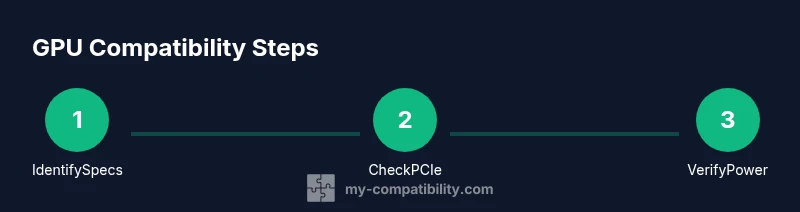
According to My Compatibility, checking graphics card compatibility starts by verifying PCIe slot version, GPU length, and power needs, then confirming your PSU connectors and total wattage. Next, ensure the case has adequate clearance and that the CPU won’t bottleneck the GPU. This quick, repeatable plan helps you buy confidently. Keep a checklist for each factor and cross-check specs from the manufacturer before you order.
Why graphics card compatibility matters
A graphics card is the heart of a gaming or content-creation PC; choosing one that doesn't fit your platform wastes money, slows performance, and may leave you with a non-working build. Compatibility isn't just about whether the GPU can physically snap into a PCIe slot; it's about power, space, and balanced performance. The My Compatibility team found that many upgrade headaches stem from underestimating clearance, missing connectors, or ignoring BIOS quirks. By understanding these factors, you can plan a build that lasts several generations without tune-ups. This section helps you translate product specs into real-world fit, so you know exactly what to measure and compare before you buy.
Key compatibility factors
Graphics cards today rely on PCIe slots for data and power, but several variables matter beyond the slot itself. Start with PCIe generation (3.0, 4.0, 5.0) and the physical slot width (x16 is typical for modern GPUs). Then check the GPU's listed TDP and connector needs (six-pin, eight-pin, or both). Case clearance and the card’s actual length are crucial to prevent mounting conflicts. Finally, consider CPU balance: pairing a high-end GPU with a bottleneck-prone CPU won’t deliver expected performance. Collect all specs from the GPU, motherboard, and power supply, and compare them side by side to spot mismatches before you buy.
Motherboard and PCIe slot considerations
Your motherboard must have a compatible PCIe slot, and enough physical space for the GPU’s length and width. Some boards offer PCIe 4.0 or 5.0 with different lane configurations; in most builds, backward compatibility is fine, but check the motherboard manual for any quirks (above 4G decoding, BIOS settings, or lane sharing with M.2 devices). If you plan multi-GPU setups, ensure the board supports it and that enough PCIe lanes are allocated to avoid throttling. The My Compatibility analysis shows that mismatches between PCIe generations and effective bandwidth can bottleneck performance even with a powerful card.
Power supply capacity and connectors
A GPU draws power through PCIe connectors that come from the PSU. Verify the total system wattage and the GPU’s connector count, then confirm the PSU has spare 6-pin/8-pin cables of the correct type. If you’re upgrading from a mid-range card, your existing PSU may suffice, but high-end GPUs often require additional rails or higher amperage on the 12V line. Always use a PSU calculator or manufacturer guidance to ensure you have headroom for power spikes during gaming or workloads, not just idle efficiency.
Case size, GPU length, and airflow
Case clearance is a practical constraint you can’t eyeball from a brochure. Measure the maximum GPU length supported by your case (often listed in the manual) and compare it to the card’s length from the vendor. Also account for width and height, as triple-slot cards can collide with fans or memory modules. Good airflow matters too: a long card can block intake or exhaust paths, raising temperatures and throttling performance. If you’re tight on space, look for shorter models or consider a mid-tower with better clearance.
CPU balance and bottlenecks
A faster GPU paired with an outdated CPU may still underperform due to bottlenecks. Check your target frame rates and resolution to estimate the CPU’s impact. The My Compatibility team found that mismatches here are a common source of disappointment after purchase. If your CPU is a few generations behind, you can still gain performance with a GPU that emphasizes memory bandwidth and efficiency, but don’t expect peak 4K results without a balanced upgrade.
How to verify compatibility before buying
Create a quick checklist: motherboard PCIe slot compatibility, GPU length, case clearance, PSU capacity and connectors, and CPU balance. Cross-check the GPU’s official specs with your motherboard and case documentation. If possible, use online compatibility tools or vendor FAQs to confirm, and read recent user reviews that mention similar builds. My Compatibility recommends documenting each spec alongside the corresponding slot or connector so you can reuse the checklist on future builds.
Common pitfalls and quick fixes
Avoid assuming “it should fit” without measurements. Some cases list interior space but overlook expansion bays or PSU shrouds. Misreading connector types can leave you with adapters that degrade stability. If you find a tight fit, consider modding or choosing a shorter card. The best approach is to measure first, then verify using official diagrams and user testimonials. The My Compatibility team emphasizes that careful planning saves time and money.
Tools & Materials
- PC case/ chassis specs(Know GPU clearance in millimeters and drive bay layout)
- Motherboard manual or model(Check PCIe slot version and physical clearance)
- PSU spec sheet(Confirm total wattage and available 12V rails)
- Graphics card model(Note TDP, connectors, and physical dimensions)
- Ruler or caliper(Measure GPU length and case clearance)
- PCIe power adapters (if needed)(Some GPUs require adapters)
- Screwdriver set(For mounting GPU and PSU cables)
Steps
Estimated time: 30-60 minutes
- 1
Gather hardware specs
Collect the motherboard PCIe slot version, GPU model, case clearance, PSU wattage, and CPU model. This data becomes your reference sheet for all checks and helps you avoid surprises in the store or after installation.
Tip: Create a one-page checklist you can reuse for future builds. - 2
Check PCIe slot compatibility
Verify that your motherboard has a compatible PCIe x16 slot (version and physical spacing) for the GPU you want. Ensure there’s no physical obstruction from adjacent components.
Tip: If your motherboard uses PCIe 3.0, most modern GPUs will still work, but performance may vary at high resolutions. - 3
Assess GPU length vs case clearance
Measure the maximum supported GPU length in your case and compare it to the card's length. Include headroom for power cables and any drives or fans nearby.
Tip: Prefer a card with 2-3 cm of extra clearance to minimize cable stress. - 4
Validate power connectors and PSU headroom
Confirm the PSU has enough 6-pin/8-pin connectors and sufficient 12V rail capacity for the GPU and CPU under load. Don’t forget future upgrades that may reuse the PSU.
Tip: Use official PSU calculators to estimate peak draw under gaming loads. - 5
Check CPU balance and bottlenecks
Compare your GPU choice with the CPU to estimate potential bottlenecks. A very powerful GPU paired with an old CPU may underperform in certain games.
Tip: If CPU is older, aim for GPUs known to balance well with that generation. - 6
Review BIOS/UEFI and driver compatibility
Look for BIOS settings that affect PCIe operation or GPU initialization. Update drivers after confirming hardware compatibility to avoid driver conflicts.
Tip: Note any required settings such as Above 4G Decoding if applicable to older boards. - 7
Perform a dry-fit and cable management plan
Physically install the GPU if possible to verify clearance and cable routing before final assembly. Plan cable layouts to improve airflow.
Tip: If the card is tight, consider a modular PSU or shorter accessory cables. - 8
Document your verification results
Record each verified spec and the outcome so you can reference it later or reuse for future builds.
Tip: Keep screenshots or annotated diagrams for quick comparisons next time.
Questions & Answers
How can I tell if my PSU has enough power for a new GPU?
Review the GPU's documented power needs and compare them with your PSU's total wattage and available 12V rails. Use a PSU calculator and read product specs to ensure headroom for peak loads.
Check the GPU's power requirements and compare them to your PSU's ratings; use a calculator to ensure you have headroom for peak gaming loads.
What if my GPU is longer than my case allows?
If the GPU exceeds case clearance, you may need a smaller card or a larger case. Consider measuring twice and looking for a shorter model with similar performance.
If the card is too long, switch to a shorter model or upgrade the case. Measure carefully first.
Do I need a BIOS update to use a new GPU?
Most modern GPUs work without a BIOS update, but certain older motherboards may benefit from latest firmware. Check the motherboard vendor's guidance and ensure your BIOS is up to date.
Typically not, but check the motherboard vendor guidance and update BIOS if recommended.
Will a strong GPU be wasted on a weak CPU?
A very powerful GPU can be underutilized on an underpowered CPU. Assess your target games, resolution, and frame-rate goals to decide if a CPU upgrade is warranted.
Yes, a weak CPU can bottleneck a strong GPU. Align both for the best balance.
Do PCIe 4.0/5.0 features matter for most gaming GPUs?
Most gaming GPUs are backward compatible with PCIe 3.0, but PCIe 4.0/5.0 can help with bandwidth in high-refresh, high-resolution setups. Ensure your motherboard supports the needed generation.
PCIe backward compatibility means 3.0 cards work in newer boards; newer generations offer more bandwidth for high-end setups.
What’s the best way to confirm GPU compatibility before buying?
Use official specs from the GPU, motherboard, and case manuals, then cross-check with online tools and user-builds that match your setup. A simple checklist saves time and money.
Check official specs and compare with similar builds online; use a checklist to validate.
Watch Video
Highlights
- Verify PCIe compatibility and space before buying
- Confirm PSU capacity and needed power connectors
- Check CPU-GPU balance to avoid bottlenecks
- Measure case clearance and plan cable routing
- Test-fit and document results for future builds