How to Check Compatible Graphics Card
Learn how to verify graphics-card compatibility with your PC. From PCIe and power to BIOS, drivers, and case fit, follow this practical, step-by-step guide to upgrade confidently.


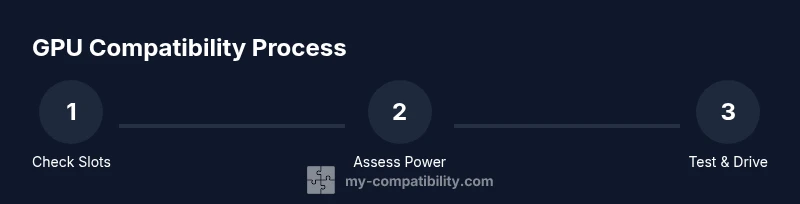
According to My Compatibility, by the end you’ll know how to verify whether a graphics card is compatible with your PC. You’ll check the PCIe interface, power supply connectors and total wattage, case clearance, BIOS compatibility, and driver support. You’ll also consider performance expectations and potential bottlenecks before buying, so you can upgrade confidently and avoid compatibility surprises.
Understanding Compatibility Fundamentals
Graphics-card compatibility is about ensuring the card can interface with your motherboard, receive enough power, physically fit inside your case, and work with your operating system and drivers. Start by locating your motherboard’s PCIe slot configuration and the case’s available space. Modern GPUs typically use a PCIe slot, but the card must also physically fit the space inside your chassis. Additionally, confirm that your power supply can deliver sufficient headroom for the card’s draw and has the necessary PCIe power connectors. Finally, verify that your operating system and drivers support the new card. This foundational understanding helps prevent common upgrade roadblocks and sets a realistic expectation for performance gains.
Key Compatibility Factors You Must Verify
The following factors determine whether a graphics card will work in your system:
- PCIe slot availability and electrical fit: Ensure a compatible PCIe x16 slot and sufficient lane support for the card’s bandwidth needs.
- Physical fit: Measure your case height, length, and the clearance around PCIe slots to avoid contact with other components or the case wall.
- Power delivery: Check that your PSU has enough total headroom and the correct PCIe power connectors (type and count) required by the card."Avoid assuming you’ll get away with a lighter PSU; headroom matters for peak loads.
- BIOS/UEFI compatibility: Some older motherboards may need a BIOS update or may not recognize newer cards. Review your motherboard’s support page for any notes about GPU compatibility.
- Driver and OS support: Confirm that your chosen card is supported by your operating system and that you can install current drivers without conflicts.
Reading Specifications Without Getting Lost
Manufacturer specs are the primary source of truth for compatibility. Learn to identify key terms without getting overwhelmed:
- Interface and form factor: Look for PCIe compatibility (x16 is common) and card dimensions that match your case.
- Power requirements: Note the card’s connector type and required system wattage, and compare with your PSU’s capabilities.
- Display outputs: Check if the card provides the monitor connections you use (HDMI, DisplayPort, or others) and whether multi-monitor setups are supported.
- Thermal solution: Reference the card’s cooling design to ensure your case airflow can maintain safe temperatures under load.
- OS compatibility and driver support: Confirm that your OS version is supported and that drivers are readily available from the manufacturer.
How to Check Your Current PC for Compatibility
To avoid guesswork, gather precise data about your setup:
- Identify your motherboard model and PCIe slot configuration using system tools or manuals.
- Record your PSU model and its connector types; note the number of PCIe connectors and overall wattage capacity.
- Measure your case’s internal dimensions to verify the GPU’s length and width will fit without obstructing fans or drives.
- Check current GPU power usage and cooling capacity to estimate headroom for an upgrade. If you’re unsure about power, use an online compatibility checker from a reputable source.
Practical Compatibility Scenarios and How to Address Them
Scenario A: You have a compact case with a modest PSU. Action: Prioritize low-profile GPUs and ensure a PCIe slot and connectors are available without compromising cooling. Scenario B: You’re upgrading an older motherboard. Action: Check BIOS notes for PCIe mode support and driver compatibility; consider a BIOS update if recommended. Scenario C: You want multiple outputs (two monitors or more). Action: Verify that the GPU has enough DisplayPort/HDMI outputs and supports the desired configurations.
These scenarios illustrate that compatibility isn’t only about the card; it’s a system-wide check that includes space, power, and software support.
After You Decide: Installation Readiness and Next Steps
Before purchasing, summarize your findings and compare against at least two candidate GPUs. Verify warranty terms and return policies in case a card doesn’t fit or perform as expected. Plan the physical installation with proper static precautions and cable routing to preserve airflow. After installation, boot and install drivers from the GPU maker’s site, run a basic stress test to confirm stability, and adjust fan curves if needed. This disciplined approach reduces post-purchase headaches and ensures your upgrade meets expectations.
Authority Sources
- PCI-SIG PCIe Standards documentation
- Tom's Hardware GPU compatibility guide
- PCMag GPU upgrade recommendations
Tools & Materials
- PC case with accessible interior(Ensure enough clearance for the card length and width.)
- The motherboard manual / model to identify PCIe slots(Find the correct PCIe slot and lane configuration.)
- Graphics card to install (new or used)(Check model name and power requirements.)
- Screwdriver (Phillips #2)(For securing a new card to the case.)
- Measuring tape or ruler(To verify physical fit in the case.)
- Power supply unit (PSU) model and capabilities documentation(Confirm available PCIe connectors and headroom.)
- Web browser and notes app(Record specs and compare side-by-side.)
Steps
Estimated time: 30-60 minutes
- 1
Gather system information
Identify your motherboard model, current GPU, PSU model, and case dimensions. This baseline will determine what new card can physically and electronically fit. Note the number of PCIe slots and the type of connectors available on your PSU.
Tip: Write down exact model numbers and take photos of the motherboard and PSU labels for reference. - 2
Check PCIe slot and card size
Confirm there is a compatible PCIe x16 slot and verify the card’s length and height will fit inside your case without obstructing fans or drives.
Tip: Measure from the slot to the farthest edge of the case to avoid overlap. - 3
Verify power connectors and headroom
Ensure your PSU has the required PCIe power connectors and enough headroom for peak GPU power draw. If you’re near the edge, consider a higher-wattage PSU or a different card with lower draw.
Tip: If the PSU is modular, check cables and availability before purchase. - 4
Check BIOS/OS compatibility and drivers
Visit the motherboard and GPU maker’s support pages to confirm BIOS/UEFI compatibility and driver support for your OS version. Note any required BIOS updates.
Tip: Back up important data before performing BIOS updates. - 5
Assess display outputs and cooling
Make sure the GPU outputs (HDMI/DisplayPort) match your monitors, and ensure your case airflow won’t trap heat around the GPU.
Tip: Plan cable routing to keep airflow clear. - 6
Plan installation and testing
Physically install the card, secure it with screws, connect power cables, boot, install drivers, and run basic tests to verify stability and performance.
Tip: Run at least a simple stress test and monitor temperatures.
Questions & Answers
Do I need to upgrade my PSU when installing a new graphics card?
Often yes, especially for GPUs with higher power requirements. Ensure the PSU has enough total capacity and the correct PCIe power connectors. If in doubt, consult the card’s documentation and compare with your PSU’s specs.
Usually you’ll need to verify that your power supply can handle the card’s power needs and has the right connectors. If you’re unsure, seek guidance from the card's manual or a professional.
Can I mix brands (NVIDIA and AMD) in the same system?
Yes, you can have mixed-brand components, but you should only mix GPU brands if your requirements demand it and driver conflicts are manageable. Most users run a single-brand GPU for simplicity and driver stability.
You can mix brands, but be prepared for potential driver management challenges and ensure you're comfortable troubleshooting.
Will a used graphics card be compatible with my system?
Used GPUs can work if they physically fit, have compatible outputs, and don’t have known issues. Check the card’s power needs and the PSU connectors, and test the card in a safe environment before relying on it.
A used GPU can work, but verify power needs and inspect for performance issues before fully trusting it.
How do I know if my motherboard supports a newer PCIe card?
Most modern motherboards support PCIe devices, but you should verify the slot version and lane configuration in the motherboard manual. A BIOS update can improve compatibility with newer cards.
Check the manual for PCIe version, and consider a BIOS update if recommended.
Is PCIe 3.0 vs 4.0 compatibility important?
In practice, PCIe 3.0 and 4.0 are backward compatible. A PCIe 3.0 motherboard will work with many newer GPUs, but bandwidth differences may affect high-end cards in some workloads.
PCIe versions are usually backward compatible; performance differences depend on the workload.
Watch Video
Highlights
- Check PCIe slots and physical space first
- Confirm PSU connectors and headroom before buying
- Verify BIOS/OS driver compatibility
- Test installation with basic stability checks after upgrade