What graphics cards are compatible with my computer
Learn how to determine which graphics cards fit your computer by checking PCIe slots, power supply headroom, and case space. Our My Compatibility analysis offers practical steps, examples, and a checklist to upgrade confidently.


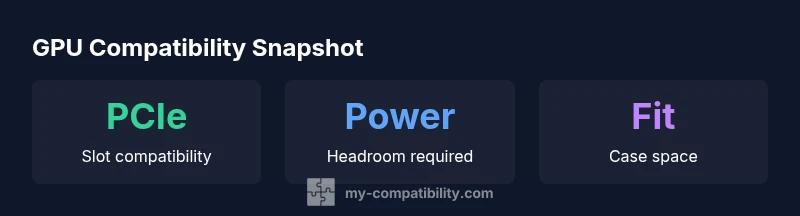
If you’re asking what graphics cards are compatible with my computer, start with three checks: the available PCIe x16 slot, adequate power supply headroom, and enough physical space inside your case. According to My Compatibility, most desktop PCs with a standard PCIe x16 slot can be upgraded, provided the new card fits lengthwise and connects to the right power cables. Next, verify the motherboard revision, cooling, and any BIOS notes that might affect compatibility. This quick triage will save you time before shopping.
Understanding GPU compatibility basics
When you ask: what graphics cards are compatible with my computer, you’re really asking about three core constraints. First, the motherboard must offer a PCIe x16 slot with a compatible physical interface. Second, the power supply has to provide enough headroom for the GPU’s peak power draw plus the system. Third, the card needs to physically fit inside the case and align with motherboard clearance, PCIe slot spacing, and GPU fan orientation. In practice, most desktop systems with a standard PCIe x16 slot can accept a wide range of GPUs, from mid-range models to high-end variants, as long as you respect those constraints. The My Compatibility team emphasizes starting with the basics: PCIe slot version, wattage headroom, and space in your case. As you iterate, you’ll also consider connectors (HDMI, DisplayPort) and potential BIOS notes that may affect boot or performance.
Identify your PC's upgrade path
Before you buy, map out your upgrade path. Desktop towers offer more room than small form factor machines, and laptops require more special handling (see eGPU options). Start by listing your current GPU model, the case size, the exact power supply wattage, and the number and type of power connectors available. If you’re unsure, use online system scanners or the motherboard manual to identify compatible PCIe lanes and slot width. My Compatibility’s guidance focuses on a practical workflow: confirm slot availability, then assess power needs, then measure case clearance. This approach reduces the risk of overpaying for a GPU that won’t fit or boot.
Checking motherboard and PCIe interface
PCIe compatibility is not just about the slot type; it’s also about version and bandwidth. A PCIe 4.0 or 5.0 GPU will still work in a PCIe 3.0 x16 slot, but you won’t harness the full bandwidth benefits. In many builds, the x16 slot is electrically wired for 4.0 or 5.0, enabling newer GPUs to perform near their peak when paired with a capable processor. Confirm the motherboard revision and BIOS notes in the manual. If you’re upgrading from an older card, you might also need to disable integrated graphics or adjust boot settings. The practical takeaway: verify the slot version, lane configuration, and any manufacturer notes that could affect detection and stability.
Power supply and thermals: staying safe
Power headroom matters more than the card’s sticker price. A GPU with a high peak draw demands a PSU that can deliver at least several hundred watts beyond what your other components consume. In addition to wattage, consider the rails and connectors: some GPUs require multiple 8-pin connectors or even the newer 12VHPWR plug. Adequate airflow is essential; high-performance GPUs can throttle if cooling is poor. If your PSU is aging or undersized, upgrading to a higher-wattage model with efficient connectors can prevent instability and long-term wear. My Compatibility recommends assessing the total system load and ensuring fans and vents remain clear.
Physical fit: case space and card length
Card length is a common constraint. Measure the distance from the PCIe slot to the drive cage, power supply, and any case walls. Shorter cards are easier to fit in Mini-ITX or compact cases, while full-length GPUs demand greater clearance. Width matters too: some GPUs are dual- or triple-slot designs that can obstruct adjacent PCIe slots or large CPU coolers. Don’t forget clearance behind the PCIe bracket for cable management. If space is tight, consider low-profile or single-slot variants that still deliver the performance you need. This planning step saves you from post-purchase returns.
GPU dimensions and connectors you might encounter
GPU form factors vary widely. Dual-slot cards are common, but some models extend deeper or require more clearance near the PSU. Power connector types range from 6-pin and 8-pin to the newer 12VHPWR plug. If your case has limited openings, check for cable routing paths and fan intake directions. Graphics cards also differ in display outputs; ensure your monitor has compatible connectors or plan for adapters. A practical tip: map your monitor needs to the GPU’s outputs to avoid late-night shopping confusion.
Laptop or compact systems: eGPU options
Not all laptops are upgradable on the GPU, but external GPU (eGPU) enclosures offer a viable path for some models. Thunderbolt 3/4 or USB-C ports are required for external GPUs, and bandwidth limits can cap performance relative to a desktop. If you rely on a laptop, verify both the enclosure’s compatibility with your model and the GPU’s thermal behavior inside an external enclosure. For many users, a desktop upgrade remains the simplest route to a meaningful performance boost. My Compatibility notes that eGPU viability hinges on port availability, chassis design, and real-world gaming or workflow expectations.
Choosing the right GPU: performance vs power vs price
Choosing a GPU is a multi-criteria decision. Consider your target workloads, resolution, and frame-rate expectations. High-performance GPUs demand robust cooling and higher power budgets, which may necessitate PSU upgrades. Conversely, mid-range GPUs deliver solid gains for 1080p or 1440p gaming with modest power needs. Price-to-performance varies with market conditions, so use a structured approach: list required outputs, verify compatibility constraints, and compare models that meet both price and performance thresholds. This method helps you balance speed, thermals, and cost.
Migration steps: from old GPU to new GPU
Once you’ve selected a compatible GPU, plan the migration carefully. Uninstall drivers for the old card, disconnect power if necessary, and clean any dust from the PCIe slot and fans. Install the new GPU in the top PCIe x16 slot, connect required power cables, and ensure the case clearance and airflow are unobstructed. Boot into BIOS if needed to reinitialize settings, then install the latest drivers from the GPU vendor. Finally, run a stability test to confirm thermal performance and driver compatibility in real-world workloads.
Compact system vs. desktop upgrade considerations
| System Type | GPU Compatibility Notes | Typical Card Length | Power Budget (W) |
|---|---|---|---|
| Desktop Tower | Standard PCIe x16 slot; supports a wide range of GPUs | 12-13 inches | 300-600 headroom |
| Mini-ITX / Small Form Factor | Limited clearance; consider short/low-profile cards | 6-9 inches | 200-350 headroom |
| Laptop with external GPU (eGPU) | Requires Thunderbolt; performance limited by eGPU bandwidth | N/A | N/A |
Questions & Answers
What is the first thing I should check before buying a new graphics card?
Start by confirming your motherboard has an available PCIe x16 slot, your power supply can handle the GPU draw, and the card fits inside your case. Then compare physical dimensions and required connectors.
Check the PCIe slot, power, and case space first, then look at size and connectors.
Does my motherboard support PCIe 4.0 or 5.0 GPUs?
Many modern motherboards support PCIe generations backwards-compatible, but verify the exact version and slot width in your manual. If you have PCIe 3.0, most GPUs will work, but you won’t access the latest bandwidth.
Check your motherboard manual to know the PCIe version and slot width.
Can a GPU fit in a small form factor case?
Yes, with a short or low-profile GPU. Measure the maximum card length and ensure cables and airflow won’t block components.
Yes, with the right small-form-factor GPU and good airflow.
Will upgrading my GPU require a new power supply?
Newer GPUs can demand more power. Check your current PSU wattage and available connectors; you may need a higher-wattage unit.
A bigger GPU may need more power—check wattage and connectors.
Is upgrading a GPU on a laptop possible?
Most laptops have soldered GPUs; only some gaming laptops support limited upgrades or external GPUs via Thunderbolt. Check your model’s service manual.
Generally, laptops aren’t upgradable—external GPUs are possible for some models.
“Upgrading a graphics card is not just about the model; it’s about balancing PCIe compatibility, power, and cooling to ensure a stable, productive upgrade.”
Highlights
- Check PCIe slot availability and version first.
- Ensure power supply headroom exceeds GPU draw.
- Measure case clearance before selecting a card.
- Verify connectors and monitor outputs align.
- Consider eGPU options only if using a laptop.