What Do You Need to Check for GPU Compatibility
Learn how to verify GPU compatibility across power, space, and software with a step-by-step approach to ensure your graphics card fits and performs as expected.


You will learn how to check GPU compatibility before upgrading. The guide covers power supply headroom, physical fit, motherboard PCIe and CPU bottlenecks, plus OS and driver support. By following the steps, you can determine whether a new graphics card will work with your system and avoid bottlenecks or wasted money.
Core factors that determine GPU compatibility
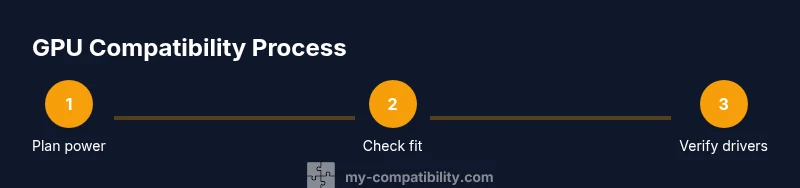
Choosing a new graphics card isn't just about the GPU model; it's about how well it plays with your existing hardware and software stack. When you plan a GPU upgrade, start by focusing on three core areas: power supply headroom, physical space inside the case, and the motherboard/CPU ecosystem that supports the GPU. The most common incompatibilities come from power limits, insufficient clearance, or a mismatch in PCIe slots. According to My Compatibility, successful GPU compatibility begins with a clear assessment of your current system's limits and a realistic plan for upgrades. The rest of the guide breaks down how to evaluate each factor with practical checks you can perform in about an afternoon, even if you're not a hardware expert.
Power headroom matters because GPUs draw a lot of power in peak gaming scenarios. If your PSU is undersized, the system may crash, throttle, or fail to boot under load. Physical space is another frequent hurdle: long or tall GPUs might not fit in smaller cases or may collide with hard drives and clearance panels. The PCIe slot itself is usually not the limiting factor, but the GPU's power requirements and the motherboard's layout can complicate cable routing and airflow. Finally, software compatibility—drivers and OS support—determines whether the card can operate at full capability. Plan to verify drivers for your operating system, plus firmware updates for your motherboard if needed.
Power supply and connectors
Power supply capacity and the availability of the right PCIe power connectors are the most tangible gating factors for GPU compatibility. Before purchasing, compute your target GPU's total board power and add the CPU and other components’ draw to estimate a safe headroom of 15–25%. If your PSU is outdated or under 80+ Bronze efficiency, upgrade to a higher-rated unit; a higher wattage unit with good rail stability reduces risk of under-voltage or instability under gaming loads. Check how many 8-pin or 6-pin PCIe power cables you have and whether you can daisy-chain safely. Some GPUs ship with one 8-pin and one 6-pin connector; others require two 8-pins or an 8-pin plus a 6-pin adapter. If you lack the correct connectors, avoid cheap adapters, which can over-stress rails or fail under peak load. Remember to confirm that your PSU’s cables are long enough to reach the GPU without forcing bends or stretching cables.
Physical fit: case clearance, length, and mounting
GPUs come in various lengths, widths, and heights. Begin by measuring the available footprint inside your case: length from PCIe slot to the drive cage, thickness for dual-slot designs, and vertical clearance near the PCIe slot. Subtract the space taken by drive bays, fans, and cables. Also consider the GPU's cooler height and any backplate protrusion. If your case requires a vertical display or has limited clearance behind the PCIe slot, you may need to choose a shorter model or remove a drive cage temporarily. Compatibility isn't just about size; some GPUs extend into the motherboard’s near-CPU area, potentially interfering with CPU coolers or RAM modules. In tight builds, you may need to adjust fan configurations to maintain airflow and temperatures within safe limits.
Motherboard, PCIe lanes, and CPU considerations
Various GPUs use PCIe x16 slots; most modern GPUs work fine in PCIe 3.0 or 4.0 slots, and PCIe 5.0 compatibility is generally backward compatible. However, there are subtle bottlenecks depending on your CPU and the number of PCIe lanes available for the GPU. If you run a very old CPU paired with a high-end GPU, you might experience CPU bottlenecks that cap performance. Check the motherboard manual for which PCIe slots are used when multiple devices are installed; some boards deprioritize certain lanes when other devices are installed. Also confirm that the motherboard BIOS is up to date; a BIOS revision can improve GPU detection and stability. If you’re on a compact motherboard, ensure the GPU’s length does not collide with near-socket components. In practice, most mid-range desktops avoid serious CPU bottlenecks, but it's worth researching your exact CPU/GPU pairing to confirm. We’ll cover practical steps to verify this in the STEP-BY-STEP section.
BIOS, firmware, and driver support for GPUs
Driver support is critical for performance and stability. Verify that your OS is supported by the GPU's driver package (Windows, Linux, or macOS where applicable). Ensure you have the latest motherboard BIOS and chipset drivers, because some GPUs rely on system firmware for optimal memory timing and PCIe behavior. Some older UEFI BIOS implementations may require a CSM setting to initialize newer GPUs, though this is increasingly rare. On laptops or prebuilt systems, verify that the vendor's BIOS allows discrete GPU switching and that there are no power or thermal throttling constraints in the system firmware. If you plan to install in a Linux environment, check the GPU's driver compatibility with the kernel version you intend to run. After installation, monitor driver updates and enable automatic security updates to stay in support with ongoing GPU features.
Adapters, multi-GPU scenarios, and potential compromises
While multi-GPU configurations like SLI or CrossFire were popular in the past, they are less common today for gaming and general GPU workloads. If you are considering a dual-GPU setup, verify that your motherboard supports it, your power supply can handle two GPUs, and the driver stack actually benefits your workloads. Note that some modern titles do not scale well with multiple GPUs, and physics or latency across GPUs can introduce new bottlenecks. In most consumer builds, a single higher-end GPU provides simpler management, consistent performance, and better driver support. If you still need more performance, evaluate a future-proof build plan rather than chasing multiple GPUs in parallel.
Checklist synergy and pre-purchase validation
Before buying, run through a practical compatibility checklist: confirm power supply capacity and cables, measure case clearance, verify PCIe slot availability, check CPU bottlenecks, read motherboard BIOS notes, and confirm OS driver support. Use a simple, repeatable process so you can compare different GPUs quickly. If you’re unsure about dimensions, use the case manufacturer’s spec sheet and the GPU’s dimensions from the vendor. This overlap of hardware and software verification reduces the risk of post-purchase dissatisfaction.
Practical upgrade paths by budget
Budget-conscious builders should consider mid-range GPUs that deliver solid 1080p or 1440p performance without dramatic power needs. Mid-range upgrades often yield the best price-to-performance, especially when paired with a moderately capable PSU and good airflow. For enthusiasts aiming at 4K or high-refresh-rate 1440p, invest in a high-end GPU and ensure your power supply, case clearance, and cooling can handle sustained loads. Regardless of budget, always compare dimensions, power connectors, and BIOS compatibility across candidate GPUs to minimize surprises.
Final guardrails and validation before purchase
Take a final pass through the compatibility checklist and perform a visual review of all cables and components. If possible, borrow a friend’s PSU or case to test clearance and connector fit before committing to a purchase. Document your findings and keep a copy of the GPU’s spec sheet, motherboard BIOS recommendations, and OS driver notes. This disciplined approach helps you avoid common compatibility pitfalls and ensures a smoother upgrade experience.
Tools & Materials
- Power supply calculator (online or software)(Estimate total system draw with headroom for peak loads)
- Ruler or caliper(Measure GPU length and case clearance accurately)
- Case specifications sheet(Check maximum GPU length, width, and clearance)
- Motherboard and PSU manuals(Confirm PCIe slot layout and recommended connectors)
- PCIe power cables and adapters(Have enough native 6-pin/8-pin connectors; avoid adapters if possible)
- Operating system and driver knowledge(Know OS version support for GPU drivers (Windows/Linux/macOS))
- Monitoring tools(Use tools to track temps and load after install)
Steps
Estimated time: 2-3 hours
- 1
Clarify your target GPU
Identify the performance target (e.g., 1080p high details, 1440p, or 4K). Check the GPU’s official specs for power draw, memory, and cooling requirements. This establishes the baseline for all other checks.
Tip: Pick a realistic target and review both synthetic benchmarks and real-game tests for your chosen resolution. - 2
Calculate power supply headroom
Use a PSU calculator and include CPU, storage, and peripherals. Ensure 15–25% headroom for peak gaming loads to maintain stability.
Tip: If your PSU is older than 5–7 years, plan for a replacement to maintain reliability. - 3
Measure physical fit
Record case length, width, and clearance around the PCIe slot. Compare with the GPU’s length, height, and dual-slot width.
Tip: Silicone-based anti-vibration pads and spacers can help in tight builds without compromising airflow. - 4
Check motherboard PCIe and CPU balance
Verify which PCIe slots are available and whether the CPU could bottleneck a high-end GPU. Update the motherboard BIOS if recommended by the vendor.
Tip: In compact builds, consider a GPU with a shorter length or a different cooler configuration to avoid contact. - 5
Confirm power connectors
Ensure you have the required PCIe power cables (6-pin/8-pin) and that adapters aren’t forced into serviceable loads.
Tip: Prefer native connectors over adapters to reduce risk of failures under load. - 6
Validate OS and driver support
Check that your OS version is supported by the GPU driver and that you can install the latest chipset drivers and BIOS updates.
Tip: For Linux users, verify kernel version compatibility with the GPU driver package. - 7
Plan for cooling and airflow
Assess case airflow and GPU thermals under load; ensure fans and heatsinks can dissipate heat effectively.
Tip: If temperatures run high, add case fans or adjust fan curves after install. - 8
Final pre-purchase validation
Double-check all measurements, connectors, and software support. Keep documents handy for future reference.
Tip: Create a quick one-page checklist to compare any new GPU options.
Questions & Answers
Do I need to upgrade my power supply when upgrading GPU?
Often yes. Check total system draw and ensure 15–25% headroom; consider a higher-wattage unit if your current PSU is aging or underpowered. Make sure it has the right PCIe connectors for your GPU.
Yes. Most upgrades require enough headroom and the correct PCIe connectors to power the new GPU reliably.
Will a new GPU fit in an older case?
Fit depends on the GPU’s length and the case’s internal clearance. Measure the length from the PCIe slot shield to the back of the drive cage and compare with the card’s length.
It depends on case clearance; measure carefully and compare with the GPU length.
Does CPU bottleneck affect GPU compatibility?
CPU bottlenecks can limit GPU performance, especially with very high-end GPUs in older CPUs. Review your CPU’s PCIe lanes and performance in games to decide if an upgrade is warranted.
A weak CPU can bottleneck a strong GPU, affecting performance even if the GPU fits.
How important is PCIe version for modern GPUs?
Most GPUs today work in PCIe 3.0 or 4.0 slots with minimal real-world bottlenecks. PCIe 5.0 is backward compatible; ensure the motherboard can handle the GPU’s bandwidth needs without compromising other components.
PCIe version matters less for mainstream GPUs; ensure compatibility and avoid unnecessary constraints.
How do I know if my OS supports latest drivers?
Check the GPU vendor’s driver page for supported operating systems and kernel versions. Update your OS and chipset drivers to ensure full compatibility and features.
Check driver support pages and keep your OS updated.
Are dual-GPU setups still worth it?
Dual-GPU configurations are niche today and often not worth the complexity for most games. They require compatible drivers, power, and cooling, and gains are title-dependent.
Dual GPUs are rarely worth the hassle for typical gaming today.
Watch Video
Highlights
- Verify power headroom before purchase.
- Measure case clearance and GPU length accurately.
- Check motherboard PCIe and CPU balance for bottlenecks.
- Confirm OS driver support and BIOS compatibility.
- Use the upgrade checklist to avoid common pitfalls.