How to Know If SSD Is Compatible With Your Motherboard
Learn how to verify SSD compatibility with your motherboard—matching interface, form factor, and BIOS support. This practical guide helps you avoid mismatches before you buy, ensuring a smooth upgrade with My Compatibility.


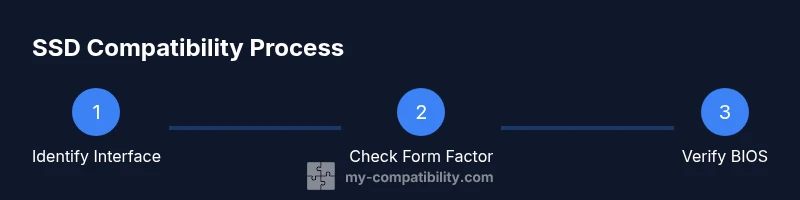
To know if an SSD will work with your motherboard, start by matching the drive’s interface (SATA vs NVMe/PCIe) and the form factor (2.5-inch, M.2, or PCIe card). Then confirm the motherboard has the correct socket and BIOS/UEFI support for that drive, including boot capability if you plan to reinstall an OS. This quick check prevents most common incompatibilities.
What "compatibility" means for SSDs and motherboards
In practice, compatibility hinges on three core criteria: interface, form factor, and BIOS/UEFI support. When you ask how to know if ssd is compatible with motherboard, you must confirm the drive interface matches what the board supports (SATA or NVMe PCIe). The physical form factor must fit the available slots or bays (2.5-inch for SATA or M.2 for NVMe). Finally, the motherboard’s BIOS/UEFI should recognize the drive and, if you intend to boot an operating system from it, support boot from that device. This triad—interface, form factor, and BIOS capability—covers the vast majority of compatibility questions. My Compatibility’s approach emphasizes verifying these three axes before purchase to reduce returns and upgrade headaches. For most shoppers, a quick cross-check at the product page and motherboard manual is enough to avoid a mismatch.
SSD interfaces and what they mean for compatibility
There are two primary SSD interfaces: SATA and NVMe (PCIe). SATA drives are widely compatible across nearly all modern motherboards and typically come in a 2.5-inch form factor. NVMe drives use the M.2 form factor and require an NVMe-enabled M-key slot on the motherboard. Some older boards may lack NVMe boot support or have limited PCIe lanes, which can affect performance or bootability. Always consult the motherboard’s official specs or QVL to confirm supported interfaces and boot options before purchasing an NVMe drive.
Form factor and physical fit you should verify
SSD form factors come in several sizes, with the most common being 2.5-inch SATA and M.2 variants (often 2242, 2260, or 2280). The drive must physically fit in the case and align with mounting points on the motherboard. When choosing M.2, ensure there is sufficient space around the slot to avoid heat buildup or clearance issues with graphics cards. Some boards also support add-in PCIe SSDs, which are less common for consumer builds but possible in certain workstation configurations.
Key motherboard features that influence compatibility
Storage compatibility depends on the number and type of connections (SATA ports, M.2 slots). Check whether the board supports NVMe booting and what PCIe generation its M.2 slots use (Gen3 vs Gen4) because this affects speed and compatibility with newer drives. BIOS/UEFI support matters too; some boards require firmware updates to recognize newer NVMe devices or to enable secure boot for certain configurations. Always verify the chipset generation and the official manual for any caveats on storage options.
How to read specs: quick filtering tips
When examining motherboard specifications, look for the M.2 slot key (M-key vs B-key) and whether the slot supports NVMe PCIe. If a drive is PCIe Gen4 but the board only supports Gen3, you’ll still get compatibility but at reduced speeds. For SATA drives, confirm there is a free SATA port and that no conflicting devices occupy that channel. If AHCI is listed, that indicates SATA compatibility; NVMe requires PCIe and proper driver support in the OS. Understanding these terms helps you quickly filter out incompatible options.
BIOS/UEFI considerations and enabling new SSDs
After installing hardware, enter BIOS/UEFI to verify detection. Enable the appropriate storage configuration (AHCI for SATA, NVMe mode for NVMe drives) and adjust boot order if you plan to boot from the new SSD. In some cases, a BIOS update is recommended to improve NVMe recognition and stability. Always follow the motherboard manufacturer’s update guidance to minimize risk and ensure compatibility with newer drives.
Practical steps to verify compatibility before you buy
A proactive approach saves time and money. Start by identifying your motherboard model and checking its official spec page. Note the exact interface, form factor, and capacity of the SSD you want. Confirm BIOS support for booting from that drive, and look for any QVL notes or known compatibility caveats. Compare prices and warranty terms, and ensure the retailer’s return policy covers compatibility issues.
Installation steps and verification
Physical installation varies by interface. For SATA: mount the 2.5-inch drive, connect data and power cables, and secure it. For M.2: insert at a slight angle, press down, and secure with a screw. After installation, power on, enter BIOS/UEFI to verify recognition, set the drive as boot device if needed, format the drive in the operating system, and run a basic health check. Ongoing monitoring with SMART attributes helps confirm long-term reliability.
Tools & Materials
- Phillips head screwdriver(PH2 or PH1, depending on screws)
- Anti-static wrist strap(Reduces risk of static damage)
- M.2 mounting screw(Often included with motherboard; keep spare)
- SATA data and power cables(Included with case; optional for some builds)
- Motherboard manual / online specs(Cross-check slot/key and BIOS notes)
- External USB drive or OS media(For OS reinstall if booting from NVMe)
Steps
Estimated time: 20-40 minutes
- 1
Identify motherboard model and SSD type
Locate your motherboard model number and read the official specs. Decide whether you want a SATA or NVMe drive and confirm the form factor (2.5-inch or M.2) that matches available slots. This upfront step saves back-and-forth later.
Tip: Write down model numbers and supported interfaces for quick reference. - 2
Check interface and form factor compatibility
Compare the SSD interface to the motherboard’s supported interfaces. Ensure the drive’s form factor aligns with an available slot (2.5-inch, M.2 2280, etc.). If you’re unsure, re-check the motherboard manual or official spec page.
Tip: If you’re mixing NVMe with an older board, confirm NVMe boot support. - 3
Review BIOS/UEFI requirements
Look for any BIOS notes about NVMe or SATA boot support and whether a firmware update is recommended or required. If a BIOS update is advised, follow the manufacturer’s official procedure precisely.
Tip: Back up data and ensure power stability during a BIOS update. - 4
Gather installation tools and safety measures
Gather a screwdriver, anti-static strap, and any mounting hardware. Ground yourself, power down fully, and unplug the system before handling components. These steps reduce the risk of damage.
Tip: Work on a non-conductive surface to minimize static buildup. - 5
Install the SSD (SATA or M.2)
For SATA: connect data and power cables and secure the drive. For M.2: insert at a 30-degree angle, then press down and secure with the retaining screw. Ensure no contact with heat sinks or GPU clamps.
Tip: Do not overtighten the M.2 screw; snug is enough to avoid damage. - 6
Power up and enter BIOS/UEFI
Turn on the system and enter BIOS/UEFI. Confirm the new SSD appears in the storage devices list. If you’re booting from it, set it as the primary boot drive and adjust SATA/AHCI settings if necessary.
Tip: If the drive isn’t visible, reseat the module or try a different slot/port. - 7
Initialize and format the drive in OS
Boot into your operating system and use disk management tools to initialize and format the new SSD. Assign a drive letter or mount point as needed. Run a quick SMART check to confirm health.
Tip: Choose a file system compatible with your OS and backup strategy. - 8
Verify performance and reliability
Run basic benchmarks and monitor real-world use for a few days. Check for consistency in read/write speeds and watchdog alerts in the OS event log. If anomalies appear, re-check connections or BIOS settings.
Tip: Regularly back up important data to avoid loss from drive failure.
Questions & Answers
What is the difference between SATA and NVMe SSDs in terms of compatibility?
SATA SSDs are widely compatible with most modern motherboards and use a standard 2.5-inch form factor. NVMe SSDs require an NVMe-enabled M.2 slot and can be bootable only on boards that support NVMe. Always verify the motherboard supports the chosen interface and boot from it if needed.
SATA drives work on almost any motherboard; NVMe needs an NVMe-enabled M.2 slot and BIOS support to boot.
How do I know if my motherboard has an M.2 slot that supports NVMe?
Check the motherboard’s manual or official spec page for the M.2 slot’s key type (M-key) and whether it supports NVMe. Some slots support only SATA-based M.2 drives, so verify NVMe capability before purchase.
Look up the M.2 slot key and whether NVMe is supported; not all M-key slots support NVMe.
Can I use a larger or smaller M.2 drive than the slot’s length?
Most motherboards support multiple M.2 lengths (2242, 2260, 2280). Ensure the drive length matches the slot specification and that adjacent components won’t cause clearance issues.
Match the drive length to the slot’s supported sizes and check clearance with nearby components.
Do I need a BIOS update to use a new NVMe SSD?
Some systems benefit from or require a BIOS update to recognize newer NVMe drives. Always follow the motherboard maker’s guidance and back up data before updating.
BIOS updates can improve NVMe recognition; follow official steps carefully.
What should I do if the drive isn’t detected after install?
Double-check physical seating, cables, and slot compatibility. Enter BIOS to confirm visibility, reseat the drive if needed, and try a different port or slot. If unresolved, consult the motherboard’s support resources.
Re-seat and verify in BIOS; try another port or slot if needed.
Is it safe to boot from a new NVMe drive while keeping the old drive?
Yes, you can boot from the new NVMe drive while keeping the existing storage as secondary. Change boot order in BIOS and install or migrate the OS as needed.
You can boot from the new NVMe drive and use the old drive for extra storage.
How can I future-proof SSD upgrades?
Choose a drive with ample bandwidth and ensure your motherboard supports the latest PCIe generation, NVMe standards, and sufficient cooling. Keep an eye on firmware updates and warranty terms.
Plan for PCIe generation compatibility and cooling for future upgrades.
Where can I find official compatibility information?
Consult the motherboard manufacturer’s website, the drive’s specifications page, and the motherboard’s user manual for exact compatibility notes and QVL entries.
Check the official specs and QVL lists from the manufacturers.
Highlights
- Verify interface, form factor, and BIOS support before buying.
- Check motherboard manual for slot specifics and key types.
- Update BIOS if recommended to improve NVMe compatibility.
- Test drive health with a quick SMART check after installation.