How to Find a Compatible SSD for Laptop
Learn how to identify laptop SSD form factors, interfaces, and compatibility so you can upgrade confidently. This guide covers form factors, interfaces, BIOS considerations, and step-by-step selection.


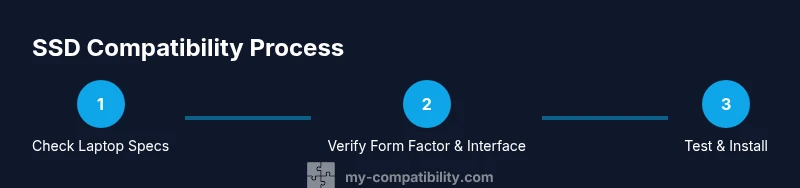
To find a compatible SSD for your laptop, start by identifying your laptop’s supported form factor (2.5-inch SATA or various M.2 sizes) and interface (SATA or PCIe NVMe). Then verify BIOS/UEFI support, measure height limits, and choose a drive that meets your capacity needs and warranty expectations. This guide covers the steps in detail.
Why compatibility matters for laptop SSDs
Upgrading a laptop SSD can dramatically improve boot times, app performance, and overall responsiveness. But an incompatible drive can be a costly mistake: it may not fit in the laptop, share the wrong interface, or fail to boot. My Compatibility's research shows that the most common upgrade errors come from mismatched form factors, wrong interface types, or insufficient clearance under the laptop's chassis. By starting with the laptop's official specs and cross-checking product pages, you reduce wasted time and avoid voiding warranties.
First, understand that SSDs come in different form factors: the classic 2.5-inch SATA drives, and the newer M.2 drives that come in several lengths and keys. Laptops may support one, both, or neither, depending on the model and age. Interfaces differ, with SATA 3 offering lower max speeds and NVMe PCIe offering higher performance. Some laptops support PCIe x4 NVMe while others support only SATA-based storage. Additionally, thickness (height) matters: some ultrabooks can't accept thicker drives, even if the connector matches. In short, compatibility is a multi-dimensional puzzle; ensuring all pieces—form factor, interface, and physical fit—align before you buy saves time, money, and frustration. The My Compatibility team emphasizes a careful, model-specific check rather than relying on generic upgrade advice.
SSD form factors and interfaces explained
SSDs come in several form factors that determine how they physically fit in a laptop and what interfaces they use. The most common are 2.5-inch SATA drives, which slide into traditional bays with a SATA data and power connector. M.2 drives are smaller and plug into a dedicated M.2 slot; they can use SATA or PCIe NVMe interfaces. PCIe NVMe drives are typically faster, but only if the laptop’s motherboard and BIOS support NVMe. Within M.2, widths are standard (22 mm wide) but lengths vary (e.g., 2230, 2242, 2260, 2280, and 22110). The “key” or notch configuration matters: NVMe drives usually use the M-key, while some SATA M.2 drives use B or B+M keys. Some laptops offer a mix of slots, or even no extra drive at all. When evaluating options, map the form factor and the interface to what the laptop physically supports, not just what you see online. This alignment is the difference between a seamless upgrade and a risky swap.
How to identify your laptop's supported form factor
To determine what your laptop supports, start with the official manual or manufacturer support page. Look for specifications labeled storage interface (SATA, NVMe) and form factor (2.5-inch, M.2 2242/2260/2280, etc.). If you cannot access the manual, use your device model number in reputable tech databases or forums. In Windows, you can also inspect the current drive’s interface using Disk Management and Device Manager, but physical form factor requires model-specific data. For Mac laptops, you’ll often rely on Apple’s tech specs. Record the exact slot types and heights your model supports, then cross-check with the SSD you plan to buy. This upfront diligence avoids ordering a drive that won’t physically fit or operate at the correct speed.
How to verify interface, speed, and protocol
Interface compatibility alone isn’t enough; you must verify the protocol and speed. SATA-based SSDs run on the SATA III interface with maximum theoretical transfer speeds around 6 Gbps, while NVMe PCIe drives leverage the PCIe bus for far higher throughput. A laptop may support SATA-based M.2 drives, NVMe drives, or both, depending on the motherboard and BIOS. Also check the PCIe generation supported by the motherboard (Gen3 vs Gen4) and confirm BIOS/UEFI compatibility. Even if a drive fits physically, an incompatible BIOS can prevent booting. When in doubt, consult the manufacturer’s compatibility charts and avoid mixing SATA and PCIe speeds in a way that the BIOS cannot handle. The result is a drive that delivers real-world performance rather than impressive marketing numbers.
Step-by-step criteria for selecting an SSD
Building a compatible SSD selection involves a clear checklist. First, confirm form factor and interface (2.5-inch SATA or M.2 SATA/NVMe). Second, check physical height limits to ensure the drive sits flush and doesn’t interfere with lids or connectors. Third, verify the BIOS/UEFI support for NVMe or SATA depending on your choice. Fourth, decide on capacity based on your needs and budget, keeping in mind that higher-end drives often come with higher endurance and faster write speeds. Fifth, review warranty terms and the brand’s reliability track record. Sixth, consider TBW or endurance ratings if you plan heavy write workloads. Finally, ensure your chosen drive has a reputable retailer and a return policy in case compatibility issues arise. Following this structured approach reduces risk and sets you up for a successful upgrade.
Testing and preparing for installation
Before you touch the laptop, back up all data meticulously. If possible, clone the existing drive to an external SSD or use a disk imaging tool to create a full backup. Having a clean backup lets you restore quickly if something goes wrong. Next, prepare the workspace: power down, disconnect the charger, and discharge static electricity. Have the right tools ready, and a workspace that won’t damage the laptop. If your plan includes cloning, ensure you have reliable cloning software and an external adapter to connect the new drive for initial transfer. Finally, verify you can access the BIOS/UEFI to boot from the internal drive after installation.
Safe installation practices and backup strategies
Power off completely and disconnect all peripherals. Use an anti-static strap if available. Open the chassis carefully to access the storage slot; keep track of screws and protect cables. When inserting an M.2 drive, align the edge connector precisely and secure the screw immediately to prevent movement. If you’re replacing a 2.5-inch drive, ensure you reconnect the SATA data and power cables securely. After installation, boot to BIOS to confirm the drive is detected, then boot into your OS to verify it’s recognized and operational. If you cloned, you should see the OS boot normally with data preserved. If you performed a fresh install, you’ll need to reinstall or restore your data.
Post-upgrade performance expectations
A properly chosen compatible SSD should noticeably improve boot times, application launch, and general responsiveness. NVMe drives often deliver faster read/write speeds than SATA-based models, but actual results depend on the laptop’s CPU, RAM, and cooling. Expect faster file transfers, quicker system resumption from sleep, and snappier file operations. If your prior bottlenecks included poor RAM or an older CPU, the performance uplift may be moderate rather than dramatic. Use reputable benchmarking tools to assess real-world gains and compare against your prior metrics. Remember that thermal throttling can limit performance, so monitor temperatures under sustained workloads.
Common pitfalls and how to avoid them
Avoidying common mistakes saves time and money. The top pitfalls include selecting the wrong form factor, misreading the height specification, choosing an NVMe drive when the laptop only supports SATA in the M.2 slot, and assuming BIOS support without verification. Don’t ignore warranty terms or vendor return policies, as some products may require original packaging or sealing for returns. Finally, avoid cheap or no-name brands that lack robust warranty support. By sticking to model-specific recommendations and verifying every criterion—form factor, interface, height, BIOS support—you’re more likely to enjoy a successful upgrade.
Tools & Materials
- Phillips head screwdriver(Size #0 or #1; magnetic is helpful)
- Laptop model number and current drive specs(Model name, current SSD size/interface, and available slots)
- External USB-to-SATA adapter or enclosure(For cloning or testing the new drive externally)
- Anti-static wrist strap(Optional but recommended to avoid ESD damage)
- Compatible SSD (primary drive)(Ensure form factor and interface match laptop specs)
- Backup drive or cloud backup plan(Always back up data before upgrading)
Steps
Estimated time: 60-90 minutes
- 1
Identify laptop specs
Gather your laptop’s model number and current storage details. Note the form factor and interface of the existing drive, as well as available slots if you plan a second drive. This information anchors all future choices.
Tip: Keep a printout or note of the specs for quick reference. - 2
Determine supported form factor
Check the manual or manufacturer site to confirm whether your laptop supports 2.5-inch SATA, M.2 SATA, or M.2 NVMe, and identify maximum lengths (e.g., 2242, 2260, 2280).
Tip: If in doubt, contact support with your exact model number. - 3
Confirm interface and speed
Validate the interface type (SATA vs PCIe NVMe) and PCIe generation compatibility. This prevents buying a drive that won't reach its rated speeds on your machine.
Tip: NVMe is faster, but only if the laptop supports it. - 4
Choose capacity and endurance
Decide on capacity based on your usage and budget. Consider endurance ratings (TBW or DWPD) for heavy writes and long-term reliability.
Tip: Balance capacity with price; larger drives aren’t always necessary for light users. - 5
Check warranty and vendor policy
Review warranty terms and the retailer's return policy. A solid warranty reduces risk if the drive proves incompatible.
Tip: Prefer brands with well-established support and straightforward RMA processes. - 6
Back up and plan cloning
Create a full backup of the current drive. If you plan to clone, prepare cloning software and connect the new drive via USB-to-SATA adapter.
Tip: Test the clone by booting from the external drive before swapping. - 7
Install and verify
Power down, open the chassis, install the new drive, reconnect cables, and boot. Confirm the drive is recognized in BIOS, then boot into the OS and verify data integrity.
Tip: Keep the old drive handy until you confirm a clean boot from the new drive.
Questions & Answers
Do I need to clone my old drive when upgrading to an SSD in a laptop?
Cloning is recommended because it preserves the operating system, installed applications, and settings. If you prefer a fresh start, you can do a clean Windows/macOS install after backing up data.
Yes, cloning is generally recommended to keep your system intact unless you want a fresh install.
What laptops are more likely to support NVMe SSDs?
Many modern laptops support NVMe, especially those with M.2 slots labeled PCIe. Older models may support only SATA-based storage or require BIOS updates to enable NVMe.
Most newer laptops support NVMe, but you should verify via the manual or manufacturer support page.
Can I upgrade a HDD to an SSD in older laptops?
Yes, if the form factor and interface match the laptop’s slots and BIOS support. Older models may limit speed, but you’ll still gain responsiveness.
Yes, if the form factor and interface are compatible, you’ll get faster performance.
How do I know if there is space for a second drive?
Check the laptop’s storage bay layout and look for spare slots or a caddy. Some ultrabooks only offer a single drive, while others can support dual storage.
Check the chassis and service manual; some models offer dual-drive configurations.
What should I do if BIOS doesn’t recognize the new SSD?
Recheck the connection, ensure the drive is seated properly, verify BIOS settings for NVMe or SATA modes, and test with another slot or adapter if available. If still stuck, consult the manufacturer support.
Double-check connections and BIOS modes; try another slot if possible.
Is PCIe Gen4 vs Gen3 important for laptop SSDs?
Gen4 offers higher theoretical speeds, but compatibility depends on the laptop’s motherboard and BIOS. If your laptop only supports Gen3, you won’t see Gen4 benefits.
Gen4 is faster, but only matters if your system supports it.
Watch Video
Highlights
- Identify the exact form factor and interface first
- Verify BIOS/UEFI support for NVMe or SATA
- Back up data before upgrading
- Check height/clearance to ensure a physical fit
- Test boot from the new drive before removing the old one