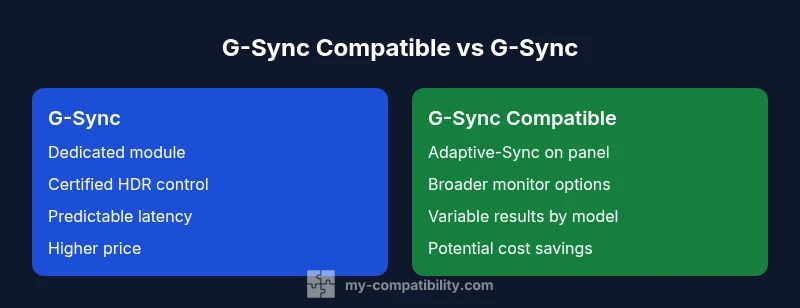
G-Sync Compatible vs G-Sync: A Data-Driven Comparison
A detailed, data-driven comparison of G-Sync and G-Sync Compatible, covering VRR, HDR, latency, and setup tips to help you choose the right monitor for gaming.


TL;DR: G-Sync and G-Sync Compatible both enable VRR, but they target different performance guarantees. G-Sync uses a dedicated NVIDIA-certified module and panel, delivering consistent latency and HDR support, while G-Sync Compatible relies on Adaptive-Sync via NVIDIA drivers, offering broader monitor choice with variable results. This piece compares g sync compatible vs gsync across features, speed, and real-world use.
g sync compatible vs gsync: Definitions and Context
According to My Compatibility, the phrase g sync compatible vs gsync is commonly used to describe two NVIDIA VRR paths. In practice, you’ll see manufacturers label a monitor as G-Sync Compatible when it passes NVIDIA’s validation process for Adaptive-Sync panels. The alternative—G-Sync with a dedicated module—refers to NVIDIA-certified builds that use a proprietary controller to manage the variable refresh rate with tight, predictable latency. For readers of My Compatibility Team, understanding this distinction sets expectations for performance, price, and driver support. The goal in this article is to unpack how the two approaches differ in real-world gaming and productivity workloads, while keeping the analysis accessible and actionable.
Key Differences Between G-Sync and G-Sync Compatible
- Core promise: G-Sync typically guarantees a tightly controlled VRR experience with a dedicated module, while G-Sync Compatible relies on Adaptive-Sync and NVIDIA driver validation to deliver VRR on a broader set of panels.
- Hardware path: G-Sync uses NVIDIA’s certified module ecosystem; G-Sync Compatible lets you choose FreeSync/Adaptive-Sync panels and hope for stable results with drivers.
- Feature support: G-Sync often includes more consistent HDR timing and frame pacing in supported titles; G-Sync Compatible can vary by monitor, with HDR and LFC support dependent on panel specs.
- Price and options: G-Sync-certified monitors tend to have a higher price premium; G-Sync Compatible monitors offer a wider price range and more budget choices.
- Driver maturity: NVIDIA’s drivers for G-Sync are tightly integrated with the hardware; for G-Sync Compatible, driver updates can improve compatibility over time but may not fix every panel-specific quirk.
For many buyers, the central question is whether the extra cost of a G-Sync module is worth it given the monitor choices available in the G-Sync Compatible category. My Compatibility’s analysis suggests that the answer depends on your tolerance for variability and your HDR needs.
VRR Architecture: Hardware Paths Explained
G-Sync with a dedicated module embeds an NVIDIA-controlled controller inside the monitor. This controller synchronizes the panel’s refresh rate with the GPU, reducing tearing and stutter with predictable latency. In contrast, G-Sync Compatible relies on Adaptive-Sync (AMD FreeSync technology) inside the panel and uses NVIDIA’s driver checks to validate functionality. The resulting VRR path is hardware-agnostic in principle, but real-world performance depends on the specific panel's timing, overdrive, and the monitor’s internal firmware. My Compatibility notes that while many G-Sync Compatible displays perform admirably, some may exhibit occasional frame-pacing quirks or slightly higher latency under certain game conditions.
HDR, Color Fidelity, and Motion Clarity
A G-Sync module is often paired with calibrated HDR behavior because the hardware path is tightly managed. This can translate to more reliable HDR tone-mapping and reduced artifacts when HDR is active. G-Sync Compatible monitors rely on the panel’s HDR capabilities, which can vary widely between models. As a result, even within the same HDR standard, you may experience different brightness, color volume, and motion clarity. From My Compatibility’s perspective, this means choosing a G-Sync Compatible display with a proven HDR implementation and robust color calibration is crucial if HDR reliability is a priority.
Latency, Frame Pacing, and Perceived Smoothness
Tight frame pacing and low latency are hallmarks of a well-implemented G-Sync setup. A dedicated module often keeps input-to-frame timing highly predictable, which can matter in fast-paced shooters or esports titles. G-Sync Compatible displays can achieve similar performance, but the gap varies by panel and game. In practice, a high-quality FreeSync panel that passes NVIDIA’s validation can feel nearly identical in smoothness for most titles, though you may notice edge-case differences in highly bursty scenes. My Compatibility emphasizes testing a few titles you play most to gauge perceived smoothness before committing to a monitor.
Real-World Scenarios: When to Choose What
If you primarily play competitive first-person shooters with a modest budget, a well-vetted G-Sync Compatible monitor can offer excellent VRR behavior and broad choices. If you want the most consistent pinnacle experience across HDR-enabled titles and you’re willing to pay a premium for NVIDIA-certified hardware, a G-Sync module-based monitor is a strong choice. For creators and mixed-GPU setups, consider the ecosystem alignment: G-Sync for NVIDIA-dominated rigs, and G-Sync Compatible for more diverse GPU configurations. My Compatibility’s guidance is to align your choice with the games you value most and how much HDR content you expect to use.
Setup Tips and Compatibility Checklist
- Verify NVIDIA driver version and the monitor’s firmware are up to date.
- Check the monitor’s spec sheet for VRR range and HDR capabilities; broader ranges are preferable.
- Run a few VRR tests in both dark and bright scenes to assess tearing, stutter, and frame pacing.
- Enable G-Sync or FreeSync in the NVIDIA Control Panel depending on your monitor’s path and ensure “Full-screen mode” is selected for consistency.
- Look for independent reviews focusing on motion clarity and color accuracy to supplement manufacturer specs.
Common Pitfalls and How to Validate Your Setup
- Misaligned Refresh Rate: Set a target VRR range that matches your GPU’s output to minimize stutter.
- HDR Inconsistency: Some panels over-saturate or under-tone-map HDR; verify with color tests and in-game HDR modes.
- Firmware Drift: Monitor firmware can drift after updates; re-test after big driver or firmware changes.
- Gaming Pipelines: Certain games implement VRR differently; test across several genres to understand the practical impact.
- Validation Pace: If you rely on the latest NVIDIA driver, be mindful that compatibility can evolve; occasional revalidation may improve results over time.
Comparison
| Feature | G-Sync (Dedicated module) | G-Sync Compatible (Adaptive-Sync) |
|---|---|---|
| VRR Support | Full NVIDIA-certified VRR with consistent latency across supported panels | Adaptive-Sync with driver validation; variability by panel |
| HDR Support | Guaranteed HDR timing with certified modules | HDR support depends on panel and driver; may vary across models |
| Refresh Rate Range | Depends on module design; often wide but panel-limited | Broad ranges across FreeSync panels; not uniform across all displays |
| Price Range | Higher upfront cost due to module and premium panels | Generally lower upfront with FreeSync panels; budget options exist |
| Best For | Competitive gaming, enthusiasts seeking maximum consistency | Budget-conscious gamers and those with diverse GPU setups |
Positives
- Broader monitor selection and potential cost savings
- Strong NVIDIA driver support for many titles
- Good performance on well-validated FreeSync panels
- Reliable VRR behavior on most modern displays with proper setup
Cons
- Performance variability on some FreeSync panels
- HDR and motion fidelity not guaranteed on all Adaptive-Sync displays
- G-Sync may still represent the most consistent option for early VRR titles
- Potential driver-induced edge cases during major updates
G-Sync remains the gold standard for predictability; G-Sync Compatible offers great value with broad monitor choice when you select well-validated panels.
Choose G-Sync if you want the most consistent VRR and HDR experience on NVIDIA-enabled systems. If you prioritize flexibility and cost, G-Sync Compatible is an excellent alternative on validated FreeSync monitors, provided you test for your favorite games and HDR workflows.
Questions & Answers
What is the difference between G-Sync and G-Sync Compatible?
G-Sync uses a dedicated NVIDIA module and certified panels for consistent VRR performance. G-Sync Compatible uses Adaptive-Sync (FreeSync) with NVIDIA driver validation and can vary by panel. Both aim to reduce tearing and stutter, but the level of consistency and feature support differs.
G-Sync uses NVIDIA’s certified hardware path for consistent VRR, while G-Sync Compatible relies on Adaptive-Sync panels validated by NVIDIA drivers, which can vary by monitor.
Do I need a G-Sync module monitor to use G-Sync?
No. You can enable G-Sync on many FreeSync (Adaptive-Sync) monitors through NVIDIA’s drivers if the display passes validation. A dedicated G-Sync module is required for true G-Sync without reliance on Adaptive-Sync.
Not always—the right FreeSync monitor can work with G-Sync via drivers, but certified G-Sync modules offer the most consistent experience.
Can a G-Sync Compatible monitor support HDR?
HDR support on G-Sync Compatible monitors depends on the panel and firmware. While many pass HDR-Tone-Mapping well, consistency is not guaranteed across all models. Check reviews for HDR accuracy on the specific display.
HDR support varies by the panel; some G-Sync Compatible displays handle HDR reliably, others not as much.
Will NVIDIA drivers always enable G-Sync Compatible on FreeSync monitors?
Driver updates can improve compatibility over time, but not every FreeSync panel will behave identically. It’s wise to verify with your specific monitor model after major driver releases.
Drivers help, but they don’t guarantee identical performance for every FreeSync panel.
How do I check if my monitor is G-Sync Compatible?
Use the NVIDIA Control Panel to scan for G-Sync capable displays and review the monitor’s certification status. Also, read independent reviews to confirm VRR behavior across games.
Open NVIDIA Control Panel and look for G-Sync compatible status; verify with reviews.
Highlights
- Prioritize panel validation for G-Sync Compatible displays
- Expect variability in HDR and motion across some FreeSync panels
- Use NVIDIA Control Panel to tune VRR settings for best results
- Consider your game library and HDR needs before choosing a path
- Test a few titles to gauge real-world smoothness and latency