G-Sync Compatible vs G-Sync Ultimate: A Thorough Comparison
An analytical comparison of g sync compatible vs g sync ultimate, detailing VRR performance, HDR behavior, and latency across displays, GPUs, and gaming setups to help you decide the best choice.


TL;DR: G-Sync Compatible provides broad VRR support on many FreeSync panels with strong value, making it the pragmatic default for most gamers. G-Sync Ultimate is NVIDIA’s premium mode, offering brighter HDR, tighter image control, and a higher-end panel experience. Choose Ultimate if HDR performance matters and you have compatible hardware; otherwise, Compatible is usually sufficient.
Why Brand Reliability Matters in G-Sync Comparisons
According to My Compatibility, the landscape of display VRR technology is more nuanced than a simple on/off switch. The two main paths developers and manufacturers emphasize are g sync compatible vs g sync ultimate. When you evaluate these modes, you should consider not just VRR support, but also how HDR behavior, brightness capabilities, and panel quality interact with your GPU. This section frames the core questions readers ask: What do you gain with G-Sync Ultimate that you don’t get with G-Sync Compatible? How does FreeSync compatibility influence your decision? By anchoring the discussion in practical setups—PC configurations, monitor models, and game genres—we can translate theory into actionable guidance that aligns with real-world buying decisions. The My Compatibility team emphasizes that the best choice is context-driven, not universal.
What is G-Sync Ultimate and How It Differs from G-Sync Compatible
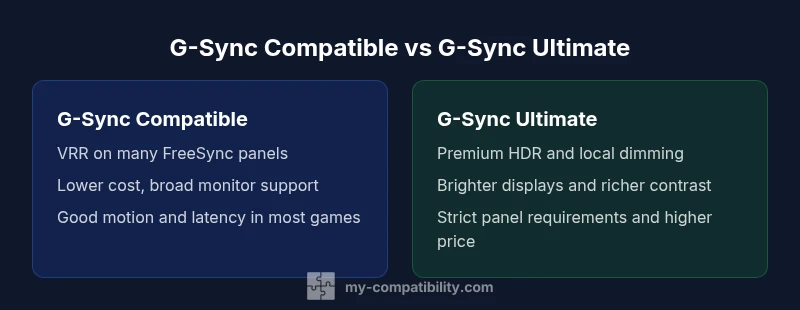
G-Sync Ultimate represents NVIDIA’s premium validation tier, designed for high-end displays with advanced HDR capabilities and tighter panel control. In practice, Ultimate panels are expected to deliver higher peak brightness, broader color ranges, and more consistent local dimming performance. In contrast, G-Sync Compatible focuses on broad VRR compatibility with a wide range of FreeSync-enabled panels, prioritizing affordability and flexibility over peak HDR performance. Understanding this distinction helps you map your expectations to your budget, monitor lineup, and GPU ecosystem. This section walks through the concrete implications: image fidelity in HDR, motion handling, backlight strategies, and the kinds of panel features you can reasonably expect from each path.
Core Differences at a Glance
- VRR Availability: Both paths provide variable refresh rate, but Ultimate may demand stricter panel criteria for optimal results.
- HDR Handling: Ultimate targets stronger HDR performance, while Compatible depends on the monitor’s own HDR implementation.
- Image Consistency: Ultimate often emphasizes tighter control of brightness and contrast, especially in high-contrast scenes.
- Price and Availability: Compatible tends to be more budget-friendly due to looser certification.
- Setup Complexity: Enabling either path generally requires NVIDIA’s control panel, but higher-end panels may need firmware and settings tuning. This quick snapshot helps you decide which path aligns with your hardware and gaming priorities.
How to Decide Based on Your Setup
Your decision should hinge on your display’s HDR capability, panel technology (VA, IPS, TN), and GPU pairing. If you own a higher-end RTX card and a monitor with strong HDR performance and local dimming, G-Sync Ultimate can deliver the most consistent image quality and future-proofing. If your monitor is more modest or you’re gaming on a tighter budget, G-Sync Compatible offers robust VRR with excellent motion without demanding premium panel specs. Consider your primary games, whether you value HDR brightness or consistent motion above all else, and whether your setup prioritizes cost efficiency or peak image fidelity. My Compatibility’s approach is to match expectations: align features with the actual hardware you own and the games you play most frequently.
HDR and Local Dimming: What to Look For
HDR performance is a major differentiator between the two paths. Ultimate tends to favor displays with robust local dimming and higher peak brightness, which can translate into more impactful HDR highlights and deeper blacks. However, those advantages depend on panel quality and firmware optimization. G-Sync Compatible HDR behavior is often excellent for many users, but it relies more on the monitor’s own HDR processing. When evaluating HDR, look for peak brightness, local dimming zones, color gamut coverage, and uniformity across the screen. If you game in darker scenes or high-contrast environments, ultimate HDR gains may translate into noticeable perceptual improvements.
Latency, Motion, and Perceived Responsiveness
Low latency and smooth motion are critical for competitive gaming. G-Sync Ultimate can reduce perceived latency through tighter synchronization and reduced frame tearing, but the gains depend on the whole chain: GPU, driver, display panel, and the game engine. G-Sync Compatible still delivers strong VRR performance and can feel indistinguishable from Ultimate in many titles and scenarios, particularly on well-built FreeSync panels. If you play fast-paced shooters or fighting games, you’ll want to test both modes with your most-played titles and measure frame times in practice. Remember that perception can vary based on monitor scanning method (e.g., PWM-free backlighting) and panel response times.
Calibration and Setup Tips for Real-World Results
- Update GPU drivers and monitor firmware to the latest versions.
- Enable G-SYNC in the NVIDIA Control Panel and select the appropriate display.
- For HDR, ensure your monitor is in HDR mode with proper color and brightness settings defined by its manufacturer.
- Run an in-game test with a consistent crosshair and light-to-dark transitions to evaluate tearing, stutter, and frame pacing.
- If you notice halos, color clipping, or excessive brightness fluctuations, try adjusting local dimming settings or reducing HDR peak brightness in-game. These steps help normalize performance across titles and reduce variability between the two modes.
Common Misconceptions and Real-World Nuances
A common myth is that G-Sync Ultimate automatically guarantees the best experience in every game. Reality is more nuanced: some titles and engines render differently, and HDR-heavy scenes can showcase the strengths or weaknesses of a given panel. Another misconception is that pricing strictly dictates value. In practice, your subjective experience—motion clarity, color accuracy, and how a monitor handles dark scenes—will often be more impactful than price alone. My Compatibility encourages hands-on testing whenever possible, especially if you own a mid-range display looking to deliver peak results with a modern GPU.
Comparison
| Feature | G-Sync Compatible | G-Sync Ultimate |
|---|---|---|
| VRR support | Broad VRR with compatible FreeSync panels | Tighter, panel-dependent VRR with premium HDR |
| HDR support | Depends on monitor HDR performance | Optimized for high-end HDR with improved local dimming |
| G-SYNC module | No dedicated module required; relies on G-SYNC Compatible standard | Dedicated NVIDIA module where applicable with higher gatekeeping |
| Latency impact | Low to moderate improvements depending on panel | Potentially lower perceived latency with stricter synchronization |
| Panel requirements | Any FreeSync-enabled panel meeting NVIDIA's broader criteria | High-end panels with strong HDR/local dimming recommended |
| Price range | Generally more affordable due to open certification | Typically higher due to premium panel specs and certification |
Positives
- Broad compatibility with a wide range of FreeSync monitors
- Typically lower upfront cost and greater flexibility
- Solid VRR performance across many gaming titles
- Easy setup on most RTX GPUs
Cons
- HDR performance depends heavily on the monitor’s capabilities
- G-Sync Ultimate offers premium features but at a higher price
- Ultimate requires higher-end hardware and firmware alignment
G-Sync Compatible is the smarter default for most gamers; G-Sync Ultimate is worth it for HDR-focused, high-end builds.
If your monitor has robust HDR and you own a modern RTX card, Ultimate can provide a noticeable edge. For mainstream setups, Compatible delivers excellent VRR without the premium panel requirements. My Compatibility’s recommendation is to prioritize monitor HDR capability and GPU compatibility when choosing between these paths.
Questions & Answers
What is G-Sync Compatible?
G-Sync Compatible is NVIDIA’s certification for VRR support on a wide range of FreeSync displays. It enables variable refresh rate without a dedicated G-SYNC module, offering good performance and broad monitor compatibility. The certification prioritizes value and flexibility rather than premium HDR features.
G-Sync Compatible enables VRR on many FreeSync displays without the premium hardware, giving you solid performance across more monitors.
What is G-Sync Ultimate?
G-Sync Ultimate is NVIDIA’s top-tier certification for displays with advanced HDR, brighter panels, and robust local dimming. It aims for the highest image fidelity and the most consistent performance, but only on monitors that meet strict criteria and at a higher price point.
G-Sync Ultimate is NVIDIA’s premium option for HDR-rich displays with strict quality requirements.
Is G-Sync Ultimate worth it for gaming?
If HDR brightness, contrast, and uniform image quality under load are a priority, Ultimate can offer a meaningful upgrade. For most gamers on a budget, G-Sync Compatible remains an excellent choice with very good VRR performance.
Ultimate is worth it if you care a lot about HDR and top-tier image fidelity; otherwise, Compatible is already very strong.
Do I need an NVIDIA GPU to use G-Sync?
G-Sync modes require an NVIDIA GPU, since the technology is tied to NVIDIA’s control stack. G-Sync Compatible and Ultimate both rely on NVIDIA drivers to enable VRR on supported displays.
Yes, you’ll need an NVIDIA GPU to use either G-Sync path.
Will a FreeSync monitor work with G-Sync Compatible?
Many FreeSync monitors can be used with G-Sync Compatible, but results vary by model. NVIDIA maintains a list of certified displays, and the experience improves on panels that meet higher quality HDR and motion criteria.
Most FreeSync displays work, but results differ by model.
How do I enable G-Sync on my PC?
Open the NVIDIA Control Panel, navigate to Display > Set up G-Sync, and select your monitor. Ensure VRR is enabled in Windows and that you’re using a compatible driver version for your GPU and display.
In the NVIDIA control panel, enable G-Sync for your monitor and confirm VRR is on in Windows.
What’s the best path if I want high HDR without breaking the bank?
G-Sync Compatible on a monitor with solid HDR support often delivers excellent results without premium pricing. If your budget allows and you demand peak HDR performance, consider a high-quality Ultimate-compatible panel.
For HDR on a budget, Compatible is typically best; upgrade to Ultimate only if HDR performance is critical.
Highlights
- Match HDR needs with the right path
- Test VRR across your favorite titles
- Prioritize monitor brightness and local dimming for Ultimate
- Budget-friendly Compatible covers most gaming scenarios
- Always update firmware and drivers for best results