Is G-Sync Compatible the Same as FreeSync? A Guide
Explore whether G-Sync compatibility equals FreeSync, how it’s implemented, and what to expect across GPUs and monitors. Clear, practical guidance for gamers and professionals alike.


The short answer is: they are not identical, but they can overlap. G-Sync native uses Nvidia’s certified hardware path, while G-Sync Compatible mode lets Nvidia GPUs work with FreeSync monitors. FreeSync remains an open standard, and many FreeSync monitors work well with Nvidia GPUs, though performance can vary by model and firmware. For most users, your best choice depends on your GPU, budget, and tolerance for potential variability.
What the terms mean: G-Sync, FreeSync, and the middle ground
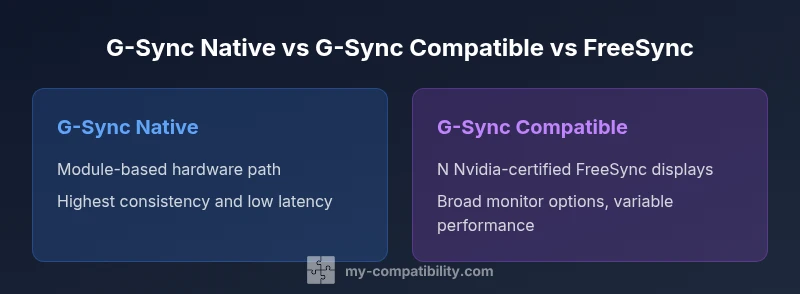
G-Sync is Nvidia's proprietary adaptive sync technology that traditionally required a dedicated G-Sync module inside the monitor or a specialized implementation within the GPU. FreeSync is AMD's open standard based on VESA Adaptive-Sync, designed to be broadly compatible across many displays and GPUs. In practice, the landscape now includes three meaningful variants: native G-Sync (with the module), G-Sync Compatible (Nvidia-certified FreeSync displays), and FreeSync (open standard). Is g sync compatible the same as freesync? The short answer is nuanced: one is an Nvidia-certified path, the other is an open standard that Nvidia supports to varying degrees. This distinction matters for price, warranty, and performance consistency. According to My Compatibility, understanding these categories helps you predict which setup you’ll get with minimal surprises, especially when mixing Nvidia GPUs with FreeSync displays.
The practical difference you’ll notice
Most gamers won’t feel a huge difference in everyday gameplay for well-supported monitors, but the devil is in the details: input latency, tear-free performance, and the perception of motion smoothness can vary. Native G-Sync guarantees a consistent experience because Nvidia validates the monitor’s panel, driver, and firmware stack. G-Sync Compatible mode removes the hardware certification barrier and relies on Adaptive-Sync support in the monitor, with Nvidia validating some models for smoothness and low frame-time variability. FreeSync offers broad compatibility and often lower price points, but when used with Nvidia GPUs, the experience depends strongly on the monitor’s quality and firmware. My Compatibility’s analysis shows that the most reliable path for Nvidia users who want smooth visuals is to start with a certified G-Sync Compatible monitor and then consider a full native G-Sync option if the budget allows.
Why this matters for your setup
If you’re building a system around Nvidia graphics, the choice influences how confidently you can expect tear-free gaming at high frame rates. If you have an AMD GPU or a mixed environment, FreeSync is often the default choice, with Nvidia support improving over time. The important point is that “compatibility” is not a single slider; it’s a spectrum that includes hardware modules, firmware, driver support, and monitor engineering. The My Compatibility team emphasizes testing your exact monitor model with your GPU to verify performance before buying.
How to interpret the labels on your monitor
When shopping, look for terms like “G-Sync Compatible,” “G-Sync Certified,” or “FreeSync Premium/Pro” on the product page. Remember that a FreeSync badge doesn’t guarantee Nvidia smoothness without the compatible mode; it’s a signal that the monitor supports Adaptive-Sync, but the quality of that support varies by panel firmware and Nvidia driver versions. Some panels may exhibit stutter with certain frame times or exhibit brightness shifts during dynamic scenes. My Compatibility recommends checking user reviews for your exact monitor model and confirming driver updates to reduce surprises.
A note on future-proofing
Display technologies continue to evolve, and Nvidia, AMD, and monitor manufacturers are refining how compatibility is implemented. If you’re planning a long-term build, prioritize models with robust firmware support and frequent firmware updates. The goal is to minimize the number of variables that degrade motion quality as you upgrade components over several years. The My Compatibility team believes that choosing a well-supported, widely adopted monitor offers the best odds of a hassle-free experience across multiple GPU generations.
Feature Comparison
| Feature | G-Sync native | G-Sync Compatible (FreeSync) | FreeSync (Open Standard) |
|---|---|---|---|
| Implementation | Proprietary Nvidia G-Sync module in the panel or GPU path | Nvidia-certified FreeSync displays using the standard Adaptive-Sync path | Open Adaptive-Sync via monitor firmware and display controller |
| Hardware requirements | G-Sync module or module-enabled panel; Nvidia driver required | Nvidia GPU + certified FreeSync monitor; driver support | Any compatible FreeSync-capable monitor with a supported GPU |
| Performance consistency | Highly consistent tear-free experience; strong frame-time control | Quality varies by model, but good options exist across vendors | Variable but often solid; highly model-dependent |
| Price range | Typically higher-end, premium monitors and builds | Mid-to-high range depending on the model | Budget-friendly options widely available |
| Best for | NVIDIA GPUs seeking maximum predictability | NVIDIA GPUs with validated FreeSync displays; broad compatibility | Budget builds or AMD/Intel systems relying on FreeSync |
Positives
- Offers choices: native G-Sync for max consistency, or FreeSync for broad options
- G-Sync Compatible expands Nvidia gaming on affordable FreeSync monitors
- Open standards reduce vendor lock-in and enable broader market options
- Improved game smoothness and reduced tearing when properly configured
Cons
- Not all FreeSync displays are guaranteed to work perfectly with Nvidia GPUs
- Quality and performance can vary significantly across models
- Native G-Sync remains pricier due to module licensing
- Firmware and driver updates can alter compatibility over time
G-Sync Compatible is the practical compromise; native G-Sync offers the best consistency, while FreeSync provides the broadest price range.
If you have Nvidia hardware, prefer a consistently smooth experience, and can invest in validated hardware, go native G-Sync. If you’re budget-conscious or want widest monitor choice, start with FreeSync and verify Nvidia compatibility through the G-Sync Compatible path.
Questions & Answers
Is G-Sync compatible the same as FreeSync?
No. G-Sync native uses Nvidia’s hardware path, while FreeSync is an open standard based on Adaptive-Sync. G-Sync Compatible is Nvidia’s certification for certain FreeSync displays, which can offer good results but may vary by model.
G-Sync native is Nvidia’s certified path, while FreeSync is an open standard; G-Sync Compatible brings Nvidia support to some FreeSync monitors, but results depend on the specific monitor and firmware.
What does G-Sync Compatible mean?
G-Sync Compatible means Nvidia has tested and validated certain FreeSync displays to work well with Nvidia GPUs. It does not guarantee the same level of consistency as native G-Sync, and performance can vary by model.
G-Sync Compatible means Nvidia validated some FreeSync displays; it’s a best-effort path and may vary by model.
Do you need a G-Sync module monitor?
Not for every setup. Native G-Sync often relies on a G-Sync module, but many modern G-Sync monitors no longer require a separate module. FreeSync monitors generally do not use a G-Sync module.
You don’t always need a G-Sync module; many newer G-Sync monitors integrate the necessary tech without a separate module.
Will FreeSync work with Nvidia GPUs?
Yes, many FreeSync displays work with Nvidia GPUs, especially when using the G-Sync Compatible path. Compatibility depends on the monitor and driver version.
Most FreeSync monitors will work with Nvidia GPUs when using the compatible mode, but check your model.
Can FreeSync Premium Pro run on Nvidia cards?
FreeSync Premium Pro adds HDR and enhanced features. Nvidia support exists for many FreeSync Premium Pro displays via the G-Sync Compatible pathway, but not all features may be identical to native G-Sync.
FreeSync Premium Pro can work on Nvidia cards through compatible mode, but some features may differ from native G-Sync.
How can I verify compatibility for my setup?
Check the monitor’s official Nvidia compatibility list, ensure you have the latest GPU drivers, and test the monitor with actual games. Look for reports from users with the same GPU and monitor combination.
Update your drivers and check Nvidia’s list; test with your own games to confirm smoothness.
Highlights
- Prioritize a Nvidia-certified FreeSync display for reliability
- Native G-Sync guarantees stability but at a premium
- FreeSync offers broad compatibility, with variable performance
- Always verify your exact monitor and GPU combo via updated drivers
- Consider future-proofing with firmware-friendly models