Crucial RAM Compatibility Check: A Complete Guide for 2026
Master the crucial ram compatibility check with a step-by-step guide to verify DDR type, speed, capacity, QVL compatibility, and stability—minimizing boot issues and data errors.


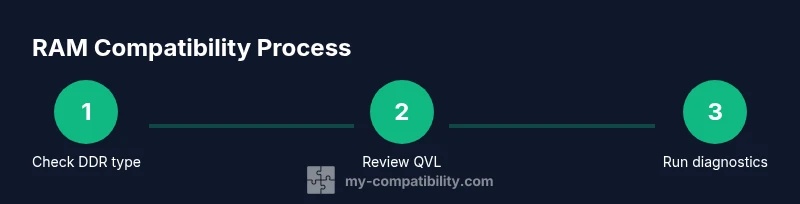
Goal: perform a crucial ram compatibility check to ensure memory works with your motherboard and CPU. In this guide, you’ll verify RAM type (DDR generation), speed, and capacity, check the motherboard’s QVL, and run memory diagnostics. According to My Compatibility, a thorough check reduces boot failures and stability issues. You’ll gain practical, step-by-step guidance, plus tips to avoid common compatibility pitfalls.
What is a crucial ram compatibility check and why it matters
RAM compatibility is not only about clock speeds and module counts; it’s about ensuring that the memory type, rank, and channel configuration are fully supported by your motherboard and CPU. A mismatch can lead to POST errors, instability, or boot failures. According to My Compatibility, a thorough ram compatibility check reduces troubleshooting time and protects data integrity. In practice, this means confirming DDR type (e.g., DDR4 or DDR5), voltage requirements, and maximum supported memory capacity, then aligning these details with the system’s intended use—gaming, content creation, or workstation tasks. For professionals and hobbyists alike, a solid compatibility check is the foundation of a stable, responsive compute environment.
RAM basics you must understand before checking compatibility
To perform a reliable check, you need a basic vocabulary: DDR generation (DDR4, DDR5), memory type (UDIMM versus RDIMM), channel configuration (single-, dual-, quad-channel), speed (measured in MT/s), and latency (CL timing). Your motherboard’s manual and the CPU support list define these limits. Mixing brands can work in some cases, but mismatched speeds and voltages often prevent stable operation. Understanding these terms helps you interpret the QVL and SPD profiles correctly. Keep in mind that real-world performance depends on how well the RAM specifics align with your workload—gaming, rendering, or multitasking—so tailor your choice accordingly.
Reading motherboard memory specifications and the QVL
Most modern motherboards list memory support in the manual and on the product page. Look for the QVL (Qualified Vendors List), which names RAM models tested by the manufacturer. Note the supported DDR type, speed range, and capacity per module. If your chosen RAM isn’t on the QVL, you can still use it, but you may experience boot issues or reduced performance. Always verify the total capacity that the BIOS reports, not just the sticker on the RAM. If you’re planning future upgrades, consider modules that fit the board’s long-term memory roadmap and leave headroom for growth.
Build a compatibility checklist before you buy
Create a checklist that you can reference during shopping: - Confirm DDR generation matches the motherboard (DDR4 vs DDR5). - Check total RAM capacity against the motherboard’s max. - Verify per-slot limits and recommended channel configuration. - Match RAM speed to motherboard BIOS SPD values, not just advertised speeds. - Review voltage requirements and whether XMP/AMP is supported. The checklist helps you avoid returning modules after installation and keeps your system aligned with your performance goals.
BIOS/UEFI settings and initial testing
Install RAM in the recommended slots and boot into BIOS/UEFI. Set the memory to SPD (default) and check the reported type, speed, and timings. If the system fails to post, reseat modules, clear the CMOS, or try one stick at a time. Ensure XMP (or DOCP/EOCP, depending on platform) is enabled only if your modules are on the QVL and validated by the board. Record the detected speed and timing values for reference. This initial phase confirms physical seating and basic compatibility before proceeding to deeper tests.
Full testing: diagnostics and stability checks
After an initial boot, run memory diagnostics using MemTest86 or Windows Memory Diagnostic. Test for several passes and monitor for errors. If errors occur at a specific module, try swapping slots or testing modules individually to isolate faults. For long-term stability, run a short stress test and monitor temperatures and system stability. Use the same configuration across multiple reboots to confirm stability under real workloads. Document results to guide future upgrades.
Troubleshooting and optimization tips
If you encounter instability, consider reseating the RAM, testing with one module at a time, or lowering the installed speed to a supported rate. Ensure the BIOS is up to date and reset to defaults before reconfiguring memory. Consult the motherboard’s QVL and vendor support if issues persist. For gaming or production workloads, enabling XMP should be confirmed only after stability testing shows no errors. Keep a record of BIOS versions and voltage settings for quick rollback if needed.
Advanced considerations: overclocking, ECC, and future-proofing
Some systems support memory overclocking, but this increases the risk of instability. ECC memory is common in workstation-class boards; it corrects single-bit errors but adds cost and may require a compatible chipset. For future-proofing, plan upgrades as matched kits that fill all memory channels rather than mixing individual sticks. If you anticipate future needs, choose a kit with a small headroom margin and verify that your BIOS can support the desired profiles without sacrificing stability.
Tools & Materials
- Anti-static wrist strap(Prevent electrostatic damage during RAM installation)
- Motherboard manual(Contains QVL and memory specs)
- RAM kits matching the motherboard's DDR type(DDR4 or DDR5 as supported by the board)
- USB drive with memory testing tool(MemTest86 or Windows Memory Diagnostic)
- Lighting and clean workspace(Helps with proper seating and inspection)
- Optional: benchmarking software(For detailed performance checks)
Steps
Estimated time: 15-25 minutes for initial checks; 60-120 minutes for full stability testing
- 1
Power down and unplug
Shut down the PC and unplug the power cord. Press and hold the power button for 5-10 seconds to discharge any residual energy. Ground yourself by touching a metal surface before handling components.
Tip: Wear an anti-static strap and work on a non-conductive surface. - 2
Open the case and locate DIMM slots
Remove side panels and locate the RAM DIMM slots. Identify the preferred slots for your configuration (single/dual/quad-channel), as outlined in the motherboard manual.
Tip: Inspect slots for dust and ensure you have clear access to all connectors. - 3
Confirm RAM type and capacity
Cross-check the RAM’s DDR generation, per-module capacity, and total supported memory against the motherboard’s specs and CPU limits. Ensure the sticks match in size and rank if using a kit.
Tip: Prefer matched kits to avoid compatibility quirks. - 4
Install RAM modules
Align notches, insert modules firmly until retention clips click, and reseat to verify full seating. Do not apply lateral force.
Tip: Install modules in the recommended slots for your channel configuration. - 5
Enter BIOS/UEFI and verify SPD
Power on and enter BIOS. Set memory to SPD and verify the reported type, speed, and timings. If discrepancies exist, clear CMOS and boot again.
Tip: Document detected speed/timings for reference. - 6
Enable XMP/DOCP/AMP if supported
If your RAM is on the QVL, enable the appropriate memory profile to achieve advertised speed. If instability occurs, revert to SPD and retest.
Tip: Only enable profiles that are validated for your board. - 7
Run initial diagnostics
Boot into Windows or use a MemTest86 USB to perform quick checks. Start with a few passes to catch obvious errors.
Tip: Monitor temperatures and system response during tests. - 8
Review results and decide on next steps
If tests pass, perform longer stability testing under typical workloads. If errors occur, swap modules, reseat, or adjust speed downward.
Tip: Keep a log of all changes, test results, and BIOS versions.
Questions & Answers
What is RAM compatibility and why is it important?
RAM compatibility ensures memory type, speed, and capacity align with the motherboard and CPU, preventing boot failures and instability. Without compatibility, even high-end RAM can underperform or fail to post.
RAM compatibility ensures your memory type and speed work with your motherboard and CPU, preventing boot problems and instability.
What is a QVL and how should I use it?
A QVL lists RAM models tested by the motherboard maker. Use it to choose memory with confirmed compatibility; if not listed, you may still use it but with potential issues.
A QVL is a list of RAM models tested by the motherboard maker. Prefer listed models for guaranteed compatibility.
Can I mix RAM brands or speeds?
Mixing brands or speeds can work, but it often leads to instability. If you mix modules, run thorough testing and keep speeds aligned to the slowest module.
Mixing RAM brands can work, but it may cause instability. Test carefully and keep speeds consistent.
What should I do if RAM isn’t listed on the QVL?
If RAM isn’t on the QVL, you can attempt testing, but expect potential issues. Use a single kit that is on the QVL or switch to a compatible model.
If RAM isn’t on the QVL, you can test, but be prepared for possible issues. Prefer QVL-listed kits.
How long should memory testing take?
Full stability testing can take 1–3 hours depending on passes and workload. Start with a quick pass, then extend as needed.
Memory tests can take an hour or more; start with a quick check and extend for stability.
What are signs of memory-related problems?
POST errors, random crashes, blue screens, sudden reboots, or RAM-detected errors in diagnostics commonly indicate memory issues.
Signs include boot errors, crashes, or RAM diagnostics reporting errors.
Watch Video
Highlights
- Know your DDR type and motherboard limits.
- Check QVL and per-slot capacity before buying.
- Use SPD profiles and BIOS to set speeds.
- Test with MemTest86 and document results.
- The My Compatibility team recommends a thorough ram compatibility check before upgrading.