RAM Compatibility Check: A Practical How-To
Learn how to perform a RAM compatibility check to ensure memory type, speed, and capacity match your motherboard and CPU. Follow safe steps, avoid common mistakes, and validate your setup for stable performance.


A RAM compatibility check confirms whether RAM type, speed, and capacity match your motherboard and CPU. This prevents boot failures and instability. See our detailed step-by-step guide for safe testing and installation.
Why RAM Compatibility Matters
RAM compatibility matters because memory modules must physically fit and electrically match the motherboard's design to ensure stable operation. A mismatch can cause failure to boot, blue screens, freezes, or degraded performance. According to My Compatibility, many users run into avoidable issues when they install mismatched RAM. A proper RAM compatibility check helps you identify acceptable RAM types (DDR4 or DDR5), supported speeds, capacities per module, total memory limits, and the correct voltage. It also helps you choose between single modules, dual-channel kits, or four-stick configurations to maximize bandwidth and stability. In practice, the most reliable builds use RAM documented as compatible in the motherboard's memory list or Qualified Vendors List (QVL), and that matches the CPU's memory controller requirements. By aligning these specs before purchase or installation, you minimize instability, crashes, or degraded performance. This article explains how to interpret motherboard manuals, memory specifications, and BIOS notes so you can perform a thorough RAM compatibility check without guesswork.
RAM Types, Speeds, and Configurations
Understanding RAM types, speeds, and channel configurations helps you choose wisely. Desktop PCs typically use DDR4 or DDR5 modules, with differences in voltage, signaling, and DIMM pin count. Speed is expressed in MHz and affects bandwidth but only when the motherboard and CPU support it. Timings and voltage matter for stability; mismatched voltage can trigger instability. Also consider single-module versus multi-module configurations: dual-channel kits often provide better performance than a mismatched mix of sticks. ECC RAM is usually only for servers and workstations, not common in consumer desktops. Finally, many builders plan for future upgrades by buying a kit that leaves room for expansion while staying within the motherboard's total memory limit. This knowledge helps you interpret the official specs and the QVL quickly when performing a RAM compatibility check.
How to Retrieve Your System RAM Specifications
To perform an accurate RAM compatibility check, gather your system's RAM specs and the motherboard's supported configurations. Start by identifying your motherboard model from the manual or system information. Check the official CPU and motherboard product pages for supported RAM types (DDR4 or DDR5), maximum speed, maximum capacity, and channel configuration. Look up the board's QVL to see which RAM models are tested and recommended. Use tools such as CPU-Z, Speccy, or the OS’s built-in memory details to verify installed memory and slots. Document current memory slots, installed modules, and available slots, then compare these with the memory kit you plan to install. Finally, confirm BIOS version compatibility, since some memory modules require a specific BIOS revision for optimal operation. My Compatibility analysis indicates that aligning these details prior to hardware changes reduces risk of incompatibility.
Step-by-Step Verification Process
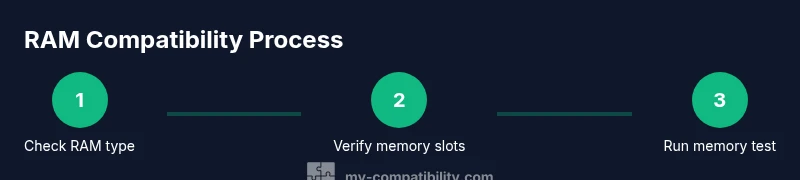
This section outlines a practical, safe verification workflow you can follow to perform a RAM compatibility check.
- Gather manuals and product pages for your motherboard and RAM kit; verify the exact model numbers and supported configurations.
- Check the QVL and CPU memory controller notes to confirm the RAM type, speed, voltage, and maximum per-module and total memory limits.
- Power off, unplug, and prepare the workspace with anti-static precautions before handling any components.
- Install RAM modules in recommended slots, ensuring proper orientation and firm seat with a click; avoid forcing modules.
- Power on and enter BIOS/UEFI to verify that all installed memory is detected and that the configured speed and timings are acceptable.
- Run a memory test (MemTest86 or OS-based tool) for at least one full pass; monitor for errors and adjust timings if necessary. If errors persist, revert to known good configurations or consult the vendor’s support resources.
Tip: If you upgrade memory, consider starting with a smaller configuration to verify stability before full capacity. Time estimate: 45-75 minutes
Troubleshooting Common Issues
If your RAM is not detected or the system remains unstable, start with basic checks. Ensure modules are fully seated and the notch is aligned with the slot. Test each module individually to identify a defective stick. Try different slots to rule out a faulty DIMM or motherboard channel. Check BIOS logs and POST codes for hints, and verify BIOS is up to date. If speed or voltage settings are incorrect, revert to the recommended values from the QVL. In some cases, returning to a known working configuration and re-testing helps confirm stability before pushing for higher memory speeds.
Safe Testing and Validation After Install
Once the RAM is recognized by POST and the BIOS, perform root-cause testing in the operating system. Run memory diagnostics, monitor for crashes under typical workloads, and verify that the system maintains stable temperatures. If you added memory in a kit, ensure the kit is designed for dual or quad-channel operation and that each channel remains balanced. Keep BIOS settings in a safe profile and enable XMP/AMP profiles only if the modules are listed in the QVL and confirmed by your motherboard's vendor. After validation, record the exact memory configuration and tested speeds for future reference. The My Compatibility team recommends documenting your setup and rechecking compatibility whenever you upgrade other components, ensuring lasting reliability.
Tools & Materials
- Motherboard manual(Check RAM compatibility table, QVL, and slot layout)
- RAM modules (DDR4/DDR5)(Match type, speed, and total capacity per your motherboard)
- Anti-static wrist strap(Prevent electrostatic discharge when handling components)
- Small Phillips head screwdriver(Optional for desktop builds; laptop RAM often requires none)
- MemTest86 or OS-based memory test tool(Create bootable USB drive to run thorough memory testing)
- CPU-Z or Speccy(Identify installed RAM type, speed, and slots quickly)
Steps
Estimated time: 45-75 minutes
- 1
Power down and unplug the system
Shut down the computer, unplug the power cord, and press the power button to drain residual charge. Clear the workspace of static and prepare your anti-static strap.
Tip: Always disconnect power and discharge static before touching components. - 2
Identify RAM slots and current configuration
Open the case and locate the RAM slots. Note which slots are populated and the current memory count, module type, and orientation. This helps you plan the new kit arrangement.
Tip: Check the motherboard manual for recommended dual-channel slot pairing. - 3
Install RAM modules correctly
Align notches with the slot key, press firmly until each module snaps into place with a click. If installing more than one module, ensure an even distribution across channels.
Tip: Do not force modules; if they resist, remove and reseat with care. - 4
Power on and verify detection in BIOS
Power up and enter BIOS/UEFI. Confirm the system detects all installed memory and that the reported speed matches your kit’s rated speed.
Tip: If speeds are not as expected, try enabling a performance profile or rechecking slots. - 5
Run a memory test
Boot into MemTest86 or run an OS-based memory test to check for errors across multiple passes. Look for any failed tests or instability.
Tip: If errors occur, remove the faulty module or revert to a known-good configuration. - 6
Confirm stability with real workloads
Load typical applications and benchmarks to ensure stability under real use. Document the configuration and tested speeds for future upgrades.
Tip: Always keep a recovery plan in case of instability after updates.
Questions & Answers
What does RAM compatibility mean?
RAM compatibility means the memory type, speed, voltage, and capacity are supported by both the motherboard and CPU. This ensures reliable operation and prevents boot issues.
RAM compatibility means your memory type and speed are supported by your motherboard and CPU, ensuring reliable operation.
How can I tell if RAM is DDR4 or DDR5?
You can check the motherboard specifications or use a system info tool to identify the RAM type installed. The QVL page also lists compatible DDR versions.
Check the motherboard specs or use a system info tool to confirm whether RAM is DDR4 or DDR5.
Is upgrading RAM safe for a novice?
Yes, with proper precautions. Power down, discharge static, and follow the motherboard manual when installing modules. Run tests to confirm stability.
Upgrading RAM is safe if you follow power-down and anti-static precautions and run tests after installation.
Mix RAM brands allowed?
Mixing RAM brands is not recommended. For best results, use memory modules with the same speed, voltage, and timings from a verified kit.
Mixing RAM brands isn’t recommended; stick to the same speed and timings from a tested kit.
What if RAM is not detected after install?
Reseat modules, try alternate slots, and verify BIOS detects memory. If needed, clear CMOS or update BIOS and retry.
If RAM isn’t detected, reseat, test different slots, and consider a BIOS update if necessary.
Watch Video
Highlights
- Verify RAM type and motherboard support before purchase.
- Consult the QVL and CPU memory notes for compatibility.
- Prefer matched kits or identical modules to avoid instability.
- Run thorough memory tests before finalizing the build.
- Document configuration and update BIOS as needed for future upgrades.