Cox Compatible Routers: A Practical Setup Guide
Discover how to choose, set up, and optimize routers for Cox Internet. This analytical guide covers modem compatibility, bridge mode, performance, and security, with My Compatibility insights to help you achieve reliable home networking.


Cox compatible routers are most effective when connected to a Cox‑approved DOCSIS modem or used in bridge mode with a Cox gateway. In practice, most modern dual‑band routers (Wi‑Fi 5/6) pair reliably with Cox internet and support typical residential speeds. Always check Cox's approved modem list and ensure your router supports DHCP, not PPPoE.
What Cox-Compatible Routers Mean in Practice
For many households, the phrase cox compatible routers denotes a router that delivers reliable Wi‑Fi by pairing with a Cox internet plan, whether via a separate DOCSIS modem or through a Cox gateway in bridge mode. According to My Compatibility, the central idea is compatibility with both Cox’s network and your home network, not brand loyalty alone. The My Compatibility team found that the most dependable setups begin with a Cox‑approved modem or gateway and then add a modern router that supports current wireless standards, robust security, and enough concurrent streams to cover a typical multi‑room home. In practice, you’ll choose between a dedicated modem + router setup for maximal control or a plug‑and‑play gateway for convenience. The term remains a practical shorthand for devices that integrate smoothly with Cox’s service, maintain stable IP assignment, and resist common slowdowns caused by outdated firmware or weak antennas.
How to Evaluate Router Features for Cox
Selecting a Cox‑friendly router means prioritizing future‑proof wireless technology, reliable coverage, and flexible configuration. Look for Wi‑Fi 6 or Wi‑Fi 6E where available, strong MU‑MIMO performance, and a generous guest network option to protect your main network. Equally important are security features like automatic firmware updates, automatic security patches, and WPA3 support. Consider the router’s CPU, RAM, and Ethernet port count to accommodate smart home devices, work setups, and streaming. If you plan to run a smart‑home hub, ensure the router can handle multiple IoT devices without bogging down. In short, focus on a balance of speed, range, security, and management features, rather than chasing the newest buzzwords. My Compatibility’s framework emphasizes long‑term reliability over short‑term hype.
Modem Considerations: DOCSIS, Bridging, and Cox’s Service Model
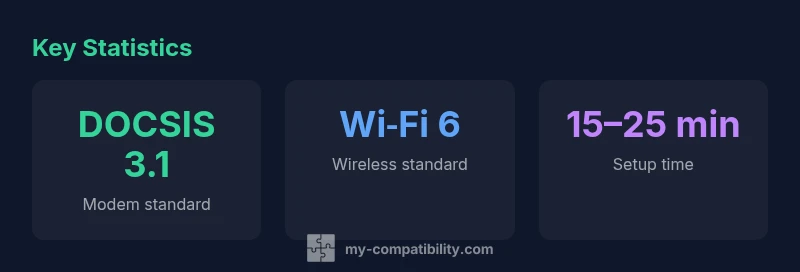
A turnkey Cox experience often comes from either a modem that Cox approves or a gateway device provided by Cox itself. For users who own a router, the key decision is whether to operate behind a separate modem (with a dedicated router) or to enable bridge mode on a Cox gateway. DOCSIS 3.0 and 3.1 devices remain common, with 3.1 offering higher potential throughput and better handling of simultaneous devices. When bridging, your router becomes the primary firewall and traffic manager, which can improve performance for gaming or 4K streaming in busy households. If you use a Cox gateway without bridging, you should still disable Wi‑Fi on the gateway and use your own router for all Wi‑Fi needs to avoid signal interference and double NAT challenges.
Setup Paths: Modem + Router vs All‑in‑One Gateways
There are two main layouts for Cox customers. The first is a dedicated modem + router arrangement: you connect the modem to the router’s WAN port, configure DHCP on the router, and keep the gateway in bridge mode if possible. The second is a Cox all‑in‑one gateway: you either enable bridge mode or rely on the integrated router, depending on Cox’s configuration. The benefit of the separate modem + router is granular control over QoS, firewall settings, and guest networks. The gateway approach offers simplicity and fewer devices to manage. In both cases, ensure the modem or gateway is compatible with Cox’s service and that your router’s firmware is up to date.
Step‑by‑Step Setup: Using Your Own Router with Cox
- Confirm your modem supports Cox service (DOCSIS 3.0/3.1). 2) Verify your router supports the latest Wi‑Fi standard and has current firmware. 3) If using a dedicated modem, connect the modem to the router’s WAN port and enable DHCP on the router. 4) If bridging a Cox gateway, enable bridge mode on the gateway and connect your router. 5) Run speed tests after setup and tweak QoS rules as needed. 6) Secure your network with a strong admin password and WPA3 if available. 7) Save configurations and keep firmware updated for ongoing reliability.
Troubleshooting Common Cox Router Issues
When problems arise, start with simple checks: verify cables are snug, reboot the modem and router, and run a fresh speed test. If speeds drop, inspect device placement, channel interference, and the number of connected devices. If you suspect a DHCP or IP issue, release and renew the firewall settings, and confirm the modem is on Cox’s approved list. For bridging problems, re‑check bridge mode settings on the gateway and confirm the router is receiving an IP from Cox’s DHCP server. If persistent, contact Cox support for a device‑specific activation or firmware update.
Performance Expectations vs Plan Tiers
Your actual experience depends on your plan, network congestion, and home layout. Even with a fast router, wireless speed can be limited by interior walls and device proximity. To optimize performance, place the router at a central height, minimize obstructions, and select appropriate channels to avoid interference. Speed tests should be run with a wired connection to isolate Wi‑Fi performance. My Compatibility notes that most households will see a noticeable improvement in consistency by using a modern router with at least Wi‑Fi 5/6 and a well‑configured guest network, especially during peak hours.
Security and Privacy Best Practices for Home Networks
Security should be the default setting, not an afterthought. Change the default admin password, enable WPA3 when available, and keep firmware up to date. Disable remote admin access unless you specifically need it, and enable automatic updates if your router supports them. Consider enabling a guest network to separate IoT devices from your main devices, and keep VPN usage in mind if privacy is a priority. Regularly review connected devices and schedule periodic firmware checks to mitigate evolving threats.
Practical Recommendations from My Compatibility
From a compatibility perspective, My Compatibility recommends categorizing routers into tiers: Budget, Mid‑range, and Premium. Budget options deliver essential coverage but may struggle in large homes; mid‑range devices typically balance speed and range with better security features; premium models offer advanced QoS, multi‑room coverage, and robust customization. Across all tiers, ensure DOCSIS compatibility, current Wi‑Fi standards, firmware update support, and a reliable user interface. The focus should be on achieving stable speeds, resilient coverage, and straightforward maintenance rather than chasing the latest marketing claims.
Common Cox router configurations and setup times
| Configuration Type | Modem Needed | Typical Setup Time | Notes |
|---|---|---|---|
| Dedicated Modem + Separate Router | Yes (modem) | 15-25 minutes | High customization; peak flexibility |
| Modem–Router Combo (Gateway) | No (gateway has router) | 5-10 minutes | Plug-and-play with Cox gateway |
| Bridge Mode with Cox Gateway | Yes (Bridge) | 10-15 minutes | Allows full control of router features |
| Third‑Party Router Behind Own Modem | Yes (modem) | 15-25 minutes | Requires compatibility check |
Questions & Answers
Do I need a Cox‑approved modem to use my own router?
Yes. If you use your own router, you still need a Cox‑approved DOCSIS modem or use bridge mode on a Cox gateway. Activation and compatibility verification with Cox may be required.
Yes. You usually need a Cox‑approved modem or use bridge mode to ensure compatibility.
Can I use a consumer router with Cox without bridging?
You can, but bridging often provides the best combination of performance and control. Without bridging, you can still run a separate router behind the gateway, but you may encounter double NAT or limited QoS features.
You can, but bridging tends to yield better performance and control.
What router features matter most for Cox compatibility?
Prioritize the latest Wi‑Fi standard (Wi‑Fi 5/6), dual‑band operation, MU‑MIMO, robust QoS, and strong security options like WPA3 and automatic firmware updates.
Look for Wi‑Fi 6, MU‑MIMO, and solid security features.
Will a newer router speed up Cox plan performance?
A newer router can improve wireless stability and peak throughput, but real‑world speeds still depend on your Cox plan, wiring, and network congestion.
Yes, a newer router can help, but speeds depend on your plan and network.
How long does it take to set up a new router with Cox?
Most setups take 15–30 minutes, including wiring checks, configuration, and initial speed testing.
Typically about 15 to 30 minutes.
Is bridging required for all third‑party routers?
Not always. Bridging gives full control, but some users run a third‑party router behind the gateway without bridging, accepting potential limitations.
Bridging isn’t always required, but it often helps.
Do I pay modem rental if I own my router?
Cox usually charges for modem rental; owning a compatible modem can reduce ongoing costs, but verify current policies with Cox.
Yes, rentals are often charged; owning a modem may save money.
“When selecting a router for Cox Internet, focus on your modem’s DOCSIS compatibility and Wi‑Fi capabilities; the right pairing yields reliable speeds and robust coverage.”
Highlights
- Verify modem compatibility with Cox's approved list.
- Opt for Wi‑Fi 6/6E when possible for future-proofing.
- Bridge mode often improves performance with your own router.
- Expect setup times in the 10–25 minute range depending on configuration.
- Regular firmware updates boost security and reliability.