Choosing Compatible RAM for PC in 2026
Learn how to identify compatible RAM for your PC, compare DDR4 vs DDR5, check motherboard QVL, and optimize RAM for gaming, content creation, and workloads. My Compatibility analyses help you upgrade confidently in 2026.


DDR4 and DDR5 RAM compatibility hinges on your motherboard and CPU memory controller. For most mainstream builds, target 16–32 GB in dual-channel kits, and match speeds to what your board officially supports (often 3200–5600 MT/s). Always check the motherboard QVL and BIOS support before buying; plan for future upgrades.
Understanding RAM compatibility for PC builds
According to My Compatibility, RAM compatibility is not a single checkbox. It rests on three pillars: the motherboard’s supported memory types, the CPU memory controller, and the BIOS/firmware that governs memory initialization. The combination determines what RAM speeds, capacities, and configurations you can reliably use. If you’re upgrading an older platform, you may encounter limits on per-slot capacity or total RAM. In contrast, modern mid-range systems offer flexible options, but you still must verify the exact model numbers on the motherboard’s QVL (Qualified Vendor List). The My Compatibility team found that many users underestimate the importance of a well-matched kit rather than chasing the highest advertised speed. Your goal is stability and predictable performance, not simply speed on a spec sheet. When in doubt, start with a conservative configuration and gradually enhance later.
Select RAM that aligns with your motherboard’s documented support and your intended workload. If you run memory-intensive apps or multiple virtual machines, plan for headroom beyond your current needs. A good rule of thumb is to consider your target total RAM and then work backward to a compatible kit pair that matches the motherboard’s channel configuration. If you plan frequent upgrades, choose a motherboard with higher RAM capacity and a widely supported range of speeds. This approach minimizes compatibility headaches as software demands grow.
DDR4 vs DDR5: What fits your motherboard
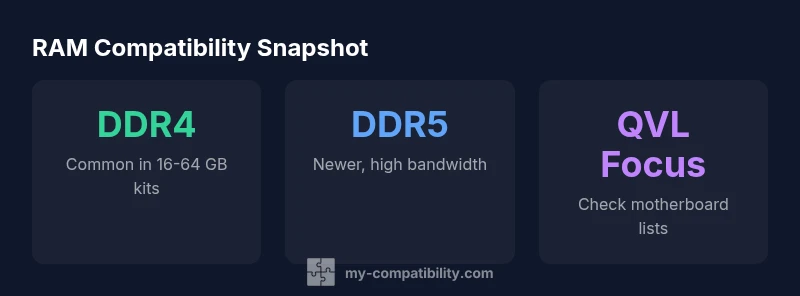
DDR4 and DDR5 are not interchangeable on most consumer platforms. The My Compatibility analysis shows that the decision typically rests on the motherboard’s socket and chipset. DDR4 remains widely supported, offering affordability and broad availability, with common kits in the 16 GB to 64 GB total range and speeds from roughly 2133 MT/s up to about 3600–4600 MT/s for mainstream boards. DDR5, by contrast, targets newer platforms, delivering higher bandwidth and often higher memory headroom. DDR5 kits commonly start around 4800 MT/s and can go higher in premium boards, but you’ll usually pay a premium for that headroom. If you’re building a new system and your motherboard supports DDR5, you may gain long-term headroom and future-proofing; if it supports DDR4, staying with DDR4 is typically more economical and easier to source.
Key takeaway: always confirm the RAM type your motherboard supports in the official specification sheet, the QVL, and the CPU’s memory controller documentation. If a board supports both DDR4 and DDR5 in different generations, that usually indicates a transitional platform with a careful upgrade path. For mixed-use systems that still demand reliability, many users prefer a matched, tested kit to minimize timing and compatibility issues. For those upgrading mid-range systems, a 16–32 GB DDR4 kit is a cost-effective jump, while a DDR5 option is a solid future-proof choice for newer builds.
How to verify compatibility on your motherboard and CPU
The verification process starts with the manual and official product pages. Locate the exact motherboard model and review the memory support section. Look for supported RAM types (DDR4/DDR5), maximum per-slot capacity, total maximum RAM, and supported speed ranges. Then check the CPU’s memory controller specs—some CPUs have different latency and bandwidth characteristics that affect real-world performance. Use the motherboard’s QVL to see which memory kits have been tested for compatibility, and read user reports for any caveats beyond the official documentation. After assembling RAM, enter the BIOS/UEFI to confirm detects and properly configure XMP/AMP profiles. If you want to maximize performance, enable the XMP/AMP profile only after verifying stability via a short stress test.
For laptops, step through the same process, but on many models you’ll rely on the manufacturer’s official RAM compatibility list or upgrade guides, since many laptops use soldered memory or very specific, often non-upgradable configurations. If you’re unsure about a laptop, consider professional installation to avoid warranty issues. The My Compatibility team emphasizes choosing a well-documented kit to avoid post-purchase surprises.
Configuring RAM for best performance: speeds, timings, XMP, and dual-channel
Speed is only part of the equation. Timings and latency influence real-world performance, and memory bandwidth interacts with your CPU cache and GPU memory. Start by matching the rated speed to your motherboard’s supported range; do not exceed the supported maximum unless you’re prepared for potential instability. Turn on XMP (Intel) or AMP (AMD) if your modules are rated for it, but run a stability test afterward to confirm no crashes or data corruption. Dual-channel configurations usually outperform single-channel setups at the same total capacity, so install modules in matched pairs per the motherboard manual. If you must mix modules, keep them within the same family and ideally same speed, CAS latency, and voltage, then test thoroughly with stress tests and real-world benchmarks.
Balance between capacity and speed. For gaming, a stable 16–32 GB kit in a dual-channel arrangement often yields the best experience. For content creation and workloads that benefit from memory bandwidth, consider larger capacities (32–64 GB) at a comfortable, stable speed. Remember that RAM compatibility is not only about speed—it’s also about capacity, timings, and how the memory channels are populated. The My Compatibility analysis shows most users gain more from properly configured timing and channel arrangement than chasing the highest supported speed.
Common pitfalls when mixing memory and upgrading
Mixing RAM brands, speeds, and densities can cause instability. If you upgrade incrementally, you increase the risk of latency mismatches and compatibility issues. The safe approach is to buy a matched kit designed for dual-channel operation from a single product family. If you must mix, ensure the modules share the same capacity per rank, voltage, and primary timings, and then test with a suite of stability tests. Additionally, avoid overclocking memory unless you have validated cooling and a robust motherboard BIOS. Some boards may require manual tuning to reach advertised speeds, especially when pushing beyond the stock memory controller’s defaults. Use conservative timings if you’re uncertain and always verify stability.
RAM for different use cases: gaming, content creation, workstation
Gaming benefits from a balance of capacity and speed, with 16–32 GB commonly providing smooth experiences. Content creators and workstation users may demand larger RAM pools (32–128 GB) for multi-project workflows and heavy multitasking. In some professional workloads, higher-speed RAM can also improve data throughput, though gains vary by application. The My Compatibility team notes that workflow mixes—such as simultaneous photo editing, video encoding, and virtual machines—often justify a higher memory ceiling rather than chasing extreme clocks. Consider your software’s memory footprint, the number of background processes, and your motherboard’s maximum supported RAM to guide purchase decisions.
Practical steps to choose and buy RAM today
Begin with a quick audit of your current system: identify the motherboard model, CPU, maximum RAM capacity, and supported memory type. Browse the exact QVL to determine which kits have been tested with your motherboard. If you’re on a tighter budget, DDR4 remains a strong value option; if you’re planning a future-proof build, DDR5 offers headroom for future software demands. When shopping, prioritize kits with identical part numbers and vendor support, and consider a 2x16 GB kit for a clean dual-channel configuration. Before purchasing, verify warranty terms and return policies to protect against compatibility surprises. Finally, keep BIOS updated to improve detection and stability for newer memory modules.
Quick-start checklist
- Confirm RAM type (DDR4 or DDR5) supported by CPU and motherboard.
- Check per-slot and total RAM limits on the motherboard manual.
- Choose a matched dual-channel kit for best performance.
- Verify XMP/AMP profiles are supported and stable.
- Review the QVL and user feedback for your exact memory kit.
- Update BIOS to the latest version before installing new RAM.
Maintenance and future-proofing your RAM choice
RAM compatibility tends to improve with each motherboard chipset generation, but BIOS support remains a critical factor. The My Compatibility team recommends reserving capacity for future needs by selecting a higher total RAM ceiling if your budget allows. If you anticipate future expansion, pick a motherboard with spare DIMM slots and ensure your planned RAM kit can scale to that capacity without forcing a complete rebuild. Regular BIOS updates can also enhance compatibility with newer memory modules and improve stability in the long run. Finally, maintain good temperature and ensure your system has adequate airflow, since memory modules can run warmer under sustained heavy loads.
dataTableCaption
RAM type compatibility at a glance
RAM type compatibility at a glance
| RAM Type | Typical Capacity | Speed range (MT/s) |
|---|---|---|
| DDR4 | 16-64 GB per system | 3200-4600 |
| DDR5 | 16-128 GB per system | 4800-6400 |
| DDR3 (legacy) | Not widely supported | N/A |
Questions & Answers
What does RAM compatibility mean for PC builds?
RAM compatibility refers to whether the memory type, speed, capacity, and configuration are supported by the motherboard and CPU. It’s verified via official specs, the QVL, and BIOS support. In practice, compatibility ensures stability and predictable performance.
RAM compatibility means your memory will work reliably with your board and CPU, not just be fast on paper.
How can I tell which RAM type my motherboard supports?
Check the motherboard’s official specification sheet or user manual for the supported memory types (e.g., DDR4 or DDR5). Cross-check with the CPU’s memory controller documentation and the vendor’s QVL.
Look up the exact model on the motherboard site, then confirm with the QVL list.
Is it safe to mix RAM brands and speeds?
Mixing brands and speeds can cause instability and unpredictable behavior. If you must mix, limit differences, use similar timings, and perform thorough stability testing before relying on the system.
Better to use a matched kit if possible, then test stability if mixing is unavoidable.
Do BIOS updates impact RAM compatibility?
BIOS updates can improve RAM compatibility by adding memory controller fixes and improved timings. Always read the release notes and back up before updating.
Yes—keep BIOS current to improve RAM recognition and stability.
What is a practical recommendation for gaming RAM today?
For gaming, 16–32 GB of DDR4 or DDR5 at a stable speed is typical; prioritize dual-channel setup and low-latency configurations for best perf.
Aim for 16–32 GB in a solid dual-channel kit.
Can upgrading RAM improve performance in CPU-bound tasks?
RAM can boost performance when memory capacity or bandwidth is a bottleneck. In CPU-bound tasks, gains depend on the workload and how memory-heavy it is.
RAM helps when your tasks rely on memory bandwidth or large datasets.
“RAM compatibility is a matter of aligning motherboard capabilities with your CPU’s memory controller; speed matters, but stability and compatibility win long-term.”
Highlights
- Confirm motherboard RAM type first
- Aim for 16–32 GB for most tasks
- Match speed to board/cpu specs
- Prefer dual-channel kits for performance
- Verify QVL and BIOS support before purchase