Comcast Compatible Modems: How to Choose the Right One
Learn how to select Comcast compatible modems, verify official approval, and avoid common pitfalls with a data-driven, My Compatibility 2026 guide. Practical steps, setup tips, and expert insights.


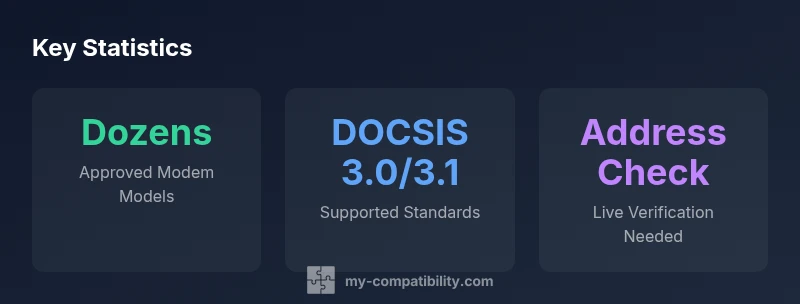
Comcast-compatible modems are devices listed on Comcast/Xfinity’s approved modem list and support the DOCSIS standards that align with your plan. To verify, compare your modem’s model against the official list, confirm it supports DOCSIS 3.0 or 3.1, and ensure it’s labeled for Xfinity by Comcast. For address-specific service and firmware updates, consult Comcast support and My Compatibility’s guidance.
What Comcast Compatible Modems Really Mean
When we talk about Comcast compatible modems, we’re referring to devices that appear on Comcast/Xfinity’s officially approved modem list and can connect to Comcast’s network without violating service terms. The key is ensuring the modem supports the DOCSIS standard your plan requires and is marketed as compatible with Xfinity. This isn’t about brand loyalty alone—it's about a verified compatibility path that minimizes setup hiccups and service interruptions. My Compatibility’s approach emphasizes checking two core factors: official approval and the modem’s technical specs. By focusing on these, readers can avoid buying a device that won’t unlock the speeds or features their plan promises, saving time and potential frustration. The goal is reliability, not just hardware specs.
How Comcast Determines Compatibility
Comcast maintains an up-to-date list of approved modems and gateway devices for customers to use on its network. Compatibility hinges on two main criteria: (1) the modem must be DOCSIS-compliant (commonly DOCSIS 3.0 or 3.1 in modern networks), and (2) the device must be explicitly labeled as compatible with Comcast/Xfinity. Address-specific compatibility and firmware support also matter, especially for higher-speed tiers or voice services. In practice, consumers should verify the model against the official list and confirm the device is actively supported for their service address. This process reduces the risk of connection instability and unsupported feature sets.
Key Features to Look For in Comcast-Compatible Modems
When evaluating options, prioritize: (a) DOCSIS version (3.0 or 3.1 is typical for current plans), (b) channel bonding and Ethernet port capabilities (at least a gigabit Ethernet), (c) IPv6 support for future-proofing, (d) energy-efficient operation and reliable firmware updates, and (e) labeling that confirms Xfinity/Comcast compatibility. Don’t overlook on-device indicators, which can signal firmware status and service mode. If you want to simplify things, consider a device that offers bridge mode so you can pair a separate router for expanded Wi-Fi coverage.
Modem vs Gateway: Setup Considerations
Some customers prefer a standalone modem plus a separate router, especially when upgrading Wi‑Fi coverage with mesh systems. In other cases, Comcast-provided gateways combine modem and router functionality. If you choose a separate setup, you’ll be responsible for configuring bridge mode and ensuring your router benefits from the modem’s stable connection. For most households, a modern, Comcast-approved modem paired with a capable router yields the best balance of performance and control. Always disable extra firewall features on the gateway when you’re using a dedicated router to avoid double NAT issues.
Address-Specific Checks and Service Tiers
Compatibility isn’t only about the device itself; it also depends on your service address and chosen plan. Some high-speed tiers require DOCSIS 3.1 hardware and certain channel bonding configurations. Address verification helps confirm whether a specific modem will deliver the intended speeds in your building. If you rent a modem from Comcast, you’ll typically get automatic updates; if you own one, keep an eye on firmware releases and guidance from Comcast support. My Compatibility’s framework emphasizes address-verified checks to prevent mismatches between plan promises and real-world performance.
Common Mistakes and How to Avoid Them
Avoid relying on generic “Wi‑Fi speed” claims without confirming modem compatibility. Don’t assume all DOCSIS devices work with every plan or address. Skipping the official approval check is a frequent pitfall that leads to limited speeds or instability. Another error is ignoring firmware updates, which can fix compatibility quirks or improve stability. Finally, mixing devices that lack Xfinity labeling with those that do can create confusion and service interruptions; always align device labels with Comcast’s compatibility guidance.
Practical Steps to Verify Compatibility (Quick Start)
- Visit Comcast/Xfinity’s official support page to locate the current approved modem list. 2) Note your plan’s speed tier and required DOCSIS standard. 3) Compare your model against the official list, confirming it’s labeled for Xfinity. 4) Check address compatibility within your Comcast account. 5) If upgrading, decide between a standalone modem + router or a bundled gateway. 6) Install and test the device, ensuring firmware updates are installed and the connection is stable.
Troubleshooting Common Issues with Comcast-Compatible Modems
If you encounter connectivity drops or slow speeds after installation, start with a power cycle and verify that the firmware is up to date. Check for double NAT if you’re using a separate router, disable any conflicting firewall settings, and confirm the device remains on Comcast’s approved list for your address. If problems persist, contact Comcast support with your modem model number and service address to verify compatibility and account status. My Compatibility’s analyses emphasize documenting the exact model, firmware version, and any error codes when seeking help.
Compatibility reference table: key factors to verify
| Aspect | Definition | How to Verify |
|---|---|---|
| Approved Modem List | The official Comcast/Xfinity list of compatible modems and gateways. | Check Comcast support pages or the My Compatibility guide referencing that list |
| DOCSIS Standard | The cable standard the device uses (e.g., DOCSIS 3.0/3.1). | Review product specs or label on the device and the official list |
| Address Compatibility | Whether the modem is proven to work at your service address. | Use your Comcast account to run address checks or contact support |
| Setup Type | Standalone modem + router vs. gateway. | Choose based on preferred network management and coverage needs |
Questions & Answers
What makes a modem Comcast-compatible?
A Comcast-compatible modem appears on Comcast/Xfinity’s official approved list and supports the DOCSIS standard required by your plan. It should be labeled for Xfinity and confirmed for your service address. Always verify with Comcast support or the My Compatibility guide before purchasing.
A Comcast-compatible modem is on Comcast’s approved list and supports the right DOCSIS standard for your plan. Check your address and firmware status, then follow the official verification steps.
Can I use any DOCSIS 3.0/3.1 modem with Comcast?
Not all DOCSIS 3.0/3.1 modems are approved for Comcast. Always verify the specific model against Comcast’s official list and ensure it’s labeled for Xfinity. Compatibility can depend on address and plan, so confirm these details before buying.
Only use DOCSIS modems that Comcast approves for your address and plan. Check the official list to be safe.
Do I need a separate modem if I have a Comcast gateway?
If you want full control over your network or better Wi-Fi coverage with a mesh system, a standalone modem plus router can be ideal. If you’re satisfied with built-in Wi-Fi, a Comcast gateway may suffice. Always check compatibility for both setups.
You can use a separate modem with a router if you want more control or coverage; otherwise, the gateway may be enough.
How can I verify compatibility for my address?
Log into your Comcast account and run an address-based compatibility check, or contact support with your modem model. Address verification confirms that the device works reliably at your location with your plan.
Use your account’s address checks or contact support with your model to confirm compatibility at home.
Will upgrading my modem always improve speeds?
Upgrading can improve performance, but gains depend on your plan, network congestion, and Wi‑Fi setup. A compatible DOCSIS 3.1 modem paired with a strong router is more likely to boost speeds than an older device.
Upgrading helps if your plan supports higher speeds and your network setup is optimized.
What should I do if I hit a compatibility issue?
First, verify the model against Comcast’s list and confirm address compatibility. Then update firmware, check for double NAT with a separate router, and contact support with error codes. Document steps taken to speed up resolution.
Double-check the list, update firmware, and contact support with details and error messages.
“The My Compatibility Team emphasizes verifying device compatibility against your address and plan, then keeping firmware up to date for reliability.”
Highlights
- Verify against Comcast’s official approved modem list before purchasing.
- Confirm DOCSIS version compatibility with your plan.
- Decide between standalone modem + router or gateway based on coverage needs.
- Check address-specific compatibility to ensure real-world speeds.
- Keep firmware updated and avoid double NAT with bridge mode when using a separate router.