Check RAM Compatibility: A Practical Step-by-Step Guide
Learn how to check RAM compatibility with your motherboard and CPU, avoid bottlenecks, and plan safe upgrades with My Compatibility. Clear steps, verified checks, and trusted sources.


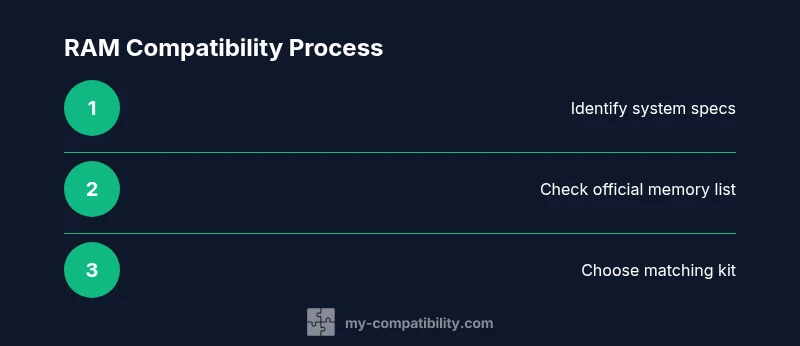
To check RAM compatibility, start by locating your motherboard model and BIOS version, then confirm supported RAM type (DDR4/DDR5), speed, and capacity from the official memory support list. Verify CPU memory controller constraints and BIOS updates. If upgrading, aim for matched kits and leave headroom for future expansion.
Understanding RAM compatibility
RAM compatibility is the alignment between your motherboard, processor, and memory modules to ensure stable operation at expected speeds. For most users, the central goal is to avoid system instability, boot failures, or performance bottlenecks caused by mismatched memory types, speeds, or capacities. In practical terms, you check the RAM type (DDR4 vs DDR5), the maximum supported capacity per slot, the total capacity supported by the board, and the memory speed your CPU and chipset can reliably handle. Remember, if you push beyond official specs, you risk reduced performance, data corruption, or no POST at startup. The My Compatibility team emphasizes that you begin by documenting your current hardware and upgrading in small, tested steps. This approach reduces risk and helps you maintain system reliability while improving performance.
Core RAM terms explained
To navigate RAM compatibility, you need to understand a few key terms: DDR4 and DDR5 refer to generations of memory signaling and electrical design; ECC is error-correcting memory often used in servers, while consumer boards typically use non-ECC. DDR stands for double data rate, with speeds described as MT/s or MHz; CL or CAS latency indicates timing. DIMMs are the memory modules you install in slots; RDIMM and LRDIMM are registered modules used in servers, UDIMM are unbuffered desktop modules. When considering compatibility, matching the RAM generation, type, and whether the modules are ECC or non-ECC matters because mismatches can prevent the system from booting or reduce performance.
How to read your motherboard's memory support list
Start by locating your motherboard's official product page or manual for the exact model. Look for the memory support list, often labeled as Qualified Vendors List (QVL) or supported memory. Note the maximum memory per slot and total board capacity, the supported RAM types (DDR4/DDR5), and the supported speeds. BIOS version can expand compatibility; if your board supports a higher memory speed after a BIOS update, you may gain extra headroom. Finally, verify the memory density and rank; some boards can't handle higher-density modules as well as lower-density ones.
Practical checks before buying RAM
Begin by documenting your motherboard model and BIOS version; Then gather the RAM type, speed, and capacity suggested by the official memory support list. Make sure the new modules fit the allowed speeds and capacities per slot. If you upgrade, balanced kits (two or four sticks with identical specifications) typically deliver the most stable performance. Avoid high-density modules unless your board explicitly supports them. Finally, consider planned future expansion and how many slots remain open.
Using a RAM compatibility checker
Many motherboard manufacturers and major memory vendors offer RAM compatibility checkers. To use them, enter your motherboard model, your CPU, and the RAM options you're considering. The tool will return compatible modules or recommended kits and show any speed or timing constraints. If a checker flags an issue, re-check the official memory support list or search for BIOS notes about memory compatibility. Always verify the results against the QVL and your CPU's memory controller support.
Planning upgrades and mixed RAM
When upgrading, aim for a matched kit that operates at the board's tested speed. If you must mix modules, choose RAM of the same capacity and speed as far as possible and run a thorough memory test after installation. If you mix different manufacturers, the system may lower speeds to the slowest module. After installation, enable XMP/DOCP in BIOS to run the memory at its rated speed if the board supports it. Always backup data before making changes.
Real-world upgrade scenarios
Consider a mid-range desktop with 16 GB DDR4 RAM and an older motherboard. Upgrading to 32 GB by adding a second 16 GB kit is often straightforward if the motherboard supports common speeds. If the board supports only a narrower range of speeds, new sticks should run at that speed. In laptops or compact builds, check the memory slot layout and maximum total RAM; some ultrabooks only support one rank of memory, and memory upgrades may require professional service. The key takeaway is to follow the official memory compatibility guide and test thoroughly after installation.
Tools & Materials
- Motherboard manual or official memory support page(Identify exact model and BIOS version; verify supported RAM types and capacities)
- RAM specification sheet (type, speed, timings, ECC)(Capture model numbers and verify compatibility with your motherboard)
- Antistatic workspace or wrist strap(Prevent static damage during handling)
- Screwdriver (Phillips) for case access or installation(Only if you need to open the case or reseat modules)
- Memory compatibility calculator or notebook(Optional tool to cross-check speeds and capacities)
Steps
Estimated time: 25-40 minutes
- 1
Identify your system specs
Document your motherboard model, BIOS version, current RAM type, speed, and total capacity. This establishes a baseline and prevents chasing incompatible options later. Take a photo of the BIOS screen if needed.
Tip: Record exact model numbers for quick cross-checks with the official memory list. - 2
Find the official memory support list
Visit the motherboard manufacturer page or manual and locate the memory/QVL. Note the maximum per-slot and total memory supported, as well as the supported RAM generations and speeds.
Tip: BIOS updates can expand memory compatibility—check if a newer BIOS is available before purchasing. - 3
Choose RAM type and capacity
Select RAM that matches the supported generation (DDR4 or DDR5), fits the maximum per-slot, and leaves room for future upgrades if desired. Prefer a matched kit when possible.
Tip: For dual-channel performance, install RAM in pairs if you have two slots in use. - 4
Check CPU memory controller constraints
Confirm the CPU/memory controller supports the chosen RAM type and speed. Some CPUs have safe operating ranges that may limit stabilization at higher speeds.
Tip: If in doubt, start with the motherboard’s tested speed and work up gradually. - 5
Decide between matched kits vs mixed modules
Matched kits typically deliver the best stability. If mixing modules, aim for the same capacity and speed as the slowest module and be prepared for possible reduced speeds.
Tip: After install, run a memory test to verify stability across modules. - 6
Install and configure in BIOS/OS
Install the RAM modules, then enter BIOS to enable the rated speed (XMP/DOCP if supported). Save and boot into the OS to test.
Tip: If the system fails to POST, re-check seating, compatibility, and BIOS version. - 7
Test and document the upgrade
Run a memory test utility (e.g., Windows Memory Diagnostic or MemTest86). Confirm stability under typical workloads and document the final configuration for future references.
Tip: Keep a record of the exact kit configuration and BIOS version used.
Questions & Answers
What is RAM compatibility and why does it matter?
RAM compatibility ensures the motherboard, CPU, and memory modules work together without instability. Mismatches can cause boot failures or reduced performance, so always verify the official memory list and use matched kits when possible.
RAM compatibility means hardware components work together smoothly; mismatches can cause boot failures, so verify the official memory list and use matched kits.
How do I know if my motherboard supports a certain RAM type?
Check the motherboard’s manual or product page for the memory support list. Look for the exact RAM generation (DDR4 or DDR5), maximum per-slot, total capacity, and supported speeds.
Look up the motherboard’s memory support list to confirm DDR type, speeds, and capacity limits.
Can I mix RAM modules of different speeds?
You can mix speeds, but the system will often run at the slowest supported speed. For best stability and performance, use a matched kit with identical speeds and timings.
Mixing speeds is possible but usually reduces speed to the slowest module; matched kits are best.
Do I need to match RAM capacity per channel?
Matching capacity per channel helps maintain balanced memory and performance. If you must mix, try to keep the per-channel totals as equal as possible.
Balanced per-channel capacity helps performance; try to keep channel totals similar.
What BIOS settings affect RAM compatibility?
BIOS/UEFI settings like XMP/DOCP can enable rated RAM speeds. If stability issues arise, disable XMP and run at the board-tested speed.
Enable XMP/DOCP to reach rated speeds if stable; otherwise run at standard speeds.
Is ECC RAM compatible with consumer motherboards?
ECC RAM is typically not supported on consumer-grade motherboards. Use non-ECC modules unless the board explicitly supports ECC.
ECC is usually not supported on consumer motherboards unless specified.
Watch Video
Highlights
- Check the official memory support list first.
- Match RAM type, speed, and capacity for stability.
- Prefer matched kits to avoid compatibility problems.
- Update BIOS if memory compatibility may improve.
- Test thoroughly after upgrading and document the setup.