Check GPU Compatibility: A Step-by-Step Guide
Learn how to check GPU compatibility before upgrading your PC. This guide covers PCIe, power, fit, drivers, and more to prevent wasted purchases and ensure a smooth install.


By checking GPU compatibility, you ensure a smooth upgrade without bottlenecks. This quick check covers PCIe slot version and physical fit, power supply capacity, required connectors, and driver support. Verify key factors before purchasing to avoid costly return shipping and compatibility issues. If you’re unsure, use our step-by-step guide to evaluate your current system and the target GPU.
Why check GPU compatibility
According to My Compatibility, checking GPU compatibility before you buy or upgrade saves time and money by predicting whether the card will fit physically, work with your power supply, and be supported by drivers and BIOS. In practice, it helps prevent incompatibilities that lead to instability, poor performance, or complete system failure. Whether you are building a new PC or upgrading a single component, starting with compatibility reduces disappointment and post-purchase regret. This upfront diligence also clarifies expectations for future upgrades, so you know exactly what to look for in terms of space, connectors, and power, ensuring the project stays within your budget and timeline. When you approach a GPU upgrade with a clear checklist, you’ll avoid common surprises and feel confident about your decision.
Core compatibility factors
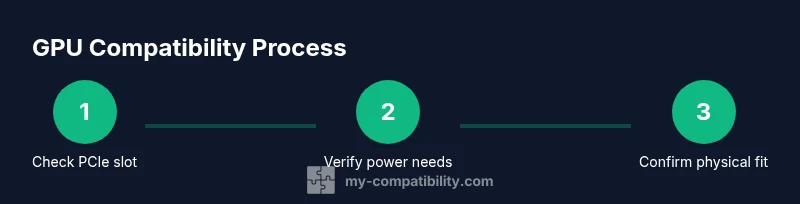
The core factors are physical fit, electrical requirements, and data bandwidth. First, verify the GPU interface is PCIe x16 and that the motherboard’s PCIe slot version (3.0/4.0/5.0) is compatible with your planned card; most modern GPUs will work in older slots, but bandwidth limits may cap performance. Second, check the card length, thickness, and slot height against the case's GPU clearance and any installed drive bays. Third, confirm the PSU has enough total wattage and the required power connectors (6-pin, 8-pin, or PCIe power cables). Finally, ensure the BIOS/UEFI supports the new GPU and that drivers are available for your operating system. These checks help you avoid bottlenecks and installation surprises, particularly when mixing older hardware with newer GPUs.
GPU interface and motherboard compatibility
Even when a GPU physically fits, interface compatibility matters. The PCIe interface is backward compatible, but some older boards may limit bandwidth or lane allocation. Check if the motherboard supports PCIe 3.0 or 4.0, and whether slots are shared with other devices (such as M.2 at certain configurations). If you are upgrading from a significantly older GPU, review manufacturer guidance on supported PCIe generations. Additionally, confirm the card uses a standard 2-slot or 2.5-slot form factor, as thicker triple-slot designs can block adjacent slots and impede airflow. Keeping tabs on these details prevents unexpected redesigns of your build.
Power supply capacity and connectors
Small mistakes here are the leading cause of post-install power instability. Start by calculating the system’s expected draw: CPU, GPU, memory, drives, and peripherals. Choose a PSU with a rating higher than the calculated load; a common rule is to aim for 20-30% headroom to accommodate spikes. Verify you have the correct connectors: modern GPUs often require one or more 8-pin PCIe connectors, and some high-end cards use additional adapters. Remember that some older PSUs lack modern PCIe connectors or have insufficient amperage on the 12V rail, which can prevent you from inserting the card or cause shutdowns under load. Planning ahead saves you from a dead-on-arrival scenario.
Physical fit: case clearance and height
Even a powerful GPU can be useless if it physically won’t fit. Measure the internal length of your case from the PCIe slot to the drive cage, and compare with the card’s listed length. Check height clearance around the PCIe slot so the card doesn’t collide with radiator fans or motherboard components. Also consider multi-GPU configurations; some cases allow multiple cards with adjustable brackets, but others do not. If space is tight, look for compact or single-slot designs or consider a smaller GPU model. Don’t forget to account for cable routing and any front-panel components that could obstruct installation.
Driver and BIOS support
Driver support is crucial for stability and performance. Before installing a new GPU, verify that the operating system version is supported by the latest GPU drivers and that your motherboard BIOS is updated per manufacturer guidance. In some cases, a BIOS update can improve PCIe compatibility or power delivery behavior. After you assemble the hardware, install the latest drivers from the GPU maker’s site and run a basic stress test to ensure stability. If you run into issues, check for known compatibility notes on the vendor’s support page and forums.
Monitor outputs and display considerations
GPU compatibility also includes display interfaces. Check that your monitor’s input matches the GPU outputs (HDMI, DisplayPort, or USB-C) and that the card supports your target resolutions and refresh rates. If you rely on adapters, verify their capability and whether any active adapters are required. Consider whether you need multiple monitors and how the GPU’s available ports will accommodate them. Remember that some adapters introduce latency or color accuracy trade-offs, so plan your display setup accordingly.
How to compare GPUs for your use-case
Start with your primary goal—gaming at 4K, content creation, or casual use. Compare raw shader units, memory size and bandwidth, and power consumption, while also considering the price-to-performance ratio. Use reputable review sources to gauge real-world performance in your favorite titles and workloads. Remember to factor in future-proofing and driver longevity; a slightly pricier model with better drivers can save cost over several years. When in doubt, target a GPU that not only meets your current needs but also leaves room for occasional upgrades without forcing a full rebuild.
Pre-purchase checklist you can use today
Create a simple checklist: card length, slot type, required connectors, total system draw, and monitor compatibility. Mark each item as verified or not and include links to official specs. Use this list as a decision guide when comparing options online. Keeping a written checklist helps prevent last-minute regrets if a product arrives but won’t fit or work as expected. Finally, store receipts and check return policies in case you need to exchange models.
Common pitfalls and how to avoid them
Avoid these pitfalls: ignoring space constraints, underestimating power needs, assuming all drivers will be available for new hardware, or overlooking BIOS compatibility. Always check official product pages for PCIe and power requirements, and read user forums for notes on similar builds. A methodical, documented approach reduces costly returns. If anything feels uncertain, pause and consult vendor guidelines or a professional before buying.
Final quick-start plan for check gpu compatibility
After you’ve completed the checks above, summarize your findings in a single page: PCIe slot version and x16 support, length and compatibility with case, power supply wattage and connectors, and driver/BIOS readiness. Only then proceed to purchase. If any critical requirement is missing, pause and reassess or consider a lower-spec card. With this plan, you’ll move from uncertainty to a confident, informed decision.
Tools & Materials
- Ruler or measuring tape(Measure GPU length and case clearance accurately)
- PC case and motherboard specifications(Check internal dimensions and PCIe slot details)
- PSU calculator or wattage estimator(Estimate total system power including GPU draw)
- Official GPU specs(PCIe version, required connectors (6-pin/8-pin), length)
- Latest motherboard/BIOS guidance(Check for motherboard BIOS versions recommended by vendor)
Steps
Estimated time: 90-120 minutes
- 1
Gather system specs
Collect all relevant specifications: motherboard PCIe version, case internal dimensions, PSU wattage and available connectors, CPU model, RAM, and storage. Having a current bill of materials helps you assess compatibility quickly.
Tip: Create a one-page spec sheet you can reference during shopping. - 2
Check PCIe slot and bandwidth
Confirm the motherboard has a PCIe x16 slot and note its generation (3.0/4.0/5.0). Even if the GPU fits, bandwidth can limit performance on older slots. Ensure the GPU’s minimum PCIe generation is supported by the board.
Tip: PCIe is backward compatible; you may gain nothing by forcing a newer slot into an older board. - 3
Measure physical space
Measure case clearance for GPU length, width, and height. Compare with the card’s listed dimensions, including any overhang from coolers or connectors.
Tip: Allow extra clearance for airflow and cable routing behind the card. - 4
Evaluate power supply needs
Estimate total system power, including peak GPU demand. Ensure the PSU wattage exceeds this by 20-30% and that the required PCIe connectors are present.
Tip: If unsure, select a PSU with modular cables for easier routing. - 5
Verify connectors and adapters
Check if the GPU uses 6-pin, 8-pin, or multiple connectors and confirm your PSU provides them. Avoid relying on adapters unless necessary, as they can introduce reliability issues.
Tip: Prefer native connectors over adapters when possible. - 6
Check BIOS/driver support
Look up vendor guidance on BIOS compatibility and the latest drivers for your OS. Update BIOS if recommended by the motherboard or GPU vendor.
Tip: Back up data before BIOS updates and follow official instructions precisely. - 7
Assess display outputs
Ensure GPU outputs match your monitor setup (HDMI, DisplayPort) and determine if adapters are necessary for multi-monitor use.
Tip: Test with your primary display first to verify basic video output. - 8
Compare candidate GPUs
Review performance benchmarks in your typical workloads and compare price-to-performance across models that meet your power and space constraints.
Tip: Prioritize real-world results over spec sheets alone. - 9
Make a final decision
Weigh space, power, and performance against budget and risk factors. If any critical constraint is not met, reconsider or choose a slightly lower-end card.
Tip: Keep receipts and note return windows before purchase.
Questions & Answers
Why is PCIe version important for GPU compatibility?
PCIe version affects bandwidth between the GPU and motherboard. Cards generally work in older slots, but higher-end GPUs may see reduced performance if the slot is older. Always verify both the card and motherboard specifications.
PCIe version affects bandwidth; newer GPUs perform better with newer slots, but most cards still work in older ones with some limits.
How do I estimate PSU wattage for a new GPU?
Add up the planned power draw of the CPU, GPU, RAM, drives, and peripherals. Use a PSU calculator and choose a unit with 20-30% headroom to handle spikes.
Sum up all components, use a power calculator, and aim for 20 to 30 percent more capacity than the estimate.
Can a GPU fit in a small case?
Physical fit depends on card length and height. Always measure your case’s internal dimensions and compare with the GPU specs before buying.
Size matters: measure your case and card before buying to avoid wasted purchases.
Should I update BIOS for GPU support?
Some GPUs benefit from BIOS updates or power-delivery tweaks. Check vendor guidance and apply updates carefully if recommended.
Sometimes a BIOS update helps; follow official vendor guidance and back up data first.
Are drivers available for new GPUs?
Manufacturers publish drivers for current operating systems. Install the latest drivers after hardware installation for best performance and stability.
Yes—install the latest drivers after you install the GPU.
Watch Video
Highlights
- Check PCIe slot and bandwidth before purchase
- Measure space and ensure case clearance
- Verify power supply capacity and connectors
- Update BIOS and install latest drivers
- Confirm display outputs align with monitors