Windows 11 CPU Compatibility List: What’s Supported in 2026
Explore the Windows 11 CPU compatibility list, how Microsoft defines supported CPUs, TPM 2.0 and Secure Boot requirements, and practical steps to verify readiness for upgrade or a new PC in 2026.


Microsoft maintains the Windows 11 CPU compatibility list, updated with each major Windows release. It includes Intel, AMD, and Qualcomm CPUs that meet minimum performance and security requirements, plus TPM 2.0 and Secure Boot. To confirm support for your exact processor, check the official Windows 11 processor requirements page or use the PC Health Check tool.
Understanding the Windows 11 CPU compatibility list
According to My Compatibility, the Windows 11 CPU compatibility list is a dynamic resource defined by Microsoft's official processor requirements, TPM, and Secure Boot criteria. It covers CPUs from major vendors (Intel, AMD, Qualcomm) that meet baseline performance and security features. Because Microsoft updates this list with new Windows builds, a household PC or a new purchase should be checked against the latest official page before upgrading. In practice, this means verifying your exact processor model and firmware capabilities rather than assuming compatibility from a general generation label. By staying aligned with the official page, you avoid surprises during the upgrade process and ensure you receive future security updates and feature refinements.
How Microsoft defines 'supported' CPUs
Microsoft does not rely solely on CPU generation to determine support for Windows 11. The definition of 'supported' combines several criteria: the processor must belong to a family that Microsoft has authorized for Windows 11, and it must meet minimum performance requirements, feature support, and security prerequisites. In addition to the CPU, devices must meet TPM 2.0 and Secure Boot standards. This means two otherwise compatible machines can have different upgrade outcomes depending on firmware and security features. For users, the practical takeaway is to cross-check your exact CPU model against the official list and confirm your firmware supports the required security features.
TPM 2.0 and Secure Boot: more than hardware
TPM 2.0 and Secure Boot are not optional decorations; they are fundamental gating factors for Windows 11 upgrades. TPM provides hardware-based security functions, while Secure Boot helps prevent rootkit and boot-time malware. Even if your CPU appears on the compatible list, enabling TPM 2.0 in BIOS/UEFI and turning on Secure Boot are prerequisites for upgrade eligibility. If TPM 2.0 is missing or disabled, Windows Update may refuse the upgrade, or a clean install could fail to activate. Always verify these two security features before planning a transition.
Checking your system against the Windows 11 CPU compatibility list
A practical workflow includes identifying your exact CPU model, checking the official processor requirements page, and then running a hardware health check in Windows. Start with-building-your PC checks like the PC Health Check tool or Microsoft’s upgrade assistant to understand upgrade eligibility. If your device passes, ensure TPM 2.0 and Secure Boot are enabled in BIOS. If it doesn’t, evaluate firmware updates from the manufacturer or consider hardware changes. For corporate devices, consult IT policies; consumer devices should follow official guidance to avoid unsupported configurations.
CPU family coverage: Intel, AMD, Qualcomm
The compatibility list spans multiple vendors, including Intel, AMD, and Qualcomm. For Intel, AMD, and Qualcomm platforms, Microsoft tends to extend support as new Windows releases roll out, while maintaining restrictions for certain generations or feature sets. The practical implication is that you may find a single CPU family well-supported across one Windows feature set but not across another. Always reference the current official list for your exact model and firmware combination to avoid ambiguity in upgrade plans.
BIOS/firmware readiness and TPM enabling steps
Firmware readiness is a frequent bottleneck. Before upgrading, check for BIOS/UEFI updates that add or improve TPM 2.0 support and Secure Boot compatibility. If your system lacks TPM 2.0, see if the motherboard vendor provides a firmware update that enables it or consider a hardware upgrade. After updating, re-check the upgrade readiness. A well-prepared machine reduces the risk of post-upgrade instability and provides a smoother transition to Windows 11.
What to do if your CPU isn't on the official list
If your processor is not currently listed, you have three practical paths: (1) upgrade the CPU or device, (2) stay on Windows 10 until you plan a hardware refresh, or (3) use Windows 11 on a supported device via a separate test setup. In all cases, validate the decision with the official list and your device’s firmware state. This approach minimizes the chance of encountering security or compatibility issues after the upgrade.
Performance expectations after upgrade
Microsoft’s Windows 11 optimization can improve efficiency on compatible hardware, especially when TPM 2.0 and Secure Boot are active. Expect smoother app launches, improved security, and better integration with modern CPUs’ features. However, upgrade results still depend on RAM, storage, and driver support. If you’re migrating from Windows 10 to 11 on a mid-range system, consider upgrading RAM or storage as part of a broader upgrade strategy to maximize performance.
Looking ahead: updates to the compatibility list in 2026
As Windows evolves, Microsoft periodically revises the CPU compatibility list to reflect new chipsets and firmware capabilities. In 2026, expect updates tied to security enhancements, driver maturity, and compatibility with new workloads. Plan upgrades with this in mind: verify the current list before purchasing a new PC, and stay informed about firmware updates that can unlock compatibility for existing hardware. For up-to-date guidance, monitor the official Microsoft processor requirements page and reputable tech resources.
Final planning tips for 2026 upgrades
When planning a Windows 11 upgrade or a new PC, approach it as a project with three pillars: verify CPU compatibility on the official list, confirm TPM 2.0 and Secure Boot, and ensure firmware readiness via vendor updates. Build a transition plan that accounts for potential future list changes, driver availability, and security postures. By following these steps, you reduce upgrade friction and maximize long-term stability.
Key requirements that influence Windows 11 CPU compatibility
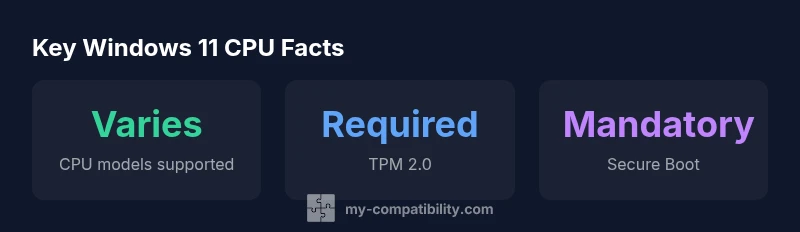
| Category | Requirement | Notes |
|---|---|---|
| TPM 2.0 | Required for upgrade eligibility | Check BIOS/firmware for TPM 2.0 support |
| Secure Boot | Mandatory for upgrades | Enable in BIOS settings |
| CPU coverage | Varies by release | Refer to official Windows 11 CPU compatibility list |
Questions & Answers
What counts as a supported CPU for Windows 11?
A CPU is supported if Microsoft lists it as compatible for Windows 11 and it meets TPM 2.0 and Secure Boot requirements. Always cross-check the exact model against the official list.
Windows 11 supports CPUs listed by Microsoft and requires TPM 2.0 and Secure Boot.
Do TPM 2.0 and Secure Boot affect CPU compatibility?
Yes. Even with a listed CPU, you must enable TPM 2.0 and Secure Boot; otherwise upgrade eligibility may be blocked.
TPM 2.0 and Secure Boot must be enabled for upgrade eligibility.
How can I check if my PC is Windows 11 compatible?
Run the official Windows 11 requirements page or the PC Health Check tool. The results indicate upgrade eligibility and any blockers.
Use Microsoft's checker to verify upgrade readiness.
Will Windows 11 run on older CPUs with patches?
Unofficial patches are not recommended. They can cause instability and security gaps. Consider upgrading hardware or staying on Windows 10 until ready.
Unofficial patches aren’t advised; upgrade hardware or stay on Windows 10.
How often does Microsoft update the CPU compatibility list?
Updates occur with major Windows releases and hardware ecosystem changes. Always check the official page for the current status.
Microsoft updates the list with Windows releases.
“Compatibility for Windows 11 is a moving target driven by official processor lists and firmware requirements, not just CPU generation.”
Highlights
- Verify your CPU against the official Windows 11 list before upgrading
- Enable TPM 2.0 and Secure Boot in BIOS
- Use PC Health Check or Microsoft’s tool for upgrade clearance
- Plan hardware changes only if necessary
- Expect compatibility updates with major Windows releases